
Picking the right Amazon category is critical for helping customers find your products. Amazon’s category system is complex, with up to 7 levels of hierarchy and over 25,000 options. Misplacing your product can harm visibility, sales, and search rankings. To solve this, you can use a downloadable CSV file containing Amazon’s entire category structure, including category names, IDs, and hierarchy levels. This file simplifies product categorization, saves time, and ensures accuracy during bulk uploads.
Key Takeaways:
- Amazon Categories CSV: Includes 25,000+ rows of category data with IDs, hierarchy levels, and parent relationships.
- Why It Matters: Correct categorization improves visibility, search rankings, and customer experience.
- How to Use: Match your products to the right category using tools like Excel (e.g., VLOOKUP) and upload them in bulk.
- Avoid Errors: Fix "Invalid Browse Node" and hierarchy mismatches by referencing the latest Amazon data.
- Additional Tools: Platforms like FlatFilePro can streamline bulk edits and ensure compliance.
This resource helps sellers save time, avoid errors, and improve product placement for better sales performance.
How To Download Your Amazon Category Listing Report & Use It As A Flat File Inventory Upload
sbb-itb-ed4fa17
What Are Amazon Category IDs and Why They Matter
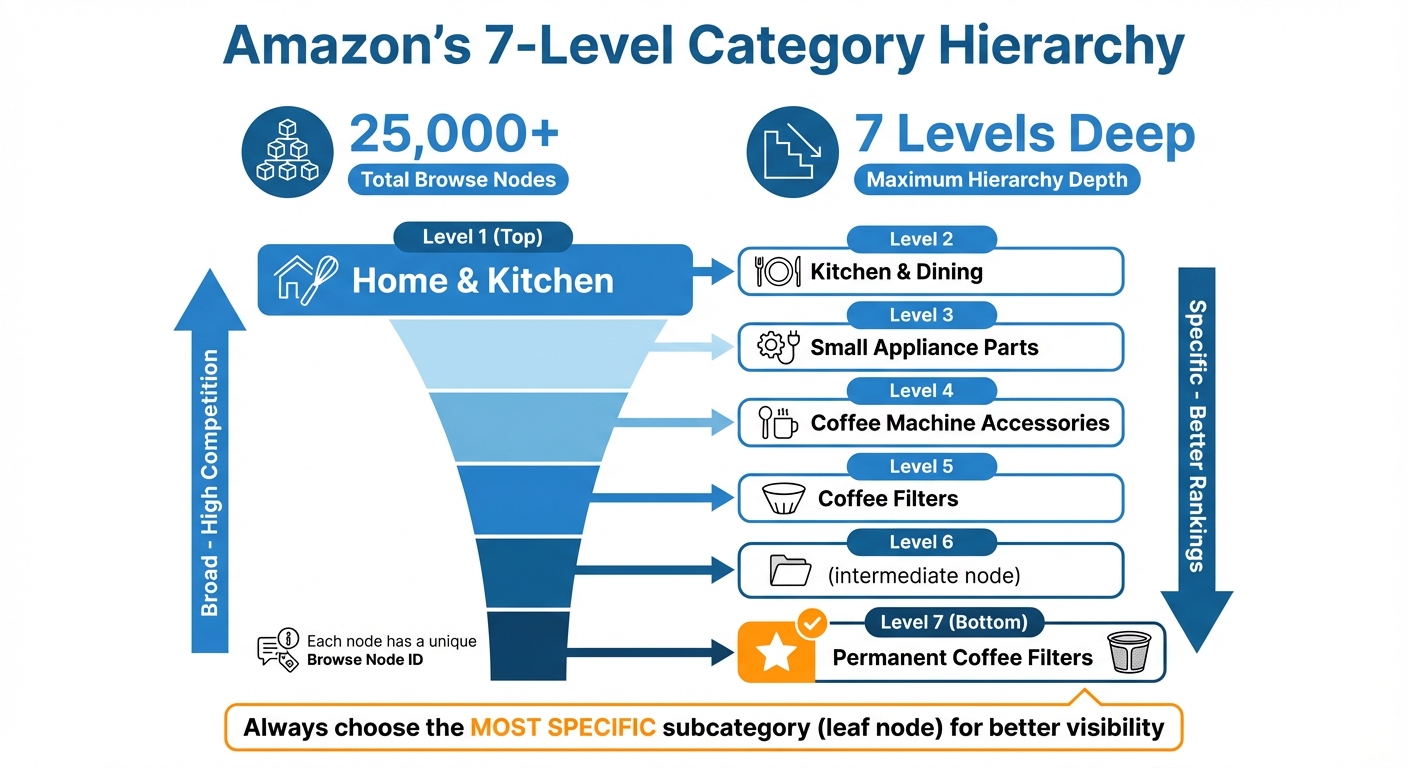
Amazon Category Hierarchy Structure with 7 Levels and Browse Node System
Amazon category IDs, also known as browse nodes, are numerical tags that pinpoint exactly where your product is displayed on Amazon’s storefront. Think of them as the coordinates that guide shoppers to your listing. Each browse node corresponds to a specific spot in Amazon’s category structure, from broad sections like "Home & Kitchen" to niche subcategories like "Bed Pillows." Choosing the right browse node ensures your product shows up in the right place.
It’s important to note that browse nodes, which customers see, are different from back-end product types. Back-end types determine templates and required attributes. For instance, selecting the "Bed Pillow" browse node unlocks specific attributes like "sleep_position" and "fill_material", which wouldn’t be available in broader categories like "Home Décor" [6].
Amazon’s category structure is massive, with tens of thousands of browse nodes as of July 2025 [6]. Placing your product in the wrong category – or defaulting to a generic top-level one – can hurt your listing’s visibility. Your product might not show up in search results or filtered views. To avoid this, always aim for the most specific subcategory. This not only improves visibility but also gives shoppers access to the filters and attributes they rely on to make purchasing decisions.
Before listing, check if a category is gated. Restricted categories like Jewelry, Fine Art, and Grocery require professional selling plans and specific approvals, such as meeting performance metrics or providing documentation. Attempting to list in a gated category without proper authorization can block your listing and trigger compliance reviews. To check for restrictions, use the "Add Products" tool in Seller Central. Search for your item and click "Show limitations" to see if approval is required [7].
Next, let’s explore how category IDs influence search rankings and sales performance.
How Category IDs Affect Search Rankings and Sales
The browse node you select plays a crucial role in your product’s visibility and competitiveness. When shoppers filter results by attributes like material, price, or brand, Amazon uses your category ID to decide if your product qualifies for those filtered views. For example, placing a stainless steel water bottle in "Kitchen & Dining" instead of the more specific "Sports Water Bottles" category could prevent it from appearing when someone filters for "Material: Stainless Steel" in the sports section. This misstep can cost you valuable traffic from buyers ready to make a purchase.
Accurate categorization also impacts how Amazon’s algorithm ranks your product. Products in specific categories often face less competition, making it easier to stand out. For instance, a product listed under "Permanent Coffee Filters" has a better chance of ranking highly than one buried in the broad "Home & Kitchen" category, where it competes with millions of unrelated items. Proper categorization improves relevance, boosts conversion rates, and ensures your product is seen by the right audience. On the flip side, incorrect IDs can hide your product, trigger policy violations, and even lead to account health issues.
Shoppers rely heavily on filters to narrow down their options. If your product doesn’t appear due to misclassification, you risk losing significant traffic. Worse, repeated missteps can lead to violations of Amazon’s style guidelines, resulting in performance notifications or even listing suspensions [6]. The consequences can snowball, leading to reduced visibility, lower rankings, and compliance issues that might sideline your entire catalog.
While precise categorization can unlock many benefits, mistakes in this area can have serious repercussions.
Common Category Selection Mistakes to Avoid
One frequent mistake is choosing overly broad categories, which places your product in a crowded space with too much competition. Another common error is picking a category that seems close but doesn’t align with the product’s actual use. For instance, listing a yoga mat under "Home Décor" instead of "Exercise & Fitness" disconnects it from shoppers actively searching for workout gear.
Failing to verify whether a category is restricted or gated is another major pitfall. As of September 30, 2024, Amazon requires sellers to submit compliance documents for certain categories before creating a listing [8]. Categories like Automotive, Beauty, Grocery & Gourmet Foods, and Health & Personal Care often require detailed documentation, such as invoices, safety certifications, brand authorization letters, and clear product photos [7]. The review process for these approvals typically takes 2 to 7 business days [7]. Skipping this step can leave you with unsellable inventory until the necessary approvals are secured.
Another trap is relying on Amazon’s automated category assignments without verifying them. While Amazon uses machine learning to auto-categorize products, these assignments aren’t always accurate. For example, a decorative pillow might be placed in "Home Décor" instead of "Bedding", limiting access to attributes like thread count or fill type that buyers expect. Always double-check automated assignments to ensure they match how customers search for and filter products.
Lastly, many sellers overlook the Browse Tree Guide (BTG) – Amazon’s go-to resource for valid category paths, node IDs, and "item_type_keywords" needed for bulk uploads via flat files [6]. The BTG is updated regularly and is specific to each marketplace. Using outdated node IDs can trigger "Invalid Browse Node" errors, blocking your uploads. Download the latest version for your marketplace and cross-reference it before finalizing any bulk listing file. Taking this simple step can save hours of troubleshooting and help ensure your products are categorized correctly from the start.
What’s Inside the Amazon Categories CSV File
The Amazon Categories CSV file is a treasure trove of data, containing 25,000–30,000 rows that map out Amazon’s entire category structure [1]. Each row represents a single category or subcategory, showcasing the full hierarchy from broad departments to niche categories. For instance, you can follow the path from the top-level "Home & Kitchen" department down to the ultra-specific "Permanent Coffee Filters" at the seventh level [1].
Understanding the CSV File Columns
This file is structured around five key columns, each playing a role in defining Amazon’s taxonomy. Here’s a breakdown of what each column means and why it’s important:
- Category Name: This is the recognizable name of the category, like "Electronics" or "Permanent Coffee Filters" [9][1]. It’s the human-readable label you see on Amazon, helping you identify where products belong.
- Browse Node ID: Amazon assigns a unique numerical ID to every category and subcategory [9]. For example, "Appliances" has the ID 2619526011, while "Books" is 1000 [9]. This ID is essential for uploading products via flat files or APIs, as it tells Amazon exactly where your listing fits.
- Hierarchy Level: This column indicates how deep a category is within the structure, ranging from Level 1 (broad departments like "Home & Kitchen") to Level 7 (specific subcategories like "Permanent Coffee Filters") [1]. Choosing the most detailed category improves visibility in filtered searches.
- Parent ID: Each subcategory is linked to its parent category through this column [10]. For instance, "Coffee Filters" (Level 6) would have a Parent ID pointing to "Coffee Machine Accessories" (Level 5). This linkage forms the hierarchical tree, making it easier to trace category paths.
- SearchIndex: This is Amazon’s internal string identifier for broad product groupings, such as "ArtsAndCrafts" or "HomeGarden" [9]. While primarily used in API integrations, it’s also helpful for advanced search functions, ensuring products are categorized correctly at the department level.
| Column Name | Description | Example |
|---|---|---|
| Category Name | The display name of the category or subcategory | "Electronics" |
| Browse Node ID | The unique numerical ID used by Amazon for classification | 493964 |
| SearchIndex | Amazon’s internal string for search indexing | "Electronics" |
| Hierarchy Level | Category depth from 1 (top-level) to 7 (most specific) | 1 |
| Parent ID | The ID of the category one level above in the hierarchy | 1063498 |
How to Download the CSV File
To get the CSV file, you’ll usually need to provide your email address on the download page. After submitting your email, check your inbox for the download link. If it doesn’t show up, double-check your spam folder [1].
Once you have the link, click to download the file and save it somewhere easy to access. The file should be in standard .csv format, compatible with tools like Excel or Google Sheets. Some providers charge a one-time fee of around $15 for these comprehensive lists [10], while others may offer them for free.
After downloading, open the file to confirm it includes all five columns and that the data is properly formatted. You’ll see thousands of rows detailing Amazon’s full category structure. Be sure to save a backup copy before making any changes – you’ll likely refer to this file repeatedly for product uploads and category research.
How to Use the CSV File for Bulk Product Uploads
Once you’ve got your hands on the Amazon Categories CSV, you can match your products to the correct category IDs and upload them in bulk. This method is a huge time-saver compared to manually adding products to Amazon one by one in Seller Central – especially if you’re juggling hundreds or even thousands of SKUs.
Preparing Your Product Data for Upload
Start by organizing your product data in a spreadsheet. Make sure to include essential columns like SKU, Title, Brand, Price, Quantity, and a clear Category Name (e.g., "Permanent Coffee Filters" instead of a broad term like "Home & Kitchen").
Before diving into category matching, download a Category Listings Report from Seller Central. You can find it by navigating to Reports > Category Listing Reports and clicking download. If you have a professional seller account, you’ll have immediate access. Individual sellers, on the other hand, may need to request access through Selling Partner Support [5]. This report includes the browse node IDs Amazon has already assigned to your listings, which helps ensure your products are categorized correctly.
Now, open both your product spreadsheet and the Amazon Categories CSV side by side. Add a new column to your spreadsheet labeled Browse Node ID. Since the CSV contains over 25,000 rows sorted alphabetically [1], you can quickly find the right department and insert the corresponding category IDs into your spreadsheet.
To speed things up, you can use Excel tools like VLOOKUP and filters to match category IDs more effectively.
Using VLOOKUP and Filters to Match Category IDs
Excel’s Filter and VLOOKUP functions can make the process of assigning category IDs much quicker.
Start by applying a filter to the Category Name column in the Amazon Categories CSV. For instance, if you type in a broad department like "Electronics" [1], it will narrow down the list to relevant categories, making it easier to find the exact subcategory your product fits into.
To automate the process, use a VLOOKUP formula. In the Browse Node ID column of your product spreadsheet, enter:
=VLOOKUP(A2, 'Amazon Categories'!A:B, 2, FALSE) Here’s how it works:
- A2 is the cell containing your product’s category name.
- ‘Amazon Categories’!A:B refers to the range in the CSV where category names (column A) and their corresponding browse node IDs (column B) are located.
- The formula returns the matching category ID.
If your category names don’t match exactly, you may need to manually verify the hierarchy. Choosing the most specific subcategory for your product can improve its search visibility.
Category Selection and Listing Optimization Tips
Choosing the right category for your product on Amazon isn’t just about organization – it’s about ensuring your product gets seen. A well-placed product is easier for customers to find, while a misclassified one can vanish from search and browsing results entirely [11].
How to Choose the Right Category for Your Products
First, understand the difference between open and restricted categories. Open categories, like Camera & Photo or Tools & Home Improvement, allow immediate listing. On the other hand, restricted categories require approval, which can delay your listing process [11]. To avoid wasting time and resources, check for category gating before sourcing your inventory. This step ensures you won’t invest in products that require lengthy approvals to sell [2].
Category depth also plays a big role in discoverability. Amazon’s category hierarchy can go up to seven levels deep, such as Home & Kitchen > Kitchen & Dining > Small Appliance Parts > Coffee Machine Accessories > Coffee Filters [1]. Always aim for the most specific subcategory (also called the "leaf node"). Amazon’s algorithm favors these precise classifications, boosting your product’s visibility and performance [2].
Need help finding the right category? Look up a similar product on Amazon and check the Best Sellers Rank section under Product Information. This area lists both the main and subcategories for the product [2]. Alternatively, you can use Amazon’s Product Classifier tool in Seller Central to identify browse nodes for multiple products at once [2].
Be mindful of category-specific restrictions. For instance, when selling Amazon device accessories, avoid using trademarks like "Kindle" or "Fire" in your product name. Instead, use descriptive phrases like "compatible with Fire TV Stick" [11]. Similarly, electronics or cameras not intended for the U.S. market must include "International Version (No Warranty)" in the title [11].
Once your category is set, the next step is tailoring your listing to match the specific requirements of that category.
Tailoring Listings to Category Requirements
Accurate category selection is just the first step. Optimizing your listing to meet the specific requirements of that category is equally important. Each category has unique mandatory fields, and missing even one can cause your entire upload to fail [3]. For standalone products, required fields typically include SKU, Title, Fulfilled By, Amazon_SKU, Price, and Offer Prime [3].
Pay close attention to category-specific standards, such as character limits for titles and image resolutions. For example, titles must stay under 250 characters, and images should be at least 1,000 pixels for categories like Sports Apparel [3][11]. If you’re listing athletic clothing, double-check whether the brand (e.g., Nike or Adidas) should be listed under "Sports" instead of the general "Clothing" category [11].
Performance metrics also vary by category and can impact your account standing. For example, sellers in Consumer Electronics must maintain specific claim and refund rates. Meanwhile, Grocery & Gourmet Foods sellers face strict thresholds for pre-fulfillment cancellations and late shipments [11].
For Major Appliances, include detailed specifications like item width, depth, height, and weight. This information helps reduce returns caused by sizing issues [11]. If you’re selling bundles in Consumer Electronics, ensure each bundle has a unique UPC that isn’t reused from individual items in the bundle [11].
Using the CSV File with FlatFilePro
Once you’ve adjusted your listings to meet category requirements, the next step is managing those categories effectively across your catalog. FlatFilePro simplifies this process by enabling bulk updates through direct CSV integration. By bypassing manual spreadsheet uploads, the platform reduces errors that could suppress your listings and saves you valuable time.
Uploading the CSV to FlatFilePro
FlatFilePro connects directly to your Amazon Seller Central account via Amazon’s API. This means you don’t have to manually upload CSV files – your existing product data is automatically pulled and synced multiple times each day. When it’s time to update categories in bulk, you can edit everything directly within the dashboard. With one-click bulk editing, you can update category assignments for hundreds or even thousands of SKUs in just minutes. Tasks that would take hours manually are streamlined into a fraction of the time. This API connection not only reduces manual errors but also ensures real-time status updates on all submissions, making categorization faster and more reliable.
Using Reflection Engine to Check Category Compliance
The Reflection Engine is an automated tool that validates your listings against Amazon’s category requirements using an Amazon listing analysis tool every night. It compares your submitted data with what’s live on Amazon, using green checkmarks to indicate compliant fields and red X’s to flag issues. This nightly check helps catch problems like missing mandatory fields, incorrect browse nodes, or violations of category-specific attributes. Alerts are sent within 24 hours, giving you time to resolve issues before they suppress your listings. By ensuring category compliance, you can avoid disruptions and keep your listings active.
Managing Product Variations Across Categories
Each category on Amazon has its own variation structure – clothing may use size and color, electronics often rely on capacity and connectivity, and home goods might focus on dimensions and materials. FlatFilePro’s drag-and-drop Variations Manager simplifies the organization of parent-child relationships within these structures. With just three clicks, you can move child products between parent ASINs, no technical expertise required. The tool boasts a 95% success rate for variation updates and completes them in under five minutes. This is especially helpful when reorganizing products initially listed in the wrong category or when creating new variation families that meet specific category requirements. It’s a huge time-saver and keeps your catalog running smoothly.
Fixing Common Category Upload Problems
Category upload errors can still pop up, even with careful planning. Amazon’s strict rules around browse nodes and category structures mean that even small mistakes can lead to listings being rejected or suppressed. Most of these errors fall into two main types, and once you know what to watch for, they’re usually straightforward to fix. Here’s how to tackle the most common issues.
How to Fix Invalid Browse Node Errors
Invalid browse node errors happen when the category ID you use isn’t recognized by Amazon. This could be because it’s outdated, has a typo, or simply doesn’t exist in Amazon’s current system[1][4]. When this error occurs, Amazon will reject your bulk upload, leaving your products unpublished until the issue is resolved.
To fix this, start by making sure your CSV file is up to date using Seller Central[1][12]. Browse nodes from outdated or third-party sources are often the problem. Open your upload file in Excel and use tools like VLOOKUP to quickly find and fix any mismatched IDs. Replace invalid IDs with the correct ones from Amazon’s latest data. Before re-uploading the entire file, test a smaller batch of 10–20 products to ensure the corrections worked[12]. This step can save you time by preventing repeated errors during a full upload.
Also, double-check that the category hierarchy in your file is structured correctly to avoid further issues.
Resolving Hierarchy Level Mismatches
Hierarchy level mismatches occur when a product is assigned to the wrong depth in Amazon’s category tree[1]. Amazon’s categories can go as deep as seven levels, and your product needs to be placed at the exact level that matches its type. For instance, a kitchen knife should be categorized under Home & Kitchen > Kitchen & Dining > Kitchen Utensils & Gadgets > Cutlery & Knife Accessories > Kitchen Knives – not at the broader "Kitchen & Dining" level.
To address this, use filters in your CSV file to check the full category path for each product. Ensure that the parent-child relationships in your upload file align perfectly with Amazon’s structure. If you’re using Amazon’s flat file templates from Seller Central, these templates automatically enforce the correct hierarchy, which can help avoid errors before submission[3]. If you spot a mismatch, adjust the browse node to the proper depth based on the CSV data.
Keep in mind that hierarchy mismatches don’t just risk upload errors; they can also hurt your product’s search visibility if it ends up in the wrong category, even if the listing goes live. Taking the time to get this right ensures your products are easier for customers to find.
Conclusion
Placing your Amazon products in the right categories requires precision. With over 25,000 category options spread across up to seven hierarchy levels, manually navigating Seller Central can be both time-consuming and prone to mistakes[1]. The Amazon Categories CSV simplifies this process by consolidating all category data into a single, searchable file. This makes it easier to find specific subcategories – like "Permanent Coffee Filters" instead of the broader "Home & Kitchen" category – helping customers discover your products more effectively.
Pairing this CSV with FlatFilePro’s bulk editing tools takes efficiency to the next level. Features like VLOOKUP allow you to match category IDs across hundreds of products in just minutes. Automated nightly checks ensure your listings remain compliant, saving you from the hassle of fixing errors after they’ve already caused issues.
These tools streamline your catalog management, giving you more time to focus on scaling your business. Download the CSV file today to keep a local copy for all your listing needs. With this resource, you can audit and optimize your catalog to minimize upload rejections and fix common product listing errors to ensure accurate categorization. Whether you’re adding new products or refining existing listings, having Amazon’s complete category structure at your fingertips means faster listing creation, fewer errors, and better product placement.
The time saved on category research and error correction can be redirected toward growing your business – sourcing profitable products and optimizing your listings to boost conversions.
FAQs
How often do Amazon browse node IDs change?
Amazon’s browse node IDs are known to change often. While top-level browse nodes tend to stay relatively stable, other nodes are frequently updated or modified. Sellers should make it a habit to check for updates regularly to keep their product categorization accurate and ensure compliance with Amazon’s guidelines.
What’s the fastest way to find the right leaf category for a product?
To quickly pinpoint the right category for your product on Amazon, leverage Amazon’s browse node data. This system organizes products into a detailed hierarchy of categories and subcategories. By using a comprehensive CSV file containing this data, you can easily find the most precise and relevant category for your item. Tools like FlatFilePro simplify managing this data, helping you ensure accurate categorization, which can boost your product’s visibility within Amazon’s structure.
Can I change a product’s category without creating a new ASIN?
Yes, it’s possible to update a product’s category without needing to create a new ASIN. To do this, you can adjust the product details using Amazon’s listing tools or by uploading changes through a bulk CSV file. The specific process may vary depending on Amazon’s platform features, so make sure to follow their guidelines carefully to ensure the updates are processed smoothly.