
Uploading the wrong Amazon flat file template can suppress your listings, miscategorize products, and waste days fixing errors. Here’s what you need to know:
- Flat files are spreadsheets for bulk product uploads, tailored to specific categories.
- Using outdated or incorrect templates leads to issues like missing required fields, suppressed listings, or misclassified products.
- Amazon updates templates frequently, so always download the latest version from Seller Central.
- Flat files ensure accurate data updates, especially for large inventories, and allow partial updates to avoid overwriting existing information.
- Common mistakes include choosing the wrong category template, leaving mandatory fields blank, or using invalid values.
To avoid these issues:
- Download the correct template for your category via Seller Central.
- Fill out required fields accurately, referencing the "Valid Values" tab.
- Save the file in tab-delimited (.txt) format before uploading.
- Use Amazon’s processing reports to troubleshoot errors.
For faster and error-free management, consider tools like FlatFilePro, which automates template selection, error-checking, and direct API integration for quicker updates.
Key takeaway: Always use the correct, updated flat file template to avoid suppressed listings and save time managing your catalog.
Update Amazon Product Listings With Flat File Templates | Full Tutorial 2025

sbb-itb-ed4fa17
Amazon Flat File Templates: What They Are and How They Work
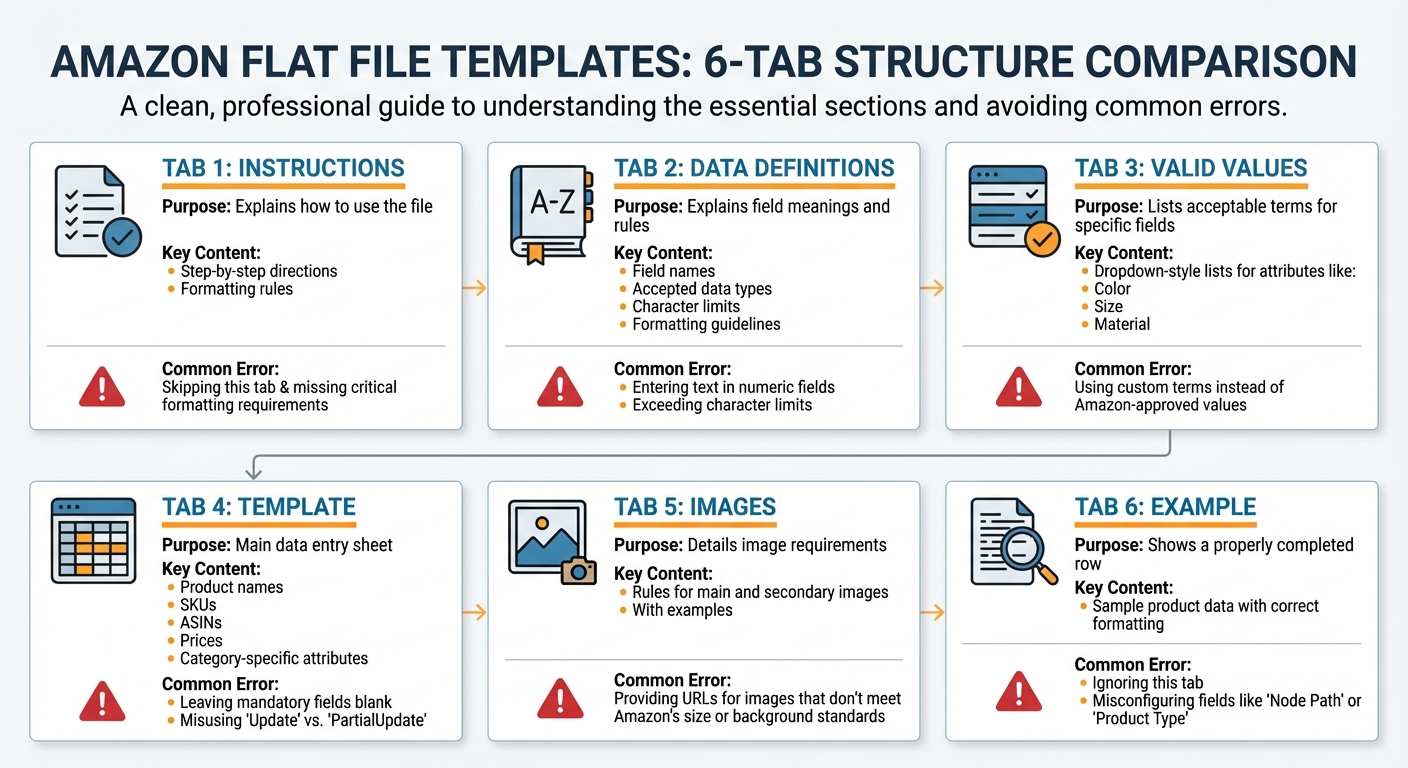
Amazon Flat File Template Tabs: Purpose and Common Seller Errors
Amazon flat file templates are Excel spreadsheets (.xlsx) designed to help sellers manage product data in bulk. Instead of manually editing listings through Seller Central’s interface, you can update hundreds of products at once using a single file. These templates include fields for essential details like product names, SKUs, brand information, inventory levels, prices, and category-specific attributes.
Each template is tailored to a specific category. For example, the required fields for a cat litter box will differ from those for an electronic gadget. This ensures that all relevant product details are captured accurately. Additionally, the correct template automatically includes the appropriate Browse Node, which determines your product’s placement in Amazon’s category structure – eliminating the need to manually sift through the Browse Tree Guide.
Using the right template isn’t just about saving time; it’s about ensuring accuracy. For instance, conditionally required fields – those that become mandatory based on other inputs – are triggered only in the appropriate template. If you’re listing a product with variations, the right template will include the necessary fields for those variations. Missing these fields could suppress or miscategorize your listing.
Flat files also offer a level of reliability that Seller Central’s graphical interface often lacks. Sellers frequently report that updates made through the interface fail to appear on live listings, especially for fields like product titles. Flat files bypass these issues, directly updating listings without errors. The "PartialUpdate" function is particularly useful – it allows you to modify specific fields, such as price or title, without overwriting other data. This minimizes the risk of accidental data loss.
What’s Inside an Amazon Flat File Template
When you download a flat file template, you’ll notice it contains multiple tabs, each serving a specific purpose. Understanding these tabs is crucial for avoiding common errors during uploads.
| Tab Name | Purpose | Key Content | Common Seller Errors |
|---|---|---|---|
| Instructions | Explains how to use the file | Step-by-step directions and formatting rules | Skipping this tab and missing critical formatting requirements |
| Data Definitions | Explains field meanings and rules | Field names, accepted data types, character limits, and formatting guidelines | Entering text in numeric fields or exceeding character limits |
| Valid Values | Lists acceptable terms for specific fields | Dropdown-style lists for attributes like color, size, or material | Using custom terms instead of Amazon-approved values |
| Template | Main data entry sheet | Product names, SKUs, ASINs, prices, and category-specific attributes | Leaving mandatory fields blank or misusing the "Update" vs. "PartialUpdate" options |
| Images | Details image requirements | Rules for main and secondary images, with examples | Providing URLs for images that don’t meet Amazon’s size or background standards |
| Example | Shows a properly completed row | Sample product data with correct formatting | Ignoring this tab and misconfiguring fields like "Node Path" or "Product Type" |
The Template tab is where most of your work happens. Mandatory fields, highlighted in bright red, must be completed – leaving any blank will cause the upload to fail. The "Update Delete" column is particularly important. If you select "Update", any blank fields will erase existing data. Opt for "PartialUpdate" to only change the fields you fill out, keeping all other data intact.
One critical step: after downloading the template, make sure to click "Enable Editing" in Excel. Without this, macros and dropdown menus won’t work, making it much harder to fill out the template correctly.
How to Download the Right Template from Seller Central
Once you understand the template’s structure, follow these steps to download the correct file through Seller Central.
To start, identify your product’s exact category. The easiest way to do this is by checking the "Best Sellers Rank" or "Product Information" section of a live listing similar to yours. This will show the precise category node path Amazon uses.
Here’s how to download the template:
- Log into Amazon Seller Central and hover over the Catalog tab.
- Select "Add Products via Upload" from the dropdown menu.
- Click the "Download an inventory file" tab to access the template library.
- Choose your file type: select "Product Template" for creating new listings or "Price and Quantity" for simple updates.
- Search for your category or browse the category tree to find the most accurate classification.
- Download the template and save it to your computer. While it downloads as an .xlsx file, you may need to save it as a Tab-delimited (.txt) file before uploading it to Amazon.
Using these templates is essential for sellers managing large catalogs – typically more than 100 products. For smaller inventories, learning how to add a product to Amazon using the manual tool might be a better fit. However, for high-volume sellers, mastering flat files ensures accurate categorization and keeps listings live without issues.
5 Common Flat File Template Mistakes and How to Fix Them
Even seasoned sellers can stumble when managing flat files. These errors can lead to suppressed listings, duplicate products, or outright rejections, delaying your uploads and creating unnecessary headaches. Knowing the most frequent mistakes – and how to address them – can help keep your catalog running smoothly and save you from countless hours of troubleshooting. Let’s break down the common issues and their solutions.
Mistake 1: Using the Wrong Template for Your Product Category
Choosing the wrong template is a surefire way to derail your upload. Each product category has specific attributes, and a mismatched template prevents Amazon from processing these correctly. For example, using a clothing template for wireless headphones means key fields like "connector_type" and "battery_life" are missing. Without these, your upload might fail completely or misclassify your product into an unrelated category like "Home & Kitchen", making it nearly impossible for customers to find.
Similarly, clothing sellers who skip the correct template may miss variation fields like "size_name" and "color_name." Without these, child variations won’t link to the parent ASIN, resulting in duplicate listings instead of a unified page. For books, using an electronics template skips "isbn" validation, leading to immediate rejections.
Amazon flags these issues with common flat file error messages such as "Template does not match the product category" or "Missing required attributes for [category]." Sometimes, the entire file is rejected; other times, only rows matching the template are processed, leaving the rest in limbo. To fix this, always download the correct template by going to Seller Central > Inventory > Add Products Via Upload, selecting the exact category, and clicking "Generate Template." Double-check the category path against a live listing that matches your product before uploading.
Mistake 2: Missing Required Fields or Using Invalid Values
Precision in filling out required fields is just as important as using the correct template. Missing or invalid values in mandatory fields are among the top reasons uploads fail. Amazon’s system is strict – leave one required field blank, and the entire row gets rejected. Key fields like SKU, product_id (UPC, EAN, or ISBN), title, price, quantity, and condition_type must be completed for every product. Skipping these triggers errors such as "Required field missing," preventing your listing from going live.
Simple errors like entering "bleu" instead of "blue" in the color_name field can result in an "Invalid enumeration value" error because Amazon only accepts pre-approved terms from the Valid Values sheet. Similarly, using "brand new" instead of "new" for the condition_type field will fail validation. These mistakes can suppress inventory, create zero-quantity listings, or cause processing delays that stretch beyond 15 minutes.
Here’s a quick breakdown of common fields and errors:
| Field | Electronics Example (Headphones) | Clothing Example (T-Shirt) | Books Example (Novel) | Common Errors to Avoid |
|---|---|---|---|---|
| SKU | HDPHN-001 | TSHIRT-BLU-M | NOVEL-ABC123 | Duplicates or over 40 characters |
| product_id | 123456789012 (UPC) | GTIN varies; use "color_map" | 978-3-16-148410-0 (ISBN) | Invalid format or type |
| price | 29.99 | 19.99 | 14.99 | Non-numeric values or missing symbols |
| quantity | 100 | 50 | 200 | Negative values |
| condition_type | new | new | new | Invalid terms like "brand new" |
| Category-Specific | model: Sony WH-1000 | size_name: Medium; color_name: Blue | author: F. Scott Fitzgerald | Omitting variation parent fields |
To avoid these pitfalls, always consult the Data Definitions and Valid Values tabs in your template. These tabs outline accepted formats, character limits, and approved entries for every field. Use Excel’s Find function to locate all "required" columns and ensure they’re filled out. Save your file in tab-delimited (.txt) format before uploading to ensure Amazon processes it correctly. Regularly referring to these tabs can save you from unnecessary errors and delays.
How to Fill Out and Upload Flat Files Without Errors
Uploading flat files to Amazon can feel like walking a tightrope – one small mistake, and the entire batch gets rejected. To avoid unnecessary setbacks, it’s essential to focus on accuracy, follow guidelines carefully, and know how to troubleshoot common issues. Here’s how to get it right the first time.
How to Complete Required Fields Correctly
Start by reviewing the Data Definitions tab in your template. This section explains the purpose, limits, and requirements for each field. For fields like color_name or material_type, cross-reference the Valid Values tab. These fields only accept specific terms, so entering something like "silver" instead of "silver-tone" will trigger an "Invalid enumeration value" error.
Another common issue involves Excel automatically removing leading zeros from Product IDs. For example, a UPC like 012345678905 might get shortened to 12345678905, which results in rejection. To prevent this, format the Product ID column as "Text" before entering data. This small step ensures your file integrates smoothly with Amazon’s system.
For conditionally required fields, be aware of dependencies. For instance, if you enter a sale_price of $19.99, you’ll also need to fill out sale_from_date and sale_end_date in the format MM/DD/YYYY. Leaving either field blank will trigger Error 99010, rejecting the entire row. Similarly, when creating variation listings, ensure consistency across parent-child attributes like brand and product_type – any mismatch will result in Error 8016.
Finally, save your file in the correct format. Use File > Save As > Text (Tab delimited) (.txt) to avoid formatting issues during upload.
How to Fix Common Flat File Upload Errors
Once your file is uploaded via Inventory > Add Products Via Upload, head to the Monitor Upload Status tab. When the status reads "Done", download the Processing Report. This report pinpoints errors by SKU, error code, and description, making it easier to identify and fix problems. In standard templates, check Column B for the SKU, Column C for the error code, and Column E for the error description. If you’re using a category-specific template, errors are highlighted in dark orange within the Template tab.
Here’s a breakdown of common errors and how to resolve them:
| Error Code | What It Means | How to Fix It |
|---|---|---|
| 8020 | Invalid Product ID (UPC/EAN) | Use a UPC validator to check the digit sequence and format the column as "Text" to retain leading zeros. |
| 8541/8542 | Product ID matches an existing ASIN, but details conflict | Update your product_id with the ASIN provided in the error report and re-upload. |
| 8572 | Brand/EAN mismatch | Submit GS1 certification of your barcodes to Seller Support to get your brand whitelisted. |
| 90111/13043 | Price formatting error | Make sure prices are at least $0.01 and formatted with a period as the decimal separator, e.g., "20.50." |
| 20000-20005 | Image URL error | Ensure URLs are direct, public, and end in .jpg, .gif, or .tif. Remove any redirects or parameters like question marks. |
For Error 5002, which is an internal Amazon issue, wait 15–30 minutes and try resubmitting the file without changes. If it persists after three attempts, contact Seller Support. Error 5003, indicating too many errors, can be resolved by breaking your file into smaller batches of 5–10 rows to isolate the problem.
Variation errors, such as Error 8804, often stem from inconsistencies in attributes like brand, manufacturer, or item_type across parent-child rows. If you’re modifying an existing variation family, delete the old relationship in Seller Central before uploading the new one. Skipping this step will result in rejection.
How FlatFilePro Eliminates Flat File Template Problems

FlatFilePro takes the hassle out of template selection by automating the entire process. Instead of digging through Seller Central to find the correct file, you just select your product category within the platform. It then automatically provides the latest Amazon flat file template for you. Plus, it includes built-in formatting guidance and error-checking tools to flag any issues or missing data before you even attempt to upload to Amazon.
With direct API integration, changes are sent to Amazon in minutes. According to FlatFilePro data, listing edits are 17 times faster and result in 8 times fewer errors [1]. Tasks that used to take 2–3 hours using Amazon’s "Add Products Via Upload" tool can now be completed in as little as 15 minutes.
Here’s a closer look at the key features that make FlatFilePro a game-changer for managing bulk listings.
Reflection Engine: Automatic Listing Monitoring
FlatFilePro goes beyond automating template selection with its Reflection Engine, which ensures your listings stay accurate over time. Every night, it runs automated checks to compare your listing data with what’s live on Amazon. It highlights any discrepancies – green checkmarks for fields that match and red X’s for those that need attention. This feature eliminates the need to manually verify whether your changes were accepted or if Amazon made unexpected adjustments. If something doesn’t match, the system pinpoints the issue so you can fix it quickly – without having to sift through processing reports or decode cryptic error messages.
Bulk Editing and Drag-and-Drop Variation Management
The bulk editing interface allows you to update hundreds of SKUs at once, including titles, bullet points, descriptions, prices, and images. It also features a drag-and-drop variation manager, making it easy to handle parent-child ASIN relationships. You can move child products between parent ASINs in just three clicks. Updates are processed in under five minutes with a 95% success rate – far better than the typical 75% success rate seen with manual flat file uploads.
Direct API Integration: Skip Flat Files Completely
FlatFilePro’s direct connection to Amazon’s API eliminates the need for flat file uploads altogether. It automatically handles technical details like valid values and date formatting, pushing updates live instantly. By bypassing the traditional flat file process, it avoids many of the common errors and delays sellers face. For those managing listings across multiple marketplaces, this feature is especially useful – you can update listings for the US, UK, and Germany all from one streamlined interface.
Wrapping It Up
Using the wrong Amazon flat file template can lead to errors that suppress your listings and hurt your revenue. To keep things running smoothly and avoid unnecessary disruptions, stick to these steps: download the specific template from Seller Central’s "Add Products Via Upload" tool, double-check all required fields with the valid values sheet, and test with small batches before scaling up.
If manual uploads and fixing errors are slowing you down, consider simplifying your workflow with Amazon API integration. FlatFilePro’s API connection takes the hassle out of flat file management – no more searching for templates, guessing at formatting, or waiting endlessly for changes to show up on Amazon. The platform handles US dollar formatting, MM/DD/YYYY dates, and imperial units automatically, reducing the risk of validation errors that could suppress your listings.
Don’t let suppressed listings and lost sales be a recurring problem. Download the right category template or switch to FlatFilePro’s API-based system to keep your catalog accurate, protect your revenue, and ensure your listings are managed effortlessly.
FAQs
How can I confirm I’m using the correct flat file template for my exact category?
To make sure you’re working with the right flat file template for your Amazon category, start by downloading the category-specific template directly from Seller Central. Here’s how: go to "Inventory", click on "Add Products via Upload", select your category and marketplace, and then download the correct template.
For smoother bulk uploads, use Amazon’s validation tools before submitting your file. This step helps ensure your data is accurate and meets Amazon’s requirements, minimizing errors and making the listing process much smoother.
When should I use “PartialUpdate” instead of “Update” to avoid wiping data?
When you want to change specific fields in a listing without altering the rest, use “PartialUpdate”. This approach ensures that existing data remains intact and avoids the risk of accidentally deleting or overwriting fields. On the other hand, reserve “Update” for situations where you need to make extensive changes to the entire listing.
What should I do first when my upload shows “Done” but my listing is still suppressed?
If your upload status shows “Done” but the listing is still suppressed, head over to the error reports in Seller Central. These reports will highlight problems like missing details or formatting mistakes. Fix those issues, update your file, and re-upload it. This process helps ensure your listing complies with Amazon’s guidelines and clears the suppression.