
Amazon flat files are spreadsheet templates (.xlsx or CSV) that simplify managing product listings on Seller Central, especially for larger catalogs. They save time, help fix listing issues, and ensure accurate bulk updates. Here’s what you’ll learn in this guide:
- How to download flat files: Get category-specific templates, Category Listing Reports (CLR), and error reports.
- When to use each type:
- Category-Specific Templates: For adding or updating products.
- CLR: For audits and backups.
- Error Reports: For troubleshooting uploads.
- Common issues: Fix access problems, browser issues, and template mismatches.
Flat files streamline catalog management and save hours weekly. Tools like FlatFilePro can further simplify bulk updates and error resolution.
How To Download Your Amazon Category Listing Report & Use It As A Flat File Inventory Upload
sbb-itb-ed4fa17
Types of Amazon Flat Files and When to Use Them
Amazon Flat File Types: Which One Do You Need?
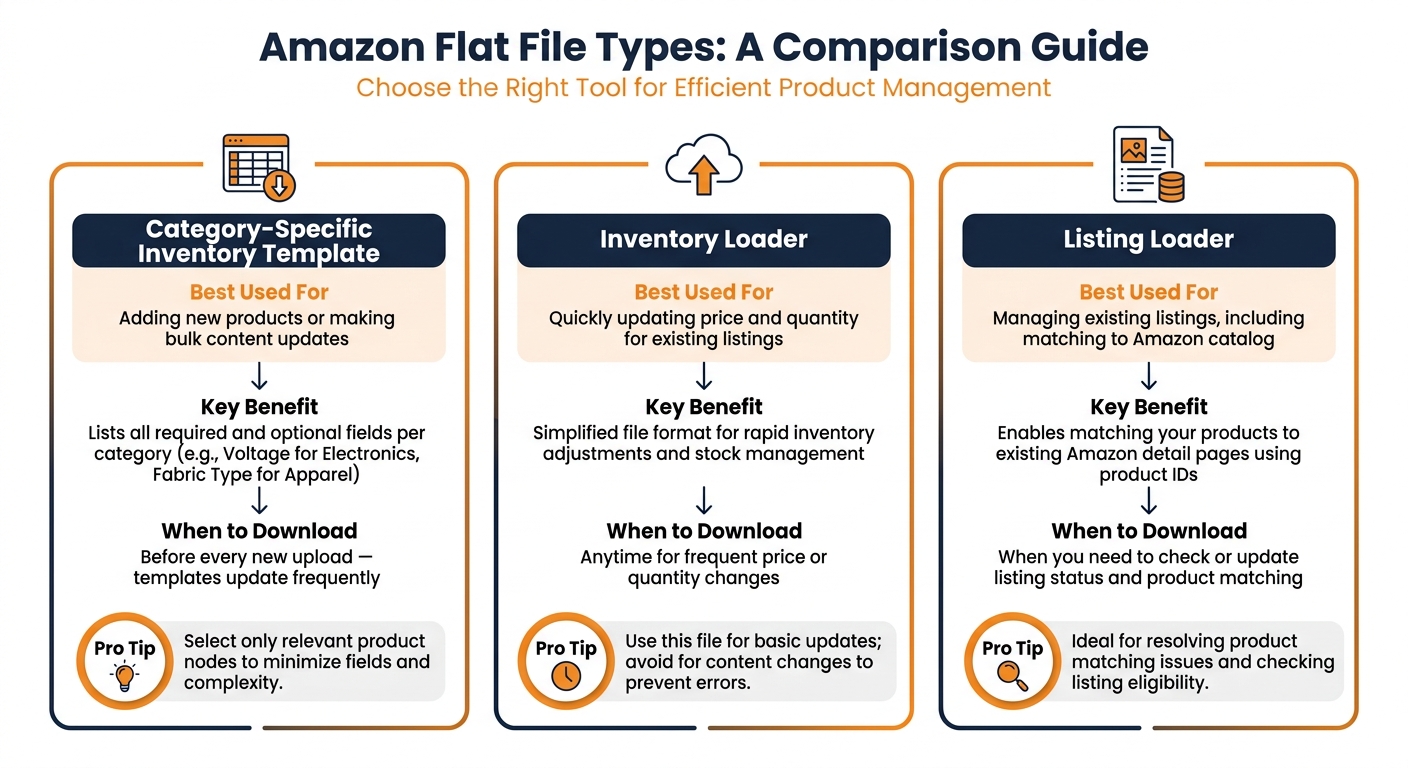
Amazon Seller Central offers three types of flat files, each designed for specific tasks. Choosing the right one can save you from unnecessary headaches.
Category-Specific Inventory Templates
These templates are Excel spreadsheets tailored to specific product categories. They include all the required and optional fields for a given category. For instance, Apparel & Accessories might need details like fabric type, size, and care instructions, while Electronics requires fields such as wattage, voltage, and battery information [7].
You’ll want to use these templates when adding new products or making bulk updates using Amazon listing best practices, like adjusting titles, bullet points, or backend keywords. Always download the latest version from Seller Central before uploading. As SellsLetter warns:
"Using outdated templates is a silent killer of uploads." [5]
Amazon frequently updates its required fields and validation rules, so even a slightly outdated file can cause avoidable errors.
Category Listing Reports (CLR)
Once your templates are set up, you might need to extract data from your existing listings. That’s where Category Listing Reports (CLR) come in. These reports provide a full export of Amazon’s live backend data for your listings, including hidden attributes that aren’t visible in Seller Central [6].
"The Category Listing Report (CLR) is Amazon’s most powerful catalog tool… It’s a full spreadsheet export of the exact backend data Amazon currently stores for your listings." – Online Seller Solutions [6]
CLRs are perfect for catalog audits, backups, and editing existing listings. Think of them as your safety net – a "restore point" you can rely on before making large-scale changes.
Error and Processing Reports
After uploading your data, it’s essential to check the results. Amazon generates a Processing Report (also known as an Inventory File Error Report) within 15–30 minutes of your upload. This report shows what succeeded, what failed, and why [7][8].
The error codes in these reports are highly specific and actionable. For example:
- Error 8016: Variation theme mismatch
- Error 8542: Duplicate product IDs
- Error 90122: Unauthorized HTML tags [1]
Instead of guessing, you can go straight to the flagged row and fix the issue. Always review the report after every upload – it’s the quickest way to catch and resolve problems before they impact your listings.
| File Type | Best Used For | Key Benefit |
|---|---|---|
| Category-Specific Template | Adding new products or bulk content updates | Lists all required fields per category (e.g., "Voltage" for Electronics) |
| Category Listing Report (CLR) | Auditing, backups, and editing existing listings | Reveals live backend data and hidden attributes |
| Error/Processing Report | Post-upload troubleshooting | Pinpoints specific field failures with error codes |
How to Download Amazon Flat Files: Step-by-Step
Here’s how you can download the flat files you need from Seller Central. These instructions will help you quickly find and download the correct file for your specific requirements.
How to Download Category-Specific Inventory Templates
Start by going to Catalog > Add Products via Upload in Seller Central. Next, click on the Download an Inventory File tab. You can either use the search bar to type in your product type (e.g., "running shoes" or "bluetooth speaker") or manually browse through the category tree. Once you’ve identified your product type, you’ll need to choose a column set:
- Required: Includes only the mandatory fields.
- Recommended: Covers mandatory fields plus additional attributes that can boost visibility.
- Custom: Lets you select specific columns.
For the best results, select Recommended, as the extra attributes can improve your product’s search ranking [3].
After making your selection, click Generate Template to download the .xlsx file. Be sure to review the Data Definitions tab within the file – it provides descriptions and formatting guidelines for each field. Keep in mind that these templates are marketplace-specific, so you’ll need to ensure the template matches your target marketplace [3][2].
"Always download a fresh template before starting a new upload. Amazon updates templates regularly – sometimes adding new required fields, changing validation rules, or deprecating old columns." – Jamin Mahmood-Wiebe, Founder, Flat Magic [2]
How to Access Category Listing Reports
The Category Listing Report (CLR) isn’t automatically enabled. To gain access, go to Help > Get Support > Selling on Amazon, then navigate to Products, Listings, or Inventory > Investigate Other Product, Listings, or Inventory Issues and submit a request to activate the CLR [9][11]. Once approved, the report will be available for 7 days [6][11].
After activation, head to Reports > Inventory Reports, select Category Listing Report from the dropdown menu, choose your category (or select "All"), and click Request Report. Once the report is ready, you can download it. When using the CLR for edits, make sure to use the [PartialUpdate](https://flatfile.pro/ffp/expert-guide-amazon-partial-inventory-update-2/) command in the update_delete column, which allows you to update only the fields you’ve modified without affecting the rest of your listing data [6][10].
How to Get Error and Processing Reports
If you’ve uploaded a flat file, you can check for errors or processing details by going to Catalog > Add Products via Upload and clicking on the Spreadsheet Upload Status tab. Locate your upload using its Batch ID, then click the Actions dropdown next to it and select Download Processing Summary [10]. This report will provide a breakdown of successful rows and any failures, along with specific error codes to help you troubleshoot.
Smaller uploads (a few hundred rows) typically process in 15–30 minutes, while larger files (over 5,000 rows) may take several hours [3]. If your updates don’t appear in Manage Inventory after a successful upload, wait at least 2–3 hours before contacting Seller Support [10]. These reports will help you quickly identify and resolve any issues with your uploads.
Fixing Common Flat File Download Problems
Even when you follow the download steps correctly, flat file downloads can still fail. Below are some frequent issues sellers encounter and how to address them effectively.
Account Permissions and Access Issues
If the Add Products via Upload option isn’t visible, it’s likely due to missing account permissions. The primary account holder must enable upload access for sub-users by navigating to Settings > User Permissions. For the Category Listing Report (CLR), manual activation is required. To enable it, go to Help, search for "Category Listing Report", and submit the activation form. Keep in mind that once enabled, the CLR is only accessible for 7 days [6].
Browser and File Handling Problems
Sometimes technical issues, like pop-up blockers, can interfere with downloads. Since the Generate Template button triggers a pop-up, you’ll need to disable pop-up blockers for Seller Central. If that doesn’t work, try switching to another browser [2].
After downloading the file, open it using Microsoft Excel or Google Sheets. Avoid using plain text editors, as they will display the contents in an unformatted way [12]. To avoid losing data during edits, always save a backup copy of the original file before making changes.
Choosing the Wrong Template or Marketplace
Selecting the correct template is critical. Using the wrong one can lead to missing required attributes. For example, if you choose a broad category instead of the most specific subcategory – known as a leaf node – the file won’t include all the necessary fields for your product type. If the standard search tool isn’t helping, refer to the Browse Tree Guide (BTG) to find the exact "Item Type Keyword" for your product [2][5].
Marketplace mismatches can also cause problems. Templates downloaded for Amazon.com won’t work for Amazon.co.uk or Amazon.de because required fields vary by region. For instance, EU templates include compliance-related columns like CE marking and REACH, as well as VAT-specific fields, which aren’t present in US templates [2][3]. Always ensure you’re logged into the correct marketplace before downloading a template.
Using Flat Files with FlatFilePro for Better Catalog Management

Once you’ve downloaded the right flat files, the next step is making the data work for you. This is where FlatFilePro steps in. By connecting directly to Amazon Seller Central through an API, it simplifies catalog updates, removing the need to repeatedly navigate Seller Central’s upload pages. Let’s break down how FlatFilePro makes bulk edits and error resolution faster and easier.
How FlatFilePro Handles Bulk Edits and Error Fixes
FlatFilePro allows you to submit bulk updates directly through Amazon’s API. This means you can update titles, bullet points, prices, and attributes for hundreds of SKUs in one go.
The tool features a built-in data validation system that checks for missing required fields, ensures values are accurate, and confirms formatting is correct – all before submitting to Amazon. If Amazon returns errors during the upload process, FlatFilePro displays the error report right in the software, helping you solve flat file upload problems without manual troubleshooting. This means you can fix issues and re-upload without jumping between tabs or downloading separate reports.
"The integrated flat file creator allows you to easily make changes to your catalog without the headache of manual adjustments." – FlatFilePro [13]
How the Reflection Engine Tracks Listing Changes
FlatFilePro’s Reflection Engine takes listing management up a notch. Every night, it compares your stored listings with the live data on Amazon. It flags any discrepancies with clear visual indicators: green checkmarks for matching fields and red X’s for mismatched ones. This makes it easy to spot when your listings have been altered unexpectedly.
For sellers managing large catalogs, this feature is a game-changer. It eliminates the need to manually comb through listings to check for unauthorized changes. Plus, the Reflection Engine logs every update with a timestamp, giving you a detailed activity history for reference whenever unexpected changes occur.
How to Prepare Flat Files Before Using FlatFilePro
Proper preparation of your flat files ensures smoother bulk edits and better automated tracking. Start by cleaning and organizing your data. Group entries by category, stick to alphanumeric characters to avoid upload errors, and double-check that controlled vocabulary fields align with Amazon’s accepted values. A little prep work can go a long way in making the most of FlatFilePro’s features.
Conclusion: Getting the Most Out of Amazon Flat File Downloads
Using the right flat file is key to managing your catalog effectively. Whether you’re downloading a category-specific inventory template for a new product, using a Category Listing Report to audit your listings, or reviewing an error report to fix upload issues, each file type serves a specific role. One of the most common mistakes sellers make is using the wrong file or an outdated version, which often leads to failed uploads.
Flat files are a game-changer for saving time. For example, bulk editing 100 SKUs takes about 10 minutes. Compare that to the 2–3 hours it would take to make those same updates manually – a time savings of 90–95% [4]. If you’re managing 200 or more SKUs, that adds up to 10–15 hours saved every single week [4].
"Learning to bulk edit Amazon listings is not just about saving time – it is about unlocking the ability to manage your catalog strategically rather than reactively." – DigiCloud Team [4]
To avoid errors, always download the latest template, format Product ID columns as Text, and use precise leaf node keywords. These simple steps can prevent most upload failures before they even occur.
For sellers with expanding catalogs, tools like FlatFilePro can simplify the process even further. With features like API-based submission, nightly Reflection Engine checks, and built-in error detection, you can cut down on repetitive tasks and focus on growing your business instead of troubleshooting uploads.
FAQs
Which flat file should I use for my specific task?
To upload your products effectively in Seller Central, start by selecting a flat file template that aligns with your product category. Head to the Add Products via Upload section and choose the right template – whether it’s for Electronics, Apparel, or another category – to ensure all category-specific details are correctly addressed.
If you’re making general updates like adjusting SKUs, prices, or quantities, the Inventory Loader is your go-to tool. For managing product variations, opt for a Relationship template. And when you need to quickly update stock levels or prices, use the Price and Quantity file for streamlined restocking.
Why won’t Amazon accept my template upload?
Amazon has strict guidelines for templates, and any structural changes – like adding columns or altering layouts – will result in rejection. Templates must stick to the pre-defined format. Common mistakes include selecting the wrong category template, leaving out required fields, using outdated templates, or uploading files in the wrong format (such as .csv or .txt). To avoid these issues, always refer to the Valid Values tab for accepted entries. After uploading, review the processing report to spot and correct any errors.
How do I update only a few fields without overwriting everything?
To make changes to specific fields without altering existing data, use the PartialUpdate command in the Update/Delete column of your flat file. When you leave a column blank, the corresponding attribute stays as it is during the upload process. For instance, you can adjust only the standard price while leaving all other product details untouched.