
Managing Amazon product listings just got easier. With Amazon’s 2025 flat file update, you can now upload inventory spreadsheets in your own format, saving hours of tedious reformatting. A new mapping tool lets you align your data with Amazon’s required fields, and AI-powered features simplify bulk uploads, variation management, and catalog updates.
Here’s what you need to know:
- What is it? A flat file is a spreadsheet (CSV, TXT, or Excel) that helps sellers list or update products in bulk on Amazon.
- Why use it? Essential for managing large catalogs, it ensures accuracy, consistency, and faster updates.
- 2025 updates: Custom templates, AI-assisted data conversion, color-coded headers, and new fields for compliance (e.g., GPSR details for EU/UK markets).
- How to download: Access templates via Amazon Seller Central or tools like FlatFilePro for a streamlined experience.
- Key tips: Use the "Partial Update" feature to avoid overwriting data, and always check Amazon’s "Valid Values" tab to prevent upload errors.
For sellers managing hundreds of SKUs, these updates reduce errors and simplify catalog management. FlatFilePro, with its drag-and-drop tools and bulk editing features, can further enhance efficiency. Start by downloading the 2025 template and explore tools that integrate seamlessly with Amazon’s system.
Update Amazon Product Listings With Flat File Templates | Full Tutorial 2025

sbb-itb-ed4fa17
Download the Free 2025 Flat File Template
How to Download and Fill Out Amazon Flat File Template – Step-by-Step Guide
Get the latest flat file template effortlessly – whether you’re using Amazon Seller Central or leveraging the convenience of FlatFilePro’s dashboard. To get started, make sure you have an active Amazon Seller Central account and spreadsheet software like Microsoft Excel or Google Sheets to edit the files.
How to Download Category-Specific Templates
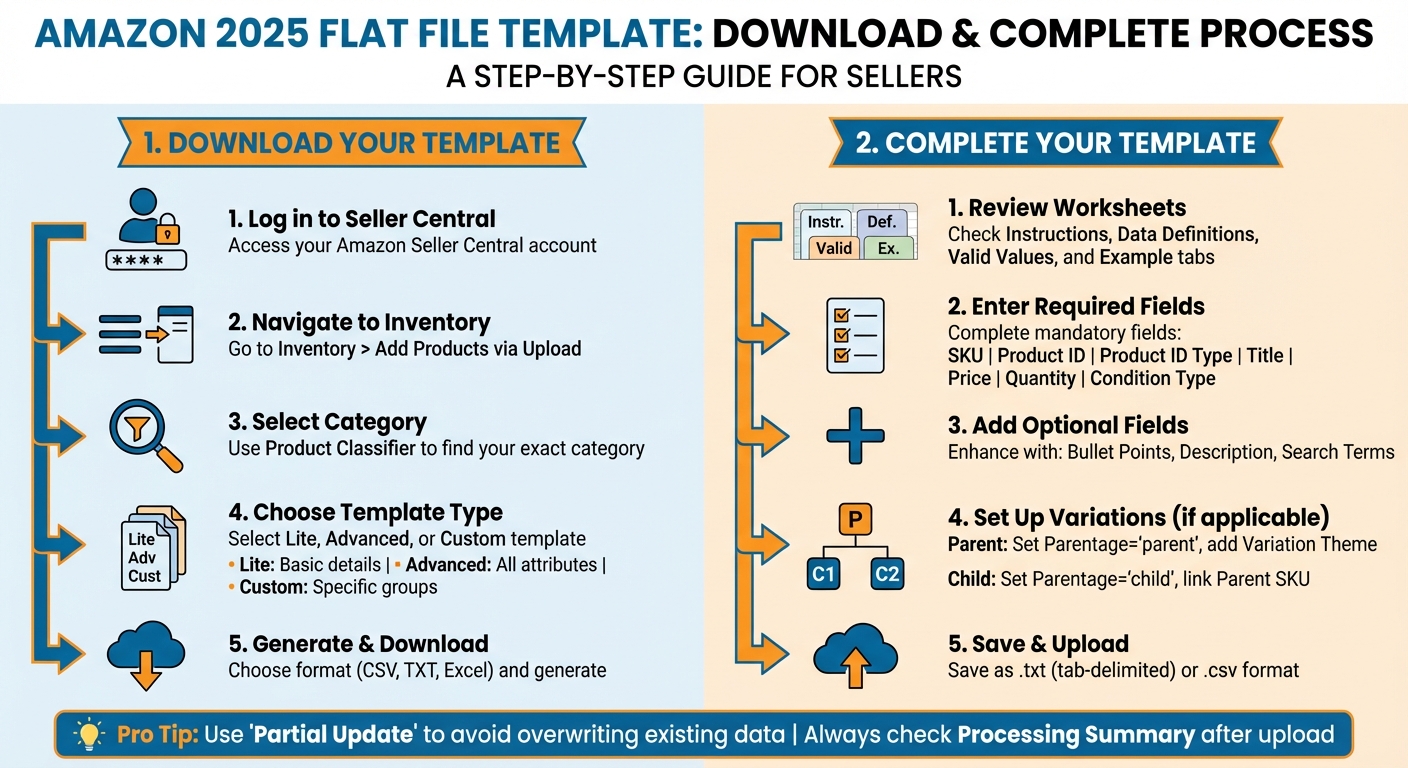
Amazon provides three types of templates to suit different needs: Lite for basic product details, Advanced for all available attributes in a category, and Custom for selecting specific attribute groups. Here’s how you can download them from Seller Central:
- Log in to your Seller Central account and navigate to Inventory in the top menu.
- Choose Add Products via Upload, then click Download an Inventory File.
- Use the Product Classifier or search tool to pinpoint your exact product category – this step is essential since each category has specific required fields.
- Select your template type, choose your preferred format (CSV, TXT, or Excel), and click Generate Report.
- The file will be available in your downloads folder.
If you’re using a sub-user account, make sure your profile has the necessary Inventory permissions; otherwise, you won’t see the "Add Products via Upload" option.
For a more streamlined experience, you can also use FlatFilePro’s centralized dashboard.
Downloading Templates Through FlatFilePro

FlatFilePro simplifies the process by offering a centralized dashboard that eliminates the need to navigate through multiple Seller Central menus. With this tool, you can create, update, and monitor all your flat file listings in one place. FlatFilePro connects directly to your Seller Central account via Amazon’s API, automatically importing your existing product data. No more manual downloads or reformatting.
"FlatFilePro is the perfect solution for streamlining and simplifying the process. Our software provides easy-to-use tools that allow you to quickly create, update, and monitor all of your Amazon flat file listings in one place." – FlatFilePro
FlatFilePro also offers a 7-day free trial, making it an excellent choice for bulk editing or managing frequent catalog updates – especially if you handle 100+ listings regularly.
How to Fill Out the Flat File Template
When you open the flat file template, you’ll see multiple worksheets, each with a specific purpose. The Instructions tab provides a step-by-step guide for creating and uploading your file, while the Product Image Information tab explains Amazon’s style rules for product images. The Example tab offers sample data, including how to set up parent-child relationships. The Data Definitions tab is crucial – it explains each column, notes if a field is required or optional, and gives example values. The actual product data goes into the Template tab, and the Valid Values tab lists acceptable terms for specific fields like variation themes or product types.
Template Layout and Worksheets
Start with the Data Definitions worksheet. This tab outlines which fields are mandatory and which are optional for your category. For example, fields like SKU, Product ID, and Title are always required, while fields such as Bullet Points or Search Terms are optional or "desired." The Valid Values tab is equally important – it ensures you use the correct terms Amazon requires, preventing upload errors. If you’re working with variations, check the Example tab to see how to organize parent-child relationships. It explains which fields need to be filled out for each type of SKU.
Once you understand the layout, focus on the required and optional fields to ensure your data is accurate.
Required Fields vs. Optional Fields
For 2025, some fields are non-negotiable. These include SKU (your unique identifier), Product ID (UPC or EAN), Product ID Type (1 for UPC, 2 for EAN), Title, Price (only numbers – skip the dollar sign), Quantity, and Condition Type. If you’re creating variations, parent SKUs must have Parentage set to "parent" and specify a Variation Theme. Remember, parent SKUs are non-buyable but still require a Variation Theme. For child SKUs, you’ll need to set Parentage to "child", reference the parent SKU, include Relationship Type as "variation", and provide unique Product IDs.
Optional fields, like Bullet Points, Product Description, Search Terms, Manufacturer, and Item Type Keyword, can enhance your listing’s visibility and conversion rates. However, leaving them blank won’t stop your upload. Before skipping any field, double-check the Data Definitions tab – some categories may have additional required attributes tied to specific variation themes.
Completing these fields accurately can make bulk catalog management much easier and minimize errors after uploading. Now, let’s look at some common mistakes to avoid.
Common Mistakes to Avoid
One frequent issue is using unsupported variation themes. Always confirm your theme (e.g., SizeColor or Flavor) is allowed by checking the Valid Values tab. Another mistake is leaving the Variation Theme field blank for parent SKUs – this is mandatory. Avoid duplicate UPCs or using invalid Product ID formats, such as UPCs longer than 13 digits.
Don’t edit listings directly in Seller Central after uploading, as this can disrupt parent-child relationships. When updating listings, use the "Partial Update" option to preserve stable product data. Before uploading, save your file as a .txt (tab-delimited) or .csv format – Excel files won’t process correctly. After uploading, download the Processing Summary from the "Spreadsheet upload status" tab to identify and fix any errors flagged during the process.
Managing Variations and Bulk Updates
Flat file templates are a powerful way to manage product families and update entire catalogs without the hassle of editing each listing one by one. Here’s how to structure parent-child relationships for seamless variation management.
Creating Parent-Child Product Relationships
To set up variations, you need to organize your data into parent SKUs (non-purchasable items) and child SKUs (the products customers can actually buy). The parent SKU acts as a grouping mechanism, while each child SKU defines specific attributes like color, size, or other options.
For the parent row:
- Set Parentage to "parent."
- Specify a Variation Theme (e.g., SizeColor).
- Leave Parent SKU blank.
- Skip the Product ID and detailed attributes since the parent SKU isn’t directly purchasable.
For the child rows:
- Set Parentage to "child."
- Link the child to the parent by entering the exact Parent SKU in the appropriate column.
- Set Relationship Type to "variation."
- Match the Variation Theme to the parent.
- Include a unique Product ID and define attributes like Color Name and Size Name.
In 2025, some categories now support multi-theme variations, allowing you to combine up to three attributes (e.g., Size, Color, and Pack Count). Always refer to the Valid Values tab to ensure your chosen variation theme is supported. A common error to avoid is leaving the Variation Theme blank for the parent SKU – this field is mandatory, even though the parent itself isn’t for sale. Additionally, reusing Product IDs across child SKUs will cause upload failures.
When adding new variations to an existing product family, select "Partial Update" in the Update Delete column. This option ensures only the specified fields are updated while preserving your current data. To save time in future product launches, keep successful templates as "master files" that you can replicate and modify as needed. Once your variation relationships are in place, you can move on to bulk updates for efficiently managing multiple SKUs.
Making Bulk Changes Across Multiple SKUs
Using your master flat file as a foundation, you can make bulk updates to revise prices, refresh descriptions, or address compliance issues across multiple listings in one upload.
Start by downloading a fresh template from the "Add Products via Upload" section. Amazon regularly updates its required attributes and validation rules, so using an outdated template can lead to errors. For existing SKUs, choose Partial Update to modify only the fields you specify, leaving the rest of the data intact. Before submitting a large batch, test your file with a small group of SKUs to confirm the structure is correct and catch any errors early.
Save your completed file in .txt (tab-delimited) format, as this is the format Amazon requires. After uploading, check the Processing Summary in the "Monitor Upload Status" tab. The 2025 version provides improved error feedback, highlighting specific cell references in red to make troubleshooting easier.
To maintain consistency, always update your master flat file to reflect your catalog’s current state. Make changes to this file, then re-upload it using Partial Update. This approach minimizes confusion and ensures your data remains accurate across the board.
Uploading and Checking Your Flat File
Once your flat file is complete and error-free, the next step is to upload it through the Amazon bulk upload tool in Seller Central and verify the updates.
Steps to Upload Your Flat File
To get started, go to Menu > Catalog > Add Products Via Upload in your Seller Central dashboard [3][4]. Make sure your file is saved in the .txt (Tab Delimited) format. From there, click "Upload your spreadsheet," choose your file, and submit it.
After submission, your file will enter Amazon’s processing queue, and you’ll receive a confirmation message. The processing time depends on the file size. You can monitor its progress in the Spreadsheet Upload Status tab [4]. Once processing is complete, check the status to confirm everything went through smoothly.
Fixing Upload Errors
If there are any errors or warnings after processing, review the upload status to identify them. Make the necessary corrections in your file and upload it again.
Using FlatFilePro for Flat File Management
Managing flat files manually can be a real headache – time-consuming and prone to errors. FlatFilePro simplifies the process by connecting directly to your Amazon account through API integration. With this tool, you can handle your entire catalog more efficiently. It automates key tasks like listing new products, updating existing ones, and keeping track of inventory. Plus, it offers bulk editing, real-time data updates, and analytics – all accessible from a central dashboard [1]. These features work seamlessly with the 2025 template updates, making catalog management smoother and less error-prone. Let’s dive into some specific tools that make FlatFilePro a game-changer:
Reflection Engine for Error Detection
The Reflection Engine checks your listings nightly, comparing your data with what’s live on Amazon. It flags discrepancies with green checkmarks for matching fields and red X’s for issues needing attention. This real-time monitoring helps you catch problems – like unexpected changes on Amazon – before they impact your sales. On top of that, it simplifies managing complex product relationships with an easy-to-use drag-and-drop editor.
Drag-and-Drop Variation Editor
Handling parent–child product relationships doesn’t have to be a nightmare. FlatFilePro’s drag-and-drop interface lets you move child products between parent ASINs in just minutes, saving you hours of spreadsheet headaches. With a 95% success rate for variation updates, you can quickly fix broken product families or create new variation groups – no flat file uploads required.
One-Click Bulk Editing
Updating titles, prices, quantities, and descriptions across your listings is effortless with FlatFilePro’s one-click bulk editing feature. Say goodbye to tedious manual data entry and redundant processing checks. As Noelia Gongora explains, flat files "enable sellers to upload and manage product information in bulk, rather than editing each listing individually through the Amazon Seller Central interface. This is particularly useful for sellers with a large catalog of products, as it streamlines the process and minimizes the risk of errors" [2].
Conclusion
Main Benefits of Flat File Management
The 2025 flat file template offers a huge time-saving advantage by enabling bulk uploads. Bulk uploads eliminate the need for tedious manual entry, while accurate data input helps reduce errors and improves inventory tracking across your catalog. This makes it easier to identify stock issues early, preventing potential problems down the line.
Staying compliant is another major plus. The 2025 updates align your listings with Amazon’s current standards, helping you avoid suppressions and policy violations. Tools like FlatFilePro automate tasks such as product updates and inventory tracking, freeing up valuable time and resources. Plus, you can monitor key performance metrics – like sales volume and customer reviews – in real time, allowing you to fine-tune pricing or adjust promotions on the fly. These features help ensure your catalog stays compliant and runs smoothly.
What to Do Next
Start by logging into Seller Central, navigating to the Inventory section, and downloading the 2025 flat file template and learning how to upload products on Amazon. Before uploading, double-check your data to make sure all required fields are complete and special characters are formatted correctly to avoid errors.
Consider signing up for FlatFilePro’s 7-day free trial to explore tools like the Reflection Engine, bulk editing capabilities, and drag-and-drop variation management. These features integrate seamlessly with the 2025 template, helping you catch errors early and manage your catalog more effectively. After uploading your flat file, compare your listings against the original data to quickly resolve any discrepancies. This simple step can prevent minor mistakes from escalating into costly issues.
FAQs
How does the 2025 flat file update make catalog management easier for Amazon sellers?
The 2025 flat file update makes catalog management easier by introducing AI-powered automation. This feature automatically fills in missing data fields, cutting down on manual work, reducing errors, and speeding up the listing process. The result? More consistent and accurate product details across all your listings.
Another key change is the shift to JSON-based submissions, replacing XML or traditional flat file uploads through the Feeds API. This new format simplifies the upload process, enhances error detection, and offers improved reporting. Together, these updates save time, reduce mistakes, and make handling large catalogs smoother and more dependable.
What’s the difference between Lite, Advanced, and Custom Amazon flat file templates?
The Lite, Advanced, and Custom Amazon flat file templates cater to different levels of complexity and seller requirements.
The Lite template works best for straightforward product listings. It focuses on essential fields, making it a quick and simple option for sellers managing basic catalogs. On the other hand, the Advanced template is designed for more detailed listings. It includes additional fields for product variations and extra details, making it a better fit for sellers with larger or more complex catalogs. Finally, the Custom template provides the highest level of flexibility. It allows sellers to adapt the file to specific categories, marketplaces, and unique product attributes.
To sum it up: Lite is perfect for simple uploads, Advanced handles detailed and varied listings, and Custom is ideal for sellers needing a tailored approach to catalog management.
How do FlatFilePro’s drag-and-drop tools make managing parent-child product relationships easier for Amazon sellers?
FlatFilePro’s drag-and-drop tools make managing parent-child product relationships effortless. With an easy-to-use interface, sellers can quickly create and update variation listings. Grouping products into parent and child ASINs becomes straightforward, allowing users to assign attributes like size, color, or style in just a few clicks. This approach eliminates the hassle of manual spreadsheet edits, saving time and cutting down on mistakes.
The platform also features AI-powered error detection and validation, which helps catch potential issues before uploading. This ensures listings meet Amazon’s latest requirements. By simplifying complex product hierarchies, FlatFilePro enhances accuracy, minimizes listing rejections, and makes managing large inventories with multiple variations much more efficient.