
To manage your Amazon product catalog efficiently, CSV files are your go-to tool. They let you update prices, inventory, and product details in bulk, saving time compared to manual edits. Here’s how it works:
- Download Reports: Access inventory reports via Amazon Seller Central. Choose the right report type (e.g., Active Listings, Custom Inventory) based on your needs.
- Use Templates: Download Amazon’s official CSV template to ensure your data meets formatting requirements.
- Export Data: Export your current product data to use as a baseline for updates.
- Edit CSV: Make changes offline in tools like Excel, ensuring fields like SKUs and prices are formatted correctly.
- Upload Updates: Re-upload the edited CSV file to Seller Central, monitor processing, and fix any errors using Amazon’s Processing Report.
This process streamlines catalog management, reduces errors, and keeps your listings accurate. CSV files can handle up to 15,000 products or 50MB of data, making them ideal for large-scale updates.
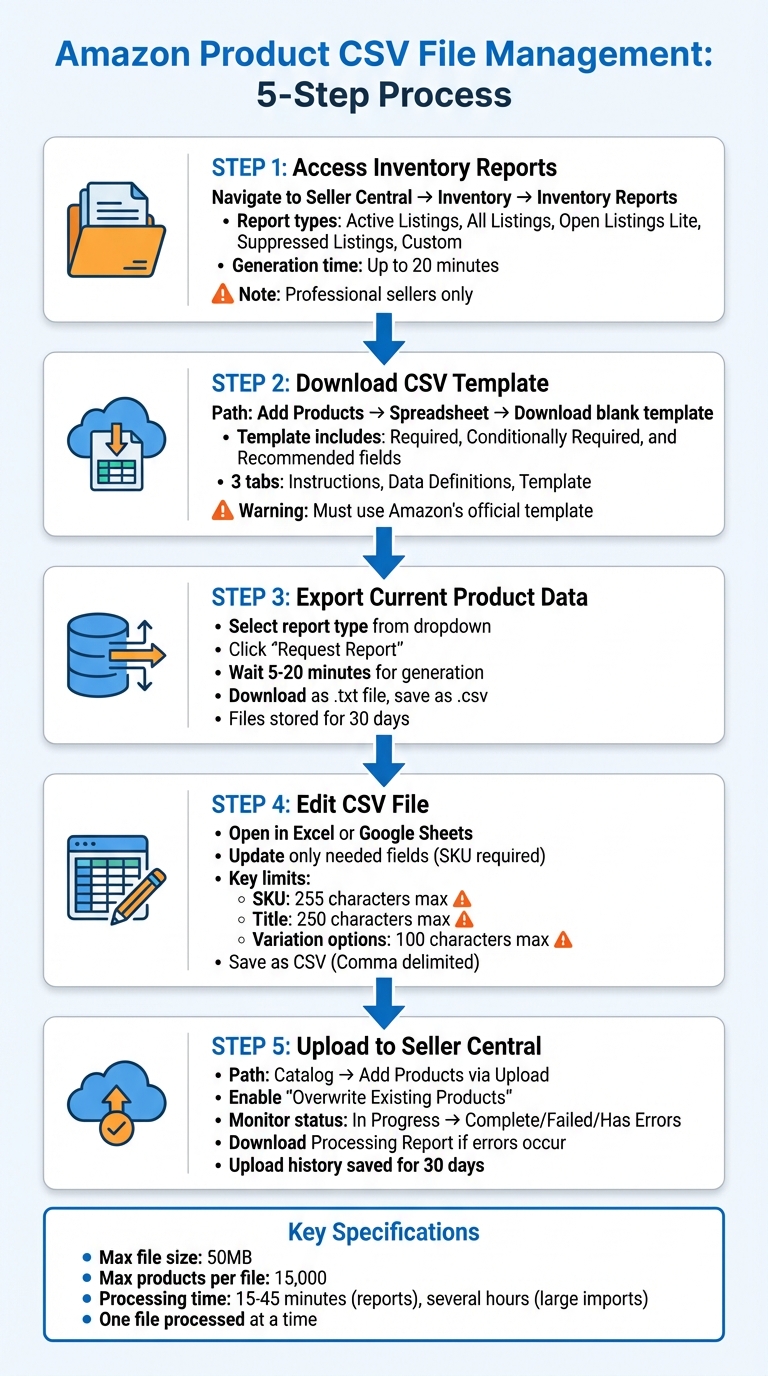
5-Step Amazon Product CSV File Download and Upload Process
What Amazon CSV Files Are and How They Work
To manage your product catalog effectively, it’s crucial to grasp how Amazon CSV files function and why they matter.
What Are Amazon CSV Files?
CSV files are simple, spreadsheet-like documents that organize data into rows and columns without any extra formatting. This straightforward design makes them perfect for handling bulk updates to your Amazon catalog. Essentially, they allow sellers to make large-scale changes – like adjusting prices, updating inventory, or modifying SKUs – all in one go [1].
What’s Inside Amazon’s CSV Templates
Amazon provides CSV templates with pre-set column headers, each linked to specific product attributes in your catalog. These headers are grouped into three categories: required, conditionally required, and recommended [1]. For example:
- Required fields: These include SKU, Title, and Price. Missing these will cause your upload to fail.
- Conditionally required fields: These depend on your product type or category.
- Recommended fields: These enhance your listings but aren’t mandatory.
Each template comes with three key tabs to guide you:
- Instructions tab: Explains how to use the template.
- Data Definitions tab: Details the rules for each field.
- Template tab: The space where you input your product data [1][5].
A few critical constraints to keep in mind: SKUs must be unique and cannot exceed 255 characters. Product titles are limited to 250 characters, and variation options have a maximum of 100 characters each. Additionally, a single CSV file can hold up to 15,000 products or 50MB of data [1][5].
CSV Export vs. CSV Import
Exporting a CSV file allows you to download a snapshot of your current catalog. This is helpful for reviewing your listings or creating a baseline for updates [1].
Importing, on the other hand, involves uploading a completed CSV file back into Amazon’s system. This can be used to add new products or update existing ones. During this process, Amazon validates the data and provides a Processing Report, which highlights any errors or rows that failed to upload [1].
When updating existing products, it’s important to choose the correct upload option – either "Override existing products" or "Update." If you skip this step, Amazon might ignore the changes or treat the SKUs as duplicate new listings [1].
Understanding these tools and processes will help you manage your catalog more effectively and avoid common errors.
sbb-itb-ed4fa17
Step 1: Access Inventory Reports in Seller Central
How to Find the Reports Section
First, log in to your Seller Central account. From there, click on the main menu icon (the three horizontal lines in the upper-left corner). Navigate to "Inventory" and then select "Inventory Reports" to view all available downloadable files [3].
Important to note: Full access to these reports is available only to Professional sellers.
Once requested, reports may take up to 20 minutes to generate, depending on the number of listings in your account [3]. Typically, these files are downloaded as tab-delimited flat files (.txt) [6].
The next step is to decide which report type aligns with your catalog management needs.
Choose the Right Report Type
The Inventory Reports section offers several report options, each tailored to specific tasks:
- The All Listings Report is perfect for creating a full backup of your catalog. It includes every product, complete with descriptions and image URLs [6].
- Need details on only active products? The Active Listings Report focuses on items currently available for sale [6].
- For quick updates to prices and quantities, the Open Listings Report Lite is the most efficient, as it includes only SKU, ASIN, price, and quantity, making processing faster [6].
- If you’re troubleshooting, the Suppressed Listings Report is invaluable. It identifies hidden products, explains why they’re suppressed, and provides steps to resolve the issues [6].
- For more control, the "Inventory Report (Custom)" lets you tailor the data by adding or removing attributes before generating the file [3].
Request Access to Restricted Reports
Once you’ve identified the right report, make sure you have the necessary permissions to access it. Some reports are restricted based on user roles, so if a report isn’t visible, check your account permissions.
Certain reports require specific roles, such as "Inventory and Order Tracking" or "Product Listing" permissions. If access is still an issue, you may need to contact Selling Partner Support and open a case to request access to specialized reports [7].
For developers needing programmatic access to restricted data, registering as a private Selling Partner API (SP-API) developer is essential. This involves completing a Developer Profile and meeting security compliance requirements [8]. Additionally, for products in gated categories or brands, use the "Add a Product" section to submit invoices or compliance documentation for approval [9].
Step 2: Download the CSV Template
Where to Find the CSV Template
To get started, head over to Seller Central and download Amazon’s official template. Here’s how: navigate to Add Products > Spreadsheet > Download a blank template.
You’ll see a variety of template options designed for different tasks. Choose the one that aligns with your objective – whether that’s listing new products, updating prices and stock levels, or making bulk adjustments. Use the search tool to preselect the right Item Type Keywords automatically. If the search tool doesn’t yield the desired results, you can browse through the category hierarchy and click Select to manually pick the appropriate classification. Before generating the file, make sure to uncheck any marketplaces that aren’t relevant to your needs. This ensures your template is customized for your specific requirements. The downloaded file will be an Excel spreadsheet with columns for required, conditionally required, and recommended attributes. You can toggle between a view showing only required attributes or all attributes using the provided buttons [4].
Once you’ve downloaded the correct template, take advantage of its built-in validation features to minimize common flat file errors during uploads.
Why You Must Use Amazon’s Template
Amazon only accepts data formatted according to its pre-defined column structure. Adding extra columns or altering the template’s layout will result in that data being ignored during the upload process [1]. As explained in Amazon’s Buy with Prime documentation:
"If your CSV file is missing one of the required columns for a product, your import will fail for the entire file" [1].
The official templates also include the correct Browse Nodes, saving you from having to search for them manually. Additionally, they use built-in logic to determine which fields are mandatory based on the data you input. Using outdated templates can lead to upload errors [4].
Step 3: Export Your Current Product Data
Generate a CSV Export of Your Listings
Now that you have the CSV template, it’s time to export your current Amazon listings for bulk updates. Start by logging into Amazon Seller Central. From the main menu (the three horizontal lines in the top left corner), go to Inventory and then click on Inventory Reports.
On the Inventory Reports page, you’ll find a drop-down menu labeled "Select Report Type." Choose the report that suits your needs. For example:
- The Active Listings Report is ideal if you want to export only your live products.
- The Inventory Report gives a broader view of your entire catalog.
- If you need specific data fields, select Inventory Report (Custom). This option allows you to include or exclude attributes like SKU, price, or product descriptions before generating the file.
Once you’ve chosen the right report type and customized any columns, hit the Request Report button. Depending on the size of your catalog, the report might take anywhere from 5 to 20 minutes to generate. After it’s ready, you can move on to downloading and saving the file.
Download and Save the File
After a few minutes, stay on or return to the Inventory Reports page. Check the "Check Report Status & Download" section, which shows the report’s progress and timestamp. If no link appears, try refreshing the page after 10 minutes.
When the status changes to "Ready", a download link will be available in the "Download" column. Click the link to save the file to your computer. The exported file will usually be in a text format (.txt), which you can open in spreadsheet tools like Microsoft Excel or Google Sheets. Once opened, use the "Save As" option to save the file in CSV format.
Amazon also keeps a record of generated export files for 30 days in the "CSV history" section. So, if you lose the file or need it later, you can easily retrieve it within that timeframe.
Step 4: Edit and Prepare the CSV File for Upload
Make Bulk Updates to Product Data
Once you’ve exported your CSV file, it’s time to make the necessary updates to your product data. Open the file in Excel or Google Sheets and edit only the fields that need changes. The SKU column is mandatory for identifying products, but all other columns are optional. This means you can modify only the specific fields you want to update.
For instance, if you’re running a seasonal sale and need to adjust prices for 200 products, simply update the Price column with the new values while leaving the rest untouched. You can also make changes to product titles (up to 250 characters), bullet points, descriptions, or image URLs. When entering prices, stick to decimals (e.g., 19.99) or whole numbers (e.g., 20) – do not include the dollar sign ($).
If you’re dealing with variation products (like clothing available in multiple sizes or colors), make sure the parent row comes first, including the Title and Variation Option (e.g., "Size" or "Color"). Then, list the child variations immediately after, each specifying its Variation Option Value (e.g., "Small" or "Red").
Once you’ve made all necessary updates, double-check that the file meets Amazon’s formatting requirements.
Keep the Required Formatting
Amazon’s system depends on specific column headers to process your data correctly. Avoid using any formatting features like cell highlights, formulas, or special fonts, as these won’t carry over in a CSV file. As noted in Amazon’s Buy with Prime Knowledge Center:
"A CSV file is different from most spreadsheet files, though, because no formatting, formulas, highlights, or anything besides text will be kept when the CSV file is saved" [1].
Follow these guidelines to ensure compatibility:
- Character limits: SKUs must be 255 characters or fewer, and product Titles should not exceed 250 characters.
- For boolean fields like Offer Prime, use only TRUE or FALSE.
- Ensure that image URLs start with https:// and end with valid extensions like .jpg, .jpeg, .png, or .gif.
Save the File in CSV Format
After completing your updates, save the file in the correct format. In your spreadsheet program, go to File > Save As and choose CSV (Comma delimited) as the file type. If your original file was downloaded as a tab-delimited .txt file, this step is especially important since Amazon requires a comma-separated format.
Save the file with a .csv extension in a specific folder for easy access. If you encounter a warning about compatibility when closing the file, confirm it – this ensures your data remains in plain text, ready for a smooth upload.
Step 5: Upload the Edited CSV File to Seller Central
Upload the File Through Seller Central
Once you’ve saved your updated CSV file, head back to Seller Central. Go to Catalog > Add Products via Upload, then click on the Spreadsheet or Upload Your Inventory File tab.
From there, select Upload file and choose your CSV file. Make sure to enable email notifications and check the Overwrite Existing Products option to avoid duplicate SKUs when updating your listings.
When you’re all set, click Submit products to start the upload process. Keep in mind that Amazon processes only one CSV file at a time, so you’ll need to wait for the current file to finish before uploading another. Processing times can vary depending on the file size. After submitting, monitor the upload progress to ensure everything is running smoothly.
Track Upload Progress and Fix Errors
Keeping an eye on your file’s upload status is essential. Go to the Check Upload Status tab in Seller Central, where you’ll encounter one of the following statuses:
- In Progress: Amazon is still validating your file.
- Complete: Your data has been imported successfully.
- Failed: No data was imported due to a major error in the file.
- Has some errors: Some rows were accepted, but others were rejected.
If you see Has some errors, download the Processing Summary (or Processing Report) available next to your upload status. This report will break down which rows failed and why. Common issues include missing required fields, invalid image URLs, or incorrect formatting for variations.
Here’s a quick reference table to help you navigate these statuses:
| Upload Status | Meaning | Action Required |
|---|---|---|
| Complete / Done | All data was imported successfully. | No action needed; verify your listings in the inventory. |
| Failed | No data was imported. | Check the file format, ensure required headers are correct, and verify size limits. |
| Has some errors | Some rows were imported, others were rejected. | Download the Processing Summary, fix errors, and re-upload the corrected file. |
| In Progress | File is being validated and processed by Amazon. | Wait for an update or refresh the status page. |
Correct any errors in your local CSV file and re-upload it using the same steps. Refresh the status page periodically to check for updates. This process works hand-in-hand with earlier troubleshooting methods to resolve data issues.
Check Upload History for Accuracy
Amazon keeps a record of your CSV uploads and exports for 30 days. To review past uploads, go to the Check Upload Status section. This history allows you to confirm whether your updates were applied correctly.
Once everything is complete, double-check your live listings to ensure the changes are reflected accurately. Regularly reviewing your upload history helps maintain the accuracy of your catalog over time.
Wrapping It Up
Managing your Amazon product catalog doesn’t have to feel overwhelming. By sticking to the process outlined here, you can simplify things significantly. Downloading and handling Amazon product CSV files becomes a breeze when you follow these five steps: accessing inventory reports, downloading the appropriate template, exporting your data, carefully editing the file, and uploading it back to Seller Central. This approach lets you tackle bulk updates without the headache of editing each listing one by one.
Using CSV files allows you to update thousands of listings in one go, saving you a ton of time compared to manual edits. Whether you’re adjusting prices, fixing image links, or organizing product variations, this method is a game-changer for efficiency.
That said, it’s important to note a few time-related factors: generating inventory reports can take anywhere from 15 to 45 minutes [2], importing large catalogs might stretch into several hours [1], and sellers with over 500,000 listings are restricted to one report per day [2].
"Most online sellers who grew their businesses on Amazon Marketplace did so by manually adding one thing at a time… or failing to arrange spreadsheets from their suppliers over time." – Andrew Maff, Founder of BlueTuskr [3]
For businesses with growing catalogs, tools like FlatFilePro can take things to the next level. This tool eliminates delays, prevents formatting issues, and keeps track of unauthorized changes in real time. By automating key steps with FlatFilePro, you can leverage Amazon’s API to pull listings directly, make bulk edits in minutes, and monitor your catalog daily. Features like drag-and-drop variation management and real-time error detection free you up to focus on scaling your business, rather than wrestling with spreadsheets.
FAQs
Which inventory report should I download for my specific update?
The Category Listing Report, found under the Reports > Inventory Reports menu in Amazon Seller Central, is ideal for handling bulk updates or syncing your catalog. It offers detailed insights into your current product listings, making it easier to manage updates effectively.
Why did my CSV upload fail even though the file is in .csv format?
Your CSV upload can fail if the file is missing required columns or isn’t formatted correctly. To prevent this, make sure your file includes all the mandatory columns outlined by Amazon and adheres to their template. Common problems include using the wrong delimiters or entering data in the wrong format. Carefully review the formatting guidelines to minimize errors during the upload process.
How can I avoid breaking parent-child variations in a bulk upload?
To avoid issues with parent-child variations during a bulk upload on Amazon, make sure the product template is filled out accurately. Link the parent and child SKUs correctly within the template to preserve their relationship. A well-structured template helps keep variations intact and prevents any disruptions during the upload process.