
Amazon uses browse nodes – numeric identifiers – to organize its 600 million products. These nodes are critical for sellers to ensure their products appear in the right categories, improving visibility and sales. With over 34,872 unique browse nodes in the U.S. marketplace (as of February 2026), sellers can access this data to optimize product listings through tools like Browse Tree Guides, the Category Listings Report, or programmatic methods like the Selling Partner API.
Key takeaways:
- Browse nodes are hierarchical, with up to 7 levels. Selecting the right one directly impacts search rankings and filters.
- Tools like FlatFilePro simplify importing and managing browse node data.
- Regularly update your data as Amazon frequently modifies its category structure.
For sellers managing large inventories, understanding and using browse node data is essential to ensure products are categorized correctly and remain visible to potential buyers.
How to Download and Use The Browse Tree Guide from Amazon Seller Central – E-commerce Tutorials

sbb-itb-ed4fa17
How to Access Amazon Browse Node Categories

Getting accurate browse node data is essential for fine-tuning your product catalog, and Amazon provides several ways to access this information, whether you’re managing a small or large inventory.
Download Browse Tree Guides from Amazon
Browse Tree Guides (BTGs) are Excel files that outline the rules Amazon uses to categorize products. These guides include unique Browse Node IDs and Item Type Keywords – both of which are critical for bulk uploads. To get a BTG:
- Log in to Amazon Seller Central.
- Navigate to Inventory > Add Products via Upload > Download an Inventory File.
- Scroll to the Inventory Files section and select your product category’s inventory file.
- In the Release Package section, find your category and click the associated Browse Tree Guide link.
Once downloaded, use CTRL+F to locate specific subcategories. The guide includes key columns needed for accurate categorization. Be sure to copy Item Type Keywords exactly as shown – typically lowercase with hyphens – to avoid errors during uploads. BTGs are ideal for sellers managing more than 30 listings, as they help pinpoint specific categories for better search visibility. This method is a quick, manual way to access browse nodes before moving on to automated tools [7][9][10].
Use the Category Listings Report
The Category Listings Report (CLR) provides a complete export of the backend data Amazon uses for your active listings, including assigned browse nodes. Online Seller Solutions describes it as:
"The Category Listing Report (CLR) is Amazon’s most powerful catalog tool… It’s a full spreadsheet export of the exact backend data Amazon currently stores for your listings."
This report isn’t enabled by default. To activate it, search for "Category Listing Report" in Seller Central Help and submit the Request Category Listing Report form. Once approved, the report will be available for seven days under Inventory Reports. The CLR is particularly helpful for auditing your current listings and fixing categorization issues using listing analysis tools [8].
Access Browse Node Data via Amazon Selling Partner API
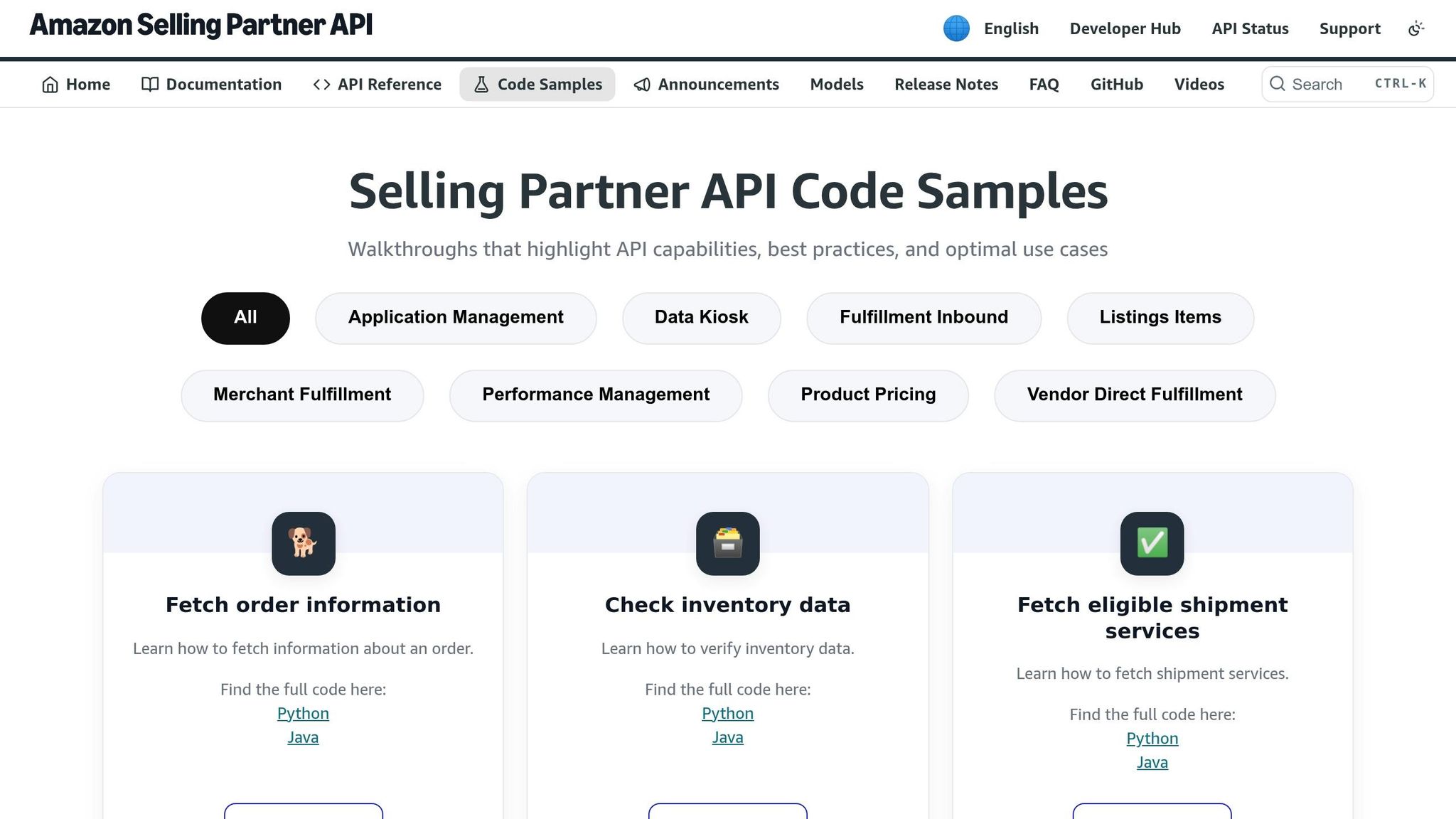
For developers or high-volume sellers, the Selling Partner API (SP-API) offers programmatic access to browse node data. Use the GET_XML_BROWSE_TREE_DATA report type to generate an XML file containing the full browse tree hierarchy and refinement details. Here’s how to get started:
- Ensure your developer application has permissions for areas like Product Listing or Inventory and Order Tracking.
- Specify the correct MarketplaceId in your report request to receive region-specific data.
- Use filters like the RootNodesOnly parameter for top-level categories or a specific BrowseNodeId for targeted branches.
You can compare new API reports with previous ones to monitor changes in the browse node structure. Keep in mind, if you’re still using the Product Advertising API (PA-API) GetBrowseNodes operation, it will be deprecated on April 30, 2026. Transitioning to the Creators API is recommended [6][11].
How to Download and Use Browse Node CSV with FlatFilePro
FlatFilePro makes it easier to manage your Amazon browse node data by simplifying the process of importing CSV files and syncing updates directly to Amazon Seller Central. Here’s how to get started.
Download Browse Node CSV Files
If you need a detailed list of browse node IDs beyond the top-level categories found in Seller Central, you’ll need a specialized dataset. As of February 2026, these datasets cover 34,872 unique categories across a full 7-level hierarchy for the USA marketplace. They are available in CSV, Excel, and TXT formats for $29 [2]. This structured hierarchy simplifies finding the correct browse nodes for your product listings.
To avoid common flat file errors during the import process, ensure your CSV file uses paired double-quotes and consistent decimal separators. These small adjustments can prevent upload issues when working with FlatFilePro [12]. Additionally, download your Active Listings Report from Seller Central to have your current product data ready [13].
Once your CSV file is prepared, you’re ready to bring it into FlatFilePro.
Import CSV into FlatFilePro
Start by logging into your FlatFilePro dashboard. Navigate to the Import section, upload your CSV file, and map its columns to the appropriate FlatFilePro fields. Then, click Import [13].
The mapping tool allows you to align fields like browse node IDs and category hierarchies with FlatFilePro’s data structure. This step ensures your product listings are accurately categorized, which is especially important when making bulk updates or creating new variation families.
After importing, you can take advantage of FlatFilePro’s features to enhance your listings.
Optimize Listings with FlatFilePro Features
Once your CSV is successfully imported, FlatFilePro offers tools to refine and maintain your catalog. The Reflection Engine runs nightly checks on your listings, using green checkmarks and red X’s to show where your data differs from what’s displayed on Amazon. This makes it easy to spot changes Amazon may have made to your browse node assignments without notifying you.
Another powerful tool is the Variations Manager. This feature lets you assign browse nodes with a simple drag-and-drop interface, updating your listings in under five minutes with a success rate of 95%. Once your updates are finalized, FlatFilePro’s sync feature automatically pushes them to Amazon Seller Central, completing your optimization process efficiently.
How to Read Browse Node CSV Data
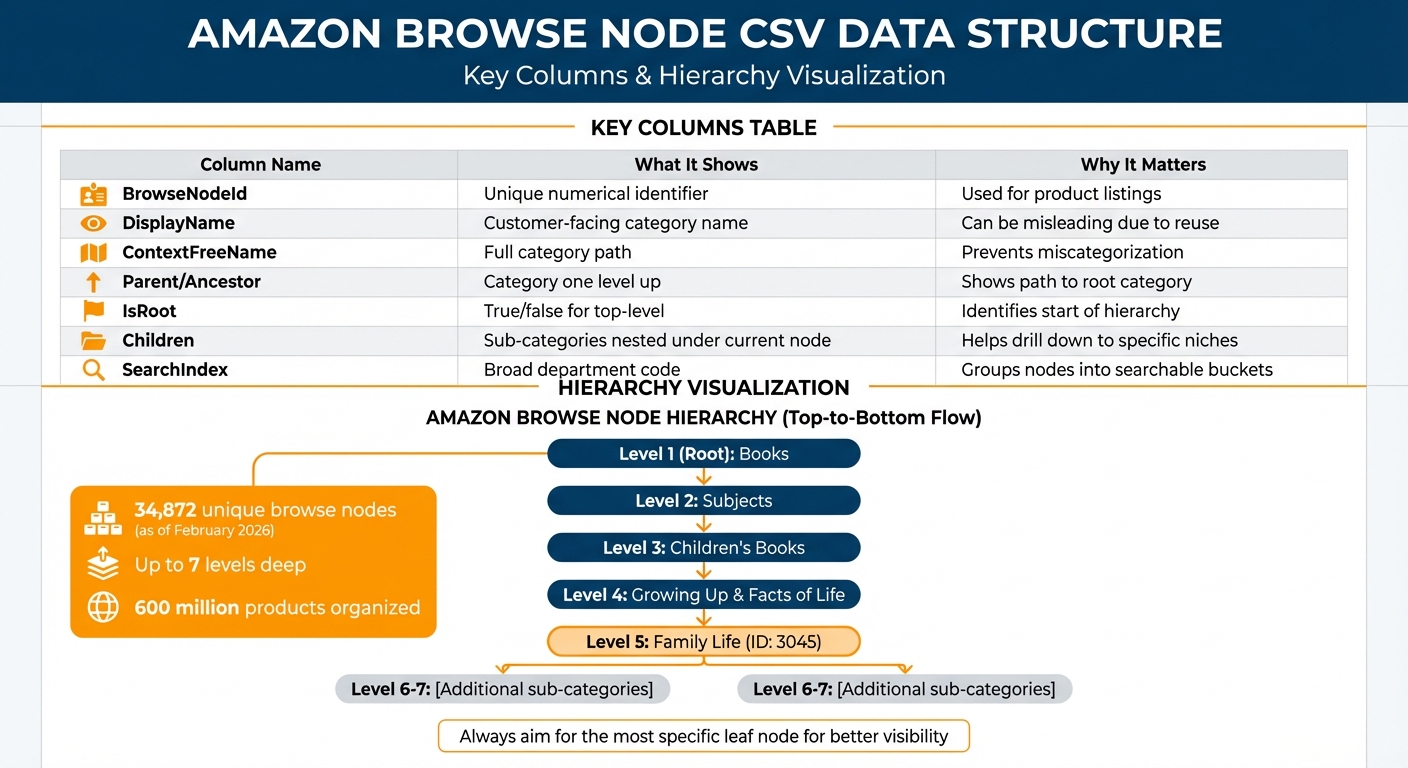
Amazon Browse Node CSV Structure: Key Columns and Hierarchy Explained
Once you’ve downloaded your CSV file, the next step is understanding how to interpret the data it contains. This is crucial for managing your product catalog and ensuring your listings are categorized correctly. The CSV file outlines Amazon’s category structure, starting from broad departments and narrowing down to the most specific niches.
Key Columns in the CSV File
Each column in the CSV serves a specific purpose in mapping out Amazon’s category hierarchy. Here’s what you need to know:
- BrowseNodeId: This is a unique numerical identifier assigned by Amazon to every category and sub-category [3]. You’ll use this ID when uploading product listings or making updates with Amazon inventory flat files.
- DisplayName: This shows the category name as it appears on Amazon’s website [3]. Be cautious, though – Amazon often reuses display names across different categories. For example, "Values" might appear in unrelated sections.
- ContextFreeName: Unlike the DisplayName, this column provides the full category path, such as "Children’s Adoption Books" instead of just "Adoption." This helps you avoid placing products in the wrong category [3].
- Parent/Ancestor: These columns show the category directly above the current node [3]. They form a "ladder" that traces the path of each sub-category back to its root. For instance, the "Family Life" node (ID: 3045) follows this path: Family Life → Growing Up & Facts of Life → Children’s Books → Subjects → Books (Root) [3].
- IsRoot: A true/false indicator that identifies whether a node is a top-level department [3].
- Children: Lists any sub-categories nested under the current node, helping you drill down into more specific niches [3].
- SearchIndex: Groups nodes into broader searchable departments like "Books", "Electronics", or "Apparel" [1].
| Column Name | What It Shows | Why It Matters |
|---|---|---|
| BrowseNodeId | Unique ID | Used for product listings |
| DisplayName | Customer-facing name | Can be misleading due to reuse |
| ContextFreeName | Full category path | Prevents miscategorization |
| Parent/Ancestor | Category one level up | Shows path to root category |
| IsRoot | True/false for top-level | Identifies the start of the hierarchy |
| SearchIndex | Broad department code | Groups nodes into searchable buckets |
These columns are essential for navigating Amazon’s category tree and ensuring products are listed in the right place.
Tips for Using Browse Node Data
- Avoid Hard-Coding IDs: Amazon frequently updates its category structure, especially for sub-categories. While top-level categories tend to remain stable, deeper nodes may change. Always work with the latest CSV file instead of relying on IDs from older downloads.
- Account for Locale Differences: Browse node IDs are specific to each marketplace. An ID for "Kitchen & Dining" in the U.S. might represent a different category in another region [3]. If you’re selling internationally, download separate CSV files for each marketplace.
Understanding the Hierarchy Structure
Amazon organizes its vast catalog – currently featuring 34,872 browse nodes (as of February 2026) – in a tree-like format, with some branches extending up to seven levels deep [2]. At the top are root nodes like "Books" or "Electronics", which branch into parent nodes and eventually leaf nodes. Leaf nodes are the most specific categories and do not have any children [3][5].
When assigning categories to your products, always aim for the most specific leaf node available. Choosing a granular sub-category can unlock additional attributes, like selecting "Bed Pillows" instead of the broader "Bedding" category. These extra attributes, such as fill_material, help customers filter search results more effectively [5][4].
To navigate the hierarchy:
- Check each node’s parent column to trace the path back to the root.
- Use the ancestry ladder to confirm where your product fits within Amazon’s catalog.
- If you’re unsure about a node’s role, test it by appending its ID to this URL:
amazon.com/b?node=[BrowseNodeID][3].
The hierarchy also highlights the importance of ContextFreeName. For example, if you see "Adoption" as a display name, reviewing the ancestry ladder can confirm whether it belongs under "Children’s Books" or another category [3].
"Saved me hours of manual category research. The hierarchy structure makes it easy to find the right browse nodes for product listings." – Alex, The Honest FBA [2]
Since Amazon updates its category structure without notice, regularly refresh your browse node data. This ensures your products remain in valid categories and take advantage of new niches that might better suit your inventory [3][5].
Conclusion
Handling Amazon’s 34,872 browse nodes (as of February 2026) doesn’t have to be overwhelming [2]. While downloading browse node CSV files is a good starting point for proper product categorization, how you utilize that data is what truly determines success.
Tools like FlatFilePro simplify the process by transforming CSV data into bulk catalog updates. Instead of manually updating product categories in Seller Central one at a time, you can directly import browse node data and apply changes across your inventory. This approach helps you focus on leaf nodes to boost visibility, audit miscategorized products across thousands of SKUs, and push updates through Amazon’s API in just minutes [2][15]. This is especially critical in intricate categories like Electronics or Home & Kitchen, where selecting the wrong child node can hurt product visibility [1].
Automation not only improves visibility but also scales seamlessly, no matter the size of your catalog. With Amazon frequently updating its category structures based on sales trends, staying on top of browse node changes is key to keeping your products discoverable [14]. Whether you manage 100 listings or 10,000, using accurate browse node data paired with efficient tools ensures your search rankings remain intact.
FAQs
How often should I refresh my browse node CSV?
Amazon recommends refreshing your browse node CSV at least weekly to maintain an up-to-date catalog. Even if you don’t notice any obvious changes, these regular updates help ensure your products are correctly categorized, which can enhance search visibility and accuracy.
What’s the safest way to pick the right leaf browse node?
The best way to select the right leaf browse node on Amazon is to rely on Amazon’s official browse node hierarchy and guides. These tools offer detailed lists, category IDs, and hierarchical structures to help you categorize your product accurately. You should also refer to Amazon’s updated browse tree guides and category taxonomies. These resources provide the controlled terms and rules you need to ensure your product is placed in the most appropriate category.
What happens if Amazon changes a browse node my listing uses?
If Amazon updates a browse node tied to your listing, it can affect how your product is categorized, its search visibility, and even compliance with Amazon’s guidelines. To avoid potential listing problems and ensure your product remains easy to find, you may need to adjust the category information accordingly.