
Amazon listings can change without warning – and a single bad edit can hurt traffic, sales, or the Buy Box. I’d boil this guide down to one point: if I want to find and fix listing changes fast, I need to check Seller Central’s Change History, review Amazon-driven updates in Review Listing Changes, compare the live page to my saved data, and use bulk fixes with care when many ASINs are hit.
Here’s the short version:
- I use View Change History to see what changed and when
- I use Review Listing Changes to check Amazon-made updates from the last 60 days
- I compare old vs. live content to spot hijacks, variation damage, and catalog drift
- I use PartialUpdate for bulk uploads so blank cells don’t wipe other fields
- I keep a saved version of my catalog, because some fields are hard to track inside Amazon
A few details matter right away:
- Brand owners usually get 14 days to respond to some Amazon-suggested changes before they go live
- Review Listing Changes does not show every field, such as some image and browse node edits
- Waiting at least 4 hours after a resubmission can help before I decide the fix did not stick
- Large catalogs need regular checks, because manual ASIN-by-ASIN review leaves gaps
If I had to sum up the whole article in one sentence, it would be this: find the changed field, match the timestamp to the source, fix only what drifted, and keep watching the catalog so the same problem doesn’t come back.
| Tool | What I use it for | Main limit |
|---|---|---|
| View Change History | Single ASIN edits, before/after values, timestamps | Some backend fields are harder to track |
| Review Listing Changes | Amazon-driven updates and contribution conflicts | Limited field coverage; 60-day view |
| Category Listings Report / exports | Compare current data with known-good data | Takes more manual work |
| Third-party monitoring tool | Catalog-wide tracking and rollback | Extra cost |
That’s the full picture in simple terms. The rest of the article explains how to check the logs, tell where a change came from, and put the right content back in place before it costs you more sales.
Amazon AI Listing Changes Auto Publish After 14 Days
sbb-itb-ed4fa17
What an Amazon listing history tool shows
Once you spot an edit you didn’t expect, the history log lets you see the exact change. An Amazon listing history tool records field-level edits on a product detail page, so you can check what changed, when it changed, and what likely made the change.
Fields and timestamps sellers can review
For each update, a good history log shows the field that changed, the date and time of the edit, the old value, the new value, and the source of the change [1].
Amazon’s native View Change History tool, inside Manage Inventory, tracks titles, descriptions, prices, inventory levels, images, bullet points, and listing variations [1][2]. Backend search terms and category nodes are often harder to review and may need separate exports for a proper audit [2].
Actor labels tend to be generic. Even so, they can still help you tell whether the edit likely came from your team, an API connection, or Amazon [1].
What Amazon’s native history captures – and misses
For most tracked fields, Amazon shows the edit time, source, and before-and-after values.
| Field | Captured in Amazon’s history? | Notes |
|---|---|---|
| Product title | Yes | – |
| Bullets and description | Yes | – |
| Price | Yes | – |
| Images | Yes | Change type logged |
| Inventory levels | Yes | – |
| Variations | Yes | Change type logged |
| Backend search terms | Limited | Harder to audit; requires separate exports |
| Category nodes | Limited | Often requires Brand Registry support logs |
With the fields mapped out, the next step is to check a single ASIN in Seller Central.
How to check listing edits in Seller Central

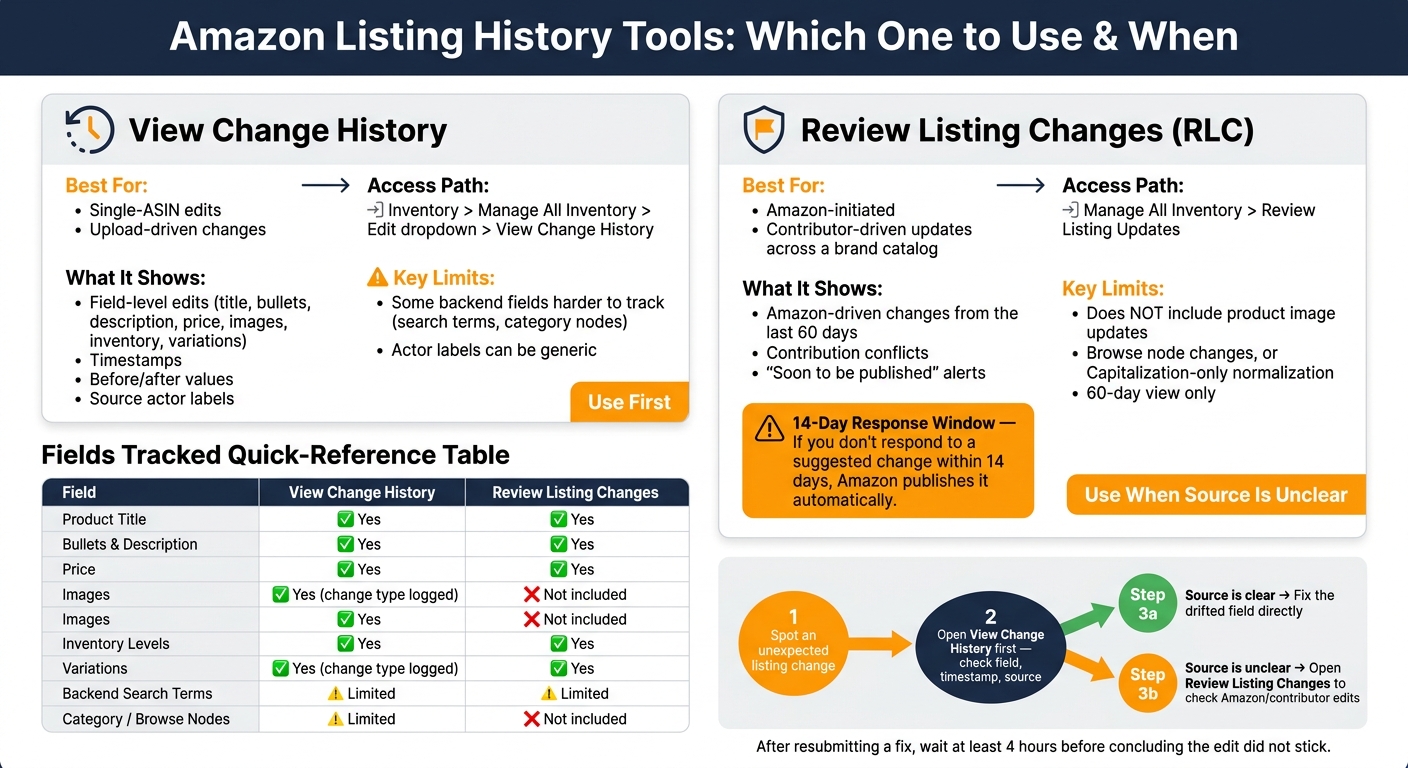
Amazon Listing History Tools: Which One to Use & When
Those field-level clues help you track the edit inside Seller Central. And there are two places to check. Opening the right one first can save a lot of time.
Open change history for a single ASIN
Go to Inventory > Manage All Inventory, click the dropdown arrow next to Edit for that ASIN, and choose View Change History.
Pay close attention to titles, images, bullets, browse nodes, and backend attributes. These fields can affect search indexing and conversion. Then line up the timestamp with any sales drop, Buy Box suppression, or search drop you saw. In many cases, that timing is the fastest way to figure out what changed and when.
Use Review Listing Changes for Amazon-initiated updates
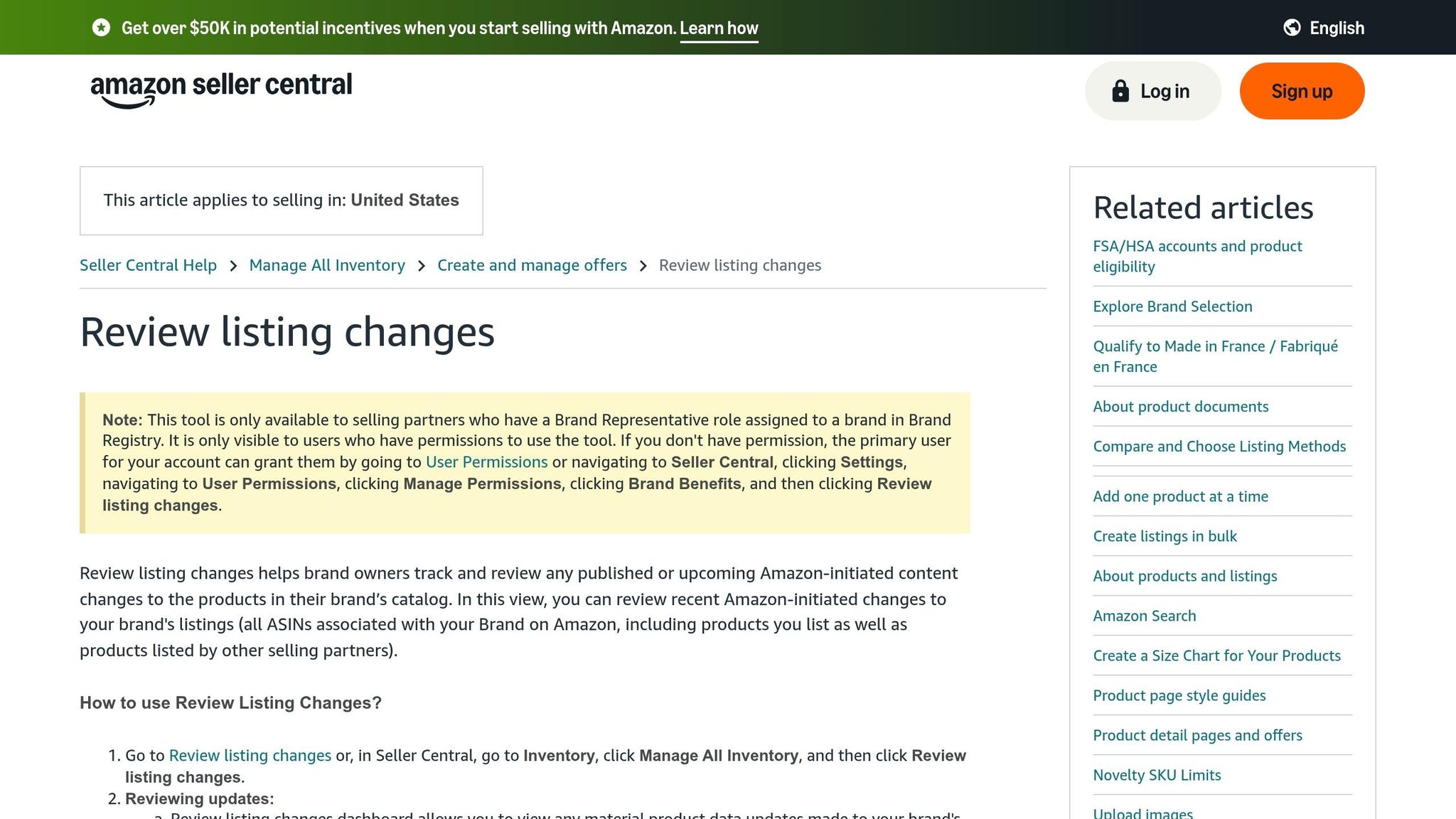
Use this view when Change History shows that an edit happened, but not who triggered it. If the source still feels fuzzy, open Review Listing Changes. It helps separate Amazon-initiated updates from contribution conflicts.
Brand-registered sellers can open Review Listing Changes (RLC) from Manage All Inventory > Review Listing Updates. The dashboard shows Amazon-initiated changes from the last 60 days[4][5].
Brand owners get a 14-day window to review a suggested update before Amazon publishes it automatically, so watch anything marked Soon to be published[4][5]. If a change is already live and it’s wrong, click the thumbs-down icon to disagree and start the appeal process[5].
"If you don’t address the suggestion within 14 days, it will be published automatically. Once published, you can view the change, provide feedback, and track the status of your feedback for up to 60 days." – News_Amazon, Amazon Moderator [4]
One catch: RLC does not include product image updates, browse node changes, or capitalization-only normalization updates[5].
Read logs without missing the real issue
Don’t look at one field in isolation. Read the full edit sequence.
If several content fields and structured attributes change at the same time, that often points to a system update or another seller’s contribution. Read the log in order, and match the changed field, timestamp, and nearby context. That’s how you sort out whether the edit came from your team, Amazon, or another seller’s contribution – because the next step depends on the source.
| Tool | Best Used For | Access Path |
|---|---|---|
| View Change History | Single-ASIN edits and upload-driven changes | Inventory > Manage All Inventory > Edit dropdown |
| Review Listing Changes | Amazon-initiated and contributor-driven updates across a brand catalog | Manage All Inventory > Review Listing Updates |
How to find the source of a change and fix the listing
Tell whether the change came from your team, Amazon, or a contribution conflict
Start by tracing the source with Change History, Processing Reports, and Brand Registry logs.
Open Manage All Inventory > View Change History and line up the timestamp with a teammate’s upload or API activity. That’s the fastest way to confirm an internal change. If you’re brand registered, check Brand Registry Support > Contribution History and Review Listing Changes side by side to see whether Amazon or another contributor overrode your content [2].
Amazon may also remove or suppress content when certain policy-triggering terms appear.
Once you know where the change came from, use the matching fix path below.
Compare old versus current content to spot hijacking and ASIN damage
The goal here is simple: compare the old value, the live listing, and the type of field that changed so you can sort the damage fast.
Pull the prior field values from View Change History and compare them with the live listing. Look closely at titles, bullets, images, browse nodes, and variation relationships. Those fields tend to drift with no warning [2][3].
Here’s a quick map of the most common patterns:
| Issue Type | Symptoms | Where to Check | Next Step |
|---|---|---|---|
| Hijacking | Unauthorized image or title swaps | View Change History; Brand Registry Contribution History | Open a case with Brand Registry Support and resubmit your source-of-truth data |
| Variation corruption | Orphaned children; split reviews | Full Variation Report; Manage All Inventory | Reattach child ASINs to the parent via flat file; reattach, don’t recreate |
| Catalog drift | Silent reversion to old copy; browse node shifts | Category Listings Report (CLR) and historical exports | Upload corrected data and keep monitoring for drift |
| Search suppression | Organic discovery drops to zero; listing shows suppressed | Listing Quality Dashboard; Manage Inventory Suppressed tab | Fix missing attributes or image violations |
After you spot the pattern, fix only the fields that drifted. Don’t touch the rest if you don’t have to.
Restore the correct data
For a single-field issue, use the Edit page. If the damage runs across several fields or ASINs, use a flat-file upload with care.
For broader fixes, use PartialUpdate so blank cells don’t overwrite data you didn’t mean to change [6]. If you don’t have a saved export, run a Category Listings Report to compare the current listing with known-good data [2][3].
After you resubmit, wait at least 4 hours before deciding the edit failed [6]. Then check the restored content on an actual phone. Desktop previews can miss how titles and bullets get cut off inside the Amazon app [3].
If the same fields keep snapping back, stop treating it like a one-time fix and start watching for drift on a regular basis.
How to monitor listing changes at scale with FlatFilePro

When drift hits a lot of SKUs, checking ASINs one at a time just doesn’t cut it. If you’re managing hundreds or thousands of listings, manual spot checks leave gaps. The better move is to watch the catalog all the time.
Use the Reflection Engine to catch live listing drift
FlatFilePro’s Reflection Engine checks your saved catalog data against live Amazon listings every night and flags mismatches in titles, images, variations, browse nodes, and backend terms. It watches 230+ signals, including fields Amazon’s native history doesn’t surface in a reliable way, so silent catalog drift gets flagged before revenue starts slipping. [2]
Use the activity log and rollback workflow to recover past versions
When you find a mismatch, trace the source before restoring the listing. The activity log shows who changed each field and whether the source was a user, API, or system event. If a bad edit shows up, you can roll back to the last stable version instead of rebuilding the listing by hand. [2][3]
Compared with native listing history, FlatFilePro gives you catalog-wide coverage, broader field tracking, clearer source attribution, and version rollback.
Apply corrected content in bulk and keep catalogs stable
Once you’ve confirmed the right data, push the fix across all affected listings in one pass. That means you can correct affected ASINs in bulk, then keep watching any field that tends to drift.
Conclusion: Build a repeatable listing audit process
A strong audit process comes down to four steps: know which fields matter most, check Seller Central’s change history first when something looks off, trace the source before you restore anything, and put the right version back in place fast. When a bad edit stays live too long, it chips away at rankings, conversions, and revenue. For large catalogs, that kind of control only holds up when you have version control and steady monitoring.
The risk is simple: bad updates stack up fast.
To make this process repeatable, lock in the same checks every time. Build around a single source of truth, daily suppression checks, quarterly catalog audits for browse nodes, variation integrity, and image compliance, plus version control for every bulk upload.
For large catalogs, Seller Central’s native tools can do a lot. But when you pair them with FlatFilePro’s Reflection Engine, activity log, and rollback workflow, you’re not sitting around waiting for sales to dip before you spot a change. You’re watching the catalog all the time, catching drift early, and restoring the right content in bulk – so your brand content stays protected and your catalog stays under control.
FAQs
How far back can I see listing edits on Amazon?
Amazon’s Change History tool in Seller Central lets you see edits for a single listing. It shows the timestamp, the type of change, and the old and new values side by side.
What it doesn’t do is give you one account-wide history across all listings. Amazon also doesn’t state a set lookback window for how long these records stay available.
To check a SKU, go to Manage Inventory, open the dropdown next to Edit, and select View Change History.
What should I do if Amazon changes my listing automatically?
Move fast to reverse the update and get your preferred content back in place. Start by taking screenshots, putting together a timeline of what changed, and comparing the live listing against your original records so you can spot any gaps or mismatches.
Then use your version control or rollback feature to restore the last correct, compliant version. Keep an eye on the listing for 24 to 48 hours to make sure the fixes go live and remain in place.
How can I track listing changes across a large catalog?
Native Amazon tools make it hard to monitor large catalogs at scale because you have to check each SKU by hand.
FlatFilePro’s Reflection Engine does that work for you. It keeps scanning your listings, matches them against your approved data, and sends real-time alerts when it spots unauthorized changes.
You also get a centralized Activity Log that shows a full audit trail, including timestamps and user details. And if something needs fixing, you can make bulk updates or use one-click rollbacks.