
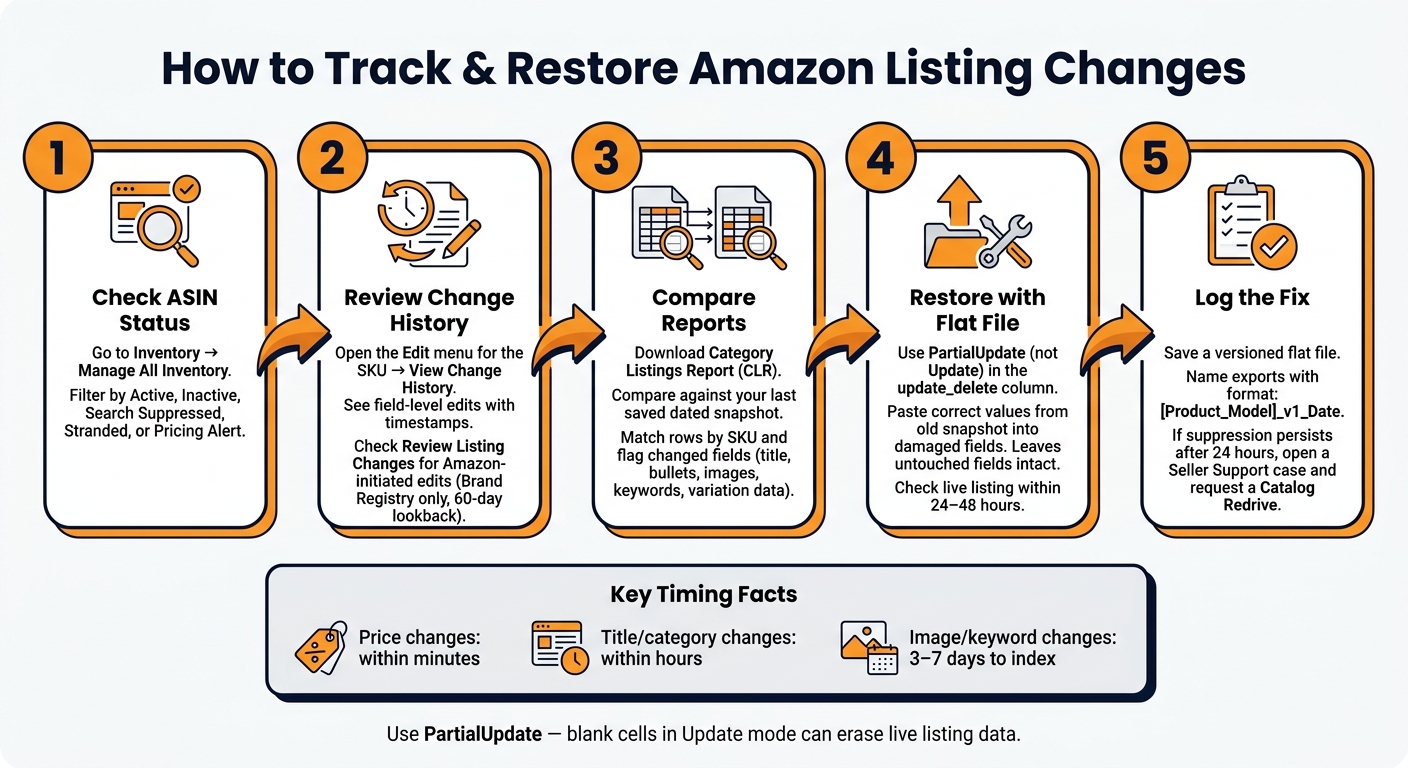
Yes, you can track Amazon listing history – but not from one screen. If your title, bullets, images, keywords, or variation links change, I’d check Seller Central history, Category Listings Reports, processing reports, and Brand Registry records right away.
Here’s the short version:
- Start in Seller Central to check whether the ASIN is Active, Inactive, or Search Suppressed
- Use View Change History to see field edits and timestamps
- Check Review Listing Changes if you want to see Amazon-made edits from the last 60 days
- Download Category Listings Reports to compare old vs. current catalog data
- Use
[PartialUpdate](https://flatfile.pro/ffp/expert-guide-amazon-partial-inventory-update-2/)in flat files so blank cells don’t erase live content - Review parent-child data if a variation breaks or a child ASIN gets split from the family
- If suppression stays after a fix, ask Seller Support to redrive the catalog
- Keep dated backups because title and description edits can take 24 to 48 hours to index, while image or keyword changes may take 3 to 7 days
Why does this matter? Because one bad edit can hurt ranking, conversion rate, ads, and sales. And if an ASIN gets suppressed, the revenue loss can start fast.
If I were setting up a simple process, I’d do this:
- Check the ASIN status in Seller Central
- Review change history
- Compare the latest report with my last saved backup
- Restore broken fields with a flat file
- Log the fix so I can trace it later
A short comparison of the main ways to track changes:
| Method | What I’d use it for | Main limit |
|---|---|---|
| Manage All Inventory | Current listing status | Shows status, not the full story |
| View Change History | Per-ASIN edit trail | May not show every source of change |
| Review Listing Changes | Amazon-made edits | Brand Registry only, 60-day lookback |
| Category Listings Report | Old vs. new field comparison | Must be saved often to help later |
| Processing Reports | Bulk upload checks | Only helps if a file caused the issue |
If you want to find out what changed, when it changed, and how to fix it, this is the process I’d follow.
How to Track & Restore Amazon Listing Changes: Step-by-Step
What Amazon listing history means and why changes cause problems
Amazon listing history is the record of edits made to a listing over time. That includes changes to titles, bullets, images, backend terms, attributes, and variation data. The tricky part is that Amazon doesn’t give sellers one clean change log. So if something goes wrong, sellers usually have to piece the story together from whatever records they can find.
That’s why the first audit step is pretty simple: figure out which fields matter most and which types of changes tend to cause damage.
To rebuild the edit trail, sellers usually look at View Change History, Case Log, Brand Registry contribution records, and historical reports [1].
Fields sellers most often need to track
Some fields matter more than others because they have the biggest effect on indexing, ranking, and how the listing shows up on the page. In most cases, sellers should keep a close eye on:
- title
- bullets
- description
- main image
- backend terms
- size
- color
- variation theme
- parent-child links
These are usually the first places to check when a listing starts acting strangely. If something looks off, compare those fields against saved reports or flat files.
The change scenarios that matter most
Once you know which fields to watch, the next job is to focus on the edits most likely to break the listing.
Automated edits are a big one. Amazon can normalize catalog data without warning, and that makes drift hard to catch. A category change can set off a chain reaction: image issues, suppression, ad problems, and even IPI damage [4].
Other high-impact cases show up all the time. A flat file upload in Update mode instead of PartialUpdate can wipe out bullet points if blank columns are included. In Update mode, blank columns erase existing data [5]. Child ASINs can also become orphaned if they lose the parent reference [3]. And listings may get suppressed when restricted terms like "antimicrobial" or "medical device" appear in backend keywords or descriptions [1].
Timing makes this worse. Price changes can hit within minutes. Title or category changes may show up within hours. Image or keyword edits can take days to appear [4]. That gap between the edit and when someone notices it is where the cost starts to build.
Once you know what can drift, the next step is checking Seller Central for visible history and current status.
sbb-itb-ed4fa17
How to review listing changes in Seller Central

Seller Central gives you three different places to review listing changes. Each one answers a different question, so it helps to check them in order. In most cases, these screens show the problem fast. Start in Seller Central first, since that’s where you can see both the current listing status and the edit trail.
Check listing status in Manage All Inventory
Go to Inventory → Manage All Inventory. This screen gives you a current snapshot of each listing’s status, including Active, Inactive, Search Suppressed, Stranded, and Pricing Alert. Use the status filters to narrow down problem ASINs fast.
A status change often points to catalog drift, suppression, or a recent attribute edit. If a listing shows as Search Suppressed or Inactive, look at recent attribute changes first. [1]
Open per-ASIN change history
If a listing looks wrong, stay in Manage All Inventory, find the SKU, and open the Edit menu. Then choose View Change History. This view shows field-level edits for that ASIN, along with timestamps. [1]
If that still doesn’t explain what changed, the next step is to check whether Amazon made the edit.
Use Review Listing Changes to spot Amazon-initiated edits
Brand-registered sellers can use Review Listing Changes to see Amazon-initiated edits from the last 60 days. Review AI suggestions within 14 days, or Amazon may publish them automatically. [6]
If Seller Central still doesn’t explain the change, compare catalog snapshots in your reports next.
How to back up and compare catalog data using reports
If Seller Central history doesn’t show the full edit trail, downloaded reports can fill the gap. Think of them as dated snapshots of your catalog. When a listing goes sideways, you’ll have something solid to compare against.
Which reports to download for historical snapshots
For catalog audits, three reports do most of the heavy lifting:
| Report | Fields Captured | Best Use Case |
|---|---|---|
| Category Listings Report (CLR) | Full attributes: title, bullets, description, images, keywords, dimensions, materials, variation themes, and parent-child relationships [9] | Full catalog backup, auditing catalog drift, bulk restoration – acts as the source of truth for backend data [7][9] |
| Active Listings Report | Offer-level data: ASIN, SKU, price, quantity, fulfillment channel, and status [9] | Inventory management and identifying out-of-stock items; lacks content attributes like titles or images [9] |
| Suppressed Listings Report | Missing required fields, compliance flags, and specific reasons for search suppression [7] | Troubleshooting why a listing isn’t visible in search results; useful for documenting compliance history [7][9] |
Start with the Category Listings Report. It’s the one you want when you need a full catalog backup or need to trace backend content drift. You do need access in Seller Central, so request it through Help > Request Category Listing Report. Amazon provides the report in 7-day windows [7][8].
When you download the CLR, set the Status Filter to "All" so the export includes both active and inactive listings. Then open the file carefully. A text editor works, or you can format GTIN/EAN columns as Text in Excel so 13-digit values don’t get converted into scientific notation [9].
Use the CLR when you need to recover content. Use the other two reports when you’re checking listing status or trying to spot suppression issues.
How to compare old and new files to find changed fields
Save each export as a dated snapshot, then compare it with the newest file to see what changed. A file name like [Product_Model]_v1_Date makes the timeline easy to follow [10].
In Excel, match rows by SKU and flag any fields that changed. That’s often the fastest way to spot title edits, removed bullet points, swapped images, or missing attributes across a big catalog [1]. Trying to catch that stuff by eye is a headache.
A bi-weekly backup cadence works well for active or high-volume accounts. If you’re doing deeper audits, quarterly snapshots are usually enough [8].
How to restore content with flat files when data is lost
Once you’ve found the drift, use the older snapshot to rebuild the damaged fields. In plain English: take the file that shows the correct values, download a fresh CLR, and paste the old values into the damaged cells while leaving everything else alone [9].
In the update_delete column, use PartialUpdate instead of Update. That’s a small setting with a big effect.
PartialUpdatechanges only the fields you’ve filled in and leaves the rest alone.Updateoverwrites every field, so blank cells in your file can wipe live data on Amazon [7][8].
For variation families, keep the original SKU, ASIN, and feed_product_type exactly as they appear in the source report. Also make sure parent SKUs do not include price or quantity values, because that can trigger parentage rejection [7][8].
After you upload the file, review the processing report and then check the live listing within 24 to 48 hours [2][7].
How to track variation changes and suppression-related edits
Broken variations and suppressions can tank listing performance fast. That’s why your saved reports and listing history matter so much. They help you spot the exact field that changed instead of guessing.
How to trace parent-child relationship changes
Start with your saved CLR snapshots when a variation breaks or a listing gets suppressed. For a variation audit, compare a fresh CLR against your last clean snapshot. That report shows the parent-child links and the variation fields Amazon is using.
When a variation breaks, one of the most common signs is an orphaned child ASIN – a child listing that lost its parent reference and now sits on its own without the parent’s reviews or A+ content [3]. The fix starts with a side-by-side check: pull a fresh CLR and compare it with your last saved snapshot. Look for child ASINs with no parent reference and for parents showing fewer children than they should.
Pay close attention to two trouble spots:
- A changed variation theme field
- Child attribute values that no longer match
A variation theme mismatch can trigger Error 8016, and even small differences like "Blue" vs. "Navy Blue" can be enough for Amazon’s algorithm to normalize the data and split the grouping [11][2]. That’s the frustrating part: the family can break even when Seller Central still looks fine on the surface.
To trace the source of the change, check your flat-file Processing Reports for recent bulk uploads that may have altered parentage. Then review Brand Registry > Support > Contribution History to see whether another contributor submitted an update [1][2]. If neither one shows a change, the issue was likely Amazon-side catalog drift, where Amazon’s algorithm periodically normalizes catalog data without notifying sellers [2][4].
If the family structure still looks intact, move on to suppression.
How to find the edits that caused suppression
Start in Seller Central at Catalog > Manage Inventory, then open the Listing Enhancements, Suppressed, or Fix Your Products view. This screen shows the affected ASINs and the main suppression reason, such as a missing image, a title over the character limit, or another missing required attribute [11][3].
Once you know which field triggered the suppression, compare it with your older CLR backup. If that field was filled in on the backup and is now blank or invalid in the current report, you’ve found the edit that caused the issue.
Timing matters here. Image changes and backend keyword edits can take 3 to 7 days to fully move through Amazon’s index, so a suppression showing up today may connect to an edit made earlier in the week [2].
After you find the changed field, fix it and log what you changed.
How to fix the issue and document the recovery
For a single ASIN, correct the missing or invalid field right in Seller Central’s edit view. For bulk fixes, use a flat file with PartialUpdate in the update_delete column.
If the suppression is still there more than 24 hours after the fix, open a Seller Support case and ask them to "Redrive the Catalog". That triggers a manual backend refresh so Amazon rechecks the listing [11][2].
For your records, keep a versioned flat file or a master copy of the corrected variation structure. That gives you something to compare against future CLR exports and also gives you an audit trail if the same issue comes back [11]. If the fix still won’t stick, escalate it to the Captive Team.
How to use FlatFilePro to monitor, log, and restore listing changes

When manual checks miss things, FlatFilePro helps you track catalog changes in one place.
It gives you a single view to monitor live listings, log edits, and restore earlier versions.
Monitor live listings with Reflection Engine
Reflection Engine scans live listings against your approved catalog version and flags drift across 230+ listing signals, including titles, bullets, descriptions, images, and attributes [1]. It spots catalog drift before it affects rankings, suppression, or conversion.
That matters because a listing can still look Active in Seller Central even when live content is missing or suppressed.
When drift shows up, the activity log and version history show what changed and give you a way to roll it back.
Use the activity log and version history for audits
The activity log shows what changed and when. Version history lets you roll back overwritten content without rebuilding the listing.
That gives you a clean way to recover when Amazon-side edits or bulk mistakes overwrite content.
Manage bulk edits and variation fixes with tracked records
For larger catalogs, FlatFilePro supports bulk editing across the catalog and drag-and-drop parent-child moves. Those tracked parent-child moves help preserve the family structure and document the fix, which ties directly to the variation recovery steps covered earlier.
For a quick side-by-side view, here’s how FlatFilePro compares with Amazon’s built-in tools.
| Feature | Amazon Tools | FlatFilePro |
|---|---|---|
| Monitoring scope | Per-ASIN history [12] | Catalog-wide monitoring with 230+ listing signals [1] |
| Audit trail | Often vague, such as "Seller Central User" [12] | Timestamped change log |
| Variation support | Manual flat-file or individual edits [12] | Drag-and-drop with tracked records |
| Rollback capability | Manual restoration of previous values [12] | Version history and restoration |
Conclusion
Tracking Amazon listing history works best with a layered approach. Start with Seller Central’s built-in views to catch obvious changes. Then use reports and versioned flat files to piece together the edit trail when Seller Central history doesn’t show the full picture.
FlatFilePro’s Reflection Engine, activity log, and version history help you spot drift, trace edits, and roll back bad changes fast. If you manage a large catalog, version history gives you a much faster path from detection to recovery. The sooner you find the change, the sooner you can restore the listing.
FAQs
How far back can Amazon listing history be tracked?
Amazon doesn’t give you one central dashboard for listing history in Seller Central. There also isn’t a fixed lookback window that applies across the board.
What you can see depends on the tool you’re using. For example, Category Listing Reports may show one slice of history, while inventory files may show another.
That split setup makes Amazon’s built-in history hard to rely on if you need a clean record of changes over time. Tools like FlatFilePro’s Reflection Engine help fill that gap by automating long-term tracking and backups, which gives sellers a more dependable audit trail.
What should I back up to restore a listing fast?
Use a Category Listing Report (CLR) as your main backup. In Seller Central, request it under Reports > Inventory Reports to export your live backend listing data, including hidden attributes.
FlatFilePro can also help with automated backups and version history, so you can review past data and roll back fast after an unauthorized change.
Why do listing changes sometimes appear days later?
Because Amazon handles catalog updates in phases. High-impact changes like price and inventory usually go live within 15 to 30 minutes, while titles and descriptions often take 24 to 48 hours.
Images and backend keywords can take three to seven days since they need broader server distribution and search index rebuilding. And here’s the part that trips people up: a change can upload successfully at first, then get suppressed later if it fails validation.