
Amazon flat files are spreadsheet templates (like CSV or Excel) that simplify managing product listings in bulk. Instead of updating products one by one, sellers can use these files to handle multiple listings at once. Each file is tailored to specific product categories and includes required, recommended, and optional fields.
Why use flat files?
- Save time: Update hundreds of listings in minutes.
- Handle complex variations: Manage sizes, colors, and other attributes with ease.
- Ensure accuracy: Avoid errors by using structured templates.
How to download Amazon flat files:
- Log into your Seller Central account.
- Navigate to Inventory > Add Products via Upload.
- Search or browse for your product category.
- Select the "Recommended" template for better visibility.
- Download the file and open it in Excel or Google Sheets.
Tips for success:
- Always download the latest template to avoid errors caused by outdated formats.
- Fill out all required fields like SKU, title, price, and quantity.
- Save the file as a tab-delimited
.txtbefore uploading.
FlatFilePro is a tool that helps automate and validate flat files, ensuring compliance with Amazon’s rules and reducing errors before upload. If you’re managing a large catalog, tools like this can streamline your workflow and help maintain accurate listings.
How to Download and Use a Flat File for Bulk Upload in Amazon Seller Central | Step-by-Step Tutorial
sbb-itb-ed4fa17
How to Download Amazon Flat File Templates
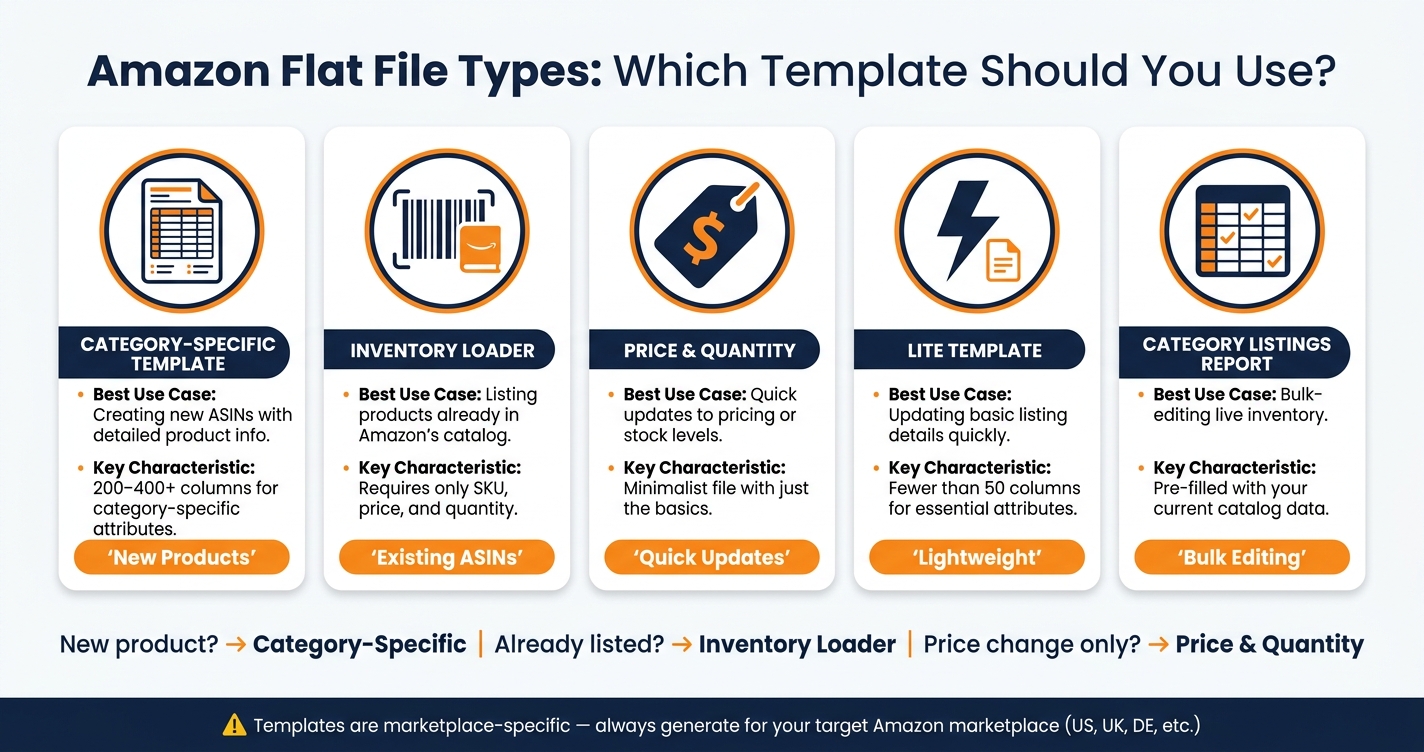
Amazon Flat File Types: Which Template Should You Use?
What You Need Before Downloading Flat Files
Before you get started, make sure you have a Professional Seller account with the necessary permissions, including Inventory and Add Products via Upload. If you’re a secondary user, double-check with your account admin to confirm your permissions.
It’s also crucial to identify your exact product category, including the specific browse node, to ensure you download the correct template. You’ll need spreadsheet software like Microsoft Excel or Google Sheets to work with the .xlsx file once it’s downloaded.
One important tip: always download a new template for each upload session. Amazon frequently updates these templates, adding new fields or changing validation rules.
Step-by-Step: Downloading a Flat File Template
- Log into your Seller Central account and go to Catalog > Add Products via Upload or Inventory > Add Products via Upload.
- Select the Download an Inventory File tab.
- Use the search bar to find your product category. For example, typing "hair dryer" or "outdoor lanterns" will prompt Amazon to suggest relevant categories.
- If the search doesn’t give you the right result, switch to the Browse option and manually navigate through the category tree until you find the correct product node.
- After selecting your category, you’ll be asked to choose a template detail level. It’s best to pick the "Recommended" option, which includes extra attributes that can boost your product’s visibility and ranking.
- Once you’ve made your selection, generate and download the file.
After downloading, you’re ready to fill out and prepare the template for upload.
Common Flat File Types and When to Use Each
Amazon offers various flat file templates tailored to different needs. Here’s a quick breakdown of the most common ones:
| Template Type | Best Use Case | Key Characteristics |
|---|---|---|
| Category-Specific | Creating new ASINs with detailed product info | Includes 200–400+ columns for category-specific attributes |
| Inventory Loader | Listing products already in Amazon’s catalog | Requires only SKU, price, and quantity |
| Price & Quantity | Quick updates to pricing or stock levels | Minimalist file with just the basics |
| Lite Template | Updating basic listing details quickly | Fewer than 50 columns for essential attributes |
| Category Listings Report | Bulk-editing your live inventory | Pre-filled with your current catalog data |
If you’re introducing a brand-new product to Amazon, go with the Category-Specific template, as it allows you to create a detailed new ASIN. For products already listed by other sellers, the Inventory Loader is a faster option since you only need to match an existing ASIN. Meanwhile, the Price & Quantity file is perfect for quick price or inventory updates across multiple SKUs.
Remember, these templates are specific to each marketplace. A file for Amazon.com (US) won’t work for Amazon.co.uk or Amazon.de due to differences in validation rules. Always generate the file for the appropriate marketplace to avoid errors.
Pick the template that aligns with your needs, and you’re ready to start editing!
How to Fill Out and Prepare Your Flat File Template
Once you’ve downloaded your flat file template, it’s time to prepare it carefully to ensure a smooth upload process.
Opening and Editing Your Flat File
Start by opening your template in either Excel or Google Sheets. Do not change the column order – Amazon’s system relies on the exact structure of the file, and even minor adjustments can lead to upload failures.
Before entering any data, take a moment to review the following tabs in the template: Data Definitions, Valid Values, and Example. These sections provide clear guidance on field requirements, acceptable terminology, and proper formatting.
When you’re ready to save your file, ensure it is in the tab-delimited .txt format. Avoid saving it as .xlsx or any other file type [4].
Finally, familiarize yourself with the required fields and formatting rules to minimize the risk of common flat file errors during the upload.
Required Fields and Formatting Rules
Every required field must be completed; otherwise, the corresponding row will fail during upload.
| Field | Requirement | Key Rule |
|---|---|---|
| SKU | Unique identifier | Must remain consistent in all future updates. |
| Product Title | Max 200 characters | Avoid all-caps and promotional phrases like "Best" or "Free Shipping." |
| Price | Numeric only | Enter as a plain number, e.g., 24.99. |
| Quantity | Numeric only | Reflects the current inventory level. |
| GTIN (UPC/EAN) | 8–14 digits | Must be GS1-validated and unused on Amazon. |
| Description | Max 2,000 characters | Use plain text – no HTML formatting. |
| Bullet Points | Up to 5; 500 characters each | Start each point with a capitalized key feature name. |
Keep in mind that dates should follow the MM/DD/YYYY format. Prices must be entered as plain numbers in USD, without currency symbols or commas. For example, entering $24.99 or 24,99 instead of 24.99 will result in an error [2][3].
If you’re updating an existing listing, set the update_delete column to "PartialUpdate". This ensures that only the fields you fill out will be updated. Using "Update" instead could accidentally erase any fields you leave blank [6].
Checking Your Data Before Upload
Before uploading, carefully review all required fields to catch potential errors. Pay special attention to fields like SKU, Product Title, Price, Quantity, and GTIN, as these are the most frequently overlooked. Additionally, check any controlled vocabulary fields (e.g., "Color" or "Size") against the Valid Values tab to ensure you’re using Amazon’s exact terms. For instance, entering "BT" instead of "Bluetooth" will result in a rejection [2].
Take advantage of Seller Central’s "Check My File" tool before performing a full upload. This feature identifies formatting issues and missing data, giving you a chance to resolve problems ahead of time [3].
Lastly, double-check your titles and descriptions. Even if a listing becomes active, it might not appear in search results if it fails Amazon’s quality standards – such as using a non-compliant main image or omitting required attributes for specific categories [5].
Uploading Flat Files and Fixing Common Errors
How to Upload Your Flat File in Seller Central
Once your flat file is ready and saved in tab-delimited .txt format, head over to Seller Central to upload it. Log in and navigate to Inventory > Add Products via Upload. Under the Upload your Inventory File tab, choose the correct file type – most often, "Inventory Files for non-Media Categories." Then, click Choose File to locate and select your saved template. If you want email updates, you can provide an email address to track the upload status. Finally, check the Process Upload Results section to monitor progress. Uploads are usually processed within minutes. Afterward, download the processing report to review any potential issues.
Reading Processing Reports and Error Codes
Once your file has been processed, download the Inventory File Error Report from the Spreadsheet upload status tab under the Actions menu. This report breaks down the results in two key sections:
- Feed Processing Summary: Shows how many rows were successfully uploaded and how many failed.
- Template Tab: Highlights the specific rows and cells where errors occurred.
For each failed row, you’ll see an error code along with a description (e.g., "Missing Required Fields" or "Product ID Mismatch"). Additionally, every upload is assigned a unique Batch ID, which you may need if you contact Amazon Seller Support for help. Once you’ve identified the errors, use the steps below to resolve them.
How to Fix Common Flat File Errors
Here’s a quick guide to some of the most frequent errors and how to address them:
| Error Type | Common Cause | Fix |
|---|---|---|
| Missing Required Fields | SKU, Brand, or Product Name left blank | Fill in all mandatory fields based on the Data Definitions tab. |
| Invalid Data Format | Currency symbols or commas in numeric fields | Remove any currency symbols and commas from numeric values. |
| Product ID Mismatch | Incorrect UPC digit count or mismatched ID type | Double-check the Product ID and ensure the "Product ID Type" column is accurate. |
| Category Misalignment | Item assigned to the wrong browse node | Refer to the Browse Tree Guide (BTG) and update the Item Type Keyword accordingly. |
After correcting these issues, save your updated file in .txt format and re-upload it through the Add Products via Upload section.
Conclusion: Managing Flat Files More Effectively with FlatFilePro

Key Points to Remember About Flat File Management
Flat files are a practical way to handle bulk product updates. By downloading, completing, and uploading them correctly, you can ensure your catalog stays accurate and organized. When adding new ASINs, always use category-specific templates and double-check that all required fields are filled out before uploading. Following these steps helps reduce errors and keeps your catalog running smoothly with FlatFilePro.
Why FlatFilePro Works Well for Ongoing Catalog Management
Effective catalog management goes beyond just following the basics – it’s about saving time and avoiding mistakes. Manual updates can be tedious and prone to errors, especially with large catalogs. FlatFilePro simplifies this process by integrating directly with Amazon Seller Central through its API. This allows you to push updates without leaving the platform. Plus, the Reflection Engine keeps an eye on your listings every night, flagging any discrepancies between the data you submitted and what’s live on Amazon. This feature makes it easier to catch and address unauthorized changes quickly.
"You’ll no longer have to spend countless hours manually adjusting and updating your catalog, giving you more time to focus on expanding your business and driving sales." – FlatFilePro [1]
If you manage 100 or more SKUs and want to cut down on manual updates while focusing on growing your business, FlatFilePro’s Standard plan starts at $99/month. It even includes a free trial, so you can test its features with your own catalog before making a decision.
FAQs
Which flat file template should I use for my update?
To choose the correct flat file template, start by logging into Amazon Seller Central. Navigate to the Inventory menu and select Add Products via Upload. From there, use the download tool to select your product category and the U.S. marketplace.
For detailed updates, download a category-specific template tailored to your product type. If you only need to update basic details like SKU, price, or quantity, the Inventory Loader file is the better choice. Always make sure to download the latest version of the template to ensure everything is accurate and meets Amazon’s guidelines.
Why does Amazon require a tab-delimited .txt file for uploads?
Amazon relies on tab-delimited .txt files as a consistent format for handling bulk product data like inventory, pricing, and attributes. This tab-separated layout keeps data well-organized and minimizes errors during uploads. Using this format with UTF-8 encoding ensures compliance with Amazon’s strict data standards, helps avoid upload problems, and simplifies catalog management.
How can I prevent my bulk upload from overwriting fields I leave blank?
When performing a bulk upload in Seller Central, selecting the Update option is crucial to prevent overwriting existing data with blank fields. This option ensures that Amazon ignores blank cells in your file and updates only the fields containing new information. On the other hand, if you choose Override existing products, all current details will be replaced – including fields left empty in your upload file. To make targeted changes without altering other listing details, always opt for the Update setting.