
Updating images for large Amazon catalogs can be overwhelming, especially when dealing with bulk uploads. Amazon requires direct image URLs in inventory files, and incorrect formatting often leads to errors like "Invalid URL format (error 15)." FlatFilePro’s free tool eliminates this hassle by generating Amazon-compatible image links quickly and efficiently.
Key Takeaways:
- Purpose: The tool creates direct image URLs for Amazon listings.
- How It Works: Input ASINs or upload a CSV, and download a file with formatted links.
- Benefits: Saves time, reduces errors, and supports bulk catalog updates.
- Compatibility: Ensures URLs meet Amazon’s strict requirements.
This tool is ideal for sellers managing hundreds of listings, enabling faster updates while maintaining consistency across product catalogs.
How to Create Amazon Image URLs for Flat Files Quickly | Amazon FBA for Beginners
sbb-itb-ed4fa17
What Is the FlatFilePro Free Image Link Generator?

The FlatFilePro Image Link Generator is a tool designed to create direct image URLs specifically for Amazon product listings. It simplifies the bulk upload process by generating links that meet Amazon’s requirements, saving sellers from the hassle of manually entering image links for multiple products.
What the Free Tool Does
This tool works seamlessly with multiple ASINs at once. All you need to do is input your product identifiers, and it will generate direct image URLs that are ready to use. The results are exported in a CSV file, making it simple to incorporate them into your inventory files. It also automates URL encoding, ensuring that special characters or spaces don’t cause issues with your links. However, it’s important to note that Amazon does not accept URLs from hosting platforms like Google Photos or Google Drive [4].
This functionality translates into smoother operations and less manual effort for sellers.
How Amazon Sellers Benefit
If you’re managing 300 or more listings, the time savings can be immense. Instead of manually updating images one by one in Seller Central, you can update your entire catalog in just minutes. This efficiency is especially helpful for agencies juggling multiple seller accounts. Additionally, FlatFilePro reports a 95% success rate when handling complex variation listings, helping maintain consistency while reducing errors [3].
How to Use the Image Link Generator
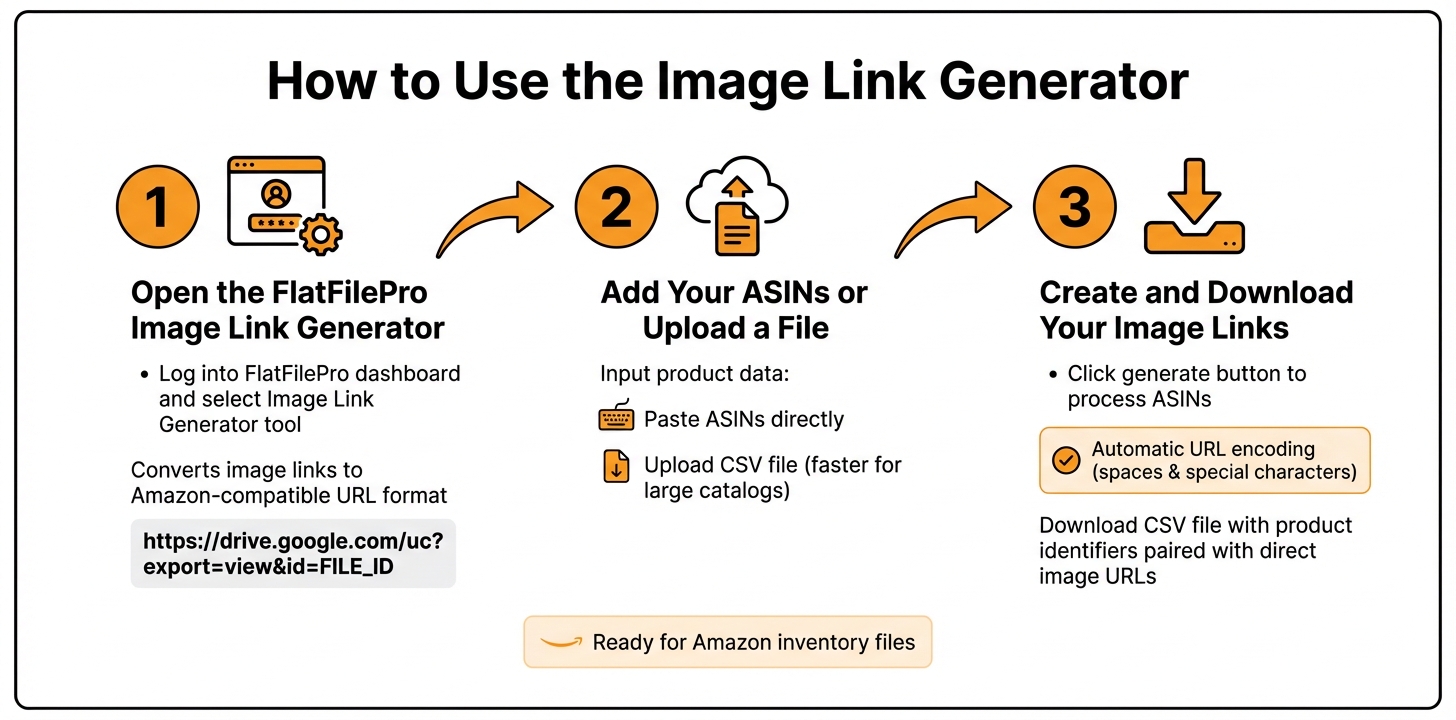
How to Generate Amazon Product Image Links in 3 Steps
Using the FlatFilePro Image Link Generator is simple and efficient. In just three steps – accessing the tool, entering your data, and downloading the results – you can transform your source links into Amazon-compatible URLs without the hassle of downloading or re-uploading files [5]. Here’s how to quickly convert your image data into URLs ready for Amazon.
Step 1: Open the FlatFilePro Image Link Generator
Start by logging into your FlatFilePro dashboard and selecting the Image Link Generator tool. This tool is designed to convert your image links into the precise URL format Amazon requires for its flat files. Instead of standard share links from platforms like Google Drive or Dropbox, the generator produces links in the correct format, such as https://drive.google.com/uc?export=view&id=FILE_ID, ensuring compatibility with Amazon’s system [5][4].
Step 2: Add Your ASINs or Upload a File
Next, you can input your product data in one of two ways: paste your ASINs directly into the tool’s input field or upload a CSV file containing multiple product identifiers. If you’re working with a large product catalog, uploading a CSV file is the faster option.
Step 3: Create and Download Your Image Links
Click the generate button to process your ASINs and create the image links. The tool automatically encodes the URLs, replacing spaces and other non-alphanumeric characters to ensure they meet Amazon’s formatting rules [4]. Once complete, you can download the results as a CSV file. This file pairs each product identifier with its corresponding direct image URL, ready to be added to your inventory files in the exact format Amazon requires.
How to Use the Generated Image Links
Once you’ve downloaded your CSV, you can use the image links to update your Amazon catalog efficiently. These links are formatted specifically for Amazon’s inventory file templates, making it easier to manage images for multiple products without manually editing each listing in Seller Central.
Updating Images for Multiple Products at Once
To bulk upload products to Amazon to update images for several SKUs at once, simply paste the generated image links into the relevant columns of your inventory template. For example, place the links in fields like main_image_url or other_image_url1, depending on the type of image you’re uploading.
After uploading the completed file to Seller Central, Amazon’s system will retrieve the images from your hosting provider. Keep in mind that it may take up to 24 hours for the new images to appear on your product detail pages [1].
"In general… to use an upload file you will need to use image URLs stored on website that offers that service, but another option is to use the Bulk Image Upload tool. This allows you to submit images directly." – Glenn_Amazon, Amazon Staff [2]
If you’re not comfortable working with spreadsheets, there are other ways to handle image management in Seller Central. Keep reading to learn more.
Managing Images in Seller Central

For those who prefer a more hands-on approach, Amazon provides the Bulk Image Upload tool, which allows you to upload image files directly instead of using URLs [2]. While this method is convenient, using the generated image links in inventory files gives you greater flexibility when managing bulk updates.
Ensure your image hosting service provides direct file links that end in .jpg or .png. Amazon requires direct access to the image file, so links leading to a landing page won’t work. If you encounter an "Invalid URL format" error (Error 15), double-check that your links comply with Seller Central’s URL format requirements [1].
Fixing Common Problems
Even with a simple tool, you might occasionally run into issues when generating or using image links. These problems are often tied to hosting or incomplete input data. Let’s go over some common scenarios and how to handle them.
When Image Links Stop Working
If your image links appear broken or don’t display correctly on Amazon, the first step is to check your image hosting provider. According to Seller_E54UocTxGrfq8, it’s best to avoid hosting images on platforms like Google Photos or Google Drive, as they don’t provide direct access to the files [4].
Make sure all your links are properly URL-encoded. This means replacing spaces and special characters with the correct codes to prevent errors [4].
To confirm if a link is functional, try opening it in an incognito or private browser window. If the image doesn’t load immediately or requires a login, Amazon’s system won’t be able to process it either.
If you’ve ruled out hosting and encoding problems but still encounter issues, the problem might be with your input data.
When Image Data Is Missing
Accurate input data and properly set up parent–child relationships are essential for generating images successfully across your catalog.
If the tool skips ASINs or returns incomplete results, double-check that the ASINs you’ve provided are correct, active, and free of extra spaces or special characters.
For sellers managing variation families, missing image data could be caused by broken parent–child relationships. Tools like FlatFilePro’s Variations Manager can help you verify and fix these relationships. Once they’re properly set up, the tool will be able to retrieve the correct image data for each variation.
Conclusion
Handling product images across a large number of SKUs doesn’t have to feel overwhelming. The FlatFilePro Image Link Generator streamlines the process by automating the creation of direct image links, allowing you to complete bulk updates in just minutes.
Using properly formatted image URLs also helps avoid the common headaches of flat file errors that often occur with links from Google Photos or Google Drive. This means fewer rejected uploads, less time spent deciphering confusing error messages, and more time to focus on growing your business.
For sellers managing variations like colors, sizes, or styles, this tool ensures quick and precise updates. With a 95% success rate in handling even the most complex variations [3], you can confidently update your images without worrying about disrupting your listings.
FAQs
Which image hosts work with Amazon URLs?
Amazon allows the use of URLs from image hosting platforms that store product images. These platforms should be compatible with tools such as the Bulk Image Upload feature. Make sure the URLs adhere to Amazon’s guidelines for valid image links to prevent any problems when uploading product images.
Why do I get “Invalid URL format” (Error 15)?
This error pops up when your image URL doesn’t align with Amazon’s strict guidelines. To avoid it, make sure your images are hosted on platforms that provide direct, publicly accessible links. These links should end with file extensions like .jpg or .png.
Amazon won’t accept URLs that are improperly formatted or hosted on unapproved services. Also, ensure your URLs aren’t restricted in any way and point straight to the image files themselves. Double-checking these details can save you from unnecessary headaches.
Can I update variation images in bulk?
Amazon provides a Bulk Image Upload tool that allows sellers to update variation images in bulk. This tool simplifies the process of managing product images by enabling you to upload multiple images at once, including those for different variations. It’s an efficient way to handle images across multiple SKUs or product variations.