
Managing Amazon catalogs can be tedious, especially with manual CSV downloads taking 5–10 minutes and strict limits on file size and product count. FlatFilePro offers a faster, more efficient solution by connecting directly to Amazon’s Selling Partner API. This tool eliminates delays, handles large inventories without restrictions, and simplifies error detection.
Key Features:
- Instant CSV Exports: Skip the wait – access your full catalog immediately.
- No File Size Limits: Manage all products in one go, regardless of inventory size.
- Error Detection: Spot and fix listing issues before downloading.
- Customizable Data: Filter and tailor your CSV to include only the columns you need.
FlatFilePro reduces the hassle of manual exports, saving time and ensuring accurate data for sellers with large inventories. It’s a game-changer for efficiently managing Amazon product listings.
What You Need Before Starting
To download Amazon product CSVs using FlatFilePro, you’ll need a few things: an Amazon Seller Central account, a FlatFilePro subscription, and linked marketplaces. The setup process is quick, taking about 15 minutes.
Amazon Seller Central Account Requirements

First, you’ll need an Amazon Seller Central account with a Professional selling plan, which costs $39.99 per month. This plan is essential because FlatFilePro integrates with Amazon’s Selling Partner API, a feature not available with the Individual plan. FlatFilePro is best suited for sellers managing 300 or more listings. If your catalog is smaller, manual downloads might still work, but as your inventory grows, FlatFilePro can save you significant time – especially when creating variations or multiple marketplaces. Once your account meets these requirements, you’re ready to set up FlatFilePro.
FlatFilePro Account Setup

Setting up a FlatFilePro account is simple. Head over to the FlatFilePro website and sign up for the free trial – no credit card is needed upfront. This trial lets you explore features like CSV exports, bulk editing tools, and the Reflecting Panel, which flags listing errors with red X’s. You can test everything before committing to the $99.00 monthly subscription.
The standard subscription includes connectors for two marketplaces, allowing you to manage listings from two Amazon regions (e.g., the US and Canada or the US and UK) without extra costs. If you operate in more than two regions, additional connectors are available for $29.00 per month each. During the trial, it’s smart to connect your two busiest marketplaces to make the most of the included features. After setting up your account, the next step is linking your desired marketplaces.
Connecting Marketplaces
After activating your FlatFilePro account, connect it to Amazon through the Selling Partner Appstore. The secure authorization process takes just two minutes and allows FlatFilePro to sync with Amazon regions such as the US, Canada, Mexico, Brazil, and several European markets. You can manage all linked regions from one centralized dashboard.
Once connected, FlatFilePro’s Reflecting Panel begins syncing your catalog data and highlights any listing errors. This process runs automatically in the background and takes 10 to 15 minutes, depending on your catalog size. Listings in good shape are marked with green checkmarks, while issues are flagged with red X’s, giving you a clear overview of your catalog’s status. With your accounts linked and data synced, you’re all set to start exporting your catalog data.
sbb-itb-ed4fa17
How to Download Amazon Product CSV Files with FlatFilePro
Downloading your Amazon product data using FlatFilePro is simple and efficient. Here’s how you can get it done in just a few steps.
Step 1: Connect FlatFilePro to Amazon Seller Central
Start by securely linking your FlatFilePro account to Amazon Seller Central using OAuth 2.0. On your FlatFilePro dashboard, click the option to "Connect to your Amazon Seller Central account." Follow the on-screen instructions to grant access to your Product Listing, Inventory, and Reports. FlatFilePro uses the Amazon Selling Partner API (SP-API), which replaced the older Marketplace Web Services system in 2024 [4]. This integration not only speeds up editing by 17 times compared to manual spreadsheet uploads but also reduces errors by eightfold when managing listings directly in Seller Central [3].
Step 2: Export Full Catalog Data
After connecting, your FlatFilePro dashboard will display all your live product data, organized by marketplace. A Reflecting Panel helps you track the status of your listings with green checkmarks for live products and red X’s for those needing updates. To export your entire catalog, head to the main dashboard and click "Export CSV." FlatFilePro will pull all your product details – ASINs, titles, bullet points, descriptions, pricing, images, and inventory levels – straight from Amazon’s servers. The system is designed to handle large catalogs efficiently, saving you time.
Step 3: Customize Your CSV Before Download
Before downloading, you can fine-tune your data. Use the dashboard’s filtering tools to customize your export. You can filter by categories, choose specific columns like ASIN, price, or image URLs, or apply bulk filters to focus on listings with certain attributes or issues. This customization ensures you only download the data you need, making your CSV file ready for bulk edit listings in tools like Excel or Google Sheets.
Why FlatFilePro Works Better Than Manual Downloads
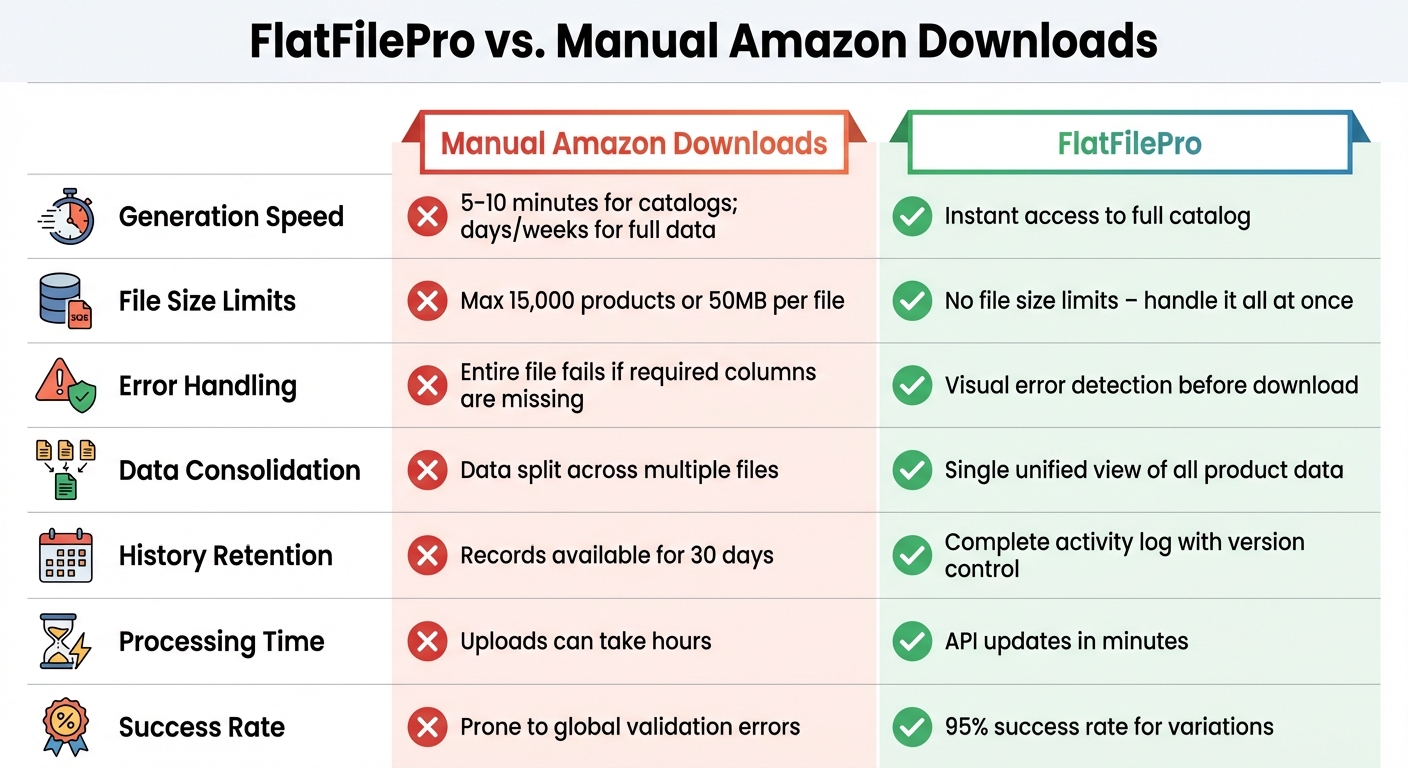
FlatFilePro vs Manual Amazon CSV Downloads Comparison
For sellers managing extensive catalogs, relying on manual CSV downloads can feel like a never-ending chore. Pulling data directly from Amazon Seller Central is not only time-consuming but also comes with a host of technical limitations. For instance, generating a download link for large inventories often takes 5–10 minutes, requiring constant page refreshes to check if the file is ready. If you’re requesting more comprehensive data through Amazon’s privacy services, the wait can stretch to days or even weeks [1][5].
And that’s just the start. Once you have the data, manual downloads come with strict file size and product count caps [1]. If your catalog surpasses these limits, you’re stuck splitting it into smaller files and then piecing them back together later. To make matters worse, Amazon often separates your data into different spreadsheets – orders, returns, and digital purchases are all in separate files – forcing you to manually merge everything [5].
Error handling is another headache. If even one required column is missing in your CSV, the entire import fails [1]. You’ll need to download an error log, fix each issue, and attempt another upload. Plus, certain data types, like virtual bundles, might not even make it into your manual imports [1].
FlatFilePro, on the other hand, simplifies the entire process. By connecting directly with Amazon’s Selling Partner API, it eliminates the usual bottlenecks. You get instant access to your full catalog without waiting for file generation, and there are no file size restrictions to worry about. FlatFilePro also features automatic error detection, pinpointing issues before you even download the data. Everything is consolidated into a single, unified view, so you can finally stop juggling multiple spreadsheets.
Comparison Table: FlatFilePro vs. Manual Downloads
| Feature | Manual Amazon Download | FlatFilePro |
|---|---|---|
| Generation Speed | 5–10 minutes for catalogs; days/weeks for full data [1][5] | Instant access to full catalog |
| File Size Limits | Max 15,000 products or 50MB per file [1] | No file size limits – handle it all at once |
| Error Handling | Entire file fails if required columns are missing [1] | Visual error detection before download |
| Data Consolidation | Data split across multiple files [5] | Single unified view of all product data |
| History Retention | Records available for 30 days [1] | Complete activity log with version control |
| Processing Time | Uploads can take hours [1] | API updates in minutes |
| Success Rate | Prone to global validation errors [1] | 95% success rate for variations [2] |
What to Do After Downloading Your CSV File
Once you’ve downloaded your CSV file, the next step is to ensure your data is accurate and ready for updates. A structured approach to bulk editing Amazon listings will help you avoid mistakes and save time.
Bulk Edits in Excel or Google Sheets

To properly handle special characters, it’s a good idea to import your CSV into Google Sheets. Use File > Import and manually select the separator to prevent automatic data conversions that might corrupt your file [7].
Make sure your data aligns with Amazon’s formatting rules. For example:
- Use plain numbers without symbols for prices (e.g., 237.5).
- Keep ratings in a consistent format (e.g., 4.5/5.0).
- Ensure all Amazon product URLs are complete.
Additionally, clean up your titles and descriptions by removing any unnecessary line breaks or commas, replacing them with spaces. If any fields are missing information from a live listing, label them as "data missing" instead of leaving them blank [6].
In a July 2025 case study, following these formatting guidelines boosted data success rates from 60% to 95% and reduced update steps by 44% [6].
Monitor Changes with Reflection Engine
Once your bulk edits are done, it’s time to validate the updates using FlatFilePro’s automated tools. Upload your updated CSV, but keep in mind that Amazon’s processing can take anywhere from a few minutes to several hours [1]. FlatFilePro’s Reflection Engine makes this process easier by automatically tracking updates.
The Reflection Engine checks your listings nightly, comparing what you submitted to what’s live on Amazon. It uses green checkmarks to confirm matches and red X’s to flag discrepancies. This system helps you quickly spot issues, whether it’s a rejected change or a processing delay.
After uploading, review FlatFilePro’s activity log to ensure your changes were submitted correctly. If red X’s still appear after 24 hours, investigate the specific fields causing the problem. This automated monitoring saves you the hassle of manually refreshing hundreds of product pages in Seller Central, freeing up hours of your time.
Conclusion
Say goodbye to the frustration of waiting for CSV files to load or spending countless hours fixing errors. FlatFilePro integrates directly with Seller Central, delivering complete catalog data in just minutes[1].
Automation takes the headache out of catalog management. Real-time validation catches mistakes before they hit Amazon, while the Reflection Engine keeps an eye on listings every night, flagging issues within 24 hours. Forget about manual file size restrictions – this system handles it all. It formats prices as plain numbers, ensures titles stay within Amazon’s 250-character limit, and validates image URLs so you don’t have to worry about meeting Amazon’s formatting rules.
Scott Patterson, Director of Implementation, captured it perfectly: "It’s one of the more important tools in our implementation toolbox. Without tools like Flatfile, scaling would be almost impossible"[8].
For sellers managing extensive catalogs, this tool shifts the focus from tedious data cleanup to activities that actually drive business growth. With fast processing, automated error detection, and ongoing monitoring, you can confidently download, edit, and upload CSV files – accurately and securely – on the first try.
FAQs
Will this export include all variation data?
When using Amazon’s CSV export features, it’s not explicitly clear if all variation data is included in the export. While these tools enable bulk downloading and updating of product details, they might not fully capture variation-related information. Depending on the specific export feature, you may need to take extra steps or use additional tools to retrieve comprehensive variation data.
How often does the catalog data refresh after I connect?
The catalog data updates on a periodic basis after the connection is established, though the exact timing isn’t defined. These updates are usually managed through scheduled exports or manual updates instead of real-time syncing. To ensure your data remains current, it’s a good idea to plan updates in a way that fits your workflow.
What permissions does FlatFilePro need in Seller Central?
FlatFilePro needs certain permissions within Amazon Seller Central to handle and sync product data efficiently. These permissions include the ability to edit and update product listings in bulk. To enable these permissions, navigate to the Settings menu in Seller Central, choose User Permissions, and update the designated user account to allow for listing management and bulk editing.