
To manage your Amazon catalog efficiently, exporting product data into a CSV file is a practical solution. This allows you to view your listings in one place, update prices in bulk, and analyze inventory without hassle. Here’s a quick summary of three methods to export data:
- Inventory Reports: Download reports like Active Listings or All Listings from Amazon Seller Central. Convert the .txt files to .csv for use in Excel or Google Sheets. Ideal for general catalog management.
- Flat File Templates: Use Amazon’s predefined templates for structured data. Great for bulk updates and managing product variations.
- FlatFilePro: Automates data export via API, delivering ready-to-use CSV files quickly. Best for saving time and avoiding manual steps.
Each method suits different needs, whether you’re making quick updates, performing detailed audits, or managing large catalogs. After exporting, always check and clean your data to ensure accuracy and usability.
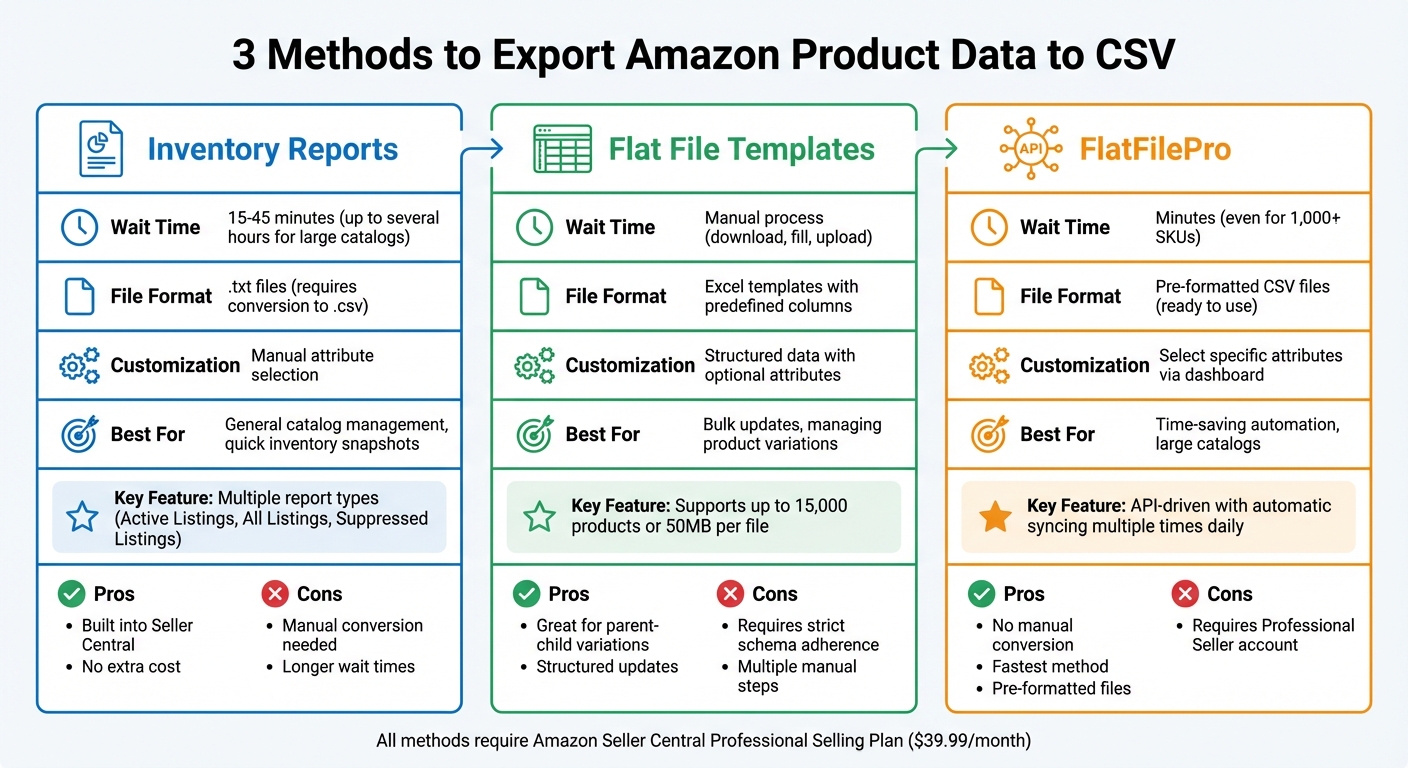
Comparison of 3 Methods to Export Amazon Product Data to CSV
How To Export & Import All Your Amazon Listings FAST
sbb-itb-ed4fa17
What You Need Before Starting
Before exporting Amazon product data to CSV, it’s crucial to have the right account access and tools. Missing permissions or using the wrong software can create unnecessary roadblocks, so double-check these essentials first.
Amazon Seller Central Account Access

To begin, you’ll need an active Amazon Seller Central account with a Professional Selling Plan. This plan costs $39.99 per month and provides access to downloadable inventory reports, which are unavailable to individual sellers.
In addition to the Professional Selling Plan, make sure you have the necessary user permissions. For example, accessing the Active Listings Report requires permissions for Inventory and Order Tracking, Pricing, and Product Listing. Without these, you won’t be able to locate the "Inventory Reports" tab.
| Report Type | Required Permissions |
|---|---|
| Active Listings Report | Inventory and Order Tracking, Pricing, Product Listing |
| Suppressed Listings Report | Product Listing |
| Referral Fee Preview Report | Finance and Accounting |
| Pan-European Eligibility (FBA) | Inventory and Order Tracking, Pricing, Amazon Fulfillment, Product Listing |
Once you’ve confirmed your account access, make sure your software setup is ready for handling Amazon inventory CSV files.
Software for Opening CSV Files
With permissions sorted, it’s time to prepare your software. You’ll need a reliable spreadsheet program, such as Microsoft Excel or Google Sheets, to open and edit CSV files effectively.
For US-based exports, configure your software to use US-specific settings, like currency in dollars ($) and date format as MM/DD/YYYY, to avoid data misinterpretation. Amazon’s reports are tailored to specific marketplaces, so these settings are essential.
If Amazon provides a file with a .txt extension, simply rename it to .csv. Additionally, when saving your work in Excel, ensure you use UTF-8 encoding to maintain the integrity of your data. Keep in mind that CSV files only store raw data – they don’t retain formatting, formulas, or highlights. If you make edits or add analysis, save a backup copy in Excel’s native format (.xlsx) to preserve your work.
Method 1: Download Inventory Reports from Seller Central
This method is a straightforward way to extract important product details, helping you manage your catalog more efficiently. By leveraging Amazon’s inventory reports, you can export product data directly from Seller Central.
How to Request Inventory Reports
Start by logging into Seller Central and navigating to Reports > Inventory Reports. Choose the type of report you need – Active Listings Report for live products or All Listings Report for your entire catalog – and click Request Report [4][5].
"As a Professional seller, you can generate inventory reports to see a snapshot of your listed items and their current status." – Michelle_Amazon, Amazon Community Manager [4]
Reports typically take 15 to 45 minutes to generate [4]. Once the status changes to "Ready" under the "Check Report Status & Download" section, you can download the file. Keep in mind that these reports are only available for 30 days before Amazon clears them from your account [4]. For sellers managing over 50,000 listings, the standard Inventory Report is recommended for better performance compared to the Active Listings Report [5].
Convert Downloaded Files to CSV Format
Amazon provides inventory reports as tab-delimited text files with a .txt extension [4][6]. To convert these files into a more usable format, simply rename the file extension from .txt to .csv and open it in Excel or Google Sheets [3].
For better accuracy, use Excel’s Import Wizard to open the file. Be sure to set the product-id column to Text format to preserve data integrity [7]. Once you’ve confirmed the settings, save the file as a CSV.
Amazon Report Types Compared
Selecting the right report type depends on the data you need. The Active Listings Report provides a quick snapshot of your live inventory, while the All Listings Report offers detailed catalog information, including image URLs and fulfillment channels [6][7].
| Report Type | Key Data Included | Best For |
|---|---|---|
| Active Listings Report | Item name, SKU, price, quantity, ASIN, item condition | Reviewing current inventory and quick updates |
| All Listings Report | Full catalog details, image URLs, status, fulfillment channels, variations | Comprehensive catalog audits and exports |
| Open Listings Report Lite | SKU, ASIN, price, quantity (items with stock > 0 only) | Faster updates with smaller file sizes |
| Suppressed Listings Report | SKU, ASIN, suppression reason, fix instructions | Troubleshooting hidden or suppressed listings |
| Referral Fee Preview | SKU, ASIN, price, estimated referral fees | Financial planning and margin analysis |
The Lite versions of reports are particularly useful when you need basic pricing and quantity data without large file sizes [6]. For more advanced catalog management, consider exploring flat file templates in the next section.
Method 2: Use Flat File Templates
Flat file templates make organizing and exporting product data easier by structuring it into predefined Excel columns [8].
Download Templates from Seller Central
To get started, head to Add Products > Spreadsheet > Download a blank template in Seller Central [8][9]. Keep in mind, this option is available only for Professional sellers [8].
"This feature is currently available for Professional sellers only." – Amazon Seller Central [8]
You can search for templates by keyword or browse categories to find the right product type [8]. Once you’ve selected the product type and target Amazon stores, generate the template. The latest templates already include the correct Browse Node, so there’s no need to search for it separately [8].
Generate Data Using Sample Files
After downloading the template, open it in Excel and switch to Advanced View to access optional attributes [8]. If you want to export data for products already in your catalog, request the Category Listing Report (also called a reverse inventory file) by navigating to Menu > Reports > Inventory Reports [9].
Amazon supports files with up to 15,000 products or 50MB per upload [1]. When filling out the template, make sure to format prices as decimals (e.g., 10.99) and dates in the YYYY-MM-DD format [1].
Key Columns in Flat File Templates
Each flat file includes a Data Definitions sheet that explains what each column means. Key columns you’ll work with include:
- Seller SKU: A unique identifier, limited to 255 characters.
- Product Name: The title of your product, up to 250 characters.
- Price: Must be entered as a decimal (e.g., 3.99).
- Quantity: Specifies your stock levels [1].
To avoid pricing errors, always complete the minimum-seller-allowed-price and maximum-seller-allowed-price columns. These help prevent accidental deactivation of your listings. The Update/Delete column is also essential – use PARTIALUPDATE to modify only the specified data without overwriting existing information. For inventory management, set the fulfillment-channel to "amazon" for FBA products or "default" for self-fulfilled items.
Up next, we’ll look at how to validate and refine your CSV data after exporting it.
Method 3: Export Data with FlatFilePro

FlatFilePro streamlines the process of extracting product data from your Amazon Seller Central account through API integration. Instead of navigating multiple menus or waiting for reports to process, this tool automates data retrieval via a centralized dashboard, saving you time and effort.
Connect FlatFilePro to Your Seller Account
To get started, you’ll need a Professional Seller account. Once connected, FlatFilePro uses a secure API to access your product catalog. The tool syncs your listing data several times a day, keeping your information up-to-date without requiring manual updates.
Export Data from the FlatFilePro Dashboard
FlatFilePro’s dashboard allows you to choose specific attributes – like title, description, price, and inventory – rather than exporting your entire catalog. The exported files are delivered as pre-formatted CSVs designed to meet US standards, eliminating the hassle of converting .txt files or cleaning up data manually. This approach makes it easier to compare exports from FlatFilePro and Seller Central.
FlatFilePro vs. Seller Central Export Methods
When comparing the two methods, FlatFilePro stands out for its speed and ease of use. Generating reports through Seller Central can take anywhere from 20 minutes to several hours. In contrast, FlatFilePro’s API processes data in just minutes, even for large catalogs with over 1,000 SKUs.
| Feature | Seller Central Export | FlatFilePro Export |
|---|---|---|
| Wait Time | 20 minutes to several hours [2] | Minutes |
| Customization | Manual attribute selection and file conversion | Select specific attributes via dashboard |
| File Format | .txt or tab-delimited files requiring conversion [2] | Pre-formatted CSV ready for analysis |
One of the biggest challenges with Seller Central is dealing with .txt files that require manual conversion to CSV. FlatFilePro skips this step entirely, delivering clean, ready-to-use CSV files directly from its dashboard. This automation not only simplifies your workflow but also saves you the time and effort of handling multiple steps. With your CSV file now prepared, you’re ready to check and clean your data for further analysis.
Check and Clean Your Exported CSV Files
After using a CSV export method, it’s crucial to review and tidy up your file to ensure smooth catalog management. Use tools like Excel or Google Sheets to verify the file’s formatting. Make sure numerical fields, such as prices and inventory levels, appear as plain numbers without extra symbols. Also, confirm that dates follow the MM/DD/YYYY format. This step can help you catch any formatting issues before diving into further analysis or re-uploading the data.
Check Data Formatting
Once you’ve exported the file, take a close look at key fields to ensure everything is accurate. For example:
- SKUs should be no more than 255 characters.
- Product titles should stay within a 250-character limit.
- Price fields should only include numbers or decimals – leave out currency symbols or commas (e.g., use 19.99 instead of "$19.99").
- If you’re managing Buy with Prime catalogs, confirm the "Offer Prime" field is set to either TRUE or FALSE.
- Ensure all image URLs start with "https://" and end with valid extensions like .jpg, .jpeg, .gif, or .png.
Fix Common Data Problems
After verifying the formatting, address common issues that could disrupt your workflow. For example:
- Look for missing required attributes or duplicate column headers.
- Check for encoding problems, especially if your file isn’t saved in UTF-8 format – a frequent issue with Excel.
- Use the "Find and Replace" feature to remove dollar signs from price fields.
- Check for duplicate SKUs, as these can cause errors during import.
- For product variations, ensure child rows are placed directly below their respective parent product rows.
You can also review the CSV history page in Seller Central to see a detailed breakdown of errors from the last 30 days. This can help pinpoint specific rows that need fixing.
Organize Data for Analysis
Once formatting and errors are resolved, organize your data for easier analysis. Sort records by price ranges, inventory levels, or product categories to spot trends and outliers. Use Excel’s filtering tools to identify products with low inventory or group items by price tiers. This approach can help you detect pricing inconsistencies and create detailed reports for your team.
Summary
There are three ways to export Amazon product data to CSV. Inventory Reports from Seller Central allow you to customize the product attributes you want to include. However, generating these reports can take up to 20 minutes, depending on the size of your catalog. Flat File Templates are ideal for bulk updates and managing parent-child variations, but they require strict adherence to Amazon’s predefined schemas and involve manual steps like downloading, filling out, and re-uploading files.
On the other hand, FlatFilePro simplifies the process with API-driven exports. It generates pre-formatted CSV files quickly, eliminating the need for manual downloads or complex conversions. By connecting directly to your Seller Central account, it automates the data pull, allowing you to export bulk data in minutes rather than hours. This tool handles the technical side, freeing you up to focus on analyzing your data.
The standout feature of FlatFilePro is its ability to deliver pre-formatted files tailored for specific tasks. This means you won’t need to worry about adding unnecessary columns or fixing formatting issues after the export.
After exporting your CSV file using any of these methods, it’s essential to check the formatting, address common issues like duplicate SKUs or missing attributes, and organize your Amazon product catalog for analysis. Clean, well-structured data makes catalog management and decision-making much easier.
FAQs
Which export method is best for my catalog size?
When deciding on the best export method, the size of your catalog plays a key role. For small to medium catalogs, Amazon’s CSV import/export feature is a straightforward option. You simply download a template, make the necessary updates, and re-upload it.
For large catalogs, it’s better to create a dataset export job to Amazon S3. This approach is ideal for managing bulk data efficiently and allows for offline analysis or integration with other systems.
Why do my SKUs or ASINs change in Excel after import?
When importing data into Excel, SKUs or ASINs might change due to how the platform processes the information. This can happen if the imported data doesn’t perfectly align with existing records or if Excel automatically adjusts specific fields. For instance, the system might interpret the data as new or altered entries, leading to modifications in SKUs or ASINs during the import process.
What fields should I validate before re-uploading a CSV to Amazon?
Before uploading a CSV file to Amazon, it’s important to double-check these key areas to ensure a smooth process:
- File format and structure: Make sure the file has the correct headers and follows a consistent layout.
- Required columns: Verify that all mandatory columns are included and properly labeled.
- Data accuracy: Double-check product details like titles, descriptions, pricing, and inventory levels for any mistakes.
- Data consistency: Ensure measurements, currency (USD), and date formats (MM/DD/YYYY) are uniform throughout the file.
- Error validation: Look for missing or incorrect entries to prevent upload issues.
Taking the time to validate these fields can save you from potential errors during the upload process.