
Managing thousands of Amazon product listings manually? A CSV file can save you hours. With Amazon‘s bulk upload tools, you can add, update, or modify up to 15,000 products or 50MB of data in one go. CSV files minimize errors, streamline catalog management, and simplify inventory updates.
Here’s a quick overview of the process:
- Download Templates: Use Amazon Seller Central to grab category-specific templates.
- Fill in Data: Complete required fields like SKU, title, and price, ensuring proper formatting.
- Save as CSV: Use UTF-8 encoding and save in the correct format for smooth uploads.
- Upload to Amazon: Submit your file via Seller Central and review the Processing Report to fix any errors.
For faster results, tools like FlatFilePro automate CSV exports, connect with your Amazon account, and keep your files updated daily. Whether you’re managing 100 or 15,000 products, this approach simplifies catalog management and reduces errors.
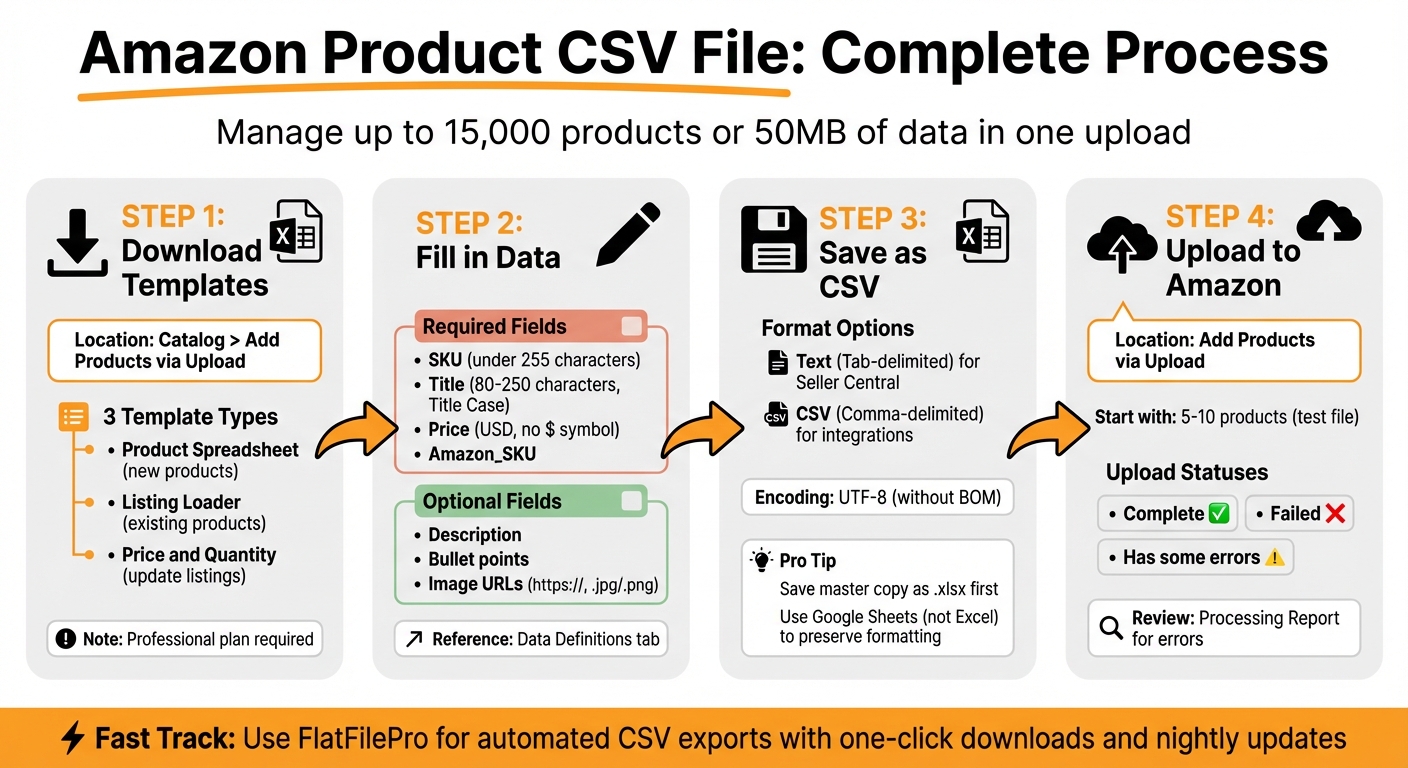
How to Generate and Upload Amazon Product CSV Files: 4-Step Process
Amazon Bulk Listing Upload Guide | Learn How to Upload Multiple Products On Amazon Seller Central
sbb-itb-ed4fa17
How to Generate an Amazon Product CSV File in Seller Central
If you’re using Amazon’s Seller Central and have a Professional selling plan, you can take advantage of its bulk upload tools to generate CSV files. Unfortunately, this feature isn’t available for Individual plan users [2][3].
Download the Product Template from Seller Central
To get started, go to Catalog > Add Products via Upload in your Seller Central dashboard [2]. You’ll find three template options, each serving a specific purpose:
- Product Spreadsheet: For creating brand-new products not yet listed in Amazon’s catalog.
- Listing Loader: For matching your offers to existing products in Amazon’s system.
- Price and Quantity: For updating the details of your current listings [4].
You can search for your product type using keywords (e.g., "women’s beanies") or browse through the category tree until the Select button appears [2][6]. Once you’ve chosen your product types, select the marketplaces (stores) where you plan to list the items and click Generate spreadsheet. This will download a Microsoft Excel file. You can even create a custom template that includes up to 20 product types across various categories [4].
After downloading, open the file and start filling in the required fields.
Complete the Template and Save as CSV
When you open the template, you’ll notice that sections are color-coded to guide you. Required fields are highlighted in salmon, while optional "Discovery" attributes, like bullet points, are marked in green [5]. Clicking the "2" button in the top-left corner will reveal a complete list of optional attributes [2].
Check out the Data Definitions tab in the file – it provides the exact terms Amazon requires for each field [7][8]. For example, entering "Brand New" instead of "New" could cause upload errors. Pay close attention to your SKU (Stock Keeping Unit), as it uniquely identifies each product. SKUs must stay under 255 characters, and product titles should be under 250 characters [1]. Once published, SKUs cannot be altered or reused [7].
When you’re ready to save, follow these steps:
- For standard bulk uploads in Seller Central, save the file as Text (Tab-delimited) (*.txt).
- For Buy with Prime or specific integrations, save it as CSV (Comma-delimited) [7][1].
Always save a master copy in Excel format (*.xlsx) before converting to CSV. This ensures you can easily make future edits, as CSV files strip out all formulas and formatting [1].
Generate CSV Files Faster with FlatFilePro

FlatFilePro takes the hassle out of manual CSV generation by automating the entire process. Thanks to its direct connection with the Seller Central API, it skips the usual maze of menus and wait times. Here’s how you can integrate FlatFilePro into your Seller Central workflow for a smoother experience.
Connect FlatFilePro to Your Seller Central Account
FlatFilePro simplifies integration by securely connecting to your Seller Central account using API credentials. This setup avoids the need to share your login credentials while giving the tool access to your product catalog. Once connected, FlatFilePro automatically imports all your listings, allowing you to manage everything from a single, easy-to-use dashboard.
Export CSV Files with One Click
FlatFilePro’s dashboard lets you export CSV files with a single click. The tool ensures all necessary fields are included based on your product category, so there’s no need to manually reference the Amazon inventory file data definitions or worry about missing key attributes. This streamlined export process eliminates the typical steps of downloading reports and converting formats, making catalog management quicker and more efficient.
Use the Reflection Engine for Automated Updates
FlatFilePro’s Reflection Engine works behind the scenes, scanning your Amazon listings nightly to keep your exported CSV files up-to-date. It captures any changes in your catalog, ensuring you’re always working with the most current data. Whether you’re making bulk updates or syncing with other systems, you can trust that your files reflect the latest information, saving you time and reducing errors in catalog management.
Format Your CSV File for Error-Free Uploads
Formatting your CSV file correctly is critical to avoiding upload issues on Amazon’s US marketplace. Since the US has specific formatting standards, ensuring your file aligns with these rules will help it process without errors on the first try. By following these guidelines, you can set your file up for a seamless upload to Seller Central.
Apply US Marketplace Formatting Rules
When entering currency and pricing, use US standards. Prices should be in USD, written as numbers without the dollar sign ($). Use a decimal point for cents (e.g., 19.99 or 45.00) and avoid commas for thousands separators, as price fields only accept numeric values [9][1].
For dates, stick to the ISO 8601 format (YYYY-MM-DD), and use the UTC time zone [9]. When including measurements, use imperial units with standard abbreviations: "in" for inches, "oz" for ounces, and "lb" for pounds [11].
Product titles must follow Title Case, where each word’s first letter is capitalized. Avoid using special characters such as !, $, ?, _, {, }, ^, ¬, and ¦. Title length should range between 80 and 250 characters, depending on the category [11][1]. Additionally, avoid writing titles in ALL CAPS [11].
Your file must use UTF-8 encoding (without BOM) to ensure special characters are handled correctly [9][10]. Fields should be separated with commas (,) while semicolons (;) can be used to separate multiple values, such as variation attributes [10][1]. Avoid editing CSV files in Microsoft Excel, as it can reformat dates, currency fields, or special characters incorrectly. Instead, use Google Sheets to maintain UTF-8 integrity [10].
By adhering to these formatting rules, you can avoid common upload errors and make the most of CSV files for bulk uploads in Seller Central.
Identify Required and Optional Fields
Knowing which fields are mandatory and which are optional is key to avoiding errors during uploads. The required fields vary depending on whether you’re listing a standalone product, a parent product with variations, or individual variation children.
| Field Category | Field Name | Standalone Product | Parent Product | Variation (Child) |
|---|---|---|---|---|
| Product ID | SKU | Required | Optional | Required |
| Vital Info | Title | Required | Required | Optional |
| Vital Info | Price | Required | Not Used | Required |
| Vital Info | Fulfilled By | Required | Not Used | Required |
| Vital Info | Amazon_SKU | Required | Not Used | Required |
| Variations | Variation Option | Optional | Required | Required |
| Variations | Variation Value | Optional | Not Used | Required |
| Optional | Description | Optional | Optional | Optional |
| Optional | Image URL | Optional | Optional | Optional |
SKU must be unique and under 255 characters. Once submitted, it cannot be modified or deleted [10]. For boolean fields like "Offer Prime", only use "TRUE" or "FALSE" [1]. Image URLs must begin with "https://" and end with an appropriate extension like .jpg, .jpeg, .gif, or .png [1]. Lastly, make sure your file does not exceed 15,000 products or 50MB in size to comply with Amazon’s upload limits [1].
Upload Your CSV File to Amazon Seller Central
Once you’ve formatted your CSV file correctly, the next step is uploading it to Amazon. This process helps streamline your catalog management. Using the bulk upload tools in Amazon Seller Central, you can submit your file for processing. After submission, Amazon will generate a report that indicates which products were successfully added and highlights any errors.
Submit Your File Through Seller Central
Head over to the "Add Products via Upload" section in your Seller Central dashboard [13]. This is the hub for handling bulk inventory updates. Before you proceed, double-check that your file is saved in either .csv or tab-delimited format [12][1].
If you’re matching your offers to products already in Amazon’s catalog, opt for the Inventory Loader File. Then, click "Upload File", select your CSV, and submit it. Jessica_Amazon_, a staff member at Amazon, offers this advice:
"Having only a small number of products in a file will make it easier to troubleshoot and correct any errors you may encounter" [13].
For first-time uploads, it’s a good idea to start with a test file containing just 5–10 products. This allows you to identify any formatting issues early. After submission, the upload will show one of three statuses: "Complete" (everything imported), "Failed" (nothing imported), or "Has some errors" (partial import). To pinpoint any problems, download the Processing Report [13].
Resolve Upload Errors
If your upload encounters issues, the Processing Report is your go-to resource for identifying and fixing errors. Amazon’s error messages can sometimes be unclear, so proper formatting is essential to avoid common pitfalls. The most frequent errors involve missing required attributes, validation problems, and variation mapping issues.
Here are some of the common errors and how to address them:
- Missing Attributes: Ensure that standalone products include critical details like Title, Price, SKU, and Amazon SKU [1].
- Data Validation: Keep product titles under 250 characters and ensure prices are numeric [1].
- Image Errors: Make sure image URLs end with .jpg, .jpeg, .png, or .gif [1].
- Variation Mismatches: Each child product should have its own row with consistent variation attributes [1].
If you’re updating existing listings, select the "Overwrite existing products" option. Skipping this step could result in Amazon ignoring existing SKUs. Remember, a single error can cause the entire file to be rejected, so validate everything carefully before resubmitting.
Conclusion
Managing your Amazon catalog doesn’t have to be a time-consuming task. Seller Central’s built-in export tools make it easy to pull reports – just go to Reports > Business Reports or Reports > Fulfillment, choose the report you need, and download the file. Be sure to open TSV files in Excel or Google Sheets and save them as CSV files before uploading them to other platforms [14].
For an even faster solution, tools like FlatFilePro simplify CSV exports with features like one-click downloads and nightly updates. This can cut the time spent preparing files from nearly an hour to just a few minutes, a game-changer for sellers managing large catalogs of 100+ products [15].
Starting with a small test file is a smart way to catch common formatting errors early, ensuring a smooth process as you scale. With accurate formatting, error checks, and the right tools, you can keep your product catalog up-to-date and running smoothly – without unnecessary stress.
Streamline your CSV workflows to keep your Amazon catalog organized and ready for growth.
FAQs
Can I create and upload product CSV files with an Individual selling plan?
Yes, with an Individual selling plan on Amazon, you can create and upload product CSV files. Amazon provides templates to help you format your file correctly, or you can upload a file that meets their requirements. The Catalog CSV import/export feature allows you to add or update products in bulk, and it’s accessible with all selling plans, including the Individual plan.
What should I do if my CSV upload says “Has some errors” but some SKUs updated?
If your CSV upload indicates “Has some errors” but some SKUs were successfully updated, here’s what you should do:
- Download the error report: Go to Seller Central and grab the error report to pinpoint which SKUs have issues.
- Fix the errors: Update your CSV file, making sure all fields comply with Amazon’s requirements.
- Re-upload the file: Submit the corrected file and verify that all updates are applied.
These steps help ensure all SKUs are updated properly while addressing any errors.
How can I prevent Excel from breaking my UTF-8 CSV formatting?
To prevent Excel from messing up your UTF-8 CSV formatting, avoid double-clicking the file to open it. Doing so applies default settings that can distort your data. Instead, follow these steps using Excel’s Data Import feature:
- Open Excel and navigate to the Data tab.
- Click on Get Data > From Text/CSV.
- Select your file, make sure to set UTF-8 as the file origin, and format any columns as Text if necessary.
This method ensures your data stays intact.