
Amazon flat file templates simplify bulk product listing updates, saving time for sellers managing large catalogs. Instead of manually editing listings in Seller Central, these templates allow you to make changes across multiple products using a single spreadsheet. Key features include pre-filled sheets with instructions, valid values, and required fields, minimizing errors during uploads. FlatFilePro enhances this process by offering tools like automated backups, error detection, and direct fixes for listing issues, streamlining workflows for sellers.
Key points:
- Bulk Updates: Edit hundreds of listings at once with templates.
- Error Prevention: Use valid values and clear instructions to avoid mistakes.
- FlatFilePro Benefits: Automated backups, error scanning, and direct fixes save time and effort.
- Partial Updates: Adjust specific fields (e.g., price or stock) without overwriting other data.
Flat files and tools like FlatFilePro are essential for sellers aiming to efficiently manage extensive catalogs and ensure accurate listings.
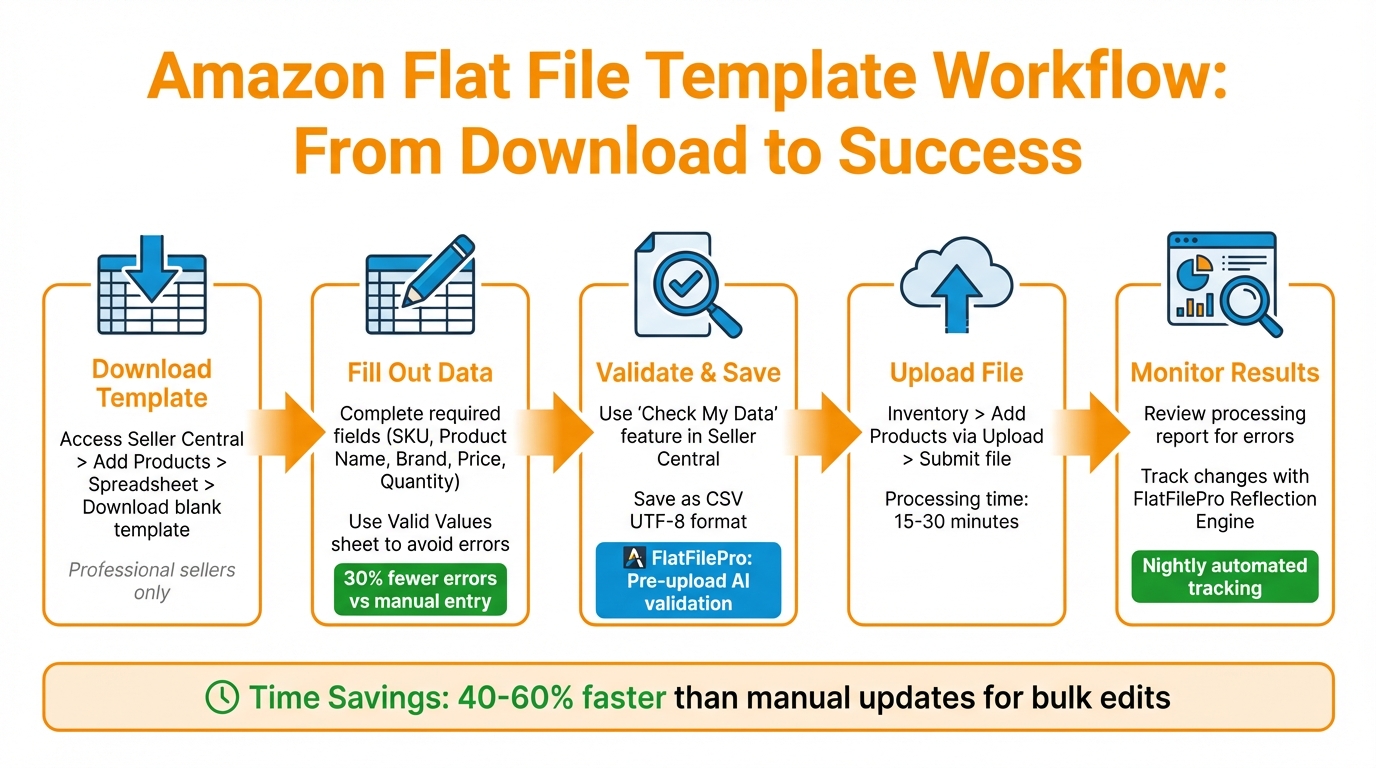
Amazon Flat File Upload Process: 5 Steps from Download to Monitoring
How to Access and Read Amazon Flat File Templates
How to Download Templates from Seller Central
If you’re a Professional seller on Amazon, you’re in luck – flat file templates are exclusively available to you [2]. These templates can be downloaded directly from Seller Central with just a few steps.
First, head to Add Products > Spreadsheet > Download a blank template. From there, select the option that aligns with your listing goals.
To find the correct template, you can either search for your product category (e.g., "women’s beanies") using the Search tool or browse through the Product Category menu to narrow down to your product’s sub-category. Once you’ve pinpointed the right category, choose your marketplace, and download the template as an .xlsx file.
For accuracy, double-check the category path by reviewing an existing Amazon listing’s Best Sellers Rank or Product Information before downloading the template.
Understanding the Template Layout
Amazon flat file templates come with multiple sheets, each designed to serve a specific purpose. The Template sheet is your primary workspace for entering product data – required fields are marked in bright red for easy identification. Meanwhile, the Data Definitions and Valid Values sheets explain the purpose of each column and list acceptable input values.
Other sheets, like Instructions, Example, and Images, provide extra guidance. These include step-by-step instructions, a sample listing, and photo requirements to help you comply with Amazon’s standards. On the Template sheet, you can switch between two views using the "1" and "2" buttons in the top-left corner: "1" displays only the required fields, while "2" reveals all optional attributes.
One key column to understand is Update Delete, which tells Amazon how to process your file. Use Delete to remove a listing, Update to make full changes (note that blank fields will overwrite existing data), or Partial Update to adjust specific details like price or stock levels without altering other information. When you’re done editing, save the file in .txt (Tab delimited) format before uploading it to Seller Central.
Next, we’ll cover how to properly fill out and edit these templates for accurate and efficient uploads.
sbb-itb-ed4fa17
How to Fill Out and Edit Amazon Flat File Templates
Required Fields and Category-Specific Rules
Amazon flat file templates come with certain fields that must be completed before you can upload them. These essential fields typically include SKU (your unique product identifier), Product Name (title), Brand, Product ID (like UPC, EAN, or GTIN), Product ID Type, Price, and Quantity [3][4].
The rules and requirements can differ depending on the product category and marketplace. A key column to pay attention to is Feed Product Type, which is often hidden by default. This column determines which attributes are relevant for your category [6]. For example, if you’re listing clothing, you’ll need to include size and color details, while electronics might require battery specifications.
Sasha Zubatov, Senior Brand Evangelist at Helium 10, highlights that Amazon allows sellers to modify the Product Type through flat files, offering some flexibility [6].
| Field Group | Key Attributes Included |
|---|---|
| General Product Info | SKU, Product Name, Brand, Product ID (GTIN), Product ID Type |
| Offer Information | Price, Quantity, Leadtime-to-ship, Fulfillment Channel |
| Variation Relationship | Parent SKU, Variation Theme, and Relationship Type |
| Product Description | Bullet Points, Standard Description, Search Terms (Keywords) |
| Compliance | Battery requirements, Prop 65 warnings, Country of Origin |
Before you upload your file, use the "Check My Data" feature in Seller Central. This tool helps catch formatting issues or missing required fields [4]. Research indicates that using flat file templates can reduce listing errors by nearly 30% compared to manual uploads, as the templates enforce proper formatting [5]. Additionally, filling out category-specific fields like "Special Features" can improve your product’s visibility since Amazon indexes these fields for search [6].
How to Edit Multiple Products and Manage Variations
Flat files are especially useful for bulk editing, helping sellers save between 40% and 60% of the time they’d spend on individual updates [5]. To update multiple products at once, you simply fill out the relevant rows in your template and select the correct update action. For targeted changes, use PartialUpdate to modify specific fields like price or inventory without altering other data. On the other hand, Update will overwrite all data, including blank fields, so use it carefully [4][7].
If you’re managing product variations, additional fields come into play. For parent-child relationships, you’ll need to include the Parent SKU, set the Variation Type (Parent or Child), define the Relationship Type (usually "Variation"), and select a Variation Theme, such as Size, Color, or Flavor [4][6]. The parent listing serves as a container for all associated child listings. Starting in late 2025, Amazon has been simplifying variation themes to create a more standardized shopping experience [6].
When filling out dropdown menus, always use valid values from the provided reference sheet to avoid upload errors. If you run into major listing problems or data that seems "stuck", you can delete the SKU using a flat file and wait 24 hours before re-uploading it. This waiting period allows Amazon’s servers to refresh the record completely [6][7].
For even smoother bulk edits, platforms like FlatFilePro offer built-in validation tools that simplify the process. These tools make it easier to manage variations across multiple products at once. Additionally, consistently uploading accurate flat files can boost your internal "contribution score", which gives your data more authority over automated changes made by other sellers [6].
Next, learn how to upload and monitor your optimized flat files using FlatFilePro.
How to Upload Flat Files and Track Updates
How to Submit Flat Files in Seller Central
To upload your flat file to Amazon, first save it as a CSV UTF-8 file to ensure the formatting remains intact. Then, navigate to Inventory > Add Products via Upload > Upload your Inventory File in Seller Central. Select your file, choose the relevant marketplaces, and click submit [3][1].
Amazon typically processes files within 15–30 minutes. You can track the progress on the Manage Inventory Files page, which provides detailed reports showing success counts, errors, and warnings. For instance, if you upload 100 SKUs, the report might indicate 95 were successfully processed while 5 failed due to issues like missing product IDs [3][1]. Make sure to download and review these reports carefully to address any errors before re-uploading [3].
Some common errors include:
- Invalid date formats: Use the MM/DD/YYYY format for U.S. listings.
- Missing required fields: Fields like SKU or price are mandatory.
- Duplicate SKUs: Ensure each SKU is unique.
- Character limit violations: For example, search terms are capped at 5,000 characters.
One seller significantly reduced upload failures – by 90% – by converting metric measurements (e.g., centimeters, kilograms) to imperial units (inches, pounds), fixing over 400 validation errors in the process [8][1]. If errors are flagged in the processing report, correct them in your spreadsheet and resubmit for smoother results.
How to Monitor Changes with FlatFilePro

Even after uploading your file in Seller Central, it’s crucial to confirm that your updates are correctly reflected on Amazon. This is where FlatFilePro’s Reflection Engine becomes invaluable. Each night, it compares your submitted data to the live listings, marking successful updates with green checkmarks and highlighting discrepancies with red X’s.
This automated tracking system ensures you catch rejected updates or unauthorized listing changes without the need for manual checks. FlatFilePro also provides update indicators that pinpoint which fields were successfully updated and which require further attention. Additionally, its Activity Log keeps a detailed record of all changes, showing exactly what was modified and when. This allows you to maintain a clear history of your catalog’s updates over time.
How to Fix Common Flat File Errors
Common Error Types and How to Fix Them
Flat file errors can lead to listing failures, often due to invalid values. For instance, entering "blue" in a field that requires specific codes like "navy_blue" or "sky_blue" will result in rejection because Amazon’s system only accepts predefined options for each category.
Another frequent issue is missing required fields. Fields like SKU, product ID (UPC, EAN, or ASIN), and price are essential for Amazon to process your data. If any of these are left blank, the affected row won’t be processed. Formatting errors are also common, especially for dates and measurements. To avoid these, use MM/DD/YYYY for dates (e.g., 03/15/2026), inches and pounds for measurements, and periods for prices (e.g., $19.99).
Here’s a quick guide to addressing these errors:
| Error Type | Common Cause | Solution |
|---|---|---|
| Invalid Value | Using values not listed in the template | Check the Valid Values tab in the template for the correct options |
| Missing Required Field | Omitting SKU, product ID, or price | Review the Data Definitions tab to ensure all mandatory fields are filled |
| Date Format Error | Using non-US formats like DD/MM/YYYY | Convert all dates to MM/DD/YYYY format |
| Dimension Error | Entering centimeters or kilograms | Convert measurements to inches and pounds before uploading |
| Character Limit Exceeded | Exceeding the allowed character count for fields | Shorten content to meet Amazon’s specified limits |
By addressing these issues upfront, you can avoid disruptions in your listing process.
How to Prevent Errors Before Upload with FlatFilePro
Fixing errors the easy way is one thing, but preventing them altogether can save you a lot of time and frustration. That’s where FlatFilePro comes in. This tool uses AI-powered error detection to scan your flat file before submission, catching potential issues that could lead to listing suppressions or delays. It identifies problems like missing required fields, invalid values, and formatting errors, organizing them into categories such as Product Identity, Details, Shipping, and Safety for easier prioritization.
FlatFilePro doesn’t just point out the errors – it also highlights the exact cells that need fixing, often providing suggestions for the correct format or accepted values. This proactive approach eliminates the repetitive cycle of uploading, waiting for error reports, making corrections, and re-uploading. For sellers managing large catalogs, this means significant time savings and smoother operations.
How to Improve Flat File Workflows with FlatFilePro
Features That Save Time on Bulk Management
Once you’ve mastered upload and error resolution, FlatFilePro takes your bulk management workflow to the next level. Handling hundreds – or even thousands – of Amazon product management can feel overwhelming, especially when you need to apply the same updates across multiple products. FlatFilePro simplifies this process with a user-friendly interface that allows for bulk edits, saving you from the tedious task of making changes one by one.
One of its standout features is pre-upload validation, which catches formatting or compliance issues before you submit your files. This means you won’t have to wait for Amazon’s error reports to fix problems. For recurring tasks, like inventory updates or seasonal pricing adjustments, the automated task scheduling feature steps in, ensuring your catalog stays up-to-date while freeing up your time to focus on other priorities. Whether you’re managing a few hundred listings or thousands, FlatFilePro makes bulk edits manageable and efficient – an ideal solution for medium-sized businesses with extensive catalogs.
The platform also streamlines the export and import process. You can easily download your entire catalog or specific product sets as flat files, make necessary changes, and re-upload them seamlessly. This process is far quicker and more intuitive than navigating through the many menus in Seller Central.
And it doesn’t stop there – FlatFilePro also simplifies managing your listings across international marketplaces.
How to Manage International Listings with FlatFilePro
Expanding your business to multiple Amazon marketplaces – like the US, UK, or Germany – comes with its own set of challenges. Differences in measurements (inches versus centimeters), currencies, and even language-specific product descriptions can complicate things. FlatFilePro’s international marketplace support makes it easier to manage these variations from one centralized platform.
The tool ensures consistent product descriptions and branding across all regions. Instead of manually updating the same product information for each marketplace, you can use the multi-marketplace sync feature to keep your messaging uniform. This is especially helpful when rolling out new product features, fixing compliance issues, or updating branding across all storefronts.
FlatFilePro also makes it simple to audit your global catalog. With its export function, you can review your listings across different marketplaces, spotting inconsistencies in pricing or keywords that might otherwise go unnoticed when managing each marketplace individually in Seller Central. This high-level view of your international catalog helps you identify areas for improvement and ensures your brand remains cohesive, no matter where you’re selling.
Amazon Flat Files Full Guide 2023 – Filling Out Parent-Child Variations & Fixing Listing Issues
Conclusion
Amazon flat file templates can simplify bulk catalog updates, but their complexity – spanning anywhere from 100 to over 400 strict columns – often results in upload errors and wasted time. For sellers juggling hundreds or thousands of products, manually entering data through Seller Central just isn’t practical.
This is where FlatFilePro steps in to solve these challenges. Its pre-upload validation catches formatting errors before submission, significantly reducing rejection rates compared to manual uploads. Instead of waiting for Amazon’s error reports and fixing problems one by one, you can address issues upfront. The platform acts as a safety net for your product data, helping you avoid appeals or support cases with Amazon.
Whether you’re making quick inventory adjustments with partial update templates (as simple as 7 columns) or managing intricate variation families, FlatFilePro simplifies the entire process. It’s designed to handle frequent updates without the need for constant manual re-uploads of spreadsheets.
For sellers working across international marketplaces, FlatFilePro’s centralized dashboard ensures your branding remains consistent while meeting local requirements. Plus, with a 7-day free trial, you can explore how the platform fits your catalog management needs without any risk.
FlatFilePro turns the hassle of catalog management into a smooth, dependable process, giving you more time to focus on growing your business.
FAQs
Which Amazon flat file template should I download for my product category?
To get started, download the flat file template that corresponds to your product category. First, log in to your Amazon Seller Central account. Navigate to the Inventory tab, then select Add Products via Upload. From there, click on Download an Inventory File. Choose the appropriate category for your product to ensure the template includes the correct format and fields for precise bulk updates and listings.
When should I use Update vs Partial Update to avoid overwriting my listings?
When you need to replace an entire product listing, use Update. This method overwrites the existing data with a complete set of new information. Make sure to include all relevant fields – any omitted data will be replaced with blanks.
If you only want to adjust specific fields, such as the title, price, or inventory, go with Partial Update. This option updates only the fields you specify, leaving everything else untouched.
What’s the fastest way to find and fix upload errors before submitting a flat file?
The fastest way to spot and resolve upload errors is by leveraging validation tools and reviewing error reports in Amazon Seller Central. Start by downloading the appropriate category-specific template and filling in all required fields. Use FlatFilePro’s validation features to identify issues like missing data or formatting errors. Afterward, check Amazon’s error reports, fix any flagged problems, and run a final validation before uploading.