
If you need an Amazon flat file, the short answer is this: go to Seller Central > Inventory or Catalog > Add Products via Upload for blank templates, and go to Reports > Inventory Reports for files based on your live listings.
I’d break it down like this:
- Use a category inventory file to add new SKUs, edit listing fields, or set up parent-child variations
- Use a Category Listings Report (CLR) when I want Amazon’s current data for live SKUs
- Use an Active Listings Report for basic offer data like price and quantity
- Use the Processing Report after upload to see row-level errors and batch results
- Set
PartialUpdatewhen I only want to change a few fields without overwriting the rest
A few details matter more than most sellers expect. Amazon’s menu path can change by account, some categories are gated, and a template from the wrong marketplace can fail because units, dates, and valid values do not match. For example, U.S. files use USD ($), MM/DD/YYYY in many account views, and U.S. units like inches and pounds.
Here’s the simple view:
| File | Best use | Where I’d get it |
|---|---|---|
| Category inventory file | New listings, bulk edits, variations | Add Products via Upload |
| Category Listings Report | Edits to live SKU attributes | Inventory Reports |
| Active Listings Report | Price, quantity, SKU checks | Inventory Reports |
| Processing Report | Upload errors and results | Monitor Upload Status |
One more point: if CLR access is missing, Amazon may need to turn it on, and report generation often takes about 10 to 20 minutes. So if I were doing this today, I’d first confirm the marketplace, then check category approval, then download the file that matches the job.
How To Download Your Amazon Category Listing Report & Use It As A Flat File Inventory Upload
sbb-itb-ed4fa17
Where to Download Flat File Templates in Seller Central
You can find the flat file download page in Seller Central > Inventory > Add Products via Upload. In some accounts, the path looks a little different: Catalog > Add Products via Upload or Catalog > Add Products > "I’m uploading a file to add multiple products" [1][3][5]. Same destination, different menu path.
Once you’re on the page, the big job is simple: pick the right file type.
Use Download an Inventory File to get templates, Upload your Inventory File to send files back to Amazon, and Monitor Upload Status to see what happened after upload [1][5].
How to Download a Category Inventory File Template
Inside Download an Inventory File, search for your product type or browse the category tree. Then pick the marketplace and choose a column selection:
- Required – the minimum fields needed to create a listing
- Recommended – required fields plus extra attributes that can help with search visibility
- Custom – you choose which columns to include
Click Generate Template to download the .xlsx workbook [1][5]. These category-specific templates are the main files used to create new listings and update any field in a listing.
It’s smart to download a new template each time you work on a file. Amazon changes fields and validation rules on a regular basis [1][3].
Where to Find Variation Fields Inside a Category Template
There isn’t a separate variation template. Variation fields are already built into the standard category-specific inventory file [1][3].
In the Template tab, look for columns like parent_child, parent_sku, relationship_type, and variation_theme [3][5]. The Data Definitions tab tells you what each field means. The Valid Values tab shows the accepted terms for controlled fields, like variation theme or size name [1][3].
How to Get Templates for Other Marketplaces
If you need a file for another marketplace, switch the marketplace selector before you click Generate Template [1][5]. That step matters because marketplace rules can change required fields and valid values [1][5].
Before you download, double-check that marketplace setting. If it’s wrong, the file may not match the listing rules you need.
If you already have live SKUs, the next file to download is a category report for bulk edits.
Where to Download Reports for Existing Listings
For live SKUs, skip the templates and pull a report instead. For existing listings, you want a file that uses Amazon’s current data.
How to Get Category Listings Reports and Active Listings Reports
Go to Reports > Inventory Reports. In some accounts, the path is Inventory > Inventory Reports. Then pick the report you want from the dropdown [6][7].
Use the Active Listings Report for live SKU basics like price and quantity. Use the Category Listings Report (CLR) when you need the full set of listing attributes Amazon has on file, want to make bulk edits, or need to fix missing attributes [7].
If CLR doesn’t show up, go to Help > Selling on Amazon and ask for access. Amazon often grants it for a limited time [6][7]. After that, choose the report type and click Request Report. It usually takes 10 to 20 minutes to generate [6][7].
How to Use Existing Listing Data for Bulk Edits or Attribute Fixes
Once you download the CLR, use that file as your upload file. Don’t rebuild the rows from scratch [7]. It already comes filled with your current listing data, which makes life a lot easier. You only need to edit the columns you want to change.
Set the Update/Delete column to PartialUpdate. This tells Amazon to process only the fields you filled in and leave everything else alone. So if you need to fix one bullet point or update one attribute across several SKUs, you can do that without wiping out other listing data by mistake [7][8].
Before big edits, download a fresh CLR and save a copy [7].
Where to Find Processing and Error Reports After an Upload
After you upload the file, check the processing report to confirm what happened. Go to Inventory > Add Products via Upload and open the Monitor Upload Status tab, or go to Process Upload Results [1][2][8]. Each submission gets its own Batch ID, which helps you match the report to the right upload [7].
Download the Processing Report linked to that submission. It shows results row by row and points out errors with code numbers like Error 8541 or 8560 [8]. That’s the file to use when you need to see what worked, what failed, and the reason each issue showed up.
How to Choose the Right Amazon Flat File for the Job
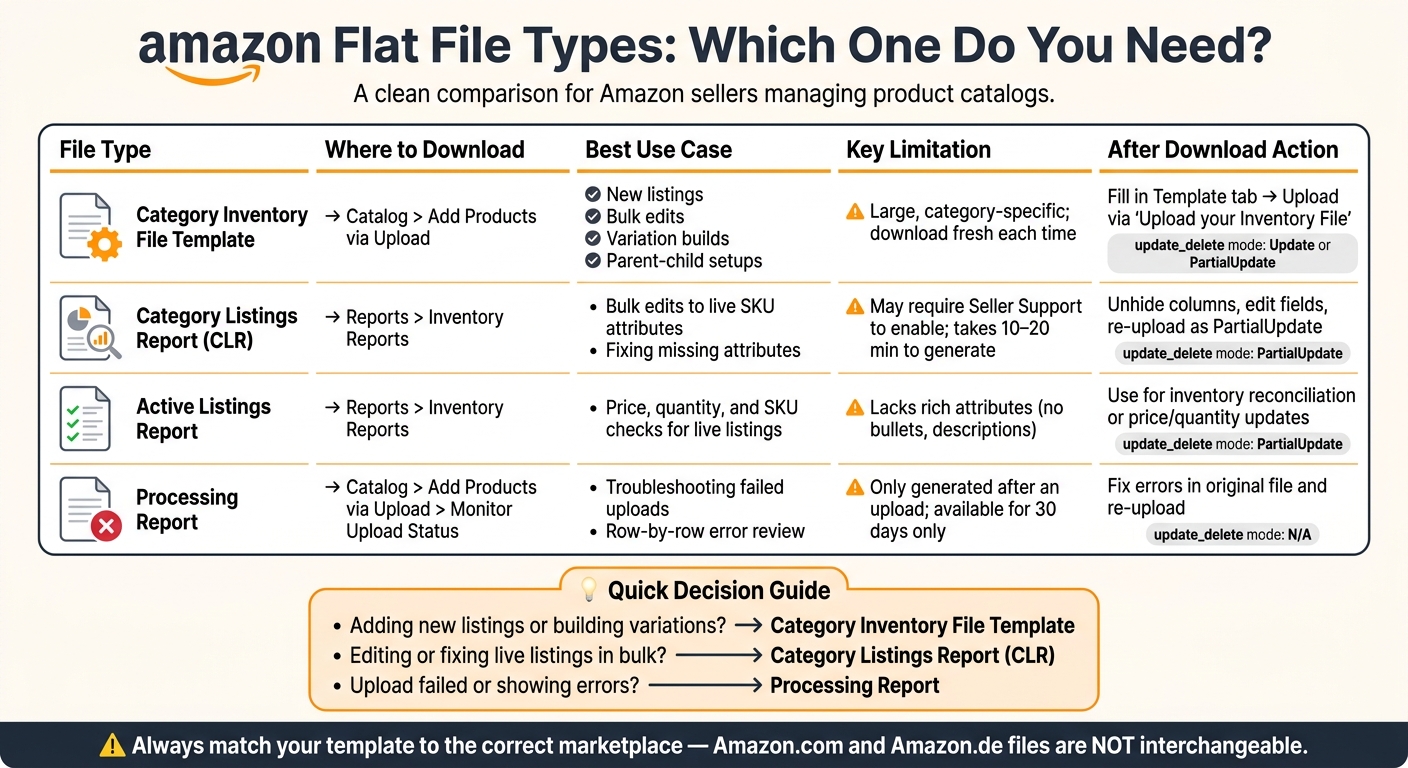
Amazon Flat File Types: Which One Do You Need?
Once you know where each file lives, the next step is picking the right one. And this matters more than it may seem. The safest file depends on the job in front of you: adding new listings, editing live ones, filling in missing data, or changing offer details.
Task-to-File Reference Table for Common Catalog Work
This table matches common catalog tasks with the file and update_delete mode that usually fits best. After you pick the file, review the tab rules before you upload.
| Task | Recommended File | update_delete Mode |
|---|---|---|
| Creating new ASINs | Category inventory file template | Update |
| Bulk editing titles, bullets, or images | Category inventory file template | PartialUpdate |
| Updating variations (parent-child) | Category inventory file template with variation fields | PartialUpdate |
| Fixing missing attributes in an existing listing | Category Listings Report + Category inventory file template | PartialUpdate |
| Price and quantity changes only | Price & Quantity Template (Lite) | PartialUpdate |
| Deleting listings | Any inventory file with the SKU populated | Delete |
| Troubleshooting a failed upload | Processing Report | N/A |
A simple way to think about it: the Category inventory file template handles most catalog-level work, while the Price & Quantity Template (Lite) is better when you only need to change offer data. If an upload fails, the Processing Report is the place to look first.
How to Read Required and Conditional Columns Correctly
To figure out which fields you need, start with the Data Definitions tab. That tab shows whether a field is required or only required in certain cases. Then check the Valid Values tab to see which entries Amazon accepts for controlled fields.
Here’s where people often get tripped up: some fields only matter when another field triggers them. For example, battery_type only becomes mandatory if batteries_required is set to true. The Instructions tab explains general formatting rules too, including a period as the decimal separator, such as 29.99, and the YYYY-MM-DD date format [4].
You don’t have to complete every column. But you do need to know which fields Amazon expects, and under what conditions.
Why a Template May Be Missing and What to Do About It
If a template doesn’t show up, start with three basic checks: category approval, menu location, and report access. That helps you tell the difference between an approval issue and a simple navigation problem.
Category Approval Blocks
Some categories need Amazon approval before the template appears in search results or will accept an upload [1]. Check your status in Selling Applications to confirm you have access. If the category is gated, open a Seller Support case and ask them to confirm approval for that category or for the related browse node [1].
Menu Paths Vary by Account
If you can’t find the download page, use the Seller Central search bar and look for Add Products via Upload or Category Listings Report. Menu names can differ from one account to another [1]. If Category Listings Report still doesn’t appear, contact Seller Support and ask them to enable it for your account [1][3].
Here’s a quick reference if you’re not sure which file you need:
| File Type | Where to Download | Data Contained | Common Limitations | What to Do After Downloading |
|---|---|---|---|---|
| Category Inventory File | Catalog > Add Products via Upload | All category-specific attributes and valid values | Large, category-specific file [1] | Fill in the Template tab and upload through Upload your Inventory File |
| Category Listings Report | Inventory > Inventory Reports | Full attribute data for all live listings | May need Seller Support to enable [1][3] | Unhide columns, edit attributes, re-upload as PartialUpdate [3][5] |
| Active Listings Report | Inventory > Inventory Reports | SKU, ASIN, price, quantity | Lacks rich attributes like bullets or descriptions [1] | Use for inventory reconciliation or price and quantity updates |
After any upload, check the processing file first. That’s usually where the problem shows itself.
| File Type | Where to Download | Data Contained | Common Limitations | What to Do After Downloading |
|---|---|---|---|---|
| Processing Report | Catalog > Add Products via Upload > Monitor Upload Status | Row status and error codes | Only generated after an upload; available for 30 days [1][5] | Review errors, fix the original file, and re-upload |
Conclusion: The Fastest Path to the Right Amazon Flat File
To get the right blank flat file, go to Catalog or Inventory and open Add Products via Upload > Download an Inventory File. If you need data from listings that already exist, use Inventory > Inventory Reports. And after you upload a file, open Monitor Upload Status under Add Products via Upload to view the Processing Report.
Once you find the right path, check two things right away: marketplace and approval status. These two items often decide whether a template shows up and whether your upload works. Amazon.com and Amazon.de templates are not interchangeable. On top of that, category approval can hide a template or stop it from working.
Key Points for Sellers Managing Large SKU Counts
If you manage a big catalog, file selection matters more than most sellers think. The wrong file can slow everything down.
Here’s the simple breakdown:
- Category templates are for new listings and variation builds
- Listing reports are for current data
- Processing reports are for upload errors
When you update listings that already exist, set the update_delete column to PartialUpdate so you only change the fields you need [3]. That small detail can save a lot of cleanup later. Processing reports also show which rows failed and why, so you’re not left guessing.
If a template seems to be missing, the usual causes are category gating, account-level permission limits, or recent Amazon layout changes. Start with the easiest check first, and you can usually find the right file without much digging.
FAQs
Which flat file should I use for my task?
It depends on what you need to do.
- Use the category-specific flat file template when you’re creating new listings or adding detailed product attributes.
- Use the Lite template for fast price, quantity, or bulk inventory updates.
- Use the category listing report or variation templates when you’re working with variations or fixing listing issues.
For new listings or more detailed updates, Amazon generally prefers category-specific templates. And one small thing that matters a lot: always download the latest template before you upload anything.
Why can’t I find the template or report I need?
Common reasons include category restrictions, account-specific settings, or reports that are turned off by default. For example, Category Listing Reports may need to be enabled through Seller Support.
If you need a flat file template, use the right path in Seller Central: Inventory > Add Products via Upload > Download an inventory file.
That part matters more than it seems. Some templates are tied to specific categories, and using the wrong one can lead to upload errors.
What should I do if my upload fails?
If your upload fails, check the error report in Amazon Seller Central to see exactly what went wrong in your flat file. Head to Inventory and choose Inventory Reports to generate the Inventory File Error Report.
Once you have the report, fix the errors or warnings in your flat file and upload it again. You can track the upload through email notifications or Process Upload Results.
If the file still throws errors, make the needed fixes and try the upload again.