
Finding the right Amazon category is critical for product visibility, approval, and sales. Misclassifications can lead to failed imports, compliance issues, and lost revenue. Here’s what you need to know:
- Amazon Categories Matter: Correct categorization ensures your products appear in relevant searches and meet Amazon’s rules.
- CSV File Access: Download the Amazon Categories CSV file via FlatFilePro to manage and update listings in bulk using an Amazon flat file. It includes Browse Node IDs, category paths, and required attributes.
- Bulk Management: Tools like FlatFilePro streamline updates, validate Browse Node IDs, and monitor changes with the Reflection Engine.
Start by downloading the CSV, match your products to specific subcategories, and use FlatFilePro to update listings efficiently while avoiding common errors like overly broad categories or outdated IDs.
Amazon Listing Success: How to Select the Right Product Category | From Seller with 415K+ Reviews
sbb-itb-ed4fa17
How to Download the Amazon Categories CSV File
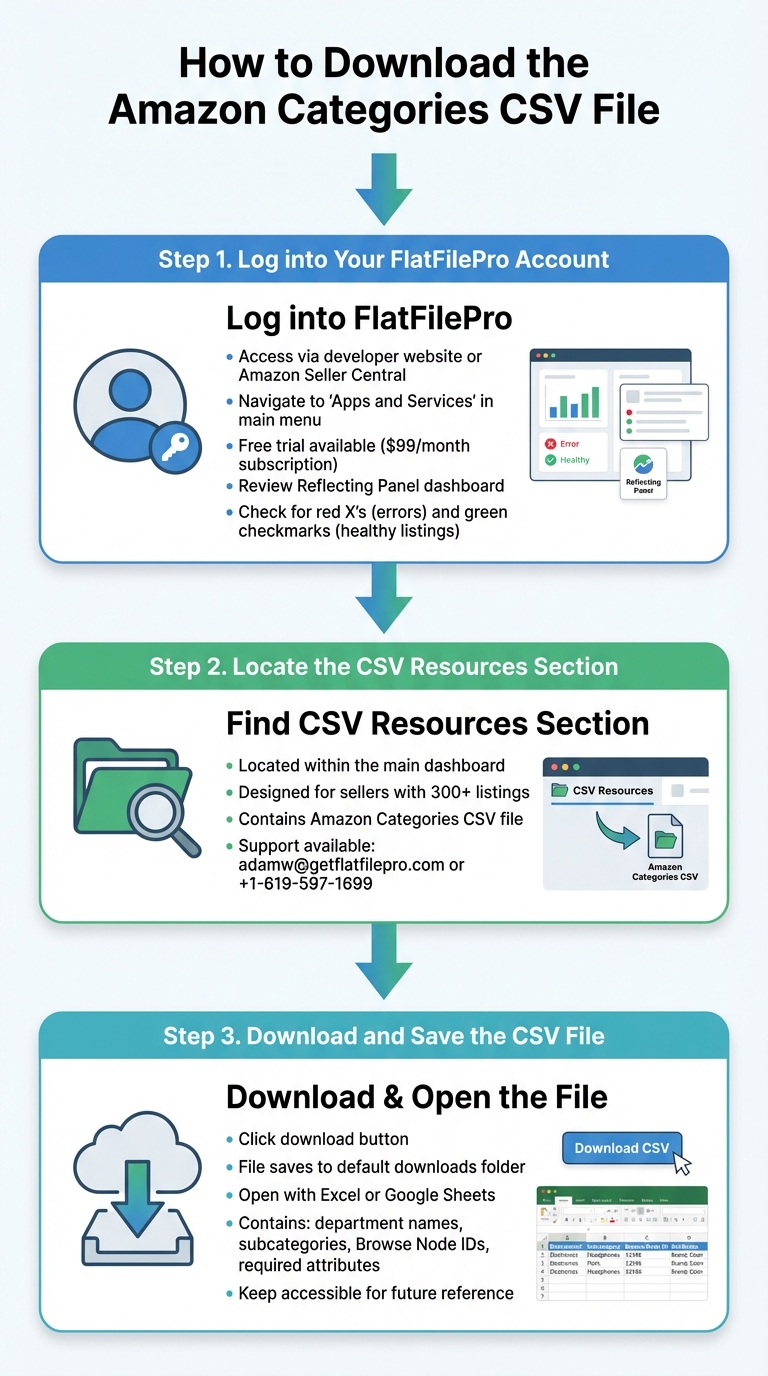
How to Download and Use Amazon Categories CSV File – 3 Step Process
Here’s a simple guide to help you download the Amazon Categories CSV file, a resource that makes bulk listing management smoother and more accurate.
The Amazon Categories CSV file, available through FlatFilePro, includes the full category structure, such as Browse Node IDs and required attributes for each category. This file is essential for keeping your listings organized and up-to-date. Follow these steps to get started:
Step 1: Log into Your FlatFilePro Account
Start by logging into FlatFilePro. You can do this either through the developer’s website or via your Amazon Seller Central account. In Seller Central, navigate to "Apps and Services" in the main menu. If you’re new to FlatFilePro, you can try their free trial before deciding on the $99 per month subscription.
Once logged in, you’ll land on the main dashboard featuring the Reflecting Panel. This panel provides a clear overview of your listings, showing common flat file errors with red X’s and healthy listings with green checkmarks. Take a moment to review any flagged issues before proceeding. Then, locate the CSV Resources section to access the file.
Step 2: Locate the CSV Resources Section
Within the dashboard, find the CSV Resources section. This area houses the Amazon Categories CSV file, specifically designed for sellers managing 300+ listings. It’s an invaluable tool for matching products to the right category paths and verifying Browse Node IDs for bulk updates.
If you’re having trouble finding this section or encounter any problems, reach out to FlatFilePro support. You can email them at adamw@getflatfilepro.com or call their support line at +1-619-597-1699. Once you’ve accessed the CSV Resources section, you’re ready to download the file.
Step 3: Download and Save the CSV File
Click the download button next to the Amazon Categories CSV file. The file will automatically save to your default downloads folder. For better organization, move it to a dedicated folder where you can easily find it later.
After downloading, open the file using Excel or Google Sheets. You should see a detailed structure, including department names, subcategories, Browse Node IDs, and required attributes. Keep this file accessible, as it will be a key reference when creating new listings or fixing categorization issues.
How to Read the Amazon Categories CSV File
To make sure your products end up in the right categories on Amazon, it’s important to understand how the CSV file is structured. Each column in the file plays a specific role in categorizing your items. The key columns include Browse Node ID, Browse Node Name, Search Index, Category Path, Child Nodes, and Product Type.
- Browse Node ID: This is a unique number Amazon assigns to every category and subcategory. For example, Electronics is represented by 493964, while Home & Kitchen is 1063498. You’ll need these IDs when uploading products via CSV to ensure they’re placed in the right category.
- Browse Node Name: This is the readable name of the category, like "Cookware" or "Pet Supplies."
- Search Index: Amazon uses this as an internal label for departments, such as "HomeGarden" or "ArtsAndCrafts."
- Category Path: This shows the full hierarchy of a category, like a breadcrumb trail (e.g., Home & Kitchen > Kitchen & Dining > Cookware). It helps confirm you’re in the right subcategory, especially when names overlap across departments.
- Child Nodes: This column indicates whether a category has additional subcategories or if it’s a "leaf" node where products are listed.
- Product Type: This groups similar items together – like "PILLOW" for bed pillows, throw pillows, and furniture pillows – and ensures you’re using the correct listing template.
Departments vs. Browse Nodes
Amazon’s Departments are the broad, top-level categories shoppers see, such as Pet Supplies or Beauty & Personal Care. These act as the main "aisles" of the store. Browse Nodes, however, are the numerical IDs Amazon uses to organize everything behind the scenes. While every department is a browse node, most browse nodes are subcategories nested within departments.
The CSV file covers over 25,000 subcategories, each with its own unique ID. For instance, the Appliances department has the Browse Node ID 2619526011, and within it, you’ll find subcategories like Coffee Makers and Blenders, each with their own IDs. By understanding this hierarchy, you can avoid placing products in categories that are too broad or irrelevant.
Matching Your Products to Category Paths
Once you understand the CSV structure, the next step is to match your products accurately. Start by identifying the top-level department that fits your product. Use the Search Index column to filter by department. For example, if you’re selling yoga mats, filter the Search Index to "Sports" or search for "Yoga" in the Browse Node Name column.
After narrowing down the options, check the Category Path to confirm the exact subcategory. For a yoga mat, the path might look like Sports & Outdoors > Exercise & Fitness > Yoga > Yoga Mats. This ensures you’re not accidentally selecting a similar-sounding subcategory in a different department. Picking the most specific subcategory improves Amazon search visibility and increases your chances of winning the Buy Box.
Always cross-reference the Browse Node ID with Amazon Seller Central to ensure it’s still active. Amazon occasionally updates or removes nodes, so verifying before uploading can save you from errors. Also, check the Product Type column to confirm your product aligns with Amazon’s expectations for that category, avoiding unnecessary listing rejections.
Using Filters to Find the Right Subcategories
Filters are your best friend when navigating the CSV file. Start by applying a filter to the Search Index column to focus on your main department. For example, if you’re selling LED bulbs, filter by "Tools" or "HomeGarden" to remove unrelated categories like Apparel or Books. This reduces the rows you need to review from 25,000+ to a more manageable number.
Next, use the Find function (Ctrl+F on Windows or Cmd+F on Mac) to search the Browse Node Name column for keywords related to your product. For instance, searching "LED" or "Light Bulbs" will highlight relevant rows. If the Child Nodes column is populated, it means there are additional subcategories to explore. If it’s blank or marked as a "leaf" node, that’s where your product will be listed.
Keep the CSV file open as you filter and match subcategories. For example, an LED bulb might belong under Home Improvement > Lighting & Ceiling Fans > Light Bulbs > LED Bulbs, rather than a more general Lighting category. Choosing the most specific path ensures your product appears in the right searches and reaches the shoppers most likely to buy.
Using Categories for Bulk Listing in FlatFilePro
Once you’ve identified the right categories and Browse Node IDs from your CSV file, FlatFilePro makes it easy to apply that data across your entire product catalog. Updating each listing manually? That’s just not practical.
Importing Category Data into FlatFilePro
After confirming your categories from the CSV file, the next step is to sync them with your catalog.
FlatFilePro integrates directly with Amazon’s API, so you can skip the hassle of uploading spreadsheets or waiting for flat file processing. Head over to your FlatFilePro dashboard and open the bulk editor. Use filters – like brand, product type, or SKU range – to find the listings you want to update. Once selected, locate the Browse Node ID field in the editor and paste the correct ID from your CSV file.
The platform instantly validates the IDs, flagging any outdated ones or common flat file errors. You can also map other category-specific details – like Product Type or Search Index – right in the interface. This streamlined process reduces manual errors and saves valuable time.
Once everything is set, you’re ready to update multiple listings in one go.
Updating Multiple Listings at Once
FlatFilePro’s bulk update feature lets you apply category changes in real time, with every action logged in the Activity Log. Simply pick the listings you want to update, adjust the Browse Node ID or Category Path, and submit your changes. Thanks to the integration with Amazon’s API, updates happen almost instantly – no more waiting like with traditional flat file uploads.
Made a mistake? No problem. If a product ends up in the wrong subcategory, you can restore the previous Browse Node IDs with a single click. This version control ensures you don’t lose critical catalog data during bulk updates.
And here’s the icing on the cake: the Reflection Engine keeps an eye on your updates overnight. It confirms whether Amazon has accepted the new category assignments, showing green checkmarks for successful changes or red X’s for any issues that need fixing. This added layer of monitoring keeps your catalog accurate and up-to-date with minimal effort.
Common Category Selection Mistakes and Fixes
After figuring out how to download and read your Amazon Categories CSV file, the next step is avoiding common mistakes that can mess up your listings. Even with all the right tools, category selection can still go wrong. The good news? These errors tend to follow predictable patterns, and there are straightforward ways to fix them.
Mistake 1: Choosing Categories That Are Too General
If you list your product in a broad category like "Home & Kitchen", you risk getting lost in a sea of unrelated items. Instead, narrow it down to something more specific, like "Kitchen Utensils & Gadgets > Measuring Tools & Scales > Kitchen Scales." This helps your product stand out in search results and reduces unnecessary competition.
The fix? Use your Category Listings Report to spot overly general placements. Then, bulk upload your products to update your listings using the CSV template. Make sure to select the Override existing products option so your changes take effect[1].
Mistake 2: Using Incorrect Browse Node IDs
Another common issue is using outdated or incorrect Browse Node IDs, which can lead to validation errors. Amazon’s system first checks for formatting problems, then flags duplicate or invalid entries. If your upload fails, Amazon provides a CSV history file with detailed error messages to guide you.
To avoid this, always download the latest Product Template from the "Add Products via Upload" section in Seller Central. Check the "Valid Values" tab to confirm your Browse Node IDs match Amazon’s current structure[3]. Also, save your file using UTF-8 encoding to prevent data corruption during upload[4].
Mistake 3: Overlooking Product Attributes
Sometimes, Amazon’s automated systems recategorize products based on keywords in your title. For example, a "mugshot" photo print might get moved into a coffee mug category, or a decorative "map" could mistakenly land in books[6]. This can lead to Amazon requesting irrelevant attributes like "gender" or "wearability"[6].
To tackle this, review your product titles for keywords that might confuse Amazon’s AI. Regularly check your Listing Quality Dashboard to catch issues early. If Amazon starts asking for attributes that don’t make sense for your product, it’s a sign of miscategorization[6]. If you’re part of the Brand Registry, use the Brand Catalog Manager to lock critical fields like images and descriptions. This prevents unwanted changes from bots or third parties[7].
Using FlatFilePro Reflection Engine to Monitor Categories
Once you’ve set up your categories, unexpected changes – whether unauthorized edits or automated shifts – can disrupt your listings. That’s where FlatFilePro’s Reflection Engine steps in. It keeps a constant eye on your category assignments and notifies you of any modifications, making real-time monitoring a breeze.
Tracking Category Data in Real Time
The Reflecting Panel is at the heart of the Reflection Engine. This tool compares your intended category data with what’s live on Amazon. It uses simple visual cues – like green checkmarks for correct listings and red X’s for discrepancies – to save you from tedious manual checks.
"Our Reflecting Panel shows you exactly what Amazon and shoppers see." – FlatFilePro
Every night, the system automatically scans your catalog for unauthorized changes or category shifts[5]. If discrepancies are found, they’re grouped by category, helping you pinpoint issues quickly. Plus, the Activity Log records every change with precise timestamps, giving you a clear view of your catalog’s history and helping maintain accuracy.
Keeping Category Updates Accurate
Once you’ve fixed any category mismatches, the Reflection Engine confirms that your updates are live on Amazon’s site. This is crucial, as updates can sometimes be delayed or even rejected without clear feedback. The tool also includes competitor alerts, which notify you if external parties try to modify your listings. This added layer of protection ensures your catalog remains consistent and secure. And with FlatFilePro’s bulk editing capabilities, you can tackle multiple discrepancies in one go, saving time and effort.
Conclusion
Start by downloading your CSV file and applying filters to zero in on the exact browse nodes you need. Avoid choosing overly broad categories or incorrect browse node IDs – this ensures a smoother bulk update process.
The Reflection Engine works behind the scenes, scanning your catalog nightly and notifying you of any unauthorized changes.
"With the CSV (comma-separated values) import and export features, you can add new products, view existing products in your Buy with Prime catalog, and update existing product details in bulk." – Amazon Buy with Prime [1]
Make sure your file uses UTF-8 encoding and includes all required columns like SKU, Title, and Price before uploading. If you’re a professional seller, you can generate a Category Listings Report from Seller Central to review your current classifications and confirm your products are listed under the best browse nodes [2].
Use the CSV file to update your catalog, and then rely on tools like FlatFilePro’s bulk editor and the Reflection Engine to maintain accuracy. This strategy not only keeps your catalog organized but also saves you countless hours of manual work.
FAQs
How do I confirm a Browse Node ID is still active before I update listings?
To determine if a Browse Node ID is active, you can check its status directly on Amazon Seller Central or review the official category lists provided during reclassification updates. Another option is to cross-reference your Browse Node ID with resources like the "Browse Nodes Dataset" to confirm its current status and hierarchy. Always verify this information directly on Amazon to ensure everything is accurate before making changes to your listings.
What’s the fastest way to find the most specific subcategory for my product in the CSV?
To zero in on the most specific subcategory, you can utilize Amazon’s browse node hierarchy available in the downloadable CSV file. Simply search or navigate through the structured categories to find the perfect fit. Another option is to request the Browse Tree Report through the Amazon MWS API. This report provides detailed category data, including child nodes, making it easier to identify the exact subcategory you need. Both approaches are designed to help you locate the right match quickly and effectively.
Why does Amazon change my product’s category, and how can I prevent it?
Amazon might update your product’s category automatically. This could happen due to misclassification, the use of incorrect keywords, or algorithm updates aimed at improving search relevance. To avoid this, it’s crucial to choose the most precise and specific category when creating your listing and steer clear of using unclear or overly broad keywords.
If your product’s category is changed, you can request a correction using Amazon’s listing tools. However, keep in mind that Amazon may reject your request if it conflicts with their policies. To stay on top of this, make it a habit to regularly review your listings and ensure all details remain accurate.