
Uploading product images to Amazon can be a hassle since their system requires image URLs, not direct files. A free image URL generator simplifies this process by converting cloud storage links (like Google Drive) into URLs Amazon can use. This tool is especially helpful for sellers managing large catalogs, saving time and reducing errors when updating listings.
Key Points:
- Amazon requires image URLs: Flat files need
main_image_urlandother_image_urlfields filled with direct, publicly accessible links. - Cloud storage links aren’t compatible: Platforms like Google Drive create preview links, not raw image URLs.
- Image URL generators fix this issue: They create direct URLs that meet Amazon’s requirements.
- Amazon’s image rules: JPEG/PNG format, 1,000×1,000 pixels minimum, under 10 MB, and a pure white background for main images.
- Bulk processing: Tools like spreadsheet formulas can automate URL creation for multiple images, streamlining uploads.
Using a generator alongside tools like FlatFilePro ensures your image URLs are correctly formatted and mapped to Amazon’s flat file fields, avoiding common flat file errors like broken links or incorrect mapping.
HOW TO CREATE IMAGE URL FOR AMAZON FLAT FILES! QUICK AND EASY
sbb-itb-ed4fa17
Amazon Image Requirements You Need to Know
Understanding Amazon’s image requirements is crucial before generating URLs. Even if your URLs are perfectly formatted, submitting images that don’t meet Amazon’s standards can result in rejected or suppressed listings.
Amazon Image Guidelines at a Glance
Amazon has specific rules for images. They must be in JPEG (preferred) or PNG format and use the sRGB color profile. The minimum size is 1,000 pixels on the longest side, but 2,000×2,000 pixels is recommended for the zoom feature. File sizes must stay under 10 MB. For the main image, a pure white background is mandatory, and it cannot include text, watermarks, overlays, or inset images.
When uploading via flat files, ensure each HTTPS URL points directly to a JPEG file (ending in ".jpg") and is publicly accessible. You can test this by opening the link in an incognito browser window. Avoid using free hosting services, as they can cause errors. If your links don’t meet these criteria, a dedicated URL generator can help convert them into compliant direct URLs [2].
Once your images meet these specifications, assign the correct URLs to the appropriate flat file fields.
Which Flat File Fields Require Image URLs
To avoid upload issues, it’s essential to place image URLs in the correct flat file fields. The main product image goes into the main_image_url field, while up to eight additional images can be assigned to other_image_url1 through other_image_url8. Each URL must be direct and standalone.
Here’s a quick reference table to clarify the purpose of each field:
| Flat File Field | Purpose | Notes |
|---|---|---|
main_image_url |
Primary product photo | Requires a white background; this is the most strictly enforced rule |
other_image_url1–other_image_url8 |
Additional product views | Use for lifestyle shots, detailed images, or infographics |
Properly mapping URLs to these fields from the beginning can save you significant time, especially when managing large catalogs or dealing with variation-heavy product families. One common issue sellers face is that Amazon treats each child SKU as a separate product. Even if multiple variations share the same image, you’ll need to input the image URL for each child SKU individually since Amazon doesn’t allow inheritance from the parent SKU [2].
How to Use a Free Image URL Generator for Amazon Listings
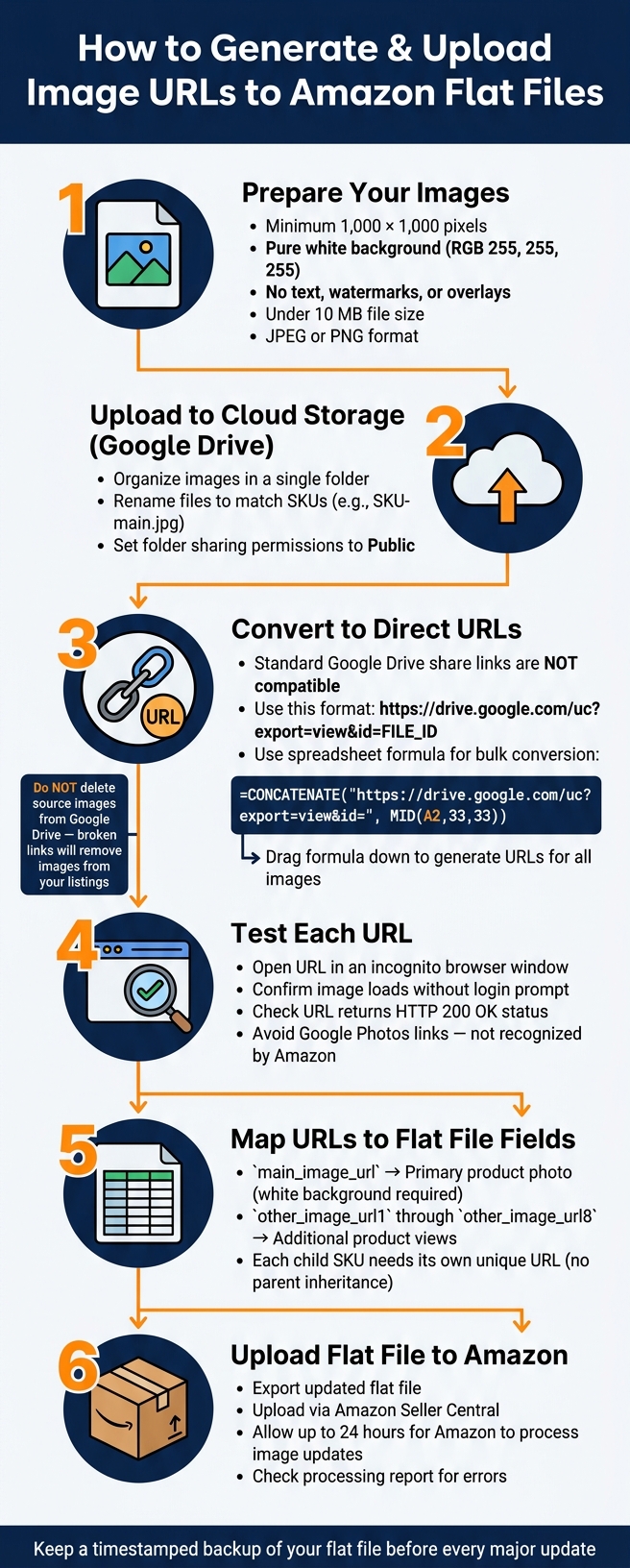
How to Generate & Upload Image URLs to Amazon Flat Files
Follow these steps to ensure your images upload smoothly through Amazon’s flat file system.
How to Prepare Your Images Before Upload
Before generating URLs, make sure your images meet Amazon’s technical requirements. Each image should:
- Be at least 1,000 × 1,000 pixels.
- Have a pure white background (RGB 255, 255, 255).
- Be free of text or watermarks.
- Be under 10 MB in file size [1].
To confirm the background color, use a color picker tool. Once your images are ready, organize them in a single cloud folder (like Google Drive) and rename them to match their respective SKUs (e.g., "SKU-main.jpg"). Ensure the folder’s sharing permissions are set to public, as restricted access often leads to flat file errors.
With your images compliant and organized, you’re ready to generate your URLs in bulk.
How to Generate Image URLs in Bulk
After uploading your images and confirming proper sharing permissions, you can start creating direct URLs. Amazon requires links that point directly to the image file, not to a preview or login page.
For Google Drive users, the standard share link won’t work. Instead, you’ll need to convert it into a direct URL using this format:
https://drive.google.com/uc?export=view&id=FILE_ID
To automate this for multiple images, use a spreadsheet formula. For example, if the share link is in cell A2, use the following formula to generate the direct URL:
=CONCATENATE("https://drive.google.com/uc?export=view&id=", MID(A2, 33, 33))
Drag the formula down to quickly create direct URLs for all your images. These can then be mapped to your SKUs [1].
Making Sure Your URLs Work with Amazon
Once you’ve generated the URLs, it’s important to test them. Only raw image URLs are compatible with Amazon’s system. Open each link in an incognito browser window to ensure it loads without requiring a login. If the image appears, the URL is valid. If not, Amazon won’t be able to access the file.
Avoid using Google Photos links, as Amazon does not recognize them as valid. Stick to properly formatted Google Drive URLs or another cloud service that provides raw image links. Additionally, don’t delete your source images from cloud storage after your listings go live. As Shaival Choksi, Founder of YourSeller, explains:
"If you delete the images from Google Drive, the direct links will break, and your Amazon product images will not display correctly."
Keep in mind that Amazon’s system may take up to 24 hours to process image updates after a flat file upload, so allow some time before checking your listing [1].
Adding Image URLs to Amazon Flat Files with FlatFilePro

To ensure your image URLs comply with Amazon’s requirements, you’ll need to integrate them into your flat file using FlatFilePro. After testing the URLs, it’s essential to map them correctly into the appropriate columns of your Amazon flat file.
How to Map Image URLs to Flat File Columns
FlatFilePro’s mapping interface makes it easy to assign image URLs to the correct columns for each SKU in your Amazon flat file. The sequence of images matters – Amazon displays additional images in the order they appear. For example, place your most important secondary image in the other_image_url1 column, the next in other_image_url2, and so forth. For variation listings, remember that child SKUs must have their own unique image URLs, while parent SKUs generally only need an image if it’s required by the category template.
Once you’ve mapped the URLs accurately, FlatFilePro helps simplify bulk management and ensures the integrity of your updates.
Using FlatFilePro to Manage Image URLs in Bulk
FlatFilePro is a powerful tool for bulk updates, minimizing errors that often occur with manual methods. Copy-pasting URLs manually can lead to catalog issues, especially when rows shift due to sorting or filtering, causing URLs to be misaligned with SKUs. FlatFilePro eliminates this risk by treating each SKU as a structured record, ensuring changes are applied based on the SKU ID rather than row position.
The platform’s Reflection Engine takes the process a step further. It compares your catalog data with the live Amazon listings, flagging any SKUs where the main_image_url is missing, broken, or inconsistent with the source. You can also set custom rules, such as requiring every active SKU to have at least one valid HTTPS image URL. This feature is particularly helpful during large-scale updates, like a brand-wide image refresh, where you need to update hundreds of listings without accidentally overwriting child SKU images with generic parent images.
A typical bulk workflow might look like this:
- Import your catalog into FlatFilePro.
- Add your image URL spreadsheet.
- Map the columns to Amazon’s required fields.
- Apply bulk updates by SKU segment.
- Validate the changes.
- Export and upload the updated file to Amazon.
Best Practices for Managing Image Updates
Before making any major image updates, always export a timestamped backup of your flat file with all image URLs. This creates a reliable rollback option in case something goes wrong during the upload process.
FlatFilePro’s Activity Log is another valuable feature, recording every change so you can trace any modifications quickly. For large-scale changes, like a packaging redesign, test the updates on a small batch of SKUs first. Verify that the images appear correctly on the live listings before rolling out the changes to your entire catalog.
Before exporting your updated file, use FlatFilePro’s filters to catch any issues, such as SKUs missing a main_image_url or URLs that don’t end with supported file extensions like .jpg or .png. Identifying and fixing these problems in advance saves time and avoids the hassle of troubleshooting errors from Amazon’s processing reports later on.
Fixing Common Problems with Amazon Image URLs
Even after uploading your image URLs, you might run into problems that prevent them from displaying properly on Amazon. Troubleshooting these issues becomes much easier when you know what to look for.
Common Image URL Problems and Their Causes
There are a few common reasons why image URLs fail, even when they seem fine at first glance. These include broken links, non-HTTPS URLs, and blocked hosting. For example, an image URL that works perfectly in your browser could fail if the image file is moved, renamed, or deleted from the server. Temporary, "signed" URLs often expire, creating dead links when Amazon’s system tries to fetch them.
Amazon also requires secure URLs (HTTPS). If your link uses HTTP instead, it won’t work. Another issue arises when your image host uses IP blocking, rate limiting, or requires authentication – Amazon’s servers can’t access the file under these conditions, even if the URL appears valid to you.
Beyond access issues, content violations can also trigger image problems. Amazon’s rules prohibit main images with watermarks, text overlays, logos, or non-white backgrounds. These violations are increasingly detected by Amazon’s automated image scanning, which has become stricter and more accurate over time.
| Problem | Typical Symptom | Root Cause |
|---|---|---|
| Broken/dead URL | Missing image, suppressed listing | File moved, deleted, or URL expired |
| Non-HTTPS link | Image fails to render | HTTP protocol used instead of HTTPS |
| Blocked hosting | Intermittent image failures | IP filters, auth requirements, or rate limits |
| Policy violation | Listing suppressed in "Fix Your Products" | Watermarks, text, or non-white background |
| Incorrect column mapping | Incorrect or missing image | URL assigned to the wrong flat file field |
Diagnosing and Fixing Image URL Issues
If your image URLs still aren’t working after initial testing, further diagnostics are necessary. Start by testing the URL in an incognito browser window. If the image doesn’t load, or you encounter an error or login prompt, the issue likely lies with the hosting setup, not the flat file. You can also use an HTTP status checker to confirm the URL returns a 200 OK response and a valid Content-Type header, like image/jpeg or image/png. Errors like 403, 404, or excessive redirects usually indicate a server configuration problem.
If the URL works but the wrong image appears – or no image at all – the issue might be in your flat file mapping. Check your file to ensure each URL is correctly matched to its corresponding SKU. A simple sorting error can misalign all the URLs. Also, look for trailing spaces or hidden characters in the URLs and clean them up.
Once you’ve verified the hosting and mapping, generate clean HTTPS URLs, update your flat file, and re-upload it. If Amazon’s processing report mentions "image could not be downloaded", the problem is still with hosting. If it says "image does not meet requirements", check the content or dimensions. Amazon requires images to be at least 1,000 pixels on one side (1,600 pixels is recommended for zoom), under 10 MB, and in RGB color mode.
Fixing these issues not only prevents disruptions in your listings but also ensures your brand looks consistent on Amazon. Regularly monitoring your image URLs helps maintain catalog integrity over time.
Using FlatFilePro to Keep Image URLs in Check
One challenge with managing image URLs is that problems can crop up long after the initial upload. An image that meets Amazon’s requirements today could be flagged weeks later due to policy changes or rescanning. FlatFilePro’s Reflection Engine performs nightly checks, comparing your catalog data with what’s live on Amazon. If a main_image_url breaks, goes missing, or no longer matches the source, it gets flagged before it impacts your sales.
Additionally, FlatFilePro’s Automated Listing Health Monitoring alerts you within 24 hours of any suppressed listings. This ensures you catch issues early, instead of discovering them after a significant sales drop. The tool’s Activity Log also tracks changes, showing what was updated, when, and whether the live listing matches your settings. For sellers managing hundreds – or even thousands – of SKUs, this level of visibility can transform your catalog management from reactive to proactive.
Conclusion and Key Takeaways
Managing image URLs manually might work for a handful of SKUs, but it quickly becomes unmanageable as your catalog grows. A free image URL generator simplifies this process by providing clean, stable, HTTPS-ready links in bulk, which can be directly added to Amazon flat file templates.
Key Benefits of Using an Image URL Generator
The main advantage is clear: less manual work, fewer mistakes, and faster listing updates. Instead of handling URLs one by one, you can process hundreds of images at once to fill Amazon’s image fields. Compliance is another critical factor. Listings can be suppressed due to non-compliant images – like those with watermarks, incorrect backgrounds, or expired URLs – which can hurt revenue and take time to fix. By using a generator that creates permanent, publicly accessible URLs, you minimize these risks from the beginning.
As discussed earlier, combining an image URL generator with FlatFilePro ensures your listings stay compliant and efficient during every update.
How FlatFilePro Helps Amazon Sellers Manage Image URLs
FlatFilePro enhances these benefits by simplifying the integration and ongoing management of image URLs. It allows you to import URLs, map them to the correct Amazon fields, and export flat files ready for upload – no need to handle raw spreadsheets. With tools like the Reflection Engine and Automated Listing Health Monitoring, FlatFilePro identifies broken URLs and suppressed listings before they can affect your sales. Together, these features make image management a proactive process, helping you keep your catalog optimized and growing.
FAQs
Do my image URLs have to end in .jpg or .png?
No, they don’t. While formats like .jpg and .png are widely used, FlatFilePro does support WebP for Amazon listings. However, Amazon itself only accepts JPEG, PNG, TIFF, and non-animated GIF formats. Among these, JPEG is typically recommended because it allows for faster processing.
When uploading images, make sure your URL links directly to the image file – not to a webpage or a restricted viewer. This ensures your images meet Amazon’s requirements and display without issues.
Why does a Google Drive share link fail on Amazon?
Google Drive share links don’t work on Amazon because they direct users to a web viewer page instead of the raw image file Amazon requires. For the link to function correctly, it needs to be public, direct, and end with a valid file extension like .jpg or .png. To fix this, adjust the permissions to Anyone with the link and format the URL like this: https://drive.google.com/uc?export=view&id=FILE_ID.
How can I keep URLs from breaking after I upload images?
To keep image URLs intact, steer clear of temporary hosting services that might delete files or alter links. Always store source files in a stable, publicly accessible location and ensure they remain available. FlatFilePro offers permanent, Amazon-compliant URLs and features a Reflection Engine that checks listings every night. If it detects broken links or images that won’t load, it sends you alerts so you can address the issue promptly.