
Amazon flat files are a powerful way to bulk upload your products on Amazon, but even small mistakes can cause major issues, like suppressed listings or rejected uploads. Here’s what you need to know:
- Common Errors: Missing required fields, incorrect data formatting, using the wrong category template, changing column headers, and duplicate SKUs.
- Consequences: Listings may disappear from search results, hurting visibility, sales, and even your Prime status.
- Prevention Tips: Validate data before uploading, use Amazon’s tools like "Check My File", and avoid altering the original template structure.
- Automation Tools: Tools like FlatFilePro can help detect and fix errors, manage variations, create variations on Amazon more effectively, and streamline bulk uploads.
Avoiding these mistakes ensures your listings stay live and visible, saving you time and protecting your revenue.
Update Amazon Product Listings With Flat File Templates | Full Tutorial 2025

sbb-itb-ed4fa17
5 Common Flat File Mistakes That Break Amazon Listings
Flat files are a powerful tool for managing Amazon listings, but they come with their fair share of challenges. Here are some common mistakes sellers make when using flat files – and how to avoid them.
Mistake #1: Missing Required Fields
Amazon’s flat file templates include critical fields like Product Type and Item Type Keyword for a reason – they determine where your product fits in the marketplace. If these fields are incomplete or incorrect, your listing may be hard to find or even rejected. As Amazon Seller Central puts it:
"If this information [classification] is missing or incorrect, customers will have a difficult time finding, comparing, and purchasing your products."
Additionally, you must provide essential product identifiers, such as UPC, EAN, ISBN, or ASIN. For fashion items, standardized size details are also mandatory. Adrian Gmelch from Lengow explains:
"Amazon requires specific attributes to be completed for fashion and clothing products in order to standardize apparel sizes."
Beyond classification and identifiers, fields like SKU, price, quantity, item condition, and descriptions must be filled in. Missing any of these can result in upload errors or suppressed listings.
How to avoid this: Use the default view in the flat file template to spot required fields quickly (click the ‘1’ button for required fields or ‘2’ for the full attribute list). Cross-check each field’s rules in the Data Definition tab and review the Processing Summary in Seller Central to identify any missing data.
Mistake #2: Wrong Data Formatting
Even with all fields completed, formatting errors can derail uploads. For instance, entering "powder" as the item form but pairing it with "Fl Oz" in the unit count creates a mismatch. Similarly, entering "0" for shipping weight – when Amazon requires at least 0.01 – will trigger a validation error.
Amazon enforces strict character limits for various fields:
- Product Titles: 200 characters
- Descriptions: 2,000 characters
- Key Product Features: 500 characters
- Brand Names: 80 characters
- Model Names/Numbers: 50 and 40 characters, respectively
Exceeding these limits will block your upload. Additionally, saving your file in the wrong format (e.g., comma-delimited CSV instead of tab-delimited text) can corrupt the header row, leading to an error like:
"The file’s header row is missing or invalid. The header row is for Amazon use only and must not be modified or deleted."
Common formatting errors and fixes:
| Error Code | Issue | How to Fix It |
|---|---|---|
| 8105 | Mismatched Item Form and Unit Count Type | Use appropriate units (e.g., "Grams") |
| 90117 | Attribute character length exceeded | Shorten the text to fit field limits |
| 90114 | Numeric value below minimum | Enter at least 0.01 for numeric fields |
| 99038 | Improper or unclosed HTML tags | Correct any HTML issues in descriptions |
Pro tip: Always check the Data Definitions tab for accepted values before entering data. If a CSV upload fails, try saving and uploading as a tab-delimited text file instead.
Mistake #3: Using the Wrong Category Template
Choosing the wrong category template can cause major headaches. If you’re selling clothing but use a "Home & Kitchen" template, you’ll miss essential attributes like size and material. Each category has its own set of required, conditionally required, and recommended fields. For example, books need ISBN numbers, while clothing requires size charts and fabric details.
Amazon relies on accurate classification and Amazon SEO optimization techniques to display your product in search results.
How to avoid this:
- Use the Product Classifier tool in Seller Central to find the correct Item Type Keyword by entering terms like "beanies for women."
- If the keyword search doesn’t work, manually browse categories until you see the "Select" button.
- Watch for lock icons next to classifications, as these indicate categories needing Amazon’s approval.
- Download the Advanced template mode to ensure you capture all required, optional, and preferred fields. Use the dropdown menus to select your Product Type and Item Type Keyword.
Mistake #4: Changing Column Headers or Template Structure
Flat file templates come with multiple sheets – such as Instructions, Images, Data Definition, Template, and Example. The header rows in the Template sheet are essential for mapping your data during upload. Altering, rearranging, or deleting these headers can cause the upload to fail. Even minor changes, like renaming "product-id" to "Product ID", can disrupt the process.
How to avoid this: Only edit your product data. Leave header rows and metadata untouched, and save the file in the specified format.
Mistake #5: Duplicate SKUs and Broken Variations
Each SKU in your inventory must be unique. Reusing the same SKU across different products can lead to upload errors or overwrite existing listings, creating inventory mismatches and customer confusion.
Variation management also requires precision. Parent SKUs must differ from their child SKUs, and accurate variation themes (like size or color) are essential for grouping related products. If the parent-child structure is misconfigured, variations may appear as separate listings instead of grouped options. This can scatter customer reviews and hurt your Best Seller Rank.
How to avoid this: Ensure every SKU is unique and that parent-child relationships are set up correctly, with proper variation themes for size, color, or other attributes.
How to Fix and Prevent Flat File Errors
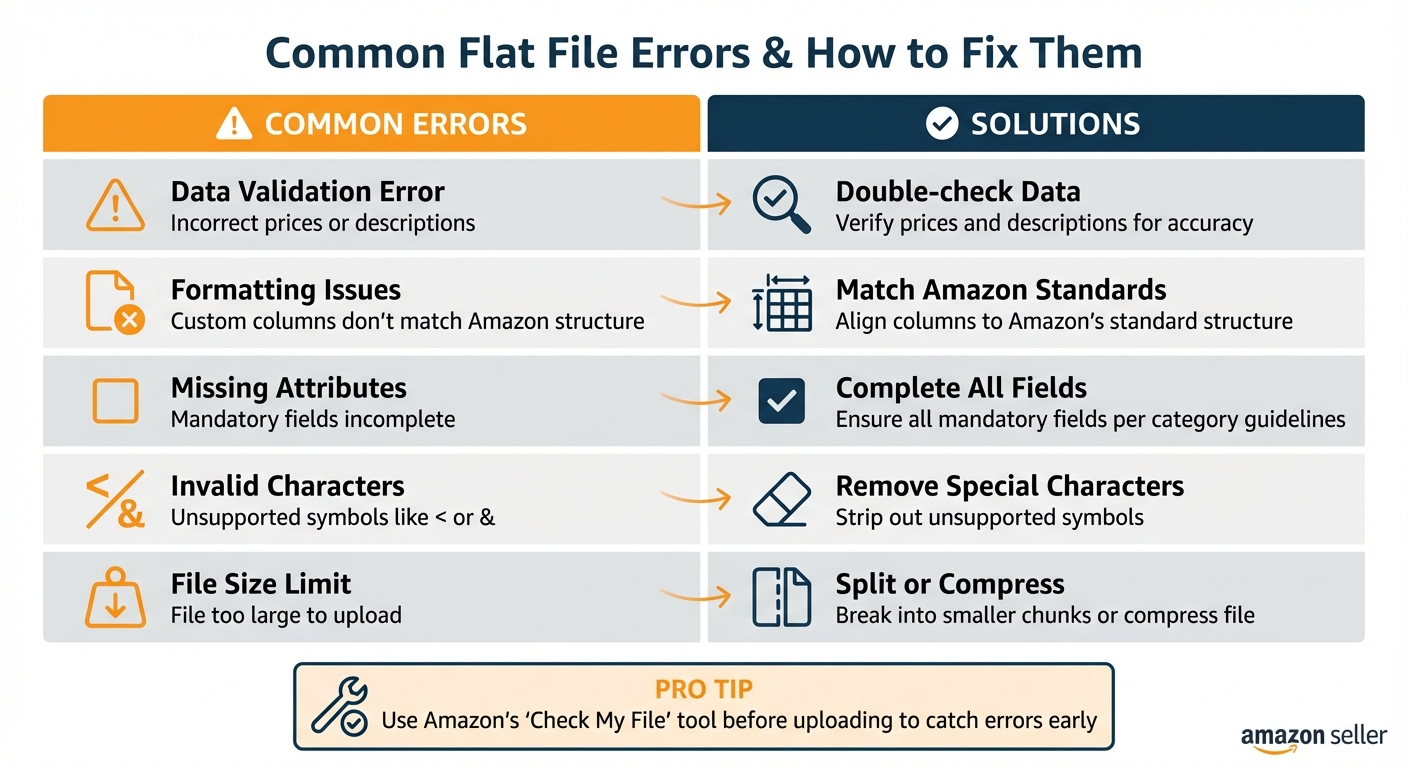
Common Amazon Flat File Errors and Solutions Guide
Dealing with flat file errors can feel like a headache, but with the right approach, you can keep your Amazon listings compliant and visible. Let’s break down some practical steps to help you avoid these common pitfalls.
Solution #1: Validate Data Before Uploading
Before uploading your flat file, take the time to validate your data. Amazon’s system is strict about structure, required fields, and formatting, so it’s better to catch mistakes early.
Here’s a checklist to keep in mind:
- Check the basics: Ensure prices are realistic, product descriptions match the actual items, and mandatory fields like product category, brand name, and item condition are fully completed.
- Format correctly: Follow Amazon’s specific requirements for character limits, file size, and column structure.
- Test first: Use Amazon’s "Check My File" tool in Seller Central to spot issues upfront. Start with a small batch of SKUs to confirm your formatting is correct before attempting a bulk upload.
| Common Error | How to Avoid It |
|---|---|
| Data Validation Error | Double-check prices and descriptions for accuracy. |
| Formatting Issues | Match your custom columns to Amazon’s standard structure. |
| Missing Attributes | Ensure all mandatory fields align with category guidelines. |
| Invalid Characters | Remove unsupported symbols like < or &. |
| File Size Limit | Split large files into smaller chunks or compress them. |
Amazon updates its listing guidelines frequently, so stay on top of the latest changes by reviewing documentation in Seller Central. Organizing your files with clear folder names and version histories can also save you from unnecessary confusion later.
Solution #2: Never Edit the Original Template Structure
When working with flat files, always start fresh by downloading the latest category-specific template from Seller Central. Amazon’s processing system relies on a precise structure, and altering headers or metadata can lead to errors.
As Steven Pope, Founder of My Amazon Guy, puts it:
"Always download the most recent category-specific product template from Seller Central." [2]
Stick to the data fields only and refer to the Data Definitions tab within the Excel template. This tab provides details on character limits and accepted values for each field, helping you avoid errors like exceeding the 200-character limit for titles or the 2,000-character limit for descriptions (Error 90117).
Solution #3: Use Tools for Bulk Editing and Automation
To streamline the process, consider using automation tools for bulk editing. These tools can save you time and reduce errors by handling tedious tasks like cross-referencing data against Amazon’s guidelines.
For example, FlatFilePro is a tool designed to simplify large file uploads. It offers real-time validation, automatic fixes for broken listings, and the ability to revert to previous versions if something goes wrong. This allows you to focus on optimizing your catalog instead of troubleshooting errors.
Automation tools can also convert custom formats to Amazon’s standards and back up your spreadsheets automatically. By integrating these tools into your workflow, you’ll save time and ensure your listings remain error-free.
How FlatFilePro Simplifies Flat File Management

FlatFilePro takes flat file management to the next level by automating tedious tasks and streamlining your workflow. Instead of spending hours manually handling files, this tool connects directly to Seller Central, automating error detection and enabling bulk updates. By addressing common flat file issues, it removes the headaches of manual corrections.
Reflection Engine for Real-Time Monitoring
The Reflection Engine keeps an eye on your listings by performing nightly checks against live Amazon data. It uses a straightforward visual system: green checkmarks show where your data matches Amazon’s records, while red X’s flag discrepancies. This system helps you identify unauthorized changes – whether from competitors or Amazon – within 24 hours. Plus, it automatically backs up your entire inventory in spreadsheet form, so you always have a safety net.
Drag-and-Drop Variation Management
Managing parent-child relationships in flat files can be a nightmare, but FlatFilePro simplifies it with a drag-and-drop interface. This feature lets you update variations in less than 5 minutes, with a 95% success rate for changes. Whether you’re fixing orphaned listings or reorganizing product families, you can move child products between parent ASINs effortlessly – no spreadsheets required.
Error Detection and Auto-Fix Features
FlatFilePro ensures your flat files are error-free before they even reach Amazon. It validates all data fields against Amazon’s requirements, flagging issues like missing fields, incorrect formatting, or compliance problems. This eliminates the need to upload files, wait for processing reports, and decipher error codes (like 8541 or 99010) [1]. If something goes wrong, the revert feature lets you restore previous listings instantly, safeguarding your Prime status and search visibility.
Conclusion: Avoiding Flat File Mistakes for Better Amazon Results
Flat file errors can disrupt your workflow, hurt sales, and lower your product visibility. Issues like missing fields, formatting errors, and broken variation relationships can delay listings and cost you revenue.
The bright side? Most of these problems are avoidable. Double-check your data for accuracy and use Amazon’s Check My File tool to catch errors early. Stick to the original template structure – don’t modify column headers – and ensure that parent and child products share the same VariationTheme values to avoid mismatches. Automating these steps can turn time-consuming tasks into smooth, scalable processes.
While manual management might work for smaller catalogs, it becomes unmanageable as your inventory grows. Manual uploads eat up time that could be spent growing your business. Automating tasks like validation, real-time listing monitoring, and bulk updates can simplify catalog management and save hours of effort.
The key to success lies in quickly identifying and fixing common flat file errors. By tackling common flat file errors with precision and automation, you protect your listings and revenue. Imagine catching discrepancies within 24 hours, restoring previous versions instantly, and updating hundreds of listings in minutes instead of hours – that’s the kind of efficiency that keeps your sales on track and gives you a competitive edge.
FAQs
Why is my listing suppressed after a flat file upload?
When you upload a flat file to Amazon, your listing might get suppressed if it doesn’t align with Amazon’s guidelines. This usually happens because of missing mandatory fields, incorrect data formatting, or violations of Amazon’s policies. Amazon’s automated systems are designed to detect these issues, which can lead to suppression. To prevent this, carefully review your file for any mistakes and make sure all required fields are filled out and formatted correctly.
How do I pick the right Amazon category template?
To find the right Amazon category template, log in to Seller Central and navigate to Inventory > Add Products via Upload. From there, choose your product category and the marketplace you’re selling in (like Amazon.com for the U.S.). Once selected, you can generate and download the flat file template. These templates are tailored to your product type and include all the necessary fields to help you input data correctly while meeting Amazon’s listing guidelines.
What file format should I upload to Amazon?
When uploading a CSV (Comma-Separated Values) file, make sure it’s saved in UTF-8 format. This format is the standard for flat files used in bulk product uploads and updates. Using UTF-8 ensures the file is compatible with Amazon’s system and minimizes the risk of upload errors.