
Finding the right category for your Amazon product is essential for visibility and sales. Misplacing your product in a broad or incorrect category can bury it in Amazon’s massive catalog, making it harder for buyers to find. With over 25,000 categories and up to 7 levels of depth, manually navigating Amazon’s category structure is overwhelming. That’s where the Amazon Categories CSV file comes in.
This downloadable file offers a complete, searchable list of Amazon’s categories, helping sellers:
- Quickly locate the most specific category for their product.
- Streamline bulk uploads by copying category paths directly into Amazon flat files.
- Spot underserved subcategories to target less competitive areas.
The CSV includes key data like Node IDs, category names, hierarchy paths, and search index labels, making it easier to map products accurately. You can download the file through FlatFilePro by entering your email, bypassing the delays often faced in Amazon’s Seller Central. Tools like Excel or FlatFilePro can help you filter, sort, and apply these categories efficiently, especially when managing large inventories.
Placing your product in the right category improves search relevance, reduces competition, and increases discoverability. Start by downloading the Amazon Categories CSV and reviewing your product listings for proper categorization.
How to Download the Amazon Categories CSV
Download Instructions
To get your hands on the Amazon categories CSV, head over to the FlatFilePro blog. Simply enter your email address, and you’ll receive the file instantly – no need for an Amazon account.
This approach is much faster than going through Amazon’s Seller Central. For Professional selling accounts, the native report is available, but individual sellers often need to open a support case and wait for approval, which can take up to a week.
Make sure you provide a valid email address, and don’t forget to check your inbox – or your spam folder – for the download link after submitting the form.
Once you have the file, take a moment to review its structure. This step can help you use it effectively to improve your product listings.
File Format and Compatibility
The CSV file is compatible with Microsoft Excel, Google Sheets, and other spreadsheet tools. Open it in your preferred program to easily search, filter, and sort Amazon categories.
If you’re planning to use the CSV for bulk listing management or automating catalog updates, consider signing up for a FlatFilePro account. Their platform offers tools like Import and Bulk Editing, which are especially useful for sellers managing large inventories – such as clothing sellers dealing with multiple variations like size and color. Just make sure to double-check column mapping when importing the file into FlatFilePro to ensure everything lines up correctly.
sbb-itb-ed4fa17
Amazon Listing Success: How to Select the Right Product Category | From Seller with 415K+ Reviews
What’s Inside the Amazon Categories CSV
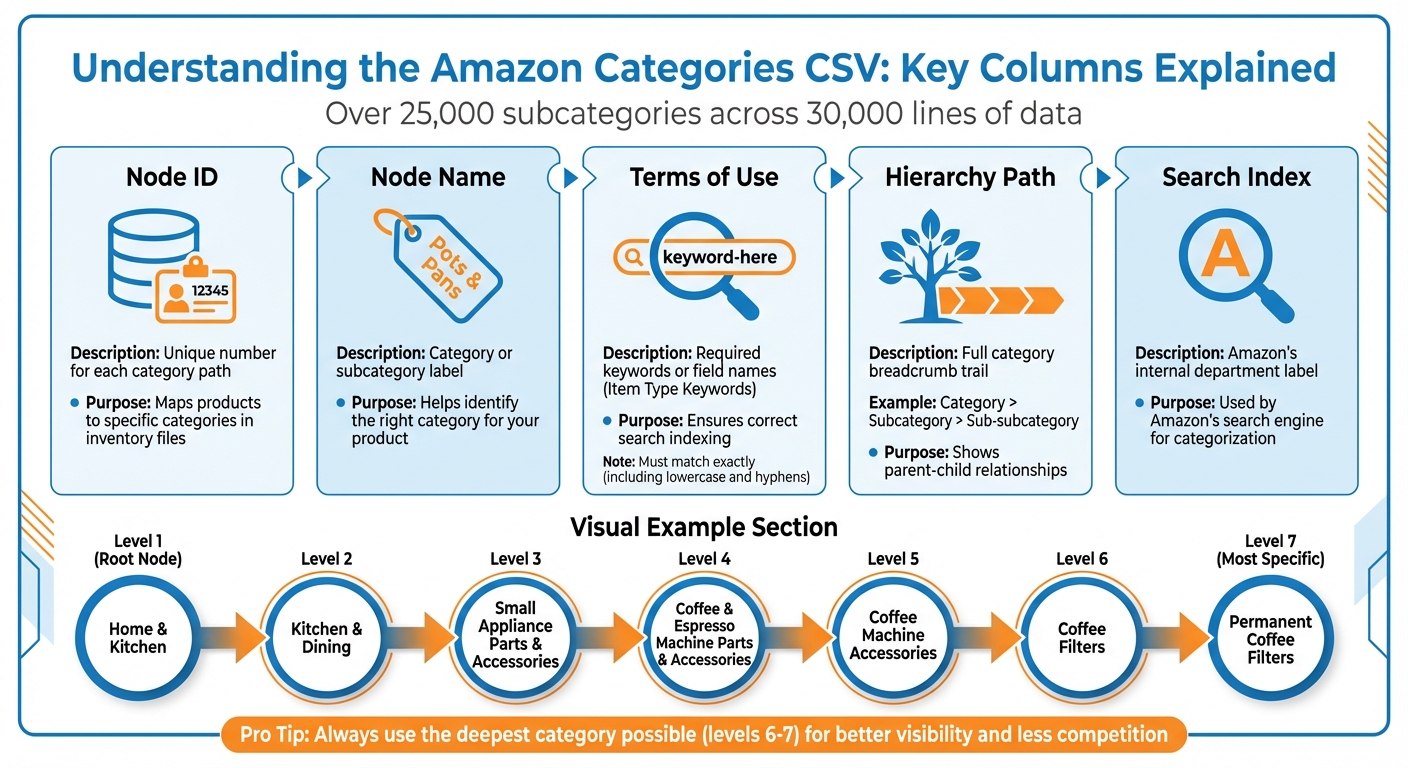
Amazon Categories CSV Structure: Key Columns and Their Functions
CSV Columns Explained
The Amazon Categories CSV is a treasure trove of data, with over 25,000 subcategories spread across roughly 30,000 lines of information [1]. To make the most of it, you need to understand its structure and purpose.
Here’s a breakdown of the key columns:
- Node ID: This is a unique number assigned to each category path [3]. Think of it as a precise map that ties products to their proper categories.
- Node Name: This column contains the descriptive names of categories, such as "Pots & Pans" or "Permanent Coffee Filters" [3]. It’s your guide to ensuring products are placed in the right spot.
- Terms of Use: Also referred to as Item Type Keywords, this column lists the exact keywords or field names Amazon requires for products to appear in the correct browse path [3]. These must be entered exactly as shown, including lowercase letters and hyphens, to avoid indexing errors.
- Hierarchy Path: This shows the breadcrumb trail from the main category to the most specific subcategory, formatted like this: Category > Subcategory > Sub-subcategory [1].
- Search Index: Amazon’s internal label for grouping products into broader departments [4]. It’s a crucial piece for search engine categorization.
Here’s a quick summary:
| Column Name | What It Contains | Why It Matters |
|---|---|---|
| Node ID | Unique number for each category path | Maps products to specific categories in inventory files [3] |
| Node Name | Category or subcategory label | Helps identify the right category for your product [3] |
| Terms of Use | Required keywords or field names | Ensures correct search indexing [3] |
| Hierarchy Path | Full category breadcrumb trail | Shows parent-child relationships [1] |
| Search Index | Amazon’s internal department label | Used by Amazon’s search engine [4] |
Understanding these columns is the first step toward mastering category mapping.
How to Read Category Hierarchies
Once you’re familiar with the CSV’s structure, the next step is interpreting the Hierarchy Path. Amazon’s category tree can be incredibly detailed, with up to 7 levels from the top category to the most specific subcategory [1]. For instance, the path for "Permanent Coffee Filters" looks like this:
Home & Kitchen > Kitchen & Dining > Small Appliance Parts & Accessories > Coffee & Espresso Machine Parts & Accessories > Coffee Machine Accessories > Coffee Filters > Permanent Coffee Filters [1].
The first name in the path – Home & Kitchen – is the root node, or the main category. Each additional level adds specificity. For example, a level 1 category like "Electronics" is very broad, while a level 7 category pinpoints a very specific type of product [1][4].
To avoid confusion, always rely on the Browse Node ID when assigning categories, as some categories may share similar names [4]. If you’re working with automation tools or databases, the parent-child structure in the CSV makes it easier to programmatically map out which subcategories belong to which main categories [2]. This approach ensures accuracy and saves time when handling large datasets.
How to Use the Categories CSV
Preparing Better Flat File Uploads
The Categories CSV simplifies flat file uploads by eliminating the need to manually navigate Amazon’s category tree. With over 25,000 lines, this file helps you quickly locate and verify the exact subcategory your product belongs to, ensuring your file reflects Amazon’s latest structure [1].
Focus on selecting the deepest category possible, ideally at levels 6 or 7, rather than settling for broader options like "Home & Kitchen." Using the full path ensures your product is placed in a more specific browse node, which often means less competition [1].
Additionally, the subcategory names in the CSV can double as backend keywords, aligning your listings with Amazon’s internal catalog organization. Once your file is fine-tuned, tools like FlatFilePro can speed up your bulk updates.
Using the CSV with FlatFilePro for Bulk Edits

FlatFilePro’s Reflection Engine integrates seamlessly with the Categories CSV to handle large-scale catalog updates. You can import the CSV as a reference, then map products to their exact categories across hundreds or even thousands of listings. Thanks to the drag-and-drop interface, category updates can be completed in under 5 minutes with a 95% success rate – saving significant time compared to manual updates in Seller Central.
If errors appear (indicated by red X markers), use the Node ID from the CSV to identify the correct category path. From there, FlatFilePro’s bulk editing feature allows you to fix and apply category corrections to multiple listings at once. This method is especially helpful when category requirements shift or when reorganizing products within variation families.
Choosing Categories for Better Visibility
Beyond efficient uploads and edits, selecting the right category is critical for improving product visibility. Use the CSV’s filtering options to pinpoint underserved subcategories where your product might rank higher. Avoid broad, top-level categories – specific placements make your product more relevant in filtered searches, increasing its chances of being discovered.
Final Thoughts
Key Takeaways
The Amazon categories CSV breaks down the marketplace into a detailed 7-level hierarchy, offering 25,233 data lines that show exactly where products fit [1]. Why does this matter? Because placing your products in specific subcategories – rather than broad, top-level ones – can significantly reduce competition and make your items easier to find.
FlatFilePro takes this a step further by turning tedious manual updates into quick, 5-minute tasks with a 95% success rate. Its Reflection Engine actively monitors your listings, flagging mismatches with red X markers so you can fix category errors before they hurt your sales. This combination of accurate data and automated monitoring not only saves time but also shields your listings from unauthorized changes or competitor meddling. With these tools at your disposal, you’re set up to refine your strategy and boost your product visibility.
Next Steps
Use these insights to fine-tune your listings. Start by downloading the categories CSV – check your Spam or Promotions folder if it doesn’t land in your inbox. Once you have it, review your product placements against the 7-level hierarchy. Identify listings in overly broad categories and shift them into more specific subcategories where competition is lighter.
Then, take full advantage of FlatFilePro’s tools. Import the CSV to map your catalog to the correct browse nodes when you upload products on Amazon. Use the alphabetical sorting in the CSV to analyze competitor placements and spot untapped subcategories where your products could stand out. With this data and FlatFilePro’s bulk update features, you can optimize hundreds of listings in just minutes, giving your products a stronger chance to succeed.
FAQs
How often is the Amazon categories CSV updated?
The Amazon categories CSV doesn’t have a specified update frequency based on the provided details. To ensure you’re working with the latest version, always check the original source where the file is available.
Which CSV column do I use to assign the correct category in a flat file?
The column where you assign a category in a flat file is usually named "Product Category", "Product Type", or simply "Category", depending on the template you’re using. To get started, download the appropriate category-specific template from Seller Central. These templates already have this column set up for you. Picking the correct category in this field is essential to ensure your product is listed accurately and gains proper visibility.
Can one product be listed in more than one Amazon category?
Yes, a product can appear in multiple categories on Amazon. The platform’s hierarchy allows subcategories to go as deep as seven levels. This layered structure provides flexibility for classifying products in ways that improve their visibility and help ensure they’re placed in the most relevant categories.