
If your Amazon listing changes, I need to answer two questions fast: what changed and when did it change? That’s the whole job.
Here’s the short version: I check the live listing in Seller Central, review recent Amazon-led edits, compare old upload files with the current catalog export, and match that against processing reports and status alerts. That gives me a working timeline for suppressions, lost bullets, broken variations, and content that keeps getting overwritten.
In plain terms, I use listing history to:
- Spot edited fields like titles, bullets, images, keywords, and variation data
- Match edits to dates using upload timestamps and change logs
- Find the source of a bad update, whether it came from Amazon, a flat file, or another contributor
- Fix issues faster by restoring the last known good version
- Watch risk areas like the 60-day limit in Review Listing Changes and the 14-day review window for some Amazon-suggested updates
A few facts matter right away:
- Seller Central does not give me one single change log
- Review Listing Changes covers only some edits, and only for the last 60 days
- A feed marked Accepted does not mean the live page changed
- Title and description edits often take 24–48 hours
- Image and backend keyword updates can take 3–7 days
So my process is simple: check the live page, check recent history, compare upload files, confirm what Amazon accepted, then line that up with suppression or variation problems. That is how I turn a vague catalog issue into a dated record I can act on.
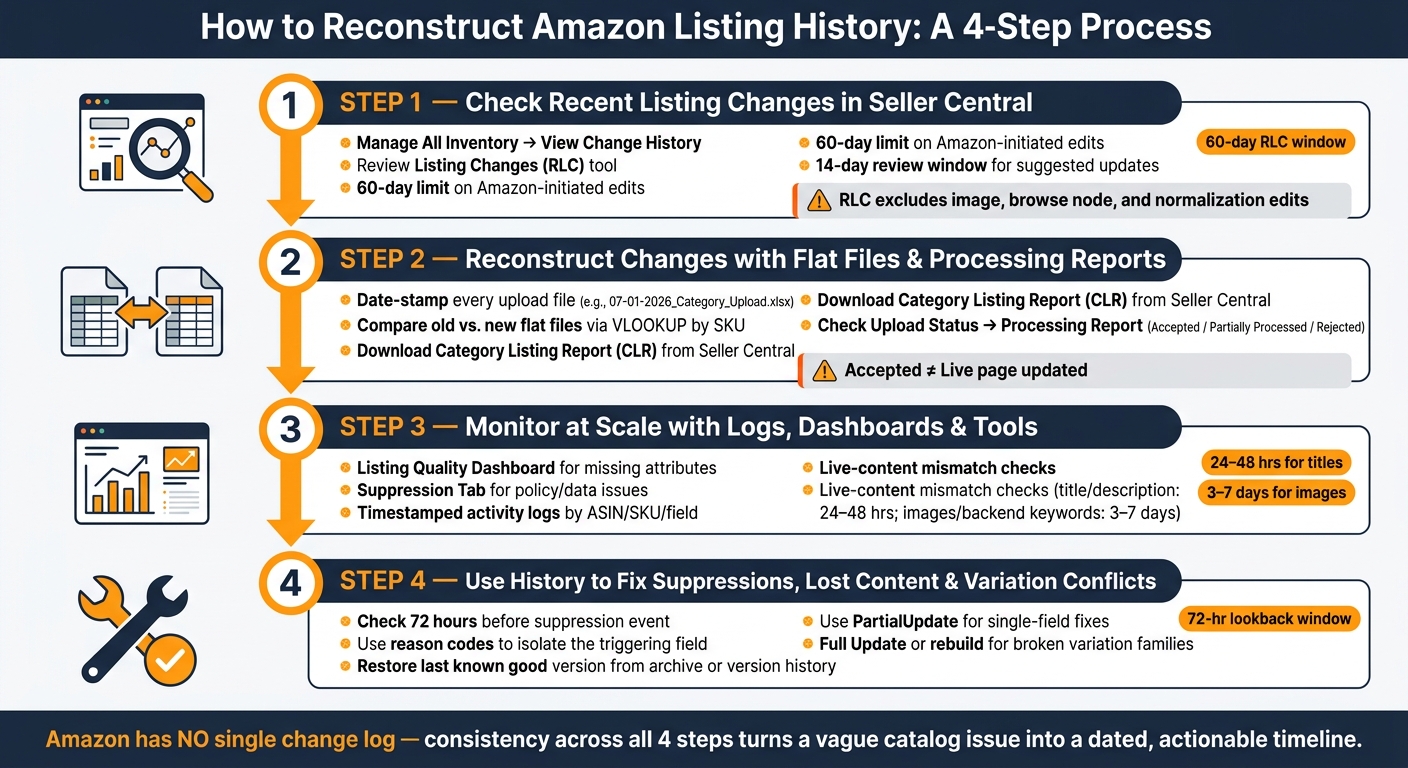
How to Reconstruct Amazon Listing History: A 4-Step Process
Amazon AI Listing Changes Auto Publish After 14 Days

sbb-itb-ed4fa17
Step 1: Check recent listing changes inside Seller Central
Seller Central doesn’t give you one neat change log. Instead, it spreads recent edits across a few different places. So start with the live listing first, then trace things back only if Seller Central doesn’t explain what happened.
Use Manage All Inventory to inspect the current live listing
Head to Inventory > Manage All Inventory first. This page shows the current status for each SKU, including Active, Search Suppressed, Inactive, or Pricing Alert [4].
If you need field-level history for a specific ASIN, go to Inventory > Manage Inventory, click the drop-down menu next to Edit on the item, and choose View Change History. That screen shows recent edits to titles, bullet points, images, and descriptions [4].
If the live detail page looks different from what you submitted, that’s a strong sign there’s a mismatch between your submitted data and the live listing [1]. Put the edited fields side by side with the live product page and check what shifted.
If the listing is suppressed, the Edit view will often show the reason inside the affected attribute tab. For example, you may see something like an image-background violation [2].
Review listing changes for recent Amazon-initiated updates
The Review Listing Changes (RLC) tool is the main place to spot those edits. Open Manage All Inventory > Review Listing Updates to get there.
The Review Listing Changes dashboard shows Amazon-initiated and AI-assisted edits across your catalog, along with field-level timestamps [6][7]. If Amazon marks a proposed update as possibly incorrect or in conflict with policy, you get a 14-day window to review it before it publishes to the live listing on its own [7].
That matters more than it sounds. A title tweak, bullet rewrite, or attribute swap can slip through fast if no one is checking. Looking at RLC on a regular basis helps you catch changes you don’t want before they hit the detail page.
Know the limits of Seller Central history
Seller Central history helps, but it has gaps.
The RLC dashboard only shows the last 60 days of Amazon-initiated updates [6][7]. It also leaves out changes to product images, browse nodes, and normalization edits such as capitalization fixes [6]. Standard inventory views show you what the listing looks like now, but they usually don’t tell you who made the change or the exact moment something went wrong.
Amazon also doesn’t offer one central change log. So if you’re dealing with older edits or a catalog managed in bulk, you’ll need to piece the timeline together using flat files and processing reports. That’s the fallback when Seller Central history comes up short.
Step 2: Reconstruct exact changes with flat files and processing reports
For older edits and bulk uploads, saved files and reports help you rebuild the timeline. They show which fields changed, when they changed, and which upload triggered it. That’s how you go from a limited view in Seller Central to a full change record.
Compare old and new flat files to see field-by-field edits
Save every inventory file with a date-stamped name before you upload it. For example: 07-01-2026_Category_Upload.xlsx. That simple pattern turns a messy folder into a searchable archive.
To find changes between two versions, open both files in Excel and compare them field by field with VLOOKUPs by SKU. This shows differences in titles, bullets, descriptions, search terms, attributes, and variation fields. Your file shows what you submitted. The Category Listing Report shows what Amazon is enforcing.
The Category Listing Report (CLR) is Amazon’s current catalog export – a full spreadsheet of the backend data Amazon stores and enforces for your ASINs [3][5]. Use it when the live listing no longer matches your last approved file. Comparing your content master against a fresh CLR export is one of the best ways to spot gaps between your file and Amazon’s live data – silent edits from Amazon or another contributor [4][3][1]. The CLR is not enabled by default. Search for "Category Listing Report" in Seller Central Help and submit a request to activate it. Once approved, it stays available in Inventory Reports for 7 days [5].
One small formatting issue can cause a big headache: when opening TSV exports in Excel, set GTIN/EAN columns to Text first. If you don’t, Excel may convert 13-digit numbers into scientific notation and damage the data before you even start comparing [3].
After that, check whether Amazon actually processed the change.
Use upload status and processing reports to confirm acceptance
Go to Catalog > Add Products via Upload > Check Upload Status to download the processing report for any submission. These reports mark each row as Accepted, Partially Processed, or Rejected, and they include error codes for anything that failed [4][5].
The report timestamp shows when the change was attempted [5]. If a title change appears as Accepted but the live listing still shows the old title, that usually means another catalog source overwrote your submission [2][5].
For targeted fixes, use [PartialUpdate](https://flatfile.pro/ffp/expert-guide-amazon-partial-inventory-update/) so only the fields you include are changed [5][3]. A full update rewrites every stored field for that SKU, which means blank columns can wipe out good data without warning.
Build a simple internal version archive
Keep each upload set together so you can trace later breakage back to the exact file that caused it. For each upload, store:
- The flat file
- The processing report
- A pre-upload CLR snapshot
Use the pre-upload CLR as your rollback reference.
Bulk uploads are the single largest source of data regressions in mature catalogs, often overwriting good data with blank or old values from stale spreadsheets [8]. Each upload should be logged and checked against the current catalog state so only intended fields change [8]. On larger catalogs, it helps to have a senior operator review row counts and field totals before anything goes live [8].
Step 3: Monitor listing history at scale with logs, dashboards, and FlatFilePro

Flat files and reports show what you submitted. But that’s only half the story. To see what Amazon kept, changed, or suppressed, you need live status views and monitoring tools. After the last accepted upload, check whether the live catalog still matches it.
Use listing status views and quality dashboards to match a status change to the date and field that caused it
Once you have the file trail, compare it against the live listing and any suppression signals.
Manage All Inventory shows the current status, not the edit trail. Use the Listing Quality Dashboard to find missing attributes, and use the Suppression Tab to isolate policy or data issues [3][8]. Together, these views help you ask a simple but important question: if a listing went suppressed on June 28, what changed around that date?
They help you build the timeline. They don’t replace it.
When the live page changes and you can’t tie that change to an upload, it’s time to move past status views and look at version history.
Track catalog edits with FlatFilePro activity logs and version history
Manual checks work for a small catalog. They fall apart when you’re dealing with a lot of SKUs, repeat uploads, or several people touching the same listings.
That’s where a system with automatic logging helps.
FlatFilePro keeps a timestamped activity log and version history for listing edits, uploads, and other catalog actions, organized by ASIN, SKU, and field. So if one ASIN suddenly breaks, you can trace the bad edit, see who changed what, and roll back to the last approved version. That matters when multiple uploads or team members can overwrite the same ASIN.
Use the Reflection Engine to spot live-content mismatches
Status dashboards show the symptom. Live-content checks show whether the fix actually made it onto Amazon.
Even when Amazon accepts a bulk upload, the live page may still not match what you sent. Title and description changes usually take 24–48 hours to move through Amazon’s index, while image and backend keyword changes can take 3–7 days [2]. In that gap, live-page monitoring helps you catch mismatches before they start hurting sales.
FlatFilePro’s Reflection Engine compares your catalog data against what’s live on Amazon and flags field-level mismatches in titles, bullets, descriptions, images, variations, and backend keywords. Use it to confirm that Amazon is showing the version you meant to publish, then work through the highest-revenue ASINs first.
Step 4: Use listing history to fix suppressions, lost content, and variation conflicts
Once you have a clear change timeline, stop guessing. Use that timeline to tie the issue to the edit that caused it, then take the fastest route to fix it.
Find the edit that triggered a suppressed listing
Start with the 72 hours before the listing went down. Pull the change history, then line it up with your upload timestamps and processing reports.
Look for direct triggers: a removed image, a noncompliant field value, or a missing required attribute. The Suppressed tab in Seller Central will show you a reason code, such as "incomplete information" or "image violation", which helps narrow the search to the field that likely caused the problem [9]. If suppression isn’t the only problem, use that reason code as your starting point, then move to the last known good content.
If you’re dealing with one ASIN and the issue is clear, fix only that field in Seller Central. But if the same suppression is hitting several ASINs, or your Seller Central edits keep getting overwritten, upload a corrected flat file instead [9][10]. That gives you a paper trail and updates all affected SKUs in one shot [10].
Restore overwritten titles, bullets, descriptions, or attributes
When content vanishes, find the last known good version first. Check your flat file archive or FlatFilePro’s version history to pull the exact field values from before the change, then compare them with the current live listing to see what changed.
After you resubmit the right data, don’t assume the problem is solved just because the feed says it worked. A successful feed only means Amazon processed the file, not that the content became the live version [10]. If the listing keeps flipping back, track down the source of the overwrite before you send another fix.
Give it a little time before submitting another correction. If you keep stacking updates, you can create conflicts that slow the fix down even more [2][9]. If your changes keep reverting, another contributor is likely overwriting your edits. At that point, a flat file re-upload may not be enough, and a Brand Registry escalation may be the next move [2].
Trace broken parent-child relationships and attribute conflicts
Variation breakages can be tricky because the problem may sit inside the parent-child relationship, not in one field you can see on the page. Start with the Category Listing Report (CLR). It shows the exact backend data Amazon is enforcing, including parent-child relationships and variation attributes that don’t show up in the Seller Central UI [5]. If the live detail page looks fine but the family is broken, the backend variation data is the next place to check.
Download the CLR and compare it with your archived flat file from before the break. Common causes include:
- Mismatched child attributes
- Parent-level price or quantity data
- Overwritten variation attributes [5]
If only one attribute is conflicting, use a PartialUpdate flat file. That changes just that field [5]. If the entire variation family is broken, use a Full Update to reset the listing to the version in your file [5]. And if the relationship is too damaged to repair, delete the child SKUs first, then the parent, and rebuild from scratch [5]. Brand-registered sellers can also check Brand Registry > Support > Contribution History to see whether another contributor caused the change [4].
Conclusion: A repeatable process for tracking what changed and when
Once you’ve checked Seller Central, compared flat files, and reviewed your logs, listing history stops feeling like a one-off task. It becomes a process you can run the same way every time: check the live listing, verify the submitted file, then trace the accepted version. That sequence turns a vague listing issue into a timeline you can act on.
Amazon doesn’t give you one central change log, so consistency matters more than any single tool. If you know where to look first, you can cut the gap between “something changed” and “here’s the fix” from days to hours. In most cases, the biggest hit comes from not spotting the change soon enough.
This process works whether you manage 10 ASINs or 10,000. Clear history helps your team move faster with correction decisions, Seller Support, and Brand Registry. When you can show what changed, when it changed, and what the listing looked like before, you can fix issues faster and avoid the guesswork that can turn a small edit into lost sales.
FAQs
How far back can I check Amazon listing changes?
Amazon doesn’t give sellers one universal, forever archive of listing edits.
In Seller Central, View Change History lets you check updates for specific ASINs. But there’s a catch: how far back you can look depends on the records Amazon still keeps.
If you need a longer view, you’ll usually have to rely on your own saved files or periodic Category Listing Report downloads. That’s why many sellers use automated tools to log changes as they happen.
Why didn’t my accepted upload change the live listing?
An accepted upload still might not change the live listing. That’s because Amazon’s catalog is shared.
So even if your file goes through, Amazon may show a different version on the detail page. Other contributors, including Amazon Retail, other sellers, or automated bots, can overwrite your data.
There’s also a timing issue. Changes often take 24–48 hours to show up.
If the listing still doesn’t update, here’s where to look:
- Check the Processing Report for hidden errors
- Confirm that other data sources aren’t overriding your content
- Give Amazon enough time to process the change
An accepted file means Amazon received it. It does not always mean your version will be the one customers see.
What’s the fastest way to find what caused a suppression?
Start in Seller Central by checking Performance Notifications and Account Health for direct messages that explain the suppression.
If you don’t see anything there, download a Category Listing Report (CLR). It can show missing, invalid, or mismatched attributes and compliance fields.
Then compare the report with your source of truth. That makes it easier to spot which fields changed and which one likely triggered the conflict.