
Amazon flat file templates simplify bulk product management on Seller Central. These Excel files let you update listings, adjust prices, and manage inventory efficiently. Professional sellers managing over 50 SKUs can save significant time using them. Here’s how to get started:
- Find Templates: Go to Catalog > Add Products via Upload > Download an Inventory File in Seller Central.
- Choose the Right Template: Options include Product Spreadsheet (new listings), Listing Loader (existing ASINs), and Price & Quantity (stock/price updates).
- Use the Product Classifier: Ensure your product is in the correct category for better indexing.
- Download Fresh Templates: Always use updated files to avoid common flat file errors.
For faster and error-free uploads, tools like FlatFilePro offer automation and real-time validation, reducing manual effort and upload issues. Flat files are essential for scaling your business and maintaining accurate listings.
How to Download and Use a Flat File for Bulk Upload in Amazon Seller Central | Step-by-Step Tutorial

sbb-itb-ed4fa17
How to Find the Flat File Template Section in Seller Central
Once you understand the importance of flat file templates, the next step is figuring out where to find them in Seller Central. Thankfully, the process is pretty simple.
Finding the Add Products via Upload Tool
If you’re a Professional seller, start by navigating to the top menu in your Seller Central account. Look under Catalog or Inventory, and then click on Add Products via Upload [1]. Both options will take you to the same destination, so choose whichever feels more intuitive. Once there, switch to the Download an Inventory File tab to locate the template you need.
Accessing the Download an Inventory File Tab
On the Add Products via Upload page, go to the Download an Inventory File tab. Here, you’ll find options to select your product type and template format. You can choose from:
- Product Spreadsheet: Ideal for creating new listings.
- Listing Loader: Perfect for updating existing product details.
- Price and Quantity: Best for quick changes to stock levels or pricing [6].
You’ll also have the option to decide which columns to include: Required, Preferred, or All. After making your selections, click Generate Template to download the .xlsx file [1].
Using the Product Classifier to Pick a Category
The Product Classifier is a handy tool for placing your product in the correct category. Simply type a keyword related to your product – like "yoga mat" or "wireless earbuds" – into the search bar. A list of matching subcategories will appear [5]. If the results are too broad, switch to the Browse method. This lets you start with a general department and narrow it down step-by-step to the most specific subcategory [5]. Once you find the right category, click Select to add it to your template.
Choosing the right category is crucial. It ensures your product is indexed properly, making it easier for shoppers to discover your products [1].
If you’re selling in multiple North American marketplaces, don’t forget to double-check the Marketplace Switcher before downloading your template. Selecting the wrong marketplace could lead to templates with mismatched required fields [3].
Choosing the Right Flat File Template
Once you’ve accessed the templates in Seller Central, the next step is selecting the correct one for your task. Picking the wrong template is a frequent misstep, but the right choice hinges on a simple question: Does your product already exist in the Amazon catalog?
Common Template Types and When to Use Them
Here’s a quick guide to the four main template types and their most suitable uses:
| Template Type | Best For | Data Required |
|---|---|---|
| Product Spreadsheet | Creating brand-new product detail pages | High – full product details, variations, and compliance information |
| Listing Loader | Adding your offer to an existing ASIN (non-media) | Low – SKU, price, quantity |
| Price & Quantity | Bulk updates to stock levels or pricing only | Minimal – SKU, price, quantity |
| Inventory Loader | Books, music, video, and DVD (BMVD) products | Moderate – includes shipping settings |
The Price & Quantity template is the quickest option if you’re making bulk updates to stock levels or prices. It skips descriptive fields altogether, making it perfect for frequent inventory adjustments [6].
This breakdown should help you identify which template suits your needs.
How to Pick the Right Template for Your Task
If your product is already listed in Amazon’s catalog, the Listing Loader template is your go-to choice due to its minimal data requirements. However, if you’re creating a brand-new product listing, you’ll need the Product Spreadsheet.
For those looking to update specific fields – like a product title or description – without altering the rest of the listing, the Partial Update method is worth considering. To use it, set the update_delete column to PartialUpdate within a category-specific template. This ensures that only the fields you’ve included will be updated. Amazon staff member Thea explains:
"Using flat files with proper ‘Partial Update’ settings should give you more consistent, faster results." [7]
Once you’ve chosen the right template, it’s important to familiarize yourself with the key fields required for a smooth upload.
Key Template Fields to Know
Every flat file template includes a few essential fields you’ll need to complete. SKU is your internal product identifier, which Amazon uses to track your inventory. Price should be entered as a plain number without a dollar sign (e.g., 29.99). Quantity indicates the number of units available for seller-fulfilled orders.
Beyond these basics, category-specific templates add their own required fields. For example:
- Apparel:
size_map,color_map, anddepartment_name - Electronics:
wattage,voltage, andbattery_type - Grocery: Ingredients, allergen information, and net weight [4]
Before entering data, always check the Data Definitions tab in the downloaded .xlsx file. This tab provides details like character limits and whether a field is mandatory.
One final tip: Amazon regularly updates its templates, and the latest versions now allow you to list up to 20 product types in a single Product Spreadsheet file [6]. To avoid upload errors, always download the newest template from Seller Central instead of reusing an older one – outdated files are a common cause of issues [2]. If you encounter problems, reviewing the top 10 Amazon flat file errors can help you troubleshoot quickly.
How to Download, Open, and Review Templates
How to Download Flat File Templates
To download the correct template for your needs, go to Seller Central, choose the template type and product category, then click Generate Template. This will create an Excel (.xlsx) file customized for your selected category and column requirements.
Save the template in a location that’s easy to find – an "Amazon uploads" folder works perfectly. Jamin Mahmood-Wiebe, Founder of Flat Magic, emphasizes:
"Always download a fresh template before starting a new upload. Amazon updates templates regularly – sometimes adding new required fields, changing validation rules, or deprecating old columns."
Using an outdated file is a common reason uploads fail. Once downloaded, take a moment to review the file’s structure and tabs to familiarize yourself with its contents.
How Flat File Templates Are Structured
Each Excel workbook you download contains several tabs, each with a specific role:
- Template: The main tab where you input your product details. Each row corresponds to a SKU.
- Data Definitions: A guide explaining each field, its requirements (mandatory, conditional, or optional), character limits, and the expected data format.
- Valid Values: A reference for acceptable terms in controlled fields (e.g., "Navy" instead of "Dark Blue").
- Example: Sample rows showing proper formatting, including parent-child variations.
- Instructions: General guidance, especially helpful for first-time users.
Tips for Opening Downloaded Files Without Errors
To avoid errors when opening your template, use either Microsoft Excel or Google Sheets, as these tools preserve the formatting Amazon requires. If your system uses commas as decimal separators, switch to periods before making edits. In Excel, this can be done by navigating to File > Options > Advanced and setting the decimal separator to a period (.).
It’s crucial not to delete, rename, or reorder columns in the Template tab. Amazon’s system is highly sensitive, and any changes to the headers could lead to file rejection. If you don’t need certain columns, leave them blank instead of removing them.
Following these steps ensures your file remains intact and reduces the chances of upload errors, keeping your catalog management running smoothly.
Using FlatFilePro to Manage Flat Files More Efficiently

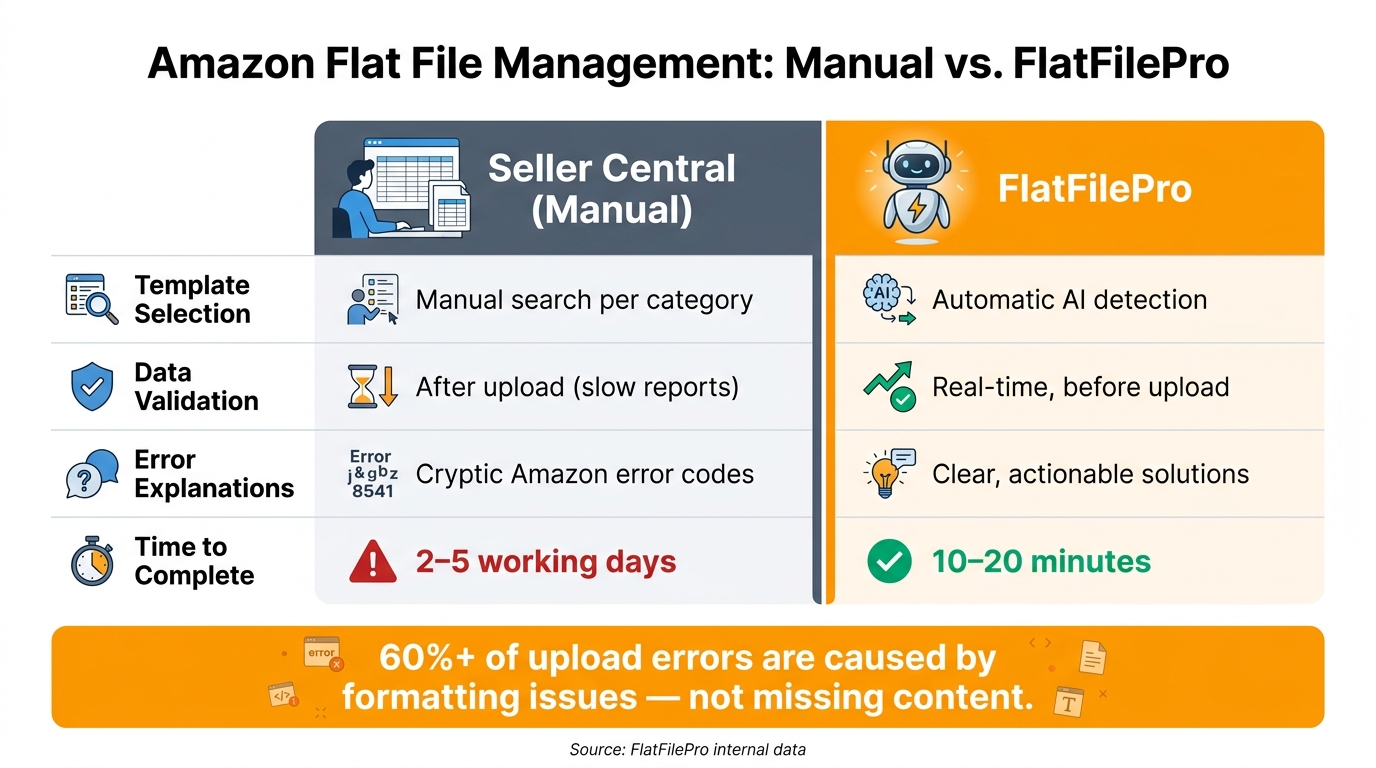
Amazon Flat File Templates: Manual vs. FlatFilePro Comparison
FlatFilePro takes the hassle out of manual flat file updates, offering automation tools that simplify catalog management and make bulk updates and error resolution a breeze.
Running Bulk Updates with FlatFilePro
Handling flat files manually can get overwhelming as your catalog expands. The repetitive "download-edit-upload" cycle quickly becomes a bottleneck. FlatFilePro eliminates this by connecting directly to Amazon via API, letting you make updates without dealing with spreadsheets.
With its bulk editing tools, you can modify titles, bullet points, and other attributes across your entire catalog in just minutes. Plus, its AI-driven attribute mapping ensures your data aligns with Amazon’s category-specific requirements. No more sifting through endless columns to locate the correct fields. This streamlined approach not only saves time but also sets the foundation for tackling errors more effectively.
Finding and Fixing Listing Errors with FlatFilePro
Flat file errors can be tricky. Sometimes, a file uploads without warnings, but hidden issues – like missing size filters or backend keywords – can still disrupt your live listings. These "silent failures" can lead to major setbacks.
"Uploading first and debugging later is the most expensive workflow pattern in catalog management." – Lasso [8]
FlatFilePro tackles this with a built-in validation layer that checks for problems before you upload. It flags issues such as missing required fields (Error 90041) or attribute conflicts with existing data (Error 8541). By catching these errors upfront, you avoid unnecessary headaches. And if only certain attributes need fixing, you can submit partial updates instead of re-uploading the entire file.
Monitoring Listing Changes with the Reflection Engine
Managing listings doesn’t stop after the initial updates. Amazon might auto-adjust a title that exceeds 200 characters, or a third-party seller could change shared catalog data. FlatFilePro’s Reflection Engine keeps an eye on these changes by running nightly checks on your live listings. It compares your submitted data to what’s displayed on Amazon, flagging discrepancies with green checkmarks for accurate data and red indicators for mismatches. This makes it easy to catch unauthorized changes and maintain control over your listings.
Conclusion and Key Takeaways
Recap of Key Steps
To get the correct flat file template from Seller Central, here’s what you need to do:
- Log into Seller Central and go to Catalog → Add Products via Upload → Download an Inventory File.
- Use the product classifier to pinpoint the exact category leaf node for your item.
- Opt for the Recommended template version, as it includes extra metadata that enhances search visibility and helps avoid listing errors.
- Always download a new template for each upload batch to ensure accuracy.
While these steps outline the manual process, tools like FlatFilePro simplify and speed up the entire workflow.
How FlatFilePro Improves on Seller Central Templates
Creating a flat file manually can take anywhere from 2 to 5 working days for experienced sellers. Plus, over 60% of upload errors stem from formatting issues rather than missing content [9]. FlatFilePro changes the game by automating key tasks like category detection, field mapping, and data validation. This reduces the process to just 10–20 minutes [9].
Here’s a quick comparison:
| Task | Seller Central (Manual) | FlatFilePro |
|---|---|---|
| Template selection | Manual search per category | Automatic AI detection |
| Data validation | After upload (slow reports) | Real-time, before upload |
| Error explanations | Cryptic Amazon error codes | Clear, actionable solutions |
| Time to complete | 2–5 working days [9] | 10–20 minutes [9] |
Final Advice for Amazon Sellers
Flat files are essential for managing larger catalogs, especially when dealing with variations or bulk updates. For sellers with more than 50 SKUs, using flat files can significantly improve efficiency and accuracy.
"Amazon rewards complete, consistent, and structured data." – CaptenAMZ [10]
Start small: test with 5–10 products and carefully review the Processing Report after submission to catch any errors early. As your catalog grows, tools like FlatFilePro can handle the repetitive and error-prone tasks, allowing you to focus on expanding your business. Structured data isn’t just about organization – it’s a direct path to better visibility and performance on Amazon.
FAQs
Why does Amazon reject a flat file upload?
Amazon often turns down flat file uploads because of structural, formatting, or data-related mistakes. Some frequent culprits include using an outdated or wrong template, leaving mandatory fields blank, mismatching attributes, or providing invalid product identifiers. Formatting errors – like using commas instead of periods for prices, entering text in numeric fields (like quantity), or changing column headers – can also lead to rejections. Always double-check that your file is in the correct tab-delimited text format and that your SKUs are accurate and consistent.
How do I know I picked the right product category?
To ensure you’ve picked the right category, head to the Product Classifier tool in the "Add Products via Upload" section on Amazon Seller Central. You can either search using keywords or navigate through the category tree to pinpoint the most specific sub-category. Look out for categories marked with a lock icon – these require approval. Once you’ve found the correct category, click Select to create a template customized for that category’s attributes and required fields.
When should I use a partial update?
A partial update lets you modify specific details – like product titles, descriptions, or prices – without altering the rest of your listing data. This method is particularly useful for resolving attribute mismatch errors, such as Error 8541.
To perform a partial update, follow these steps:
- In your flat file, choose Partial Update in the
update_deletecolumn. - Leave blank the columns for attributes you don’t want to change. These untouched values will stay the same in the Amazon catalog.
This approach ensures that only the necessary attributes are updated, keeping your listings accurate and consistent.