
If you want the right Amazon flat file fast, go to Seller Central, open Add Products via Upload, switch to Amazon.com, and download the file that matches both your product category and your task.
I’d keep it this simple:
- Use a category-specific template for new listings, variation sets, and item detail fixes
- Use Price & Quantity for stock and price edits with only 3 fields
- Check the Template, Data Definitions, Valid Values, and Example tabs before you type
- Save the file in the format Amazon asks for, then review the Processing Report after upload
One wrong file can lead to common flat file errors like missing fields or rejected uploads. And some category templates have 200+ columns, so picking the right one first saves time and cuts down on rework.
Flat Files Made Simple: How to Update Your Amazon Listings Like a Pro (TUTORIAL)
sbb-itb-ed4fa17
Quick comparison
| File | Best use | What I’d expect |
|---|---|---|
| Category-Specific Template | New products, parent-child listings, detail edits | Many columns, more required fields |
| Lite / Generic Template | Basic edits to current listings | Fewer columns |
| Inventory Loader | Bulk updates for current SKUs | Basic listing fields |
| Price & Quantity File | Price and stock changes | Very short file, 3 columns |
A few rules matter right away: use U.S. formatting like 19.99 and YYYY-MM-DD, copy allowed values exactly, and download a new template before each batch so old headers don’t cause upload problems.
That’s the core of the process, and it covers the main decisions you need to make before you start.
How to Find the Flat File Download Area in Seller Central

Navigate to Add Products via Upload
In Seller Central, go to Inventory > Add Products via Upload or Catalog > Add Products via Upload.
On some accounts, the path is a little different. You may need to open Catalog > Add Products first, then click "I’m uploading a file to add multiple products."
Once you land on the Add Products via Upload page, find the Download an Inventory File tab. That’s the area you want if you’re getting the template first.
Use Upload your Inventory File only after your spreadsheet is finished. First, make sure you pick the right template for your product category and task.
Select the US Marketplace and Confirm Access
Before you generate or download a template, switch your marketplace to Amazon.com. This part matters more than it seems. Flat file templates are tied to each marketplace, so the U.S. version includes the right attributes and valid values for Amazon.com.
If you don’t see Add Products via Upload, your account doesn’t have bulk upload permissions turned on. Amazon only shows that option for accounts with bulk upload access.
After you confirm access, choose the template that fits your product category and the job you need to do.
How to Choose the Right Flat File Template
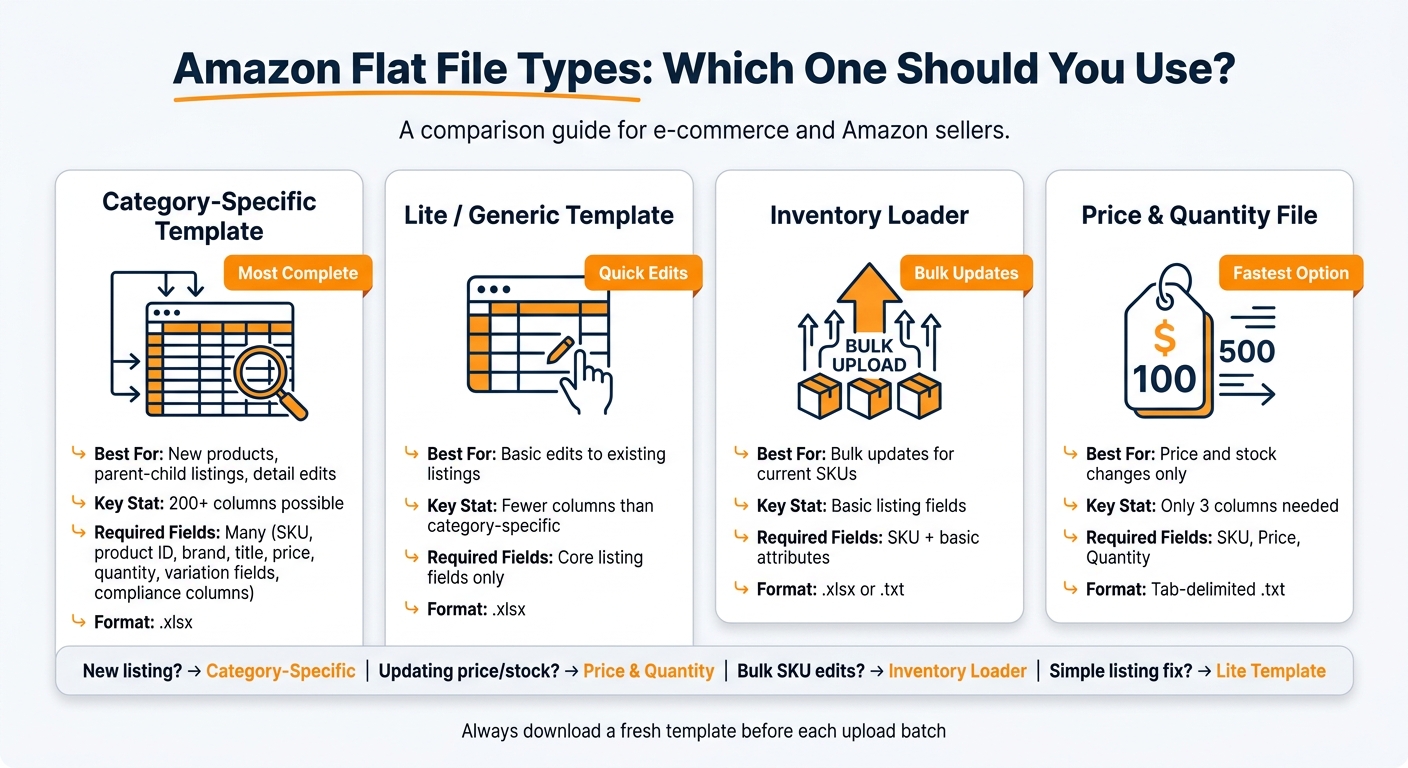
Amazon Flat File Types: Which One Should You Use?
Match Your Product to the Right Category Template
Once Amazon.com is selected, the next move is simple: pick the template that fits both your product category and the task at hand.
Amazon sorts these files by product type. So start by searching your category keyword, then choose the closest Amazon browse node. If search doesn’t bring up the right option, go straight to the category tree and find it there.
This part matters more than it may seem. Different templates ask for different fields. For example, apparel templates include fields like [variation_theme](https://flatfile.pro/ffp/amazon-variation-themes/) and color_map, kitchen templates focus on capacity and material attributes, and electronics templates cover specs like battery_type and connectivity_technology [1]. If you use the wrong category template, Amazon often throws missing-attribute and variation errors.
Pick the Right File for New Listings, Updates, or Catalog Fixes
You also need to match the file to the job you’re doing, not just the product type.
- New listings: Use the category-specific inventory file. It includes all required attributes, parent-child variation fields, and compliance columns [1].
- Price or quantity updates: Use the Price & Quantity file. It only needs your SKU, price, and quantity [2].
- Catalog fixes: Use the category-specific template and set the
update_deletecolumn to PartialUpdate so Amazon changes only the fields you fill in [3].
After that, download a fresh copy before you start editing. That’s not busywork. Amazon can change file headers without warning [1].
Download the File and Solve Common Download Problems
Amazon usually downloads category templates as .xlsx files. Price & Quantity files should be saved as tab-delimited .txt files before upload [2].
If the file won’t download, allow pop-ups for Seller Central and try again. That small browser setting trips people up all the time. It’s also smart to grab a new template for each upload batch, since Amazon may update the file structure behind the scenes [1].
Once the file is on your computer, open it the right way and fill in only the fields Amazon requires.
How to Work With the Downloaded File and Avoid Upload Errors
After you download the template, open it in a spreadsheet tool and check the tabs before you enter any data. That small step can save a lot of back-and-forth later.
Open the File Correctly and Use the Right Tabs
Open the file in Excel or Google Sheets. Don’t use a plain text editor. It can damage formatting and special characters, which is an easy way to create upload problems.
Once the file is open, pay attention to these tabs:
| Tab | Use It For |
|---|---|
| Template | Entering your product rows |
| Data Definitions | Checking field requirements, allowed values, and character limits |
| Valid Values | Copying accepted terms for restricted fields like Color or Connectivity |
| Example | Verifying parent-child variation structure |
In newer Amazon templates, optional attribute columns are often collapsed by default. In Excel, use the +/- controls or the 1 and 2 buttons in the top-left corner to expand those hidden fields before you start typing. If you skip this, you might miss fields you meant to fill in.
Fill Required Fields Using Amazon’s U.S. Formatting Rules
Common required fields include SKU, product ID, product ID type, Product Name/Title, Brand, Manufacturer, Price, Quantity, and Product Type/Item Type Keyword. Your category template may also mark other required attributes in the Data Definitions tab.
Use Amazon’s U.S. formatting rules exactly as shown. For example:
- Enter prices as
29.99, not$29.99or29,99 - Enter dates in
YYYY-MM-DDformat - Use the measurement units listed in Data Definitions for that category
For fields like Color or Connectivity, copy values straight from the Valid Values tab so they match letter for letter. Close isn’t good enough here. If Amazon expects one term and you enter a slightly different version, the file may fail.
If you’re updating an existing listing, use [PartialUpdate](https://flatfile.pro/ffp/expert-guide-amazon-partial-inventory-update/) in the update_delete column for focused changes. That helps prevent blank cells from replacing data already on the listing.
Fix Category Mismatches, Outdated Templates, and Save in the Right Format
Before you fill in the sheet, make sure the template still matches your category. If required columns are missing, that usually means you downloaded the wrong category template. In that case, check the Browse Tree Guide or Seller Central search, then download the right one again.
It’s also smart to replace older files with a new download before uploading. Amazon templates change, and an old file can trip you up for no good reason.
Save the file in the format required by the template before upload.
Conclusion: The Fastest Path to the Right Amazon Flat File
In practice, go to Add Products via Upload, switch to Amazon.com, and download a fresh template that fits your category and task. Older files can include outdated fields or old validation rules, which can slow you down and lead to avoidable upload errors [1][4].
Key Steps to Remember for Faster Bulk Listing Work
Use this quick rule set:
- Pick a category-specific template when you’re creating new ASINs or need full attribute data
- Use Lite or Inventory Loader for price or quantity updates
- Check the Template, Data Definitions, Example, and Valid Values tabs before you enter anything
- Use the Browse Tree Guide if a product doesn’t fit a browse node
- Choose Recommended columns when that option is available
Save the file as .xlsx, upload it, then review the Processing Report for row-level errors.
FAQs
How do I know which category template to choose?
Start in Seller Central at Inventory > Add Products via Upload > Download an Inventory File. From there, find your product’s category by searching with category terms or product keywords until you land on the closest match.
Then download the template that best matches your product’s main features and the attributes that matter most. This part matters more than it sounds. If you pick the wrong template, you can run into upload errors or end up with a listing that’s missing key details. To avoid that headache, use the latest version of the template each time.
What should I do if the flat file option is missing in Seller Central?
First, make sure you’re in the right spot: go to Catalog > Add Products via Upload and check for the option to download an inventory file or a category-specific template.
If you still don’t see it, double-check that you’re signed into the right Seller Central account and that your user permissions allow access. If something looks off, contact Seller Support for help with any interface or account-specific issue.
Can I use the same template for updates and new listings?
Yes, but pick the template that fits the job.
For new listings or detailed edits, use the category-specific template. That helps make sure all required fields are there.
For updates, mainly bulk price or quantity changes, a Lite or partial-update template can work for existing listings. You can also use the same category-specific template for both cases, but accuracy matters, and the update_delete setting needs to be correct.