
The Amazon Categories List CSV is a downloadable file containing over 25,000 Amazon product categories organized into up to seven levels. It helps sellers accurately classify and add products to Amazon, improving search visibility, compliance, and fee calculation. Using the right category ensures your product is easier to find, avoids listing errors, and prevents unexpected fees.
Key Takeaways:
- Why It Matters: Correct categorization improves rankings, reduces errors, and ensures compliance with Amazon’s rules.
- How to Access: Download the CSV via Seller Central or use Amazon’s Product Classifier for the latest data.
- Using the CSV: Filter categories by levels (from broad to specific) to find the best match for your product.
- Avoid Mistakes: Misclassification can hurt visibility, lead to suppressed listings, or result in higher fees.
- Tools to Help: Platforms like FlatFilePro simplify bulk updates and error checks for your product listings.
By keeping your category data current and using tools to streamline updates, you can save time and boost your product’s visibility on Amazon.
How to Get the Amazon Categories List CSV
Where to Download the CSV File
Amazon offers category data through Seller Central, depending on your seller plan. Professional sellers have access to Browse Tree Guides (BTGs) and bulk upload tools, while individual sellers can classify products one at a time using the "Select a product category" tool [4].
Amazon now advises using the Product Classifier tool instead of relying on static BTGs. According to Amazon Seller Central:
We recommend you transition to the Product Classifier, which includes the most current and accurate information on the Amazon website structure [5].
To use the Product Classifier, log in to Seller Central and navigate to the inventory section. From there, you can search or browse for categories, then click "Download List" to get a file with the classification values you need [5].
For more detailed category information, professional sellers can still access Browse Tree Guides within Seller Central [3]. These guides include a "Refinements" sheet, which helps narrow down product attributes, like selecting a specific "Scent" for candles. All these tools are available at no cost to registered sellers [3].
Before updating your listings, ensure your CSV file reflects Amazon’s current taxonomy.
How to Check If Your CSV Is Current
After downloading your CSV, it’s essential to confirm that the data is up-to-date. Using outdated files can lead to listing errors.
To verify, request a Category Listing Report (CLR) through Seller Central Help. This report outlines the backend attributes Amazon currently enforces for your active listings [7]. Keep in mind that the CLR is only available for 7 days after approval [7][8].
You can also review the CSV History page in your merchant console, which logs all imports and exports from the past 30 days [6]. Compare your CSV’s feed_product_type and recommended-browse-node values with those in the Product Classifier. If they don’t align, your file is outdated [7][5].
Using current category data is essential for better search visibility and compliance. Outdated information can negatively impact product discoverability [5]:
If this information is missing or incorrect, customers will have a difficult time finding, comparing and purchasing your products [5].
To avoid issues like catalog errors or attribute loss, always download a fresh CSV before making bulk updates [7].
sbb-itb-ed4fa17
Product Classification | Amazon Seller University

How to Read and Use the Amazon Categories List CSV
Once you’ve downloaded the CSV file, open it in your favorite spreadsheet tool. The file includes 25,233 lines of category data, which outline Amazon’s entire category structure [1]. While the sheer size of the file might seem overwhelming, its organized layout makes it manageable.
What the CSV Columns Mean
The CSV is arranged hierarchically, with each column representing a different level of Amazon’s category tree. This system can go as deep as 7 levels, progressing from broad categories to very specific product classifications [1].
Take this example of a 7-level path for a coffee filter product:
Home & Kitchen > Kitchen & Dining > Small Appliance Parts & Accessories > Coffee & Espresso Machine Parts & Accessories > Coffee Machine Accessories > Coffee Filters > Permanent Coffee Filters [1].
| Hierarchy Level | Example Category Path |
|---|---|
| Level 1 (Main) | Home & Kitchen |
| Level 2 | Kitchen & Dining |
| Level 3 | Small Appliance Parts & Accessories |
| Level 4 | Coffee & Espresso Machine Parts & Accessories |
| Level 5 | Coffee Machine Accessories |
| Level 6 | Coffee Filters |
| Level 7 (Specific) | Permanent Coffee Filters |
Each row also includes unique Browse Node IDs, which are essential for placing products in the correct category. Additionally, the Product Type (PT) column groups items with similar attributes. For example, the "PILLOW" PT covers bed pillows, throw pillows, and furniture pillows. This ensures that the correct attributes are captured in your product listings [2].
With these columns defined, you can easily navigate the data using filters to pinpoint the information you need.
How to Filter and Search the CSV Quickly
With over 25,000 rows of information, scrolling through the data manually isn’t practical. Instead, use your spreadsheet’s filter and search tools to narrow results by keywords related to your product. Since the CSV is alphabetically organized by main category, you can quickly locate parent categories and drill down into subcategories [1][2].
Here’s how to approach it:
- Filter Level 1 for your broad category.
- Drill down through each subsequent level until you find the most specific match.
For instance, if you’re selling reusable coffee filters, start by filtering Level 1 for "Home & Kitchen." Then, refine by Level 2 for "Kitchen & Dining", and continue until you reach Level 7, "Permanent Coffee Filters."
This method ensures your product is correctly classified, which helps customers find it through Amazon’s navigation filters and improves keyword targeting. As eComEngine emphasizes:
Correctly classifying your products is critical. Missing or incorrect information could make it difficult for customers to find and purchase your products [2].
How to Match Your Product to the Right Category
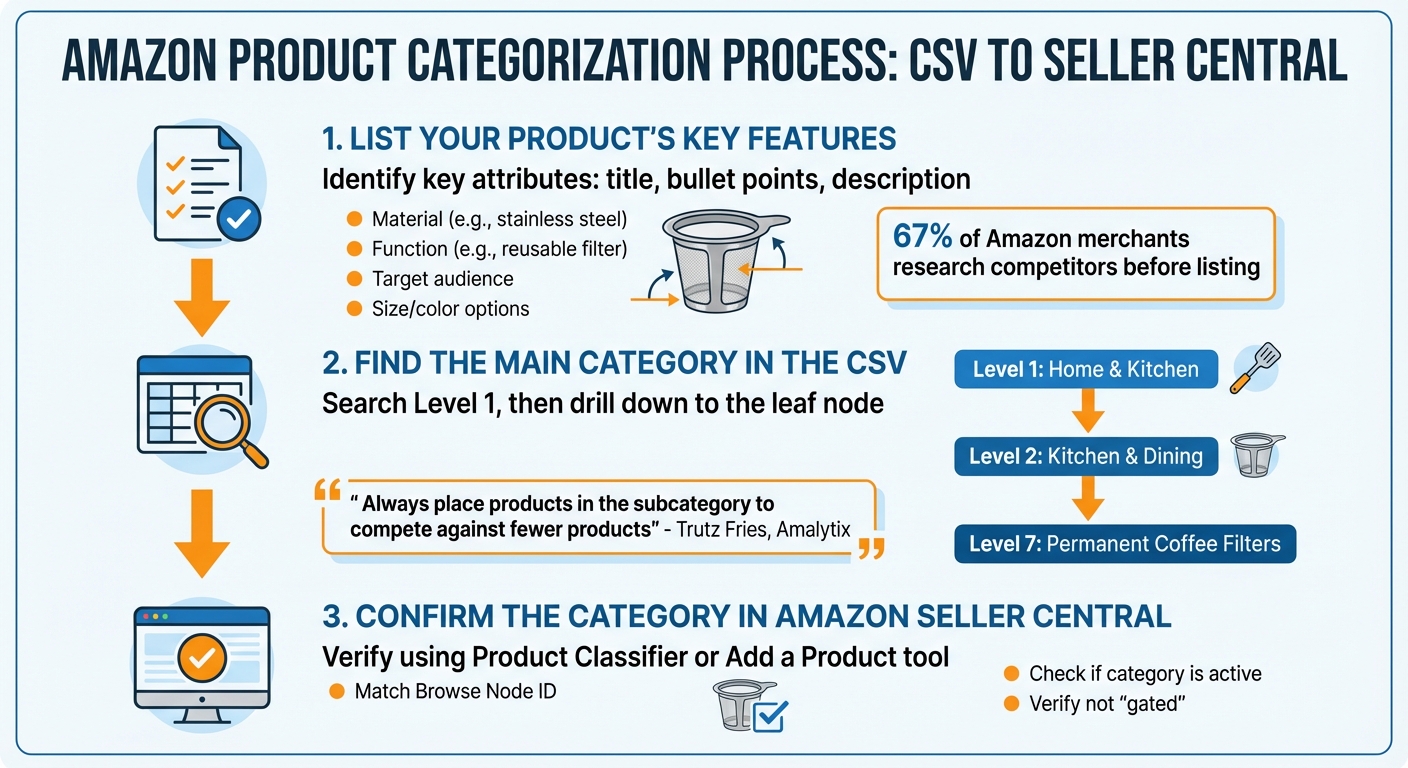
How to Match Your Amazon Product to the Right Category in 3 Steps
Getting your product into the right category on Amazon is a step-by-step process. It involves carefully analyzing your product’s details, finding the best category using a CSV file, and confirming the selection in Seller Central. Here’s how to do it:
Step 1: List Your Product’s Key Features
Start by identifying your product’s main attributes. This includes the title, bullet points, and description. Amazon Seller Central highlights these as essential for product classification:
Title, bullet points, and product description are three key attributes used for product classification [9].
Focus on specifics like material, function, and target audience. For instance, if you’re selling a stainless steel coffee filter, note that it’s reusable, designed for drip coffee makers, and available in different sizes or colors. These details matter, especially since 67% of Amazon merchants research competitors and optimize fashion listings on Amazon before listing new products [10]. Check how similar items are described in their "Product Information" sections to refine your own list.
Once you’ve nailed down these attributes, you’ll have a clear direction for finding the right category in the CSV file.
Step 2: Find the Main Category in the CSV
Begin with the broadest category – Level 1 – in your CSV file. Use your spreadsheet’s search function to look for keywords related to your product. For a stainless steel coffee filter, try terms like "coffee" or "kitchen" to locate the appropriate main category.
After identifying the Level 1 category (e.g., "Home & Kitchen"), navigate further into subcategories until you reach the most specific one, often called the "leaf node." As Trutz Fries from Amalytix advises:
Always place your products in the subcategory. This way, it will have to compete against fewer competing products, and the other categories will serve more for navigation purposes [11].
Choosing the deepest relevant subcategory not only reduces competition but also increases your chances of earning badges like "Bestseller", which can boost your product’s visibility.
Once you’ve pinpointed the path in the CSV, it’s time to double-check everything in Seller Central.
Step 3: Confirm the Category in Amazon Seller Central
Using Seller Central’s tools, such as the "Product Classifier" or "Add a Product" feature, confirm the category path you selected in the CSV. Match the Browse Node ID from your CSV file with Seller Central’s listing to ensure accuracy.
Also, check if the category is active and accessible. Some categories may be "gated", meaning they require prior approval to list your product. Verifying this upfront ensures your product is listed without any delays and appears exactly where customers expect to find it.
How FlatFilePro Simplifies Category Management
Efficiently managing your product categories can significantly boost your listing accuracy and visibility. After identifying the right categories using a CSV file, the next step is applying those updates across your entire catalog – no small task if you’re handling hundreds or thousands of products. FlatFilePro simplifies this process by allowing you to upload your entire Amazon catalog via CSV and manage everything from a single, user-friendly interface. This eliminates the need for time-consuming manual edits, enabling you to update your inventory in just minutes.
Edit Categories for Multiple Products at Once
FlatFilePro’s bulk editing feature makes it easy to update categories for multiple products simultaneously. With search and filter tools, you can quickly select and modify specific groups of items. For instance, if you need to move 300 kitchen products from the broad "Home & Kitchen" category to the more specific "Coffee & Tea Accessories" subcategory, you can select all relevant products and apply the change in one simple action.
"Bulk editing allows you to make multiple changes to your listings quickly and efficiently, without having to manually update each listing." – FlatFilePro
Before finalizing any changes, you can preview updates and, if needed, revert them using the built-in revision history. This ensures accuracy and minimizes errors.
Use the Reflection Engine to Check Category Accuracy
Once you’ve updated your categories, FlatFilePro’s Reflection Engine steps in to verify accuracy. This tool automatically checks your listings every night, comparing your catalog data with what’s live on Amazon. Green checkmarks indicate correct information, while red X’s flag discrepancies, such as unprocessed category changes or unexpected modifications made by Amazon. This automated monitoring saves you from having to manually inspect hundreds of listings.
"FlatFilePro’s automated error detection feature scans your catalog for potential issues and inconsistencies during the editing process." – FlatFilePro
Additionally, the platform identifies category-related errors before syncing updates back to Amazon. It flags problems like missing required attributes or restricted categories, helping prevent suppressed listings.
Manage Product Variations with Drag-and-Drop
FlatFilePro also simplifies the management of product variations, particularly for parent-child relationships. Keeping all variations in their correct categories is crucial, and the platform’s drag-and-drop interface makes this process straightforward. You can easily move child products between parent ASINs while ensuring proper category placement. This feature is especially useful when reorganizing variation families after pinpointing a better subcategory in your CSV file. Updates are completed in under five minutes with a 95% success rate, helping maintain consistency across your variations.
Common Category Errors and How to Fix Them
Even seasoned sellers sometimes misclassify product categories, which can lead to missed sales opportunities and compliance problems. Getting your categories right is critical for both visibility and sales, but mistakes can still happen – even when using a CSV file.
Frequent Mistakes and Their Effects
One of the biggest mistakes sellers make is selecting the wrong top-level category. For example, listing a coffee filter under "Electronics" instead of "Home & Kitchen" can drastically hurt search visibility, making it harder for customers to find your product.
Another common issue is using incomplete category paths. Sellers often stop at broad subcategories like "Kitchen & Dining" without going deeper into specific ones, such as "Coffee Filters." Amazon’s category structure can go up to seven levels deep, and skipping these finer levels limits your product’s visibility in targeted searches. In one case, a seller corrected an "Electronics" misclassification by updating the full category path in Seller Central, leading to a 150% increase in sales within two weeks.
Variation mismatches are another frequent problem. This happens when child variations are assigned to an incorrect parent category. For instance, placing "Small Permanent Coffee Filters" under a parent category like "Toys & Games" instead of "Home & Kitchen" can result in Amazon rejecting the upload or suppressing the listing altogether. This issue is especially common in bulk uploads, where CSV rows for child variations must perfectly align with the parent SKU. Such errors can confuse customers and disrupt your listing performance.
Beyond visibility issues, these mistakes can lead to serious compliance problems. Amazon’s Product Classifier may flag mismatched categories, causing listings to be suppressed or removed. Repeated errors can even result in account restrictions. Sellers often see sales drop by as much as 40% due to reduced traffic, and outdated category placements are responsible for 20–30% of listing issues reported in Seller Central.
Now that we’ve covered these common pitfalls, here’s how you can fix them using your CSV file.
How to Fix These Mistakes Using the CSV
- Identify the correct top-level category: Open your Amazon Categories List CSV in Excel and use the filter function on the first column to find top-level categories. For a coffee machine accessory, search for "Coffee" to reveal the full hierarchy. Cross-check this path with Amazon’s Product Classifier to ensure it’s up-to-date. Keep in mind that the CSV contains over 25,000 lines of categories and is updated monthly.
- Fix incomplete paths: Use the CSV to retrieve the complete category path. Copy this path and paste it into Seller Central. To avoid errors, download the latest Browse Tree Guide from Seller Central’s Inventory File Templates page, as outdated CSV files are responsible for about 25% of category errors.
- Resolve variation mismatches: Locate the correct parent category in the CSV and ensure each child SKU aligns with the parent’s hierarchy. Double-check that "Variation Options" (like "Size") match the corresponding "Variation Option Values" (e.g., "Small" or "Medium"). Verifying your CSV weekly can reduce error rates by 40%, helping you stay compliant and avoid outdated category data.
Conclusion
Getting your product categories right can make a world of difference on Amazon. With the Amazon Categories List CSV, you gain access to over 25,000 subcategories organized across up to 7 levels of hierarchy[1][2]. This resource helps you navigate Amazon’s intricate system, making it easier to classify your products correctly with an essential listing guide. The payoff? Better search visibility, accurate FBA fee calculations, and compliance with Amazon’s guidelines.
As eComEngine aptly puts it:
Amazon product categories are the ‘aisles’ shoppers browse to find what they want… Pick the right category and you’ll be easier to find and easier to buy from[2].
Correcting misclassifications can lead to noticeable boosts in traffic and sales. And when paired with tools like FlatFilePro, the process becomes even more efficient. Instead of tediously updating categories one listing at a time, you can manage multiple products simultaneously. Features like the Reflection Engine catch errors before they hurt your performance, and the drag-and-drop interface simplifies managing variation families. These tools not only save time but also minimize mistakes.
Whether you’re handling 100 listings or 10,000, combining an updated CSV file with the right management tools gives you the edge. Accurate categorization paired with smart bulk management ensures your listings are optimized, your workflow is streamlined, and your sales potential is maximized on Amazon.
FAQs
Which category value should I enter: product type or browse node?
When listing your item on Amazon, it’s important to specify the product type. This helps ensure your item is classified correctly, improving its search visibility and making the listing process smoother. Product type plays a key role in aligning your product with the right category.
Amazon uses browse nodes to organize items into a hierarchy of categories, like "Electronics" or "Home & Kitchen." These nodes help place products within Amazon’s category tree. If you’re using CSV uploads, the product type is usually a required field to ensure proper categorization.
How do I confirm a category is ungated before updating my listing?
To determine if a category is ungated on Amazon, try listing a product in that category. If you don’t see a prompt asking for approval, it’s likely ungated. You can also consult Amazon’s official lists of gated and ungated categories for confirmation. While some sellers rely on tools to streamline this process, checking directly with Amazon is the most reliable way to ensure accuracy before proceeding with your listing.
Will changing categories affect my FBA fees or search ranking?
Changing product categories on Amazon can affect your search rankings and visibility, but it won’t directly alter your FBA fees. Choosing the right category helps improve your product’s placement in search results and ensures compliance with Amazon’s guidelines, making it easier for your target audience to find what they’re looking for.