
Amazon flat file templates are spreadsheets that simplify bulk management of your product listings on Amazon. Instead of updating each listing manually, these templates allow you to upload, edit, and organize large amounts of product data efficiently. Key points include:
- What they are: Category-specific spreadsheets where rows represent products (SKUs) and columns represent attributes like price, title, or description.
- Why they matter: They save time (40–60%) and reduce errors by nearly 30%.
- Who should use them: Sellers with over 50 listings, large inventories, or products with complex variations (e.g., apparel).
- How they work: Download the template, fill in required fields, and upload it back to Amazon. A processing report flags common flat file errors for troubleshooting.
Flat files ensure consistency across listings, handle parent-child variations, and streamline international adjustments. Tools like FlatFilePro further automate and safeguard this process, offering features like real-time monitoring, bulk editing, and error prevention.
If you’re managing a growing catalog, mastering flat files is essential for efficiency and scalability.
Flat Files Made Simple: How to Update Your Amazon Listings Like a Pro (TUTORIAL)
sbb-itb-ed4fa17
Understanding Flat File Template Structure
Amazon Flat File Required vs Optional Fields Comparison Guide
Flat file templates, available for download from Seller Central, are designed to simplify catalog management by organizing your product data into clear, purpose-driven sheets. These templates typically include seven sheets: Instructions, Images, Data Definition, Template, Example, Valid Values, and Browse Data [2]. The Template sheet is where you input your product information, while the other sheets act as guides to ensure accurate and consistent data entry.
Columns, Sheets, and Data Fields Explained
In these templates, each row corresponds to a product or variation, and each column represents a specific product attribute like SKU, Brand, Price, or Product ID [1]. The Data Definition sheet explains the purpose and format of each column, while the Valid Values sheet provides a list of acceptable terms for dropdown fields (e.g., "New" vs. "Used"). For clarity, the Example sheet includes a sample row filled out correctly, giving you a visual reference for proper formatting. Understanding these sheets helps you distinguish between mandatory and optional fields.
Required Fields vs. Optional Fields
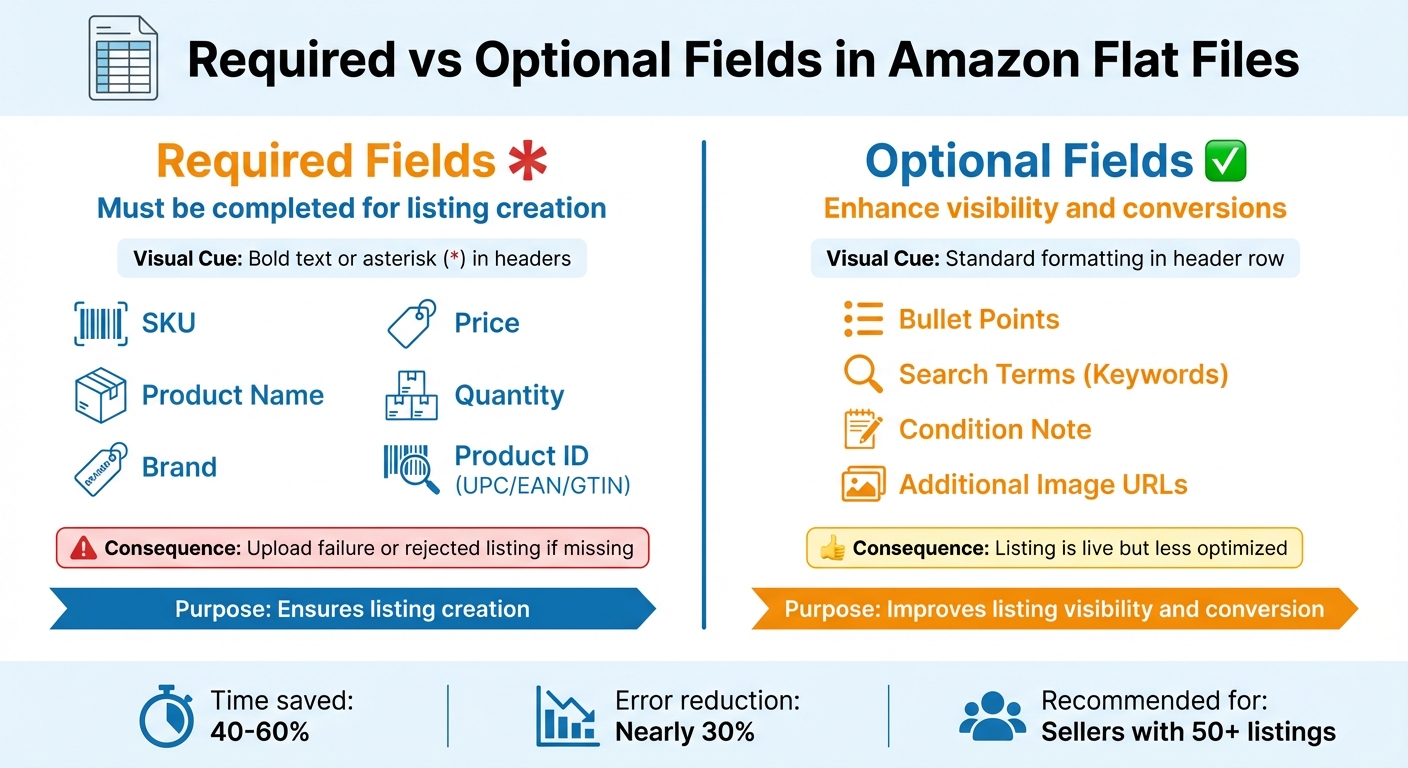
Not all columns in the Template sheet need to be completed. Required fields are typically marked in bold or with an asterisk (*) in the column headers [2]. These fields, such as SKU, Product Name, Brand, Price, Quantity, and Product ID (e.g., UPC/EAN/GTIN), are essential for creating a listing. If any required field is missing, your upload will fail.
Optional fields, like Bullet Points, Search Terms (Keywords), and additional Image URLs, enhance your listing’s visibility and appeal but aren’t mandatory. Including these can improve search rankings and conversions. Before filling out the Template sheet, consult the Data Definition sheet to ensure you’re entering the correct information.
Here’s a quick breakdown of the differences:
| Feature | Required Fields | Optional Fields |
|---|---|---|
| Purpose | Ensures listing creation. | Improves listing visibility and conversion. |
| Examples | SKU, Product Name, Brand, Price, Quantity, Product ID. | Bullet Points, Search Terms, Condition Note, Image URLs. |
| Consequence of Omission | Upload failure or rejected listing. | Listing is live but less optimized. |
| Visual Cue | Often bold or marked with an asterisk (*). | Standard formatting in the header row. |
Category-Specific Template Differences
Amazon customizes flat files for every product category and marketplace [2]. While core fields like SKU, Title, and Brand are consistent across templates, each category includes unique fields tailored to its specific needs. For instance, clothing templates require attributes for standardizing apparel sizes, which aren’t found in templates for electronics or toys.
To download the correct template, go to the Inventory tab in Seller Central, select Add Products via Upload, and navigate to Download an inventory file. Use the search tool to locate your category, then click Generate Template to receive a file tailored to your marketplace.
"For every product category and each country, a distinct Flat File is designated." – Adrian Gmelch, Tech and E-commerce Enthusiast [2]
How to Use Amazon Flat File Templates
Once you understand how flat file templates are structured, the next step is putting them into action. Whether you’re creating new listings, setting up parent-child variations, or making bulk updates, these templates help simplify the process when used effectively. Here’s a guide to handling some common tasks.
Completing Required Fields for New Listings
Start by opening the Template sheet and filling in your product details. Pay close attention to the required fields, which are usually highlighted in bold or marked with an asterisk (*) in the column headers. These fields typically include SKU, Product Name, Brand, Price, Quantity, and Product ID.
When entering the UPC or EAN, make sure they meet the exact digit requirements – 12 digits for UPC and 13 for EAN [1]. An incorrect format will trigger a "Product ID Mismatch" error, stopping your upload. To avoid this, test your file with 5–10 products first to catch any formatting issues.
After uploading your file, check the Spreadsheet Upload Status tab in Seller Central. If errors are flagged, download the Processing Summary report. This report identifies the exact cells causing problems and provides error codes with troubleshooting tips [1].
"Uploading a well-formatted Flat File minimizes the risk of typos and inconsistencies in your product listings" [1].
Setting Up Parent-Child Variations
To set up parent-child variations, you’ll need one Parent SKU row and multiple Child SKU rows. The parent acts as a placeholder (non-buyable), while the child rows represent each buyable variation, like different sizes or colors. For example, a T-shirt available in 5 colors and 4 sizes would require 20 unique child ASINs [4].
In the template, the Parentage column must be set to "parent" for the parent row and "child" for all child rows. The Parent SKU field is left blank in the parent row but must reference the parent’s SKU in each child row. Use the Variation Theme column to define how the products differ, such as by size or color. You can verify acceptable values for this column in the Valid Values tab.
Here’s a quick look at how the structure should appear:
| Field Name | Parent SKU Row | Child SKU Row |
|---|---|---|
| SKU | Unique Parent SKU (e.g., "SHIRT-PARENT") | Unique Child SKU (e.g., "SHIRT-RED-S") |
| Parentage | "parent" | "child" |
| Parent SKU | [Leave Blank] | Must match the Parent SKU |
| Relationship Type | [Leave Blank] | "variation" |
| Variation Theme | Must be populated (e.g., "SizeColor") | Must match Parent (e.g., "SizeColor") |
| Product ID (UPC/EAN) | [Leave Blank] | Required for each child |
| Update Delete | "Update" | "Update" or "PartialUpdate" |
Save the file as a tab-delimited .txt file before uploading [4]. Once uploaded, check the Monitor Upload Status tab for any errors and review the processing report for details [4][5]. Avoid making manual changes to variations directly in Seller Central after uploading, as this can disrupt the parent-child relationship [4].
Updating Prices and Inventory in Bulk
After setting up your listings and variations, keeping them updated is crucial. Flat files make bulk updates manageable and help prevent duplicate entries. The key is selecting the right Update Delete value.
- Use PartialUpdate to modify specific fields, like price or quantity. Blank fields in your template will be ignored, preserving existing data.
- Use Update when replacing an entire listing or updating multiple attributes. Be cautious – blank fields will overwrite existing data with blanks.
Here’s a quick breakdown:
| Update Option | Recommended Use Case | Effect on Blank Fields |
|---|---|---|
| PartialUpdate | Updating specific attributes like price or quantity. | Blank fields are ignored; existing data remains intact. |
| Update | Replacing an entire listing or modifying multiple features. | Blank fields overwrite existing data with blanks. |
| Delete | Removing a listing from your inventory. | The listing is removed entirely. |
To update prices, download your current inventory file, adjust only the Price column and set the Update Delete column to "PartialUpdate." Re-upload the file to ensure no other listing details, like descriptions or images, are accidentally erased. This method keeps your catalog accurate without unnecessary risks.
Fixing Common Flat File Errors
Uploading flat files to Amazon can sometimes feel like walking a tightrope. Their strict data requirements mean even a small mistake can derail the entire process. The good news? Most errors follow predictable patterns, and once you know what to watch for, they’re relatively easy to fix.
Frequent Errors and How to Fix Them
One of the most common issues is missing required fields. Each product category has specific columns that must be filled out – like title, brand, and category. For instance, if you’re listing a book, an ISBN is mandatory[8]. To avoid these pitfalls, check the Data Definition sheet in your flat file template. It outlines which fields are non-negotiable. For extra clarity, the Example sheet provides three scenarios: products without variants, products with variants, and how to delete a variant[6].
Another headache comes from invalid formats. Amazon is picky about how data is presented. Numbers shouldn’t include commas (write "1234" instead of "1,234"), UPCs need to have the correct number of digits, and dates must follow Amazon’s format. Cross-referencing your data with the Valid Values sheet can save you a ton of trouble[3].
Parent-child relationship errors are another stumbling block. If your variation structure isn’t set up properly, the system won’t recognize your products. Make sure each child SKU correctly references its parent SKU, and set the TYPE field to "Parent" for parent products and "Variation" for each child[6]. Forgetting to include attributes like color or size variation themes can also break the relationship.
Here’s a quick summary of common errors and how to address them:
| Common Error | Cause | Fix |
|---|---|---|
| Missing Required Fields | Required fields like brand or title are blank | Fill in all mandatory fields as specified in the category template[8] |
| Invalid Price Format | Commas or incorrect decimal usage | Use periods for decimals (e.g., "19.99") and remove commas |
| Product ID Mismatch | Incorrect UPC/EAN digit count | Ensure UPCs have 12 digits and EANs have 13 digits |
| Variation Setup Error | Parent-child SKUs not aligned | Properly reference parent SKUs and set the TYPE field correctly[6] |
Before making any large-scale changes, it’s wise to download a Category Listing Report from Seller Central. This acts as a backup of your current data in case something goes wrong during the update[8].
Once you’ve corrected these errors, don’t forget to review Amazon’s process report to catch any lingering issues.
Reading and Using Process Reports
After you upload your flat file, Amazon generates a process report that breaks down what happened. You can find it by going to Seller Central > Inventory > Upload File Results[8]. The report identifies issues by severity and provides details like line numbers, error codes, and suggested fixes for each flagged cell[8].
Pay special attention to suppressed listings – these won’t show up on Amazon until you resolve the errors. For example, if the report flags an "Invalid price format" on line 47, double-check the Price column in that row.
To fix flagged issues, download the process report, update your original file, and re-upload it. For extra guidance, consult the Instructions, Images, Data Definition, and Browse Data sheets in your template[7]. Reviewing these sheets before you start and again after you’ve filled out the template can help you avoid repeating the same mistakes.
Improving Flat File Management with FlatFilePro

Flat file templates are useful for bulk updates, but FlatFilePro takes catalog management to another level by automating and safeguarding the process. Managing flat files typically means juggling endless downloads, edits, uploads, and error-checking. FlatFilePro eliminates these headaches by integrating directly with your Amazon account through API connections. Forget the tedious download-edit-upload routine – this tool allows you to make changes that go live in under 5 minutes with a 95% success rate. This efficiency sets the stage for advanced features like real-time monitoring and streamlined bulk editing.
Reflection Engine for Real-Time Monitoring
The Reflection Engine keeps a constant eye on your catalog. Every night, it reviews your listings, comparing what you expect to be live with what’s actually displayed on Amazon. The system uses a simple visual cue: green checkmarks for matches and red X’s for discrepancies. This makes spotting issues a breeze. It’s especially helpful in combating what Amazon refers to as "catalog rot", a problem that affects 93% of sellers, often unnoticed until sales start to dip[9]. Instead of manually checking hundreds of SKUs to confirm updates, you’ll receive automatic alerts for silent failures or unexpected changes made by Amazon.
Bulk Editing and Variation Management
FlatFilePro transforms the flat file process with one-click bulk editing across unlimited SKUs. Updating thousands of listings takes just minutes. Its drag-and-drop variation manager simplifies moving child products between parent ASINs – no need to wrestle with Excel cells. This feature complements earlier flat file procedures, offering an even smoother workflow for sellers.
"This is the tool that powers our ops and analytics teams. We used to do everything manually, such a pain! Now we don’t have to think about anything and our listings update like magic!" – Jack Haldrup, Founder of Dr. Squatch[9]
Additionally, FlatFilePro automatically saves backup spreadsheets before each update, giving you a safety net in case anything goes wrong.
Protecting Listings from Competitor Changes
Efficient editing is just one part of the equation – protecting your catalog from unauthorized changes is equally important. Competitor hijacking, where others alter your product titles, bullet points, or images without permission, poses a serious risk. FlatFilePro combats these "Black-Hat attacks" by filling all open content slots across global marketplaces, making it harder for competitors to sneak in unauthorized edits[9].
The Reflection Engine adds another layer of protection, alerting you within 24 hours of any unauthorized changes and enabling 1-click fixes to restore your content instantly. This bypasses the often slow and frustrating process of filing cases with Amazon Seller Support. Permission Locking further reduces internal errors by limiting team members to specific fields – designers can update images without touching prices, and writers can modify copy without affecting product IDs.
FlatFilePro doesn’t just simplify catalog management – it gives sellers peace of mind.
Conclusion
Mastering Amazon flat file templates is a game-changer for managing your catalog efficiently and scaling your operations.
Key Takeaways
Amazon flat file templates offer a structured way to handle bulk catalog updates. By reducing manual data entry and leveraging built-in validation, these templates help minimize errors. Their category-specific design ensures your product listings align with Amazon’s requirements, making them especially useful for sellers with large inventories. With only eight mandatory fields needed for new listings, the process becomes more straightforward[6]. Additionally, the Example sheet provides clear guidance on formatting products, adding product variations, and even deleting them when necessary.
For those looking to streamline further, FlatFilePro simplifies the entire process. It automates the download, edit, and upload cycle, cutting down error rates and saving time. Updates go live in under 5 minutes with an impressive 95% success rate[9]. Features like automatic backups and advanced team access controls provide a level of precision that manual methods can’t achieve. This makes maintaining a consistent, error-free catalog much easier.
Next Steps for Amazon Sellers
Ready to enhance your catalog management? Here’s how to get started:
- Download the appropriate flat file template from Seller Central. Make sure to use US formatting standards: prices as $19.99, dates as MM/DD/YYYY, and measurements in inches and pounds. For specific categories, like books or clothing, include required details such as ISBNs, publication dates, sizes, materials, and gender.
- Once you’re comfortable using flat files, consider trying FlatFilePro with their 7-day free trial. The tool offers automated validation, bulk editing for unlimited SKUs, and real-time monitoring[10]. By catching errors before submission, it saves you time and shields your listings from costly mistakes that could impact sales.
"The flat file format allows sellers to quickly upload large amounts of inventory in bulk to their Amazon store without having to manually enter individual listings." – FlatFilePro
FAQs
Which flat file template should I download for my category?
To make sure all necessary attributes are included and properly formatted, download the flat file template tailored to your product category. Here’s how: Log into Amazon Seller Central, navigate to Inventory > Add Products via Upload, and choose your category to find the right template. Using the correct template ensures compliance with Amazon’s requirements and minimizes upload errors.
How do I avoid wiping data when doing bulk edits?
To avoid accidentally erasing data during bulk edits with Amazon flat files, it’s smart to stick with partial updates instead of full replacements. This approach allows you to modify specific fields – like price or inventory – without overwriting all the product details.
Here’s how to do it:
- Only fill in the fields you need to update, such as SKU and price, and set the
Update_Deletefield toPartialUpdate. - Double-check your file for any errors before uploading.
- Submit the file as a partial update through Amazon Seller Central.
This method ensures you can make changes safely without risking the loss of important product information.
What should I do if my upload shows errors or suppressed listings?
To address errors or suppressed listings, start by examining the error report in Seller Central. Look for issues such as missing fields, incorrect formats, or mismatched variations. Pay close attention to error codes – like 8541 (Attribute Mismatch) – to pinpoint specific problems. Make sure your flat file aligns with Amazon’s guidelines, such as using MM/DD/YYYY for dates, two-decimal currency values, and imperial units. Once you’ve corrected the file, re-upload it and validate the changes to help restore your product’s visibility.