
Choosing the right Amazon category is critical for product visibility and sales. The Amazon Categories CSV is a powerful tool that simplifies this process, offering a detailed breakdown of over 25,000 categories and subcategories. Sellers can use it to:
- Pinpoint accurate categories for their products to improve search rankings.
- Compare referral fees (e.g., 8% for computers vs. 17% for apparel).
- Identify niche subcategories with less competition for higher profitability.
- Streamline bulk uploads and avoid errors during flat file submissions.
This CSV not only saves time but also helps sellers maximize profits by ensuring products are placed in the most relevant and specific subcategories. With proper use, sellers can enhance product visibility, reduce listing errors, and optimize sales performance. Keep reading for tips on downloading, verifying, and using the CSV effectively.
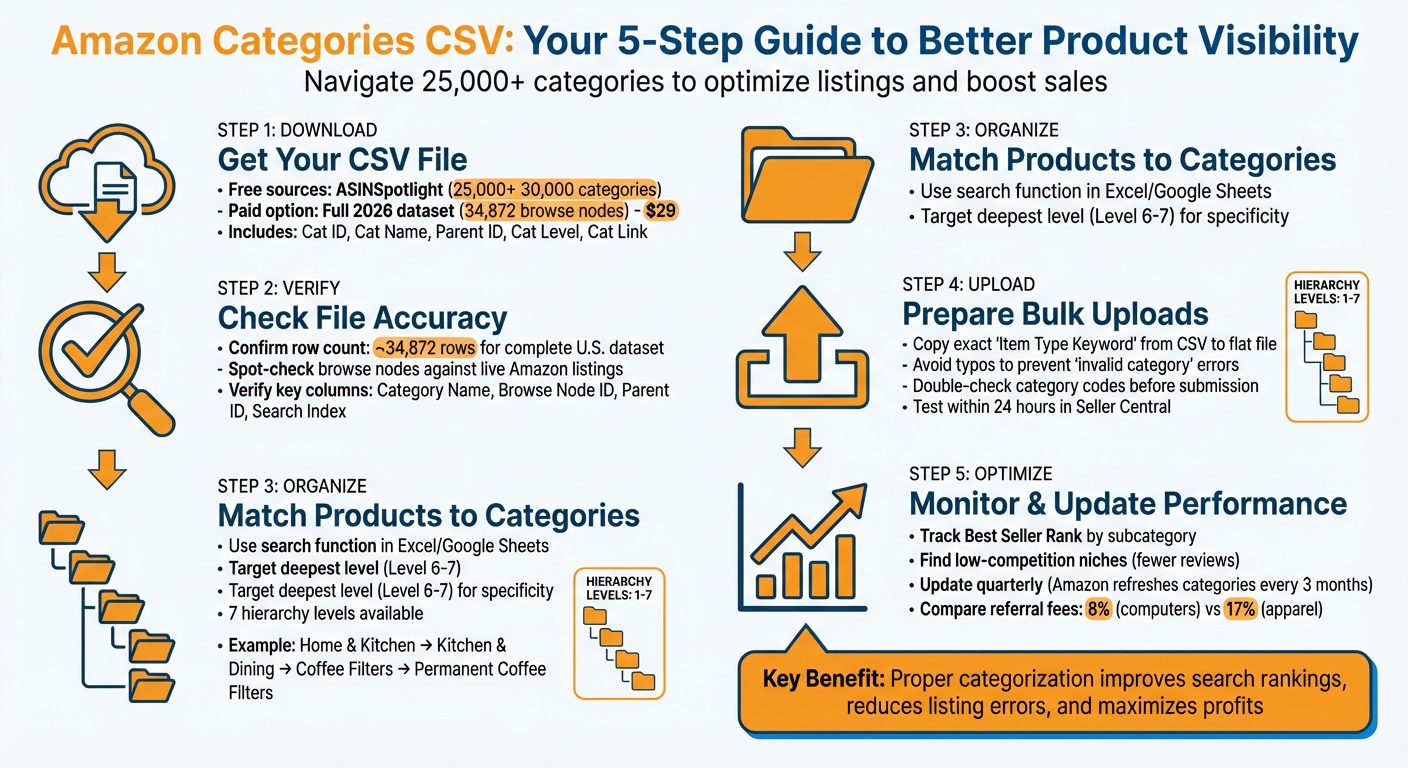
How to Use Amazon Categories CSV: 5-Step Process for Sellers
How to Download the Amazon Categories CSV
Where to Get the Free Amazon Categories CSV
Amazon doesn’t provide a complete categories CSV, but you can find it through reliable sources like ASINSpotlight. By submitting your email, you can access a file containing around 25,000–30,000 categories and subcategories[1].
For those needing a more detailed dataset, there are paid options available. For instance, some GitHub developers offer a small free sample (roughly 100 rows) and charge for the full version, which is regularly updated. The most detailed 2026 dataset contains exactly 34,872 browse nodes for the U.S. marketplace and is priced at $29[4].
What’s Inside the CSV File
The CSV file typically includes the following fields:
- Cat Id: A unique identifier for each category.
- Cat Name: The display name of the category.
- Cat Parent Id: Links the category to its parent in the hierarchy.
- Cat Level: Indicates the depth of the category within the hierarchy.
- Cat Link: The direct URL to the category page[1].
This setup allows you to trace the category path from broad departments down to specific subcategories.
How to Check Your Downloaded File
To ensure your CSV file is accurate, start by verifying its row count. The complete 2026 U.S. dataset should have about 34,872 rows[4].
Next, spot-check a few browse nodes by comparing them with live Amazon listings. Use Seller Central’s Product Classifier to find a high-ranking ASIN, then scroll to the "Product Details" section. Compare the category trail shown there with the hierarchy in your CSV. If the browse node matches, your file is likely correct.
Finally, confirm that the file includes these key columns: Category Name, Browse Node ID, Parent ID, and Search Index. These are essential for bulk uploads or creating flat files.
Once verified, you’ll be ready to change your product category and streamline your bulk uploads.
sbb-itb-ed4fa17
How to Organize Products Using the CSV
Matching Products to the Right Categories
The CSV file contains 25,233 alphabetized categories, making it easier to assign products to their correct place. Amazon’s category hierarchy can go up to 7 levels deep, so it’s important to classify each product in its most specific subcategory rather than a broader parent category [1].
To get started, open the CSV in a tool like Excel or Google Sheets and use the search function to find the right category for your product. For example, instead of placing an item under the broad "Home & Kitchen" category, look for its most specific subcategory listed in the CSV.
Pay attention to the "Cat Level" column in the CSV, which indicates the depth of each category. Always aim for the highest level number available to ensure precise classification.
Once you’ve matched your products to the most specific subcategory, you may need to decide between multiple applicable categories.
Choosing Categories for Products That Fit Multiple Options
If a product fits into more than one subcategory, compare the options carefully to determine the best placement.
For instance, an insulated water bottle might fit under both "Kitchen & Dining" and "Sports & Outdoors." To decide, look at the deepest levels available in the CSV for each path. The alphabetical structure of the file makes it simple to compare your options.
When choosing the primary category, trace each potential path to its deepest level (Level 6 or 7) and select the one that best reflects the product’s main use. Additionally, consider which category aligns best with your keyword strategy, as this can impact how Amazon’s algorithm ranks your listing.
Keeping Category Assignments Consistent
Consistency is key to maintaining a well-organized catalog and avoiding confusion. Use the CSV as your definitive guide by copying the exact hierarchical path for all similar products.
For products with variations, like different sizes of storage containers, ensure all variations are assigned to the same Level 7 subcategory. Sorting your product list and cross-referencing it with the CSV can help confirm that similar items are consistently categorized.
To streamline the process, create a reference document mapping each product type to its corresponding Browse Node ID from the CSV. This will reduce manual errors and ensure everyone managing your catalog follows the same rules. When adding new products to your inventory, consult this reference to maintain uniformity across your catalog.
Using the CSV for Bulk Uploads and Flat Files
Adding Category Data to Flat Files
Accurate category matching is key to improving search visibility. When working on bulk uploads, keep both the CSV and your flat file open in Excel or Google Sheets for easy reference.
Locate the "Item Type Keyword" in the CSV – this is the exact hierarchical string that matches your product. Copy and paste it directly into the corresponding category field in your flat file. Amazon’s system is strict about this – any typos or deviations can lead to an "invalid category" error during submission.
For instance, if you’re listing permanent coffee filters, the CSV might provide this detailed hierarchy:
Home & Kitchen > Kitchen & Dining > Small Appliance Parts & Accessories > Coffee & Espresso Machine Parts & Accessories > Coffee Machine Accessories > Coffee Filters > Permanent Coffee Filters [1].
Using this precise path ensures your product is placed in the most appropriate subcategory.
The CSV, organized alphabetically with 25,233 entries, makes it easy to cross-check your products [1]. Sorting your flat file by product type can further speed up the process of assigning categories to similar items. After assigning categories, double-check the category codes in your flat file to avoid errors during upload.
Checking Category Codes Before Upload
Before submitting your flat file, it’s critical to verify every category code against the CSV. Filter your flat file to show only unique category entries, then search for each one in the CSV using exact text matches.
Ensure that your flat file uses the most specific hierarchy level available. For example, if a Level 6 or 7 category is available, avoid using a broader Level 3 category. Updating these ensures better accuracy [1].
Be on the lookout for formatting issues like extra spaces, missing ampersands, or inconsistent capitalization. Once all category codes are confirmed, you’re ready to proceed with testing your bulk uploads.
Testing Your Bulk Uploads
After uploading, check Seller Central to confirm that your products are placed in the correct categories. Within 24 hours, review your inventory to verify that each item appears in the intended subcategories.
Pick a sample of the uploaded products and manually verify their placement using Amazon’s category browse tree. Ensure they match the Level 6 or 7 subcategory specified in the CSV. If any products end up in broader parent categories, update the flat file with more specific category data and resubmit the affected listings.
Finally, review Amazon’s processing report for any common flat file errors related to categories. If you see messages like "invalid browse node", cross-reference the entries with the CSV, fix the flat file, and resubmit only the rows with issues. This step ensures your products are categorized correctly and improves their visibility.
Choosing Categories to Improve Sales Performance
Finding Required Attributes for Each Category
Each Amazon category comes with its own set of mandatory attributes. Some categories demand GTINs or UPCs, while others might require details like wattage or material type. Missing these key attributes can hurt your product’s search visibility, making it harder for customers to find your listings [6].
Start by using the CSV file to identify the browse node ID for your target category. Then, review the specific requirements for that category in Amazon Seller Central. For example, electronics often need detailed technical specs, while apparel listings typically require size charts and fabric information. As LetsNarrowDown explains:
"Accurate browse node IDs improve product categorization, which helps Amazon show your products in relevant searches using Amazon SEO optimization techniques" [5].
While AI-powered classification systems can achieve over 92% accuracy in assigning products to categories, manual verification is still crucial [6]. Take the time to compare your product’s attributes with the category requirements before uploading your listing. This helps avoid rejections or reduced visibility.
Once your product meets the necessary category criteria, you can shift your attention to finding niches with lower competition.
Finding Low-Competition or High-Demand Categories
Instead of stopping at broad, top-level categories, aim for the deepest subcategories – usually Levels 5 through 7. For instance, listing a product under "Permanent Coffee Filters" will likely face less competition compared to a general "Home & Kitchen" category [1].
This approach not only improves visibility but also positions your product more strategically. Look for subcategories where top-ranking products have fewer reviews, as this often signals less competition for visibility and the Buy Box [7]. You can combine your CSV data with Amazon’s Search Term Report to identify high-conversion browse nodes [3].
Another useful tactic is leveraging "Bought in Past Month" data to assess demand within specific subcategories [1]. Regularly export and analyze this data, as Seller Central’s Business Reports only provide snapshots with a 24–48 hour delay, and historical data is limited [3].
Tracking and Updating Category Choices
Choosing the right category isn’t a one-time task. Amazon updates its category structure quarterly, so it’s essential to revisit and adjust your assignments every three months to maintain strong performance [6].
Keep an eye on metrics like Best Seller Rank and subcategory rank for each product. If your performance drops without any changes to pricing or inventory, it could mean the category has become more competitive or undergone structural changes. Export your category performance data to external tools for deeper analysis, as Seller Central separates traffic data from financial metrics [3].
Regular audits are key to staying relevant. If a product’s performance dips, consider updating your flat file with more precise category information and resubmit the listing [6]. This kind of proactive maintenance helps ensure your listings stay competitive and visible.
Upload/Edit Amazon Listing in minutes with the Category Listing Report
Conclusion
Getting your product categorization right is a game-changer for visibility and sales on Amazon. The free Amazon Categories CSV provides a detailed map of 25,000–30,000 categories across 7 levels, making it easier to pinpoint where your products fit best [1].
This CSV simplifies bulk uploads, ensures category attributes are accurate, and even helps identify less competitive niches. Picking the right category isn’t just about visibility – it can also impact your bottom line, as Amazon’s referral fees vary widely depending on the category [2].
To put these strategies into action, download the CSV and start optimizing your listings. Assign your products to the most specific subcategories, double-check category codes before uploading flat files, and keep your listings updated with the latest category data. These steps can improve search rankings, reduce listing errors, and boost sales.
FAQs
How do I find my product’s correct browse node ID?
To identify the correct browse node ID for your product, follow these steps using the Amazon categories CSV file, which lists all product categories along with their IDs:
- Download the CSV file provided by Amazon.
- Search for your product category within the file to find where it fits in the hierarchy.
- Find the Browse Node ID by checking the "Id" column that corresponds to your product’s category.
This will help you align your product with the appropriate category on Amazon.
Why does picking a deeper subcategory help rankings?
Choosing a more specific subcategory for your product can make a big difference in how it performs on Amazon. By placing your product in a deeper, more precise category, you improve its chances of showing up in the right searches. This makes it easier for customers to find exactly what they’re looking for. Accurate categorization not only increases visibility but also connects your product with the right audience, helping it rank better in Amazon’s search results.
What should I do if my flat file shows “invalid category”?
If your flat file displays an “invalid category” error, the issue likely lies with the template or category selection. Start by downloading the correct category-specific template for your product from Seller Central. Make sure to fill out all the required fields accurately, adhering to U.S. formatting standards for currency and measurements. Double-check that your product is matched to the appropriate category and subcategory. After uploading, carefully review the processing report to identify and resolve any lingering errors.