
Generating image URLs for Amazon listings can be a headache, especially for sellers managing large catalogs. Amazon requires direct, publicly accessible URLs for product images, not the image files themselves. This means your images must be hosted online and formatted correctly for Amazon to retrieve them without errors.
Here’s what you need to know:
- Amazon’s URL Rules: URLs must point directly to the raw image file (not a webpage or folder), use HTTPS, and avoid redirects or authentication barriers.
- Image Requirements: Main images must have a pure white background (RGB 255, 255, 255), be at least 1,000 pixels on the longest side, and exclude overlays or watermarks.
- Hosting Options: Use reliable platforms like Google Drive or dedicated services like Img.vision to host your images. Standard Google Drive links need to be converted into direct URLs.
- Testing URLs: Always test image URLs in an incognito browser to ensure they load correctly without requiring login credentials.
For bulk uploads, URL generator tools save time by automating the conversion of hosted image links into Amazon-compatible formats. Tools like FlatFilePro streamline mapping and uploading these URLs into Amazon’s flat file templates, reducing errors and speeding up the process.
How to Create Amazon Image URLs for Flat Files Quickly | Amazon FBA for Beginners

sbb-itb-ed4fa17
Amazon Image URL Requirements
Understanding Amazon’s image URL rules is essential for smooth uploads and avoiding listing suppression. If your product listing gets suppressed, it remains in your inventory but becomes invisible to shoppers – resulting in no sales until the issue is resolved.
Key Amazon Image Guidelines
The most important image field is the main_image_url. Amazon requires this image to have a pure white background and measure at least 1,000 pixels on the longest side. This size enables Amazon’s zoom feature, which helps shoppers inspect product details. Images smaller than this threshold disable zoom and may lead to listing suppression.
Amazon forbids text overlays, watermarks, and lifestyle photography in the main image. These elements should be reserved for additional image slots. Sellers can upload up to eight supplemental images (other_image_url1 through other_image_url8). These slots are perfect for close-ups, infographics, size comparisons, and lifestyle shots. Listings with multiple images often see better conversion rates compared to those with just one image [2].
"The most common fix [for suppressed listings] is replacing the main image with a compliant white-background product-only image of at least 1,000px." – Binu Mathew, CEO, itmarkerz technologies [2]
Amazon uses automated systems to enforce its image guidelines. These systems can suppress or strip non-compliant images without manual review [2]. To avoid surprises, regularly check the "Suppressed" filter in Manage Inventory on Seller Central. The "Fix Your Products" page will highlight any missing or incorrect image fields that need attention.
Now, let’s explore how Amazon processes these image URLs to ensure your images display without interruptions.
How Amazon Processes Image URLs
When you upload a flat file with image URLs, Amazon fetches the image directly from the provided link. This means the URL must point to a raw image file – not a webpage or shared folder link. The URL also needs to be free of authentication barriers or redirects so Amazon can retrieve the image without issues.
For flat file uploads, Amazon typically processes image URLs within 15–30 minutes, although updates on live listings may take longer. If you’re using the SP-API, which transitioned to a JSON schema-based system in 2025, updates occur much faster and come with clearer validation feedback [2]. However, keep in mind that Amazon doesn’t always fetch the image immediately after the flat file upload. The retrieval process can be delayed [3], making stable, non-expiring hosting crucial.
Avoid using pre-signed AWS S3 URLs. These URLs often include expiration timestamps and security tokens. While they might work during initial browser tests, they can expire before Amazon retrieves the image, resulting in an HTTP 403 error [3].
"Pre-signed links are temporary by design. Your browser test might succeed now, but Amazon fetches images later… By then, the link can be expired." – Mathias, Founder of Img.vision [3]
To check if your URL is reliable, paste it into an incognito browser window. If the raw image displays without requiring login credentials, it’s a good sign. For a more thorough test, use the command line tool curl with the command curl -I "your-url-here". Ensure the server responds with HTTP/1.1 200 OK and no redirects.
Understanding these requirements ensures your images are ready for seamless URL generation and upload.
Preparing Product Images Before Generating URLs
Getting your product images ready before generating URLs is crucial to avoid upload errors and stay within guidelines. Proper preparation ensures a smoother process and fewer headaches down the line.
File Organization and Naming
A well-organized system for naming and storing image files can make bulk uploads to Amazon much easier. Use clear, consistent names based on the SKU or ASIN, like B08XYZ123_MAIN.jpg or SKU-4521_ALT1.jpg. This approach simplifies matching images to the correct listings when mapping URLs in tools like FlatFilePro.
Store your images in a centralized and reliable location, such as Google Drive, rather than temporary hosting services. Set sharing permissions to "Anyone with the link can view" so Amazon’s servers can access the files without login credentials. However, standard Google Drive links won’t work as direct image URLs. To fix this, convert the link to the uc?export=view&id= format for a raw URL that Amazon can fetch. Maintain a master spreadsheet that maps each URL to its corresponding SKU or ASIN. This will help you quickly identify any gaps or errors during the upload process [1].
Compliance Checks Before Upload
Before uploading, make sure every image meets Amazon’s strict requirements. Non-compliant images can lead to suppression, so it’s better to catch issues upfront.
Amazon’s image guidelines [1] include:
- Minimum Dimensions: 1,000 x 1,000 pixels
- Maximum File Size: 10MB
- Background Color: Pure white (RGB 255, 255, 255)
- Prohibited Content: No text, watermarks, or overlays
- Accepted URL Type: Direct image link (not a landing page)
Double-check that all main images have a pure white background (RGB 255, 255, 255) to avoid rejections. If your files are high-resolution, compress them to stay under the 10MB limit. Finally, test a sample URL in an incognito browser window to ensure the image loads without requiring a login.
Once your images are organized and compliant, you’ll be ready to generate and map URLs efficiently.
How to Generate Image URLs with a URL Generator Tool
To create direct image URLs for Amazon, you’ll need to host your files correctly and ensure they meet Amazon’s strict requirements.
Uploading and Hosting Your Images
The hosting service you choose must provide a direct link to the raw image file – no redirects, login prompts, or preview pages allowed.
"Amazon’s image processing system is strict about what it will accept. When you include an image URL in a flat file, Amazon’s servers fetch that image directly. If the URL doesn’t return a raw image file immediately, the upload fails." – Mathias, Founder of Img.vision [4]
Many standard cloud services add authentication steps that block Amazon from accessing the file. To avoid this, consider using a dedicated image hosting service like Img.vision. This platform ensures files are delivered directly, keeps original filenames intact, and avoids converting images to unsupported formats like WebP or AVIF [4]. Plus, Img.vision offers a free testing plan [4].
For bulk uploads, you can automate URL generation. If your image filenames are listed in Column A of a spreadsheet, use this formula:
="https://d.imgvision.net/your-drive-name/" & A2
This method works well for large catalogs and integrates easily with tools like FlatFilePro for streamlined updates [4].
Once your URLs are ready, the next step is to confirm they function as intended.
Testing and Verifying Generated URLs
Always test URLs in an incognito browser window to ensure the image displays immediately [1]. If the link requires a login, redirects, or displays a preview page, it will fail Amazon’s upload process.
Make sure the URL uses HTTPS, as Amazon only accepts secure links [1]. Additionally, check that the file extension matches the actual format served – a .jpg URL must deliver a JPEG file, not a converted format [4]. Amazon supports JPEG, PNG, TIFF, and non-animated GIF formats only [4].
Finally, remember to keep your hosted files live. Even after a successful upload, deleting the source file will break your listing image [1].
Adding Image URLs to FlatFilePro Workflows

With verified URLs ready, you can easily integrate them into FlatFilePro to simplify Amazon image updates. FlatFilePro uses Amazon-compatible category templates, so fields like main_image_url, other_image_url1 through other_image_url9, and swatch_image_url are already set up and ready for you to populate.
Bulk Mapping and Uploading Image URLs
Start by importing your product data, selecting the appropriate Amazon template, and mapping each image URL column to its corresponding Amazon field. For instance, map alt_image_1 to Other Image URL1 and apply this mapping across your entire catalog in one go. Use FlatFilePro’s validation tool to identify any missing or misaligned URLs before exporting.
If you need to standardize URLs across large datasets, FlatFilePro offers tools like find-and-replace and formula-style transformations to make edits across all rows at once. When everything is set, the API integration allows you to sync directly to Amazon, skipping the need to manually download and re-upload flat files. This feature is especially handy for U.S.-based sellers managing thousands of SKUs.
Once your bulk updates are complete, you can move on to handling product variations.
Applying Image URLs to Variation Families
Variation families require a thoughtful approach to images. Using FlatFilePro’s grid view, you can filter by parent_sku to focus on all rows in a variation family. Assign lifestyle or brand-level images to the parent ASIN row to represent the entire product line. For each child ASIN, add variation-specific images, such as close-ups of specific colors, size charts tailored to that SKU, or swatch images that align with the chosen attribute. This ensures compliance with Amazon’s strict image guidelines.
For images shared across all child variations – like a standard size chart or packaging photo – FlatFilePro’s bulk fill feature lets you quickly apply the same URL to the appropriate other_image_url field for all child rows. After that, you can add unique images to each child SKU as needed. FlatFilePro’s validation rules can be customized to ensure every child SKU has a valid main image and at least one variation-specific image. This helps catch errors, like a "Blue" SKU mistakenly linked to a "Red" photo, before submitting the file to Amazon.
Tracking and Validating Image Updates
Once your URLs are in place, the Reflection Engine continuously checks their accuracy against Amazon’s live listings. When the live data matches your latest updates, those fields are marked as reflected. If an image fails to update – whether due to a feed error, an override by another contributor, or Amazon suppression – the Reflection Engine flags that SKU for review, saving you from manually checking hundreds of listings in Seller Central.
Discrepancy reports are especially helpful for spotting broken URLs. If a hosted image becomes unavailable, Amazon might drop it or revert to an older version. The Reflection Engine detects such mismatches, allowing you to quickly update the URL and resubmit. For high-priority or seasonal products, scheduling Reflection Engine checks during critical periods ensures your promotional images stay live and consistent, safeguarding both sales and brand presentation.
Fixing Common Image URL Problems
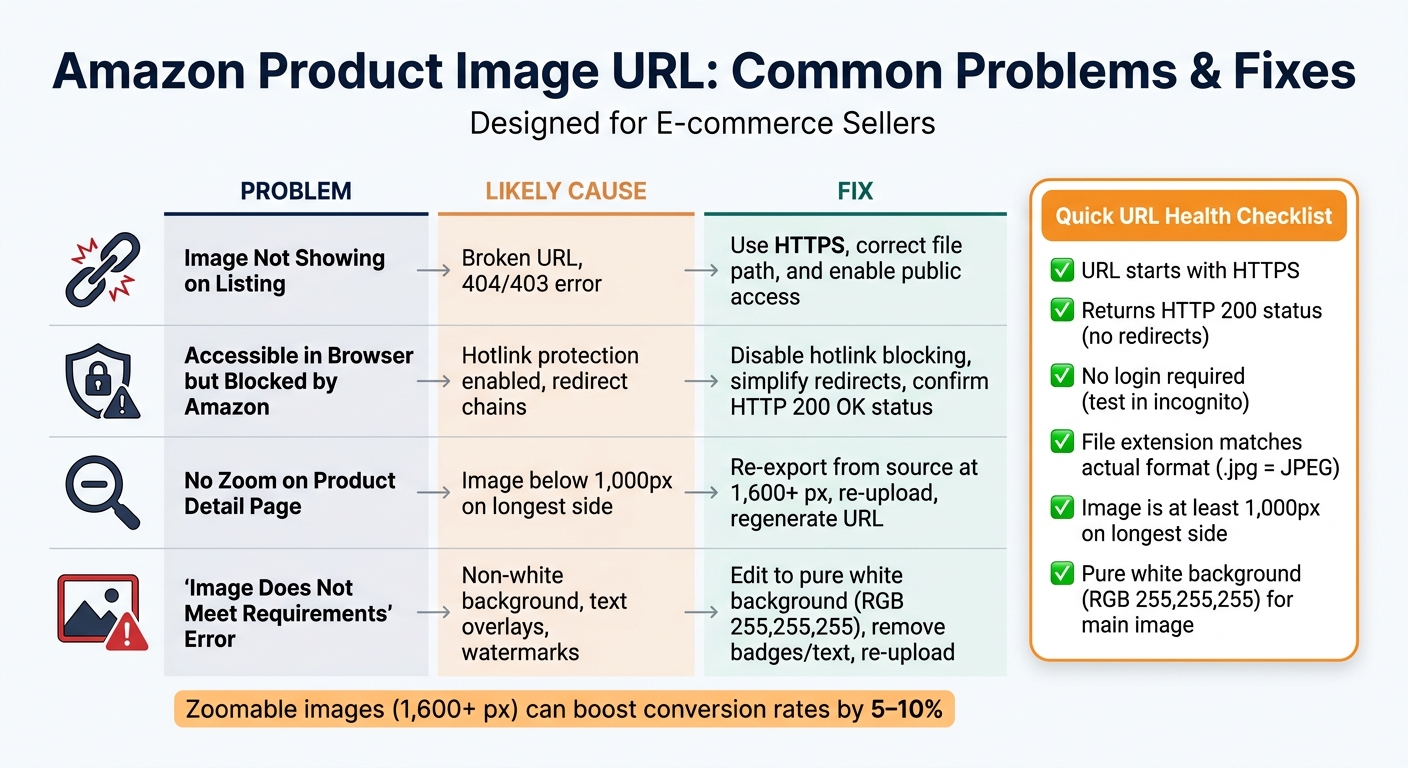
Amazon Product Image URL Requirements: Quick Reference Guide
Even with the best workflow, image URL problems can crop up. These typically fall into two categories: broken or inaccessible URLs and compliant URLs rejected due to image content issues. Tackling these quickly ensures you revise Amazon product listings effectively and your catalog runs smoothly.
Fixing Broken or Inaccessible URLs
The first step is to test the URL. Open an incognito browser window and paste the link. Look for HTTP status codes to pinpoint the issue:
- 404: The file is missing.
- 403: Access is blocked.
- 3xx: There are unnecessary redirects.
Common causes include using HTTP instead of HTTPS, hotlink protection that blocks Amazon’s IP ranges, expiring signed URLs from CDN configurations, or files being moved or renamed after the URL was generated. Amazon has strict requirements: URLs must be publicly accessible over HTTPS, point directly to valid image files (.jpg, .jpeg, .png, .tif, or .gif), and return an HTTP 200 status – no authentication, cookies, or scripts allowed [5].
To fix these issues:
- Re-upload any missing files.
- Regenerate URLs using the correct HTTPS base path.
- Use tools like FlatFilePro to bulk-update URLs in your catalog with find-and-replace or formulas.
- Ensure file access and naming conventions are consistent to avoid future problems.
Once broken URLs are resolved, the next step is tackling compliance rejections.
Addressing Compliance Rejections
Sometimes URLs work fine, but the images themselves don’t meet Amazon’s standards. Common issues include:
- Non-white backgrounds on main images.
- Resolution below Amazon’s minimum.
- Marketing text or watermarks overlaid on the image.
Amazon’s rules are clear: main images must have a pure white background (RGB 255, 255, 255), display only the product being sold, and measure at least 1,000 pixels on the longest side (though 1,600+ pixels is better to enable zoom). Zoomable images can boost conversion rates by 5–10%, so hitting this threshold is more than just a rule – it’s a business advantage.
For resolution issues, always work from the original high-resolution source file. Avoid upscaling a low-quality image (e.g., stretching a 300 px file to 1,000 px) as it often results in blurry images that Amazon may still reject.
To fix compliance issues:
- Replace the file on your server while keeping the same filename and path. This way, the URL stays the same, and Amazon will automatically pull the updated image.
- If the filename changes, regenerate the URL and update it in FlatFilePro before resubmitting.
- Check Amazon’s processing reports and your listing detail pages to confirm the updated image has been applied correctly.
| Problem | Likely Cause | Fix |
|---|---|---|
| Image not showing on listing | Broken URL, 404/403 | Use HTTPS, correct file path, and enable public access |
| Accessible in browser but blocked | Hotlink protection, redirect chains | Disable hotlink blocking, simplify redirects, confirm 200 OK status |
| No zoom on product detail page | Image below 1,000 px on longest side | Re-export from source at 1,600+ px, re-upload, regenerate URL |
| "Image does not meet requirements" | Non-white background, text overlays, etc. | Edit to pure white (RGB 255,255,255), remove badges/text, re-upload |
Conclusion
Managing image URLs effectively plays a key role in creating high-performing Amazon listings. The basics are straightforward: stick to stable HTTPS URLs that point directly to image files, use file names tied to SKUs or ASINs, and always test links before adding them to your feed. These habits help avoid broken URLs and compliance issues before they ever arise.
For scaling up, tools like FlatFilePro simplify the process. Instead of manually entering URLs into spreadsheets – where errors like typos, mismatched SKUs, or missing https can easily creep in – you can bulk-map generated URLs to the correct image fields across your catalog. FlatFilePro also ensures smooth application to variation families and provides tracking to catch issues early, shifting your workflow from reactive problem-solving to proactive prevention.
To further optimize, start by auditing your catalog to standardize file naming and refine your URL generator workflow. This sets the stage for a more efficient and reliable management process. With this foundation in place, you’ll be ready to experiment – whether it’s adding lifestyle shots, updating infographics with US-specific sizing, or testing secondary images – because a solid URL structure makes bulk updates quick and predictable.
An organized image workflow doesn’t just maintain clean listings; it safeguards your sales momentum during critical retail periods like Prime Day, back-to-school season, and the holidays, where getting new images live swiftly can directly impact your revenue.
FAQs
What’s the easiest way to turn shared links into direct Amazon image URLs?
The easiest way to turn shared cloud links into direct Amazon image URLs is by using tools like Linkify Images or the FlatFilePro generator. These tools can automatically identify cloud files and create links that meet Amazon’s requirements. For Google Drive links, make sure the file permissions are set to "Anyone with the link can view", then use a formula to generate a direct URL. Always double-check your link in an incognito browser to ensure it works properly.
How can I tell if Amazon can actually fetch my image URL?
To see if Amazon can access your image URL, try pasting it into an incognito browser window. If the image opens right away without needing a login or redirect, the URL is good to go. Double-check that the URL ends with a proper file extension like .jpg, .png, or .tif, and make sure the file permissions are set to public. Tools like FlatFilePro make this process easier by automatically validating URLs and identifying broken links or loading issues.
How do I update an image without changing the URL in my flat file?
To update an image while maintaining your flat file structure, simply replace the old image URL with the new one in the appropriate column, such as main_image_url or other_image_url1–8. Once you’ve made the changes, save the file as a tab-delimited text file. When uploading the updated file to Seller Central, make sure to choose the Partial Update option. This ensures that only the image URLs are updated, leaving all other product details untouched.