
Managing Amazon product images can be tedious, especially for bulk updates. A simple Google Drive-based tool can convert shareable image links into Amazon-compatible URLs, streamlining the process. Here’s the core idea:
- Problem: Amazon requires direct image URLs for bulk updates, but Google Drive links aren’t compatible.
- Solution: Use a generator to transform Google Drive links into direct URLs (
uc?export=viewformat). - Benefits: Faster image updates, reduced errors, and improved catalog management.
How It Works:
- Upload images to Google Drive and set sharing to "Anyone with the link can view."
- Use a formula like
=CONCATENATE("https://drive.google.com/uc?export=view&id=", MID(A2, 33, 33))in a spreadsheet to create direct URLs. - Add these URLs to Amazon flat file templates for bulk image updates.
Key Tips:
- Always verify URLs before uploading.
- Maintain proper SKU mapping to avoid mismatches.
- Don’t delete images from Google Drive, or the URLs will break.
This tool simplifies image management for sellers with large inventories, saving time and reducing errors.
How to Create Amazon Image URLs for Flat Files Quickly | Amazon FBA for Beginners

sbb-itb-ed4fa17
How the Generator Tool Works
This tool transforms a standard Google Drive link into a direct image URL that Amazon can use. By doing so, it keeps your workflow entirely within cloud storage, eliminating the need to download and re-upload images elsewhere.
What the Generator Does
When you share an image file through Google Drive, the link typically looks like this: https://drive.google.com/file/d/[FileID]/view?usp=sharing. Unfortunately, Amazon doesn’t recognize or work with this format. The generator takes the File ID from the URL and converts it into a format Amazon can use: https://drive.google.com/uc?export=view&id=[FileID].
This new link directly accesses the image file. To streamline the process, you can use a spreadsheet formula like this:
=CONCATENATE("https://drive.google.com/uc?export=view&id=", MID(A2, 33, 33)). This formula automates the conversion for an entire column of Google Drive links in seconds.
"Traditionally, many relied on third-party websites to generate direct image links, but these services were often unreliable." – Shaival Choksi, YourSeller [1]
Accurate conversion is essential because bulk updates depend on valid, direct image links.
Why Image URLs Matter for Amazon Sellers
Direct image URLs are a must for bulk listing updates. When using Amazon flat files – Excel-based templates designed for large-scale product updates – you need to include image links instead of uploading files. This makes the generator’s output a perfect fit for flat file workflows.
Using Amazon’s Seller Central for manual uploads limits you to updating one product at a time. However, with direct URLs generated from Google Drive, you can update images for hundreds or even thousands of SKUs in one go. Keep in mind that Amazon may take up to 24 hours to process and display image updates after submitting a flat file [1]. Having accurate URLs from the start prevents delays caused by broken or rejected links.
| Feature | Manual Upload | Generator + Flat File |
|---|---|---|
| Products per update | One at a time | Hundreds or thousands |
| Link reliability | Relies on 3rd-party hosts | High (seller-controlled Drive) |
| Error risk | High (manual copy/paste) | Low (formula-driven accuracy) |
| Workflow speed | Slow | Fast |
What You Need Before Using the Tool
Before diving in, make sure you have these three essentials ready: an active Amazon Seller Central account, properly prepared product images, and a reliable SKU system. These will set you up for a smooth experience.
Amazon Seller Account and Product Images
First, you’ll need an active Amazon Seller Central account. This is crucial for accessing the inventory templates specific to your product category. Each category has its own requirements – templates for Electronics won’t be the same as those for Clothing. To ensure accuracy, download the "Recommended" template, which outlines the necessary image attributes and column requirements for your product type [2].
Your product images should be hosted on a direct URL, following the cloud storage setup outlined earlier. This ensures Amazon can access them without issues.
Additionally, confirm that every product is uniquely identified. This step is critical for seamless mapping during bulk updates.
A Clean File-Naming or SKU System
A unique SKU system is non-negotiable. Each product in your catalog must have a distinct item_sku value. This identifier is what Amazon uses to link each image URL to the correct product listing during bulk updates. Duplicate SKUs or typos can lead to images being incorrectly mapped – or not mapped at all [2].
Before running your URLs through the generator, double-check your SKU list. Look for duplicates and ensure every SKU matches exactly with the entries in Seller Central.
Amazon’s Image Requirements at a Glance
Amazon has strict rules for the data tied to your image URLs. Specifically, text fields must not include HTML tags or unauthorized special characters [2].
| Requirement | Detail |
|---|---|
| Data fields | No HTML tags or unauthorized special characters |
To avoid formatting errors, review the "Data Definitions" tab in your Amazon Excel template. This tab provides the exact format needed for each image column, such as main_image_url and other_image_url1 through other_image_url8 [2]. Familiarizing yourself with these guidelines before building your flat file can save you a lot of headaches.
Step-by-Step: How to Use the Generator Tool
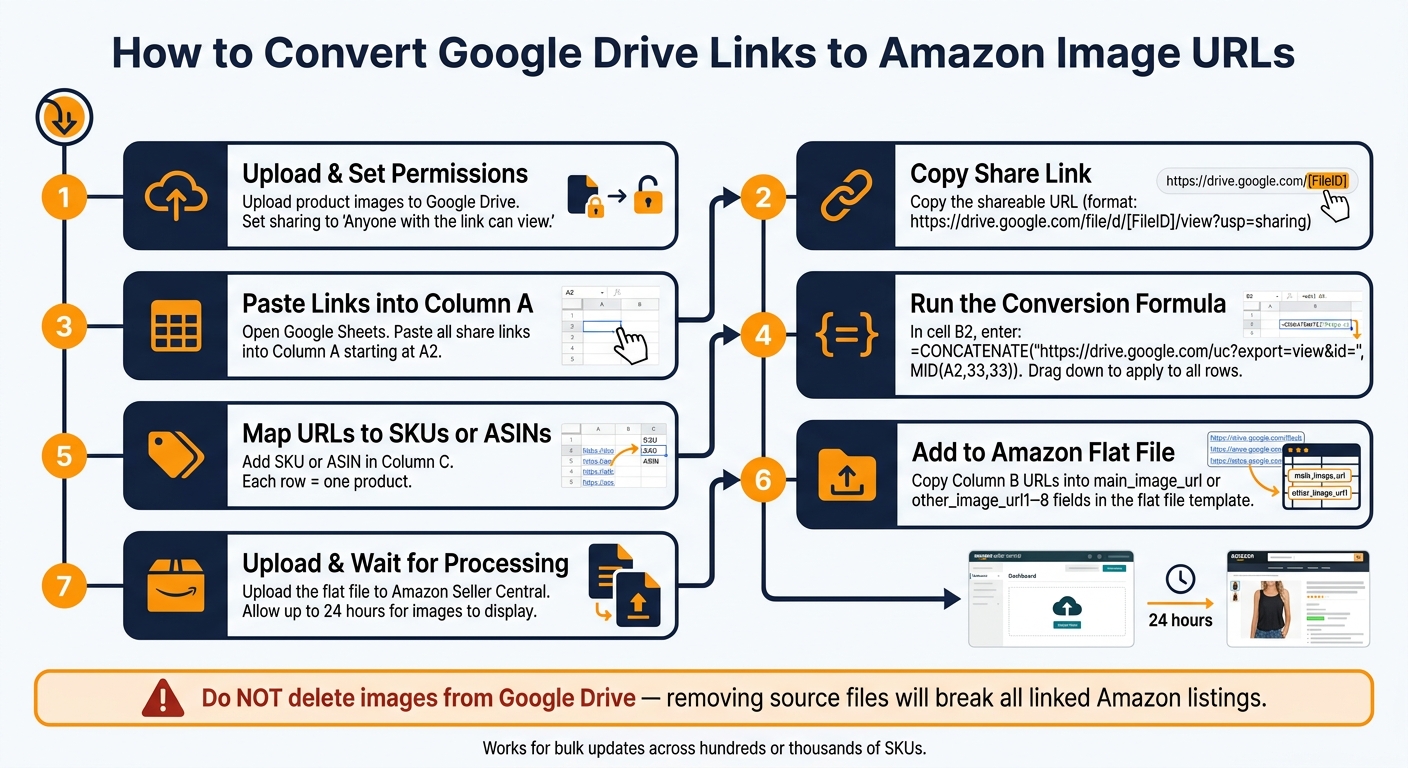
How to Convert Google Drive Links to Amazon Image URLs
Once your SKUs are verified and your images are ready, you’re all set to start generating URLs. The process involves three main steps: uploading, copying, and organizing.
Uploading Product Images to the Generator
First, upload your product images to Google Drive. It’s essential to adjust the sharing settings to "Anyone with the link can view" – this ensures Amazon’s servers can access the files. If the permissions aren’t set correctly, your images won’t display on your product listings. Once that’s done, copy each file’s share link.
Next, paste these share links into a spreadsheet (Google Sheets works great for this). Place the links in column A (starting at A2), and then use the following formula in cell B2 to convert them into direct image URLs:
=CONCATENATE("https://drive.google.com/uc?export=view&id=", MID(A2, 33, 33))
This formula extracts the unique file ID from the share link and generates a direct URL that Amazon can use. To apply the formula to multiple rows, simply drag it down through the rest of column B – this saves you from manually building each link.
Important: Google Photos links won’t work for this process. Only Google Drive links converted to the
uc?export=viewformat will be accepted by Amazon flat files.
Once your share links are converted into direct URLs, you’re ready to move on to copying and exporting them.
Copying and Exporting the Generated URLs
After generating the URLs in column B, copy them into the appropriate image fields in your Amazon flat file template. These fields might include main_image_url or other_image_url1 through other_image_url8. Before uploading the file to Seller Central, test at least one URL in a browser to make sure it displays the correct image. If the image loads properly (without prompting for a download), you’re good to proceed.
Keep in mind: Do not delete the original images from Google Drive after exporting the URLs. Removing them will break the links, rendering your images inaccessible. Also, note that Amazon’s system may take up to 24 hours to process and display the images after a successful upload.
Organizing URLs by SKU or ASIN
To ensure everything stays organized, map your URLs to their respective SKUs or ASINs in your spreadsheet. Set up the sheet so each row corresponds to a single SKU or ASIN. Use the following structure:
| Column | Contents | Purpose |
|---|---|---|
| A | Google Drive share link | Original link for the formula |
| B | Generated direct URL | URL ready to paste into the flat file |
| C | SKU or ASIN | Matches the URL to the correct product |
This layout works well whether you’re managing a small catalog or thousands of SKUs. Plus, it creates a handy reference for future updates, so you can quickly identify and replace images as needed.
How to Use Image URLs in Your Amazon Catalog
Once you’ve organized your image URLs by SKU or ASIN, it’s time to put them to work in your Amazon catalog. This setup makes it easier to handle bulk updates, streamline catalog management, and even automate repetitive tasks.
Adding Image URLs to Flat Files for Bulk Updates
Amazon flat files are a lifesaver when it comes to updating product images at scale. Instead of manually editing each listing, you can upload thousands of images in one go. Simply paste your image URLs into the appropriate columns in the flat file – like those for main images or additional image slots – and then upload the file to Seller Central. This method saves time and ensures consistency across your listings.
Updating Images Across Large Catalogs
For sellers managing large inventories, a well-organized spreadsheet is essential. By sorting and filtering your data, you can target specific product groups for updates without disrupting the rest of your catalog. A standardized SKU or file-naming system is key here. When your image URLs match your SKUs, it ensures everything aligns perfectly during bulk updates.
Using Image URLs to Support Automated Workflows
Automation takes catalog management to the next level. Incorporating image URLs into automated workflows can simplify your processes even further. For instance, you could maintain a master Google Sheet where new links are added as products are photographed. Spreadsheet formulas can then convert these links into direct URLs, ready to populate your flat file template. This method reduces manual input and minimizes errors.
Here’s a comparison of traditional methods versus an automated workflow:
| Workflow Step | Manual Method | Automated Workflow |
|---|---|---|
| Link Generation | Uploading to third-party sites one by one | Bulk conversion using spreadsheet formulas |
| Data Entry | Manually copying and pasting links | Bulk pasting of generated URL columns into flat files |
| Upload Process | Individual image uploads via Seller Central | Bulk upload of a single flat file for the entire catalog |
| Error Handling | Troubleshooting broken links manually | Automated validation with integration alerts |
For those managing extensive catalogs, tools like FlatFilePro can make the process even smoother. By directly integrating with Amazon, these tools eliminate the need to manually prepare or upload flat files.
"Integrating directly with Amazon, FlatFilePro ensures a smooth experience when uploading and managing your product images." – FlatFilePro [3]
One important note: cloud-based URLs rely on the source file remaining accessible. If an image is deleted from, say, Google Drive, the link will break on your Amazon listing [1]. To avoid this, establish a simple file retention policy to ensure your source files stay intact.
Wrapping Up: Simplify Your Workflow with the Right Image URL Tool
Handling image URLs doesn’t have to feel like a chaotic task. By using a reliable generator tool paired with a clean SKU-based naming system, you can transform a messy collection of image files into a well-organized flat file in no time. This streamlined approach not only saves time but also improves the accuracy of your listings with optimization best practices.
Consistency is key. While standardized URLs can scale seamlessly, manual copy-pasting simply can’t keep up. A dependable URL workflow ensures your listings stay intact and your images load properly. Considering Amazon’s processing time for flat file updates can take up to 24 hours [1], starting with accurate URLs helps you avoid unnecessary setbacks.
Uploading your images to Google Drive and converting them with this generator tool simplifies catalog management. It’s a straightforward method to keep your catalog organized, accurate, and prepared for bulk updates – no matter the scale.
"High-quality images are essential for Amazon listing optimization." – Shaival Choksi, YourSeller [1]
This tool ensures your images land in the right place, faster and with minimal errors.
FAQs
Why isn’t my Google Drive image link working in Amazon flat files?
Google Drive links often fail because they direct users to a preview page instead of providing a raw image file. Amazon, however, requires direct URLs that end with supported extensions like .jpg or .png.
To resolve this issue, adjust the file permissions in Google Drive to Anyone with the link can view. Then, convert the shareable link into a direct URL using a formula like this:
=CONCATENATE("https://drive.google.com/uc?export=view&id=", MID(A2, 33, 33))
This ensures the link points directly to the image file, making it compatible with Amazon’s requirements.
How do I fix a generated image URL that shows an access error or blank image?
If you’re dealing with an access error or a blank image, here’s what to do:
- Open the URL in an incognito browser to check if it loads without requiring a login. This ensures the link is publicly accessible.
- Confirm that the URL leads directly to the image file, not a folder or webpage. A direct link is essential for proper functionality.
- If the URL is invalid, delete it and upload a correct one.
For resolving ‘Invalid Image URL’ errors, FlatFilePro can help by regenerating secure and compliant links.
What happens to my Amazon images if I move or delete the file in Google Drive?
If you move or delete an image file from Google Drive, the link tied to that file will no longer work. This means the image will vanish from your Amazon listing. To prevent this, ensure that your original image files remain in their designated Google Drive folders after you’ve created and uploaded the URLs.