
Generating image URLs for Amazon listings is crucial for ensuring your product images display correctly and comply with Amazon’s strict requirements. Here’s what you need to know:
- Image URL Basics: Amazon requires direct URLs that deliver raw image files. Avoid links that redirect, require login, or expire (e.g., Google Drive‘s default links or pre-signed S3 URLs).
- Accepted File Formats: Use JPEG, PNG, TIFF, or non-animated GIF files. Unsupported formats like WebP or AVIF will be rejected.
- Image Quality: Ensure at least 1,000 pixels on the longest side, a pure white background (RGB 255, 255, 255), and file sizes under 10 MB.
- Common Issues: Broken URLs, restricted permissions, auto-converted formats, and expired links can lead to errors or suppressed listings. Following listing SEO best practices can help prevent these visibility issues.
- Hosting Options: Amazon S3 (public or private buckets) is ideal for large catalogs. For smaller catalogs, Google Drive links can work if converted to a direct URL format.
Pro Tip: Always test URLs in an incognito browser to confirm they load the raw image instantly. Tools like FlatFilePro can simplify bulk updates and ensure compliance.
HOW TO CREATE IMAGE URL FOR AMAZON FLAT FILES! QUICK AND EASY
sbb-itb-ed4fa17
Amazon’s Image URL Requirements
Before uploading images to Amazon, it’s crucial to understand their URL guidelines. Amazon’s servers fetch images directly from the URLs you provide, and if anything disrupts this process, your product images simply won’t appear. Here’s a breakdown of the essentials for preparing and generating image URLs.
Key Technical Specifications
Amazon supports four image formats: JPEG (.jpg), PNG (.png), TIFF (.tif/.tiff), and non-animated GIF (.gif). Formats like WebP or AVIF are not accepted, which can cause problems if your hosting service automatically converts images to these unsupported types [2].
For image dimensions, Amazon requires at least 1,000 pixels on the longest side to enable the zoom feature [1]. Main product images must have a pure white background with RGB values set to 255, 255, 255 [1]. Additionally, Amazon recommends keeping file sizes under 10 MB to ensure smoother processing [1]. These strict criteria highlight the importance of using direct image URLs.
Why Direct Image URLs Are Necessary
When you upload a flat file with image URLs, Amazon’s servers fetch the raw image file directly from the link. There are no browser prompts or redirects involved.
"Amazon strictly enforces image URL standards. When you include an image URL in a flat file, Amazon’s servers fetch that image directly. If the URL doesn’t return a raw image file immediately, the upload fails." – Mathias, Founder, Img.vision [2]
This means links from services like Google Drive or Dropbox often fail because they lead to a webpage, not the raw image. For bulk uploads – sometimes involving hundreds of SKUs – Amazon requires every URL to respond instantly with an HTTP 200 OK status and no redirects [3]. Hosting servers that throttle or limit requests can trigger 403 errors, affecting your entire upload batch [2]. Ensuring direct URLs is key to keeping your product images visible.
Common Mistakes to Avoid
Several common errors can disrupt the image upload process:
- Non-direct cloud links: Links from Google Drive or Dropbox often route through a web interface instead of delivering the raw file [1].
- Expired pre-signed S3 URLs: AWS S3 URLs with security tokens (
X-Amz-Security-Token,X-Amz-Expires) expire after a set time, leading to HTTP 403 "Access Denied" errors when they do [3]. - Restricted file permissions: URLs that work while logged in might fail if the files aren’t publicly accessible [2].
- Auto-converted formats: Some platforms convert JPEGs to WebP without notice, causing Amazon to reject the file and return an "Invalid URL" error (Error 4001001) [4].
- Deleted source files: If the original image is removed from your hosting provider, the URL breaks, and the image disappears from your listing [1].
To avoid these issues, test your image URLs in an incognito browser window. If the image doesn’t load instantly without requiring a login, Amazon won’t be able to fetch it either [3].
Preparing Product Images for Amazon Listings
Getting your product images right is key to avoiding listing suppression on Amazon. These tips will help you align with Amazon’s strict technical requirements, ensuring your images are ready for smooth integration.
Image Quality and Compliance Best Practices
Your main image is the first thing customers see, so it needs to meet Amazon’s standards. It must have a pure white background – even a slight deviation, like an RGB value of 254, 254, 254, can result in automatic suppression [7]. The product should occupy 85% to 100% of the image frame, showing it clearly and accurately [9].
For image dimensions, stick to 2,000–3,000 pixels on the longest side. As Alex Davidovich, CEO of Squareshot, explains:
"The sweet spot for Amazon product image dimensions falls between 2000 and 3000 pixels on the longest side." [6]
This size range activates Amazon’s zoom feature and ensures your images look sharp on high-resolution mobile screens. Considering that over 70% of Amazon traffic comes from mobile users, this detail is crucial [6]. Plus, customers who use the zoom feature are 40% to 50% more likely to make a purchase [7].
Save your images as JPEG files in sRGB color space at 72 DPI. Avoid CMYK, which is designed for printing and can cause color inconsistencies on screens [9]. Before uploading, use a color picker tool to confirm your background is pure white [7]. Remember, main images must not include text, logos, watermarks, borders, or any props unrelated to the product [8].
To ensure your images display properly on Amazon, follow this pre-upload checklist:
- Confirm RGB values for a pure white background.
- Ensure the product fills at least 85% of the frame.
- Remove any text, watermarks, or borders.
- Strip EXIF/GPS metadata from the file [8].
File Naming Conventions for Easy Mapping
Once your images meet Amazon’s quality standards, naming them correctly is the next step. Amazon uses a specific format: [Product Identifier].[Variant Code].[Extension]. For example:
SKU123.MAIN.jpgfor the main imageSKU123.PT01.jpgfor the first secondary image [5]
Use the seller_sku to link each image to its listing. This makes it easy to populate the main_image_url and other_image_url1 through other_image_url8 columns in Amazon’s flat files without errors [5]. If your product has variants, like different sizes or colors, each child SKU should have its own uniquely named image. This ensures the correct image is displayed when a customer selects a specific option [5].
How to Generate Direct Image URLs for Amazon Listings
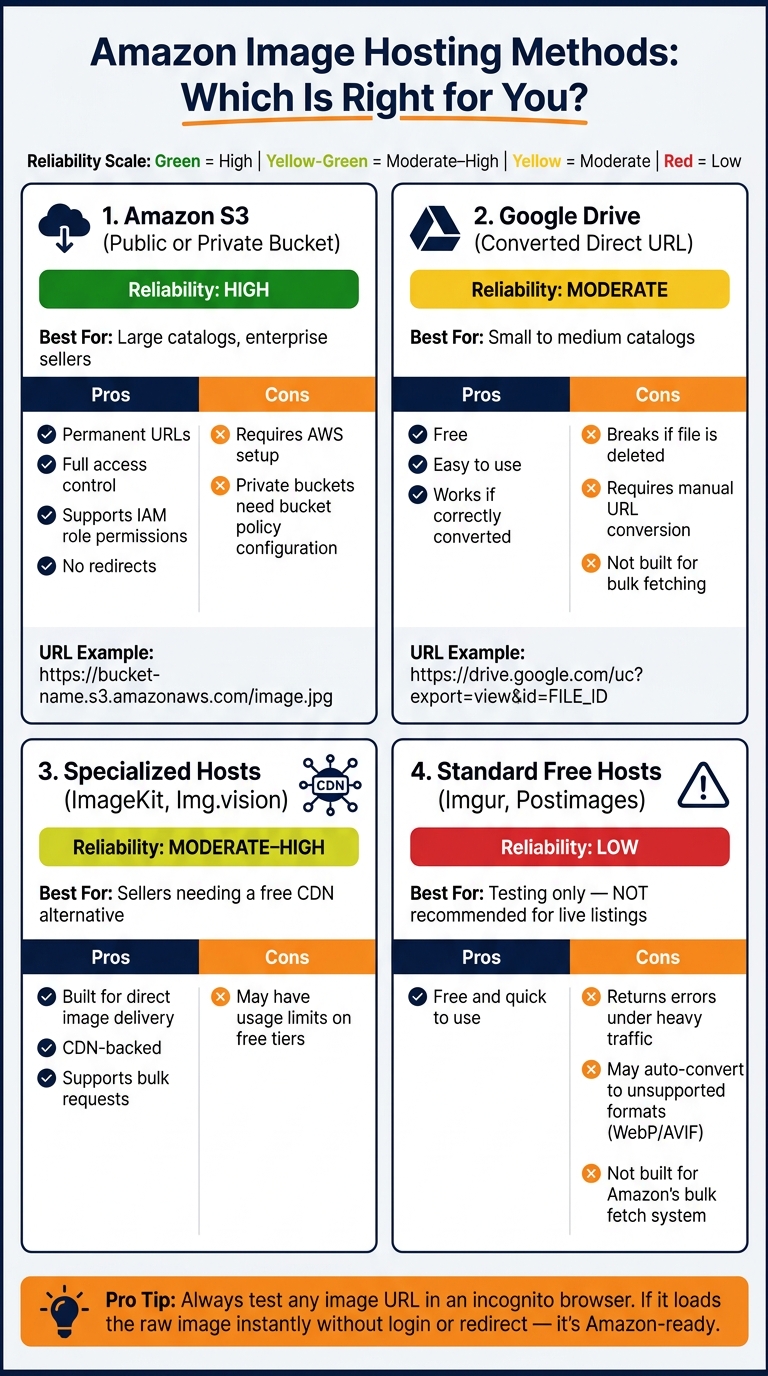
Amazon Image Hosting Methods: Reliability & Best Use Comparison
Once your images are prepped and named for seamless mapping, the next step is generating direct image URLs – a must for meeting Amazon’s strict listing guidelines. Choosing the right hosting solution is key to ensuring compliance and smooth integration with Amazon’s platform.
Using Amazon S3 or Similar Cloud Storage
Amazon S3 is a dependable choice, especially for sellers managing a large number of products. Whether you opt for a public or private bucket, the setup process varies slightly.
- Public Bucket: Upload your image, set the access level to public-read, and your direct URL will look like this:
https://bucket-name.s3.amazonaws.com/image.jpg.
This URL can be directly added to your flat file. - Private Bucket: In this case, the URL format changes to:
s3://bucket-name/object-name.jpg.
You’ll also need to modify the bucket policy to allow Amazon’s IAM role (arn:aws:iam:XXXXXXXXXXXX:role/Media-Download-Role) to performs3:GetObjectands3:ListBucketoperations [10].
One important note: Amazon treats private S3 content as unchangeable. If you need to update an image, always create a new object with a unique key [10].
For smaller catalogs, Google Drive can be a simpler alternative for hosting images.
Creating Direct Links with Google Drive
Google Drive links need to be converted into a format Amazon accepts. Here’s how:
- Right-click the image in Google Drive, select Get Link, and set it to "Anyone with the link can view."
- Extract the File ID from the sharing URL – it’s the string located between
/d/and/view. - Use this format to create a direct URL:
https://drive.google.com/uc?export=view&id=FILE_ID[1].
If you’re handling multiple SKUs, you can automate this process with a Google Sheets formula. Assuming the original link is in cell A2, use:
=CONCATENATE("https://drive.google.com/uc?export=view&id=", MID(A2, 33, 33)) [1].
Always test the generated URLs in an incognito browser to ensure they load the raw image.
"If you delete the images from Google Drive, the direct links will break, and your Amazon product images will not display correctly." – Shaival Choksi, YourSeller Agency [1]
Using Free Image Hosting Platforms
Free hosting platforms like Imgur might seem appealing but often fall short. These services can return errors under heavy traffic or convert images into formats Amazon doesn’t support. For better reliability, consider specialized platforms like ImageKit or Img.vision [2][11].
"Free image hosts are built for someone sharing a screenshot in a chat. They are not built for Amazon’s system, which fetches images in bulk, requires direct file delivery, and rejects anything with a redirect." – Mathias, Founder, Img.vision [2]
Before committing to any hosting service, test the URL in a private browser window. If it opens a webpage instead of loading the raw image, it won’t work with Amazon [2].
| Hosting Method | Reliability | Best For |
|---|---|---|
| Amazon S3 (Public/Private) | High | Large catalogs, enterprise sellers |
| Google Drive (converted URL) | Moderate | Small to medium catalogs |
| Specialized hosts (ImageKit, Img.vision) | Moderate–High | Sellers needing a free CDN alternative |
| Standard free hosts (Imgur, Postimages) | Low | Testing only |
Using and Managing Image URLs in Amazon Listings
Once you’ve prepared compliant URLs, the next step is ensuring they’re properly mapped for smooth updates to your Amazon listings. Even if your URLs are correctly formatted, placing them in the wrong fields or skipping key formatting details can lead to errors when Amazon attempts to retrieve your images.
Mapping URLs in Flat Files
Amazon’s inventory flat files provide designated columns for each image slot. The main image belongs in the main_image_url field, while additional images can be placed in fields like other_image_url1 through other_image_url8. Each of these fields requires a direct URL to function correctly.
Here’s a quick comparison of different link types and their compatibility with flat files:
| Link Type | URL Structure Example | Compatible with Flat Files? |
|---|---|---|
| Standard Google Drive Link | https://drive.google.com/file/d/1ABC.../view?usp=sharing |
No – redirects to a viewer |
| Direct Google Drive URL | https://drive.google.com/uc?export=view&id=1ABC... |
Yes – delivers raw image |
| Google Photos Link | https://photos.app.goo.gl/... |
No – not a direct image path |
After mapping the URLs to the correct columns in your flat file, save the file and upload it through Amazon Seller Central. Keep in mind, Amazon may take up to 24 hours to process these updates[1].
Managing Image Fields with FlatFilePro

For sellers managing large catalogs, tools like FlatFilePro can make updating image fields far more efficient. Manually editing hundreds – or even thousands – of SKUs in a spreadsheet is not only time-consuming but also prone to errors. FlatFilePro’s bulk edit Amazon listings for your entire catalog quickly and efficiently, with updates pushed directly to Amazon via its API.
FlatFilePro also includes a Reflection Engine, which performs nightly checks to compare your submitted data with live listings on Amazon. If an image URL fails to process or if your listing is unexpectedly altered, the tool flags the issue with a clear indicator. This makes it easy to identify and fix problems before they affect your listings.
Verifying and Troubleshooting Image URLs
Validating URLs Before Upload
Always test your image URLs in an incognito browser window before uploading. If the image loads instantly without requiring a login, redirecting, or landing on another page, you’re in the clear. Any issues here mean Amazon’s servers will face the same problems and reject the URL [3].
For a more thorough check, use a header test through your terminal. On macOS, you can run:
curl -I "your-image-url" For Windows, use the equivalent command in Command Prompt. If the response includes "HTTP/1.1 200 OK" or "HTTP/2 200", the URL is accessible to Amazon’s servers [3]. However, responses like "301 redirect" or "403 Forbidden" indicate the URL will be rejected.
Also, make sure your file extensions are correct (.jpg, .png, .tif, .gif). Incorrect extensions can lead to silent rejections [2]. These steps are essential for ensuring your image uploads go smoothly.
Confirming Listing Updates
After validating your URLs, the next step is to confirm that your updates are reflected in live listings. Download the Seller Central Processing Report post-upload to identify any SKU-specific issues. Here are some common error codes to watch for:
| Error Code | What It Means | How to Fix It |
|---|---|---|
| 300403 | Amazon’s servers couldn’t access the image URL | Use a permanent, public URL instead of a temporary or restricted one [3] |
| 4001001 | The URL is invalid, contains special characters, or uses an unsupported format | Clean the URL path and ensure the file extension is correct [4] |
| Suppressed | Listing is live but hidden from search results | Address issues like non-white backgrounds, text overlays, or resolutions below 1,000px [5] |
Even if no errors are flagged, give Amazon up to 24 hours to process the image updates [1]. If the image still doesn’t appear after that time, check the "Suppressed" filter in the Manage Inventory section of Seller Central. Tools like FlatFilePro’s Reflection Engine can also help by running nightly checks to flag any failed image uploads, saving you from manual reviews.
Fixing Common URL Issues
To ensure smooth uploads, address recurring URL issues based on the troubleshooting steps above. For example, avoid using pre-signed S3 URLs. Instead, opt for permanent object URLs like this:
https://<bucket>.s3.amazonaws.com/path/to/image.jpg "If your flat file upload fails with 300403 and mentions a very long S3 URL containing X-Amz-Security-Token, you’re using a temporary (pre-signed) S3 link. These links expire, so when Amazon later tries to fetch the image, it gets HTTP 403 Access Denied." – Mathias, Founder, Img.vision [3]
Avoid using the "Share" button in the AWS S3 console, as it generates temporary links [3].
Make sure your AWS S3 bucket permissions allow public access. Disable "Block Public Access" and set the ACL to public read. For Google Drive, ensure the sharing setting is "Anyone with the link can view" before converting the link to a direct download format. Finally, check for spaces or special characters in URLs, as these can trigger 4001001 errors [4]. By addressing these common issues, you’ll keep your image URLs reliable and ensure your Amazon listings function as intended.
Conclusion: Managing Image URLs More Efficiently with FlatFilePro
Setting up compliant image URLs for Amazon listings involves a few key steps: hosting images on a dependable platform like AWS S3, ensuring links deliver raw files directly, using the correct file formats and extensions, and validating URLs before uploading your flat file. Skipping even one of these steps could lead to Amazon rejecting your images.
For small catalogs, manual uploads might be manageable. But when you’re dealing with hundreds – or even thousands – of products, manually updating listings in Seller Central becomes a time-consuming headache. With Amazon’s strict image URL requirements, a centralized, automated solution like FlatFilePro can make a world of difference.
FlatFilePro’s bulk upload feature takes the hassle out of managing image URLs. It automates tasks like mapping and validating URLs, fixing broken links, enforcing HTTPS, and even tracking image performance. By prevalidating images to meet Amazon’s standards and offering direct API integration, it ensures faster, error-free updates to your listings. These tools work together to make your workflow smoother and more efficient.
If you’re navigating the complexities of managing image URLs for a large catalog, FlatFilePro’s Free Image Link Generator is a great place to start. It highlights how streamlined validation and URL generation can save you time and effort.
FAQs
How do I make sure my image URL is truly “direct” for Amazon?
To make sure your image URL works directly on Amazon, it needs to link straight to the raw image file and end with an extension like .jpg, .png, or .tif. The image must also be publicly accessible. Avoid using URLs that redirect, require login credentials, or lead to a webpage instead of the image file.
If you’re using cloud storage services like Google Drive, update the permissions to "Anyone with the link can view" and convert the link into a direct URL format.
Should I use a public S3 URL or a private bucket for Amazon images?
When providing image URLs for Amazon, make sure the link is publicly accessible and points directly to the raw image file. Avoid using private buckets or pre-signed URLs with security tokens, as these can result in "Access Denied" errors.
If you’re using Amazon S3, enable object-level public access for the specific image files you want to share. However, it’s important to avoid making the entire bucket public for security reasons. The URL should follow this format:
https://<bucket>.s3.amazonaws.com/path/to/image.jpg
This ensures Amazon can access the image file without any restrictions.
Why does Amazon reject some URLs even when the image opens in my browser?
When submitting image URLs to Amazon, make sure they link directly to an image file. Common problems arise when URLs point to entire webpages, private cloud folders, or files that aren’t accessible to the public. To avoid issues, ensure the URL is:
- A direct, public link to the image file.
- Secure (meets SSL requirements).
- Stable (doesn’t time out).
Also, steer clear of using file-sharing services unless the link is specifically formatted for direct image access.