
If you’re an Amazon seller, providing direct image URLs when you bulk upload your products on Amazon is non-negotiable. Amazon pulls images from these URLs to display them on your product pages, and any issues with the URLs – like redirects or expired links – can lead to suppressed listings or invisible products.
Here’s what you need to know:
- Amazon requires direct, publicly accessible URLs for JPEG, PNG, TIFF, or non-animated GIF images.
- Links from platforms like Google Drive or Dropbox often fail due to authentication or redirects.
- Stable hosting services, like Img.vision, ensure your URLs remain functional over time.
- Organizing your images with clear file names and testing URLs in incognito mode can prevent upload errors.
- Amazon’s system may take up to 24 hours to process image updates, so plan ahead.
Key takeaway: Use a reliable hosting service that delivers raw, stable URLs to keep your listings live and error-free.
HOW TO CREATE IMAGE URL FOR AMAZON FLAT FILES! QUICK AND EASY
sbb-itb-ed4fa17
What Makes an Image URL Work on Amazon
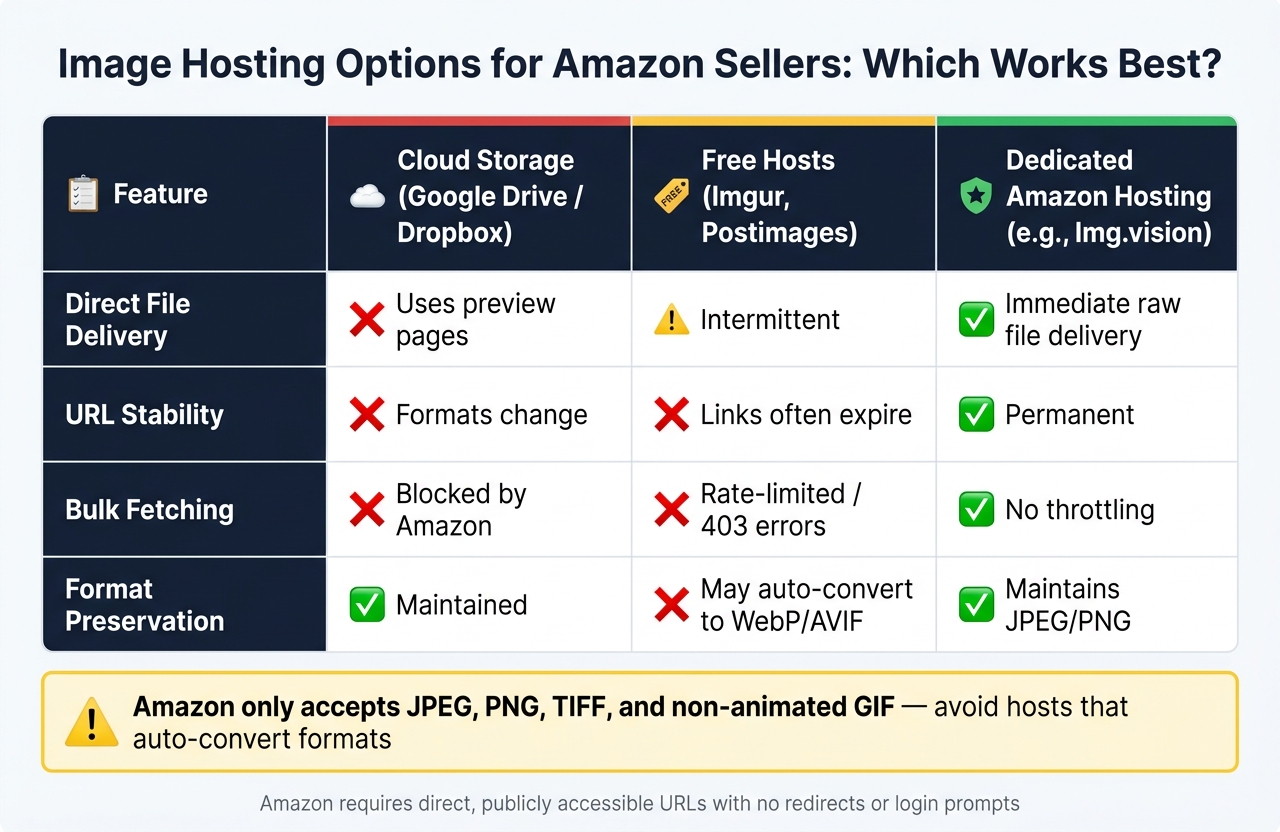
Best Image Hosting Options for Amazon Sellers: Side-by-Side Comparison
To manage your Amazon catalog efficiently, it’s crucial to understand the rules for image URLs. Following these guidelines ensures smooth uploads and avoids unnecessary errors.
Amazon’s Image Requirements at a Glance
Amazon has strict rules for images. Only JPEG, PNG, TIFF, and non-animated GIF formats are accepted. Other formats, like WebP or AVIF, will be rejected. Images must measure at least 1,000 pixels on the longest side, and the file size should not exceed 10 MB [3]. Additionally, main product images cannot include watermarks, text overlays, or decorative borders. Once your images meet these criteria, the next step is ensuring the URLs are direct and accessible.
Why URLs Must Be Direct and Publicly Accessible
Amazon’s system fetches the image URLs listed in your flat file automatically. For this to work, each URL must return a raw image file instantly. There can’t be any login requirements, preview pages, or redirects.
"Amazon’s image processing system is strict about what it will accept. When you include an image URL in a flat file, Amazon’s servers fetch that image directly. If the URL doesn’t return a raw image file immediately, the upload fails." – Mathias, Founder of Img.vision [1]
Choosing a Hosting Service That Keeps URLs Stable
It’s not enough for image URLs to be accessible; they must remain stable over time. Hosting services that rename files, add expiring tokens, or alter URL structures can cause your images to disappear unexpectedly [1]. This can be a major issue for sellers managing large product catalogs.
Here’s a comparison of common hosting options and how they perform for Amazon flat file uploads:
| Feature | Cloud Storage (Google Drive, Dropbox) | Free Hosts (Imgur, Postimages) | Dedicated Amazon Hosting (e.g., Img.vision) |
|---|---|---|---|
| Direct File Delivery | ❌ Uses preview pages | Intermittent | ✅ Immediate raw file delivery |
| URL Stability | ❌ Formats change | ❌ Links often expire | ✅ Permanent |
| Bulk Fetching | ❌ Blocked by Amazon | ❌ Rate-limited / 403 errors | ✅ No throttling |
| Format Preservation | ✅ | ❌ May auto-convert | ✅ Maintains JPEG/PNG |
One feature that’s often overlooked is having a predictable URL structure. For example, a URL like https://d.imgvision.net/drive-name/filename.jpg makes it easy to generate multiple URLs using a spreadsheet formula. This is especially helpful when managing large catalogs or products with multiple variations. Reliable hosting with stable URLs ensures your listings stay live and error-free. It’s a small detail that can have a big impact on your catalog management.
How to Prepare Images Before Generating URLs
Getting your images ready before generating URLs can save you from a lot of future headaches. A few simple steps can help you avoid failed uploads, suppressed listings, and hours of troubleshooting down the line.
Naming and Organizing Image Files
Start by creating a consistent naming system for your image files. Stick to simple, clear filenames – avoid spaces or special characters. This makes it easier to bulk-generate URLs using spreadsheet formulas. For example, if your files follow a pattern like B08XYZ123_MAIN.jpg or B08XYZ123_PT01.jpg, you can use a formula such as:
="https://d.imgvision.net/your-drive-name/" & A2
In this case, A2 refers to the cell where your filenames are listed. This approach allows you to instantly generate URLs for multiple SKUs. Once your filenames are organized and URLs are generated, double-check that each image aligns with Amazon listing best practices.
Checking Image Quality and Resolution
Before uploading, ensure every image meets Amazon’s specific requirements. Here’s a quick reference table:
| Requirement | Amazon Standard |
|---|---|
| Minimum Resolution | 1,000 x 1,000 pixels |
| Main Image Background | Pure white (RGB 255, 255, 255) |
| Max File Size | 10 MB (recommended) |
| Accepted Formats | JPEG, PNG, TIFF, non-animated GIF (avoid hosts that auto-convert formats) |
| Prohibited Content | Text, watermarks, or inset images |
"Hosts that auto-convert images to WebP or AVIF cause rejections, because Amazon only accepts JPEG, PNG, TIFF, and non-animated GIF." – Img.vision [1]
Make sure your hosting service delivers the original file without any changes to the format. Once you’ve verified the quality and format, test the URLs to confirm they work as expected.
Testing Images for Direct Browser Access
Testing the URLs is a crucial step to ensure your images will display correctly on Amazon. After uploading your images, paste each URL into a private or incognito browser window to verify that the link loads the raw image file directly.
"Dropbox and Google Drive are worse for flat files specifically. Dropbox serves shared links through a webpage, not as raw image files, so Amazon’s servers can’t use them." – Mathias, Founder of Img.vision [1]
This quick test only takes a few seconds per URL and can help you avoid silent upload failures that leave your listings without images. Proper preparation now ensures a smoother process when it’s time to upload your catalog. If you are just starting out, follow our guide on how to create a new listing on Amazon.
How to Generate and Check Image URLs
Once your images are optimized and organized, the next step is creating URLs that meet Amazon’s requirements.
Uploading Images and Retrieving Direct URLs
After organizing and naming your images, upload them to your hosting platform. From there, retrieve direct URLs for each file. Amazon requires that the first request to the URL delivers the raw image file – no redirects, login prompts, or intermediary pages allowed.
A hosting service with a stable URL structure can make this process easier. For bulk URL creation, you can use a spreadsheet formula to map filenames to a specific domain. This is especially useful when dealing with multiple child ASINs and their corresponding images.
Once URLs are generated, ensure they meet Amazon’s strict standards before proceeding.
Verifying URL Compatibility with Amazon
Just because a URL works in your browser doesn’t guarantee it’s Amazon-compliant. Use these steps to confirm compatibility:
- Incognito Test: Open the URL in a private or incognito browser window. The image should load immediately without requiring a login, redirecting, or showing a preview page. This ensures the URL points directly to the raw image file.
- Header Check: Use a terminal command like
curl -I "your-url-here"to inspect the URL’s response. A compliant URL will return an "HTTP/1.1 200 OK" status. If you see redirects or errors, the link may not work as intended. - Parameter Scan: Look for temporary parameters in the URL, such as
X-Amz-Security-Token,X-Amz-Expires, orX-Amz-Signature. These indicate a pre-signed URL, which may expire and cause Amazon to fail when fetching the image.
Common URL Issues and Solutions
Here are some frequent problems with image URLs in Amazon flat files and how to address them:
- Expired S3 Links: URLs generated via the AWS console’s "Share" option often include temporary parameters and expiration timers, leading to HTTP 403 errors. To fix this, set the object’s ACL to Public (Read access for Everyone) and use the permanent URL, such as:
https://<bucket>.s3.amazonaws.com/image.jpg. - Rate-Limiting on Free Hosting: Free hosting platforms may throttle requests, causing HTTP 403 errors or dropped images. To avoid this, switch to a hosting service designed for high-volume access.
- Links from File-Sharing Services: URLs from services like Dropbox or Google Drive often point to a viewer interface instead of the raw image. For example, a standard Google Drive link won’t work for Amazon. To make it work, convert the link into a direct format like:
https://drive.google.com/uc?export=view&id=FILE_ID
However, even with this adjustment, these services may not be reliable for large-scale use.
Once you’ve verified your URLs, you’re ready to add them to your Amazon product listings via bulk upload.
Adding Image URLs to Amazon Product Listings
Getting your image URLs right is essential for a smooth bulk upload process. A small misstep here can lead to errors, so precision is key.
Which Flat File Fields to Use for Image URLs
Amazon’s product listing files include specific fields for image URLs. Here’s how to organize them:
- Use the
main_image_urlcolumn for your primary product image. This image must have a white background and no added text or watermarks. - For additional images, use the columns labeled
other_image_url1throughother_image_url8. These images must follow Amazon’s requirement of being direct URLs to the raw file and publicly accessible.
| Image Type | Flat File Column | Key Requirement |
|---|---|---|
| Main Image | main_image_url |
White background; no text or watermarks |
| Additional Image 1 | other_image_url1 |
Minimum 1,000px on the longest side |
| Additional Images 2–8 | other_image_url2 to other_image_url8 |
Direct link to the raw file; publicly accessible |
Make sure that each image is matched to the correct ASIN and variation for accurate uploads.
Matching Image URLs to ASINs and Variations
Every child SKU in your catalog needs its own image assignments. For example, if you’re listing a shirt in 8 colors and 30 sizes, you’ll have 240 child SKUs. With up to 8 image slots per SKU, this could mean managing up to 1,920 image assignments for a single product family [3].
To simplify this process, use spreadsheet formulas to automate the generation of image URLs. This reduces the chance of manual errors and speeds up the process for larger catalogs [1].
Once the URLs are correctly assigned, double-check each one before uploading your listing file.
Verifying Active Image Display
After uploading your product listing file via Seller Central (Catalog → Add Products via Upload), download the Processing Report. This report will highlight common flat file errors like "Invalid image URL format" or "Broken image link", helping you identify the exact rows that need fixing [2].
Keep in mind that Amazon might take up to 24 hours to display updated images [2]. If an image doesn’t appear after this time, double-check the URL formatting and ensure your hosting service allows direct, unauthenticated access to the files.
Final Checks and Fixing Upload Issues
After generating and assigning your image URLs, it’s important to complete a few final steps to ensure your catalog upload goes smoothly.
Confirming Images Display Correctly on Amazon
Once your flat file is uploaded, navigate to Catalog → Add Products via Upload in Seller Central and open the Monitor Upload Status tab. From there, download the Processing Report for your upload.
This report organizes results into three categories:
- Successfully processed rows: These listings are live on Amazon.
- Warnings: Listings are live but may have minor issues, often related to optional fields like secondary image URLs.
- Errors: These rows were not processed at all [5].
Pay close attention to warnings, as they might signal problems that could impact your images. Smaller files typically process in 15–30 minutes, but larger uploads can take longer. Keep in mind, Amazon might take up to 24 hours to fully update images.
Common Upload Errors, Causes, and Fixes
Even with a well-prepared flat file, issues can arise. Here’s a quick guide to common upload errors, their causes, and how to resolve them:
| Error / Symptom | Common Cause | Fix |
|---|---|---|
| Error 300403 | Expired S3 pre-signed URL or private file permissions | Use permanent public URLs and ensure S3 object ACL is set to "Public" [4] |
| HTTP 403 / 410 | Rate limiting or redirection errors | Switch to a direct image hosting service [1] [3] |
| Silent image drop | Incorrect ZIP naming or unsupported format | Ensure file names follow ASIN.MAIN.jpg format and use JPEG or PNG [1] [3] |
| Missing Required Attribute | Fields like brand_name left blank |
Check the "Data Definitions" tab and complete all required fields [5] |
| Encoding issues | File saved as .csv or edited with a text editor | Re-save the file as .xlsx using Excel or Google Sheets [5] |
| Variant errors | Incorrect parent/child SKU relationships | Remove price/quantity from parent rows and verify child SKUs reference the parent SKU [5] |
"Amazon’s processing reports will flag some of these errors, but not always clearly. A flat file can partially succeed, with some images accepted and others silently dropped." – Mathias, Founder, Img.vision [1]
If you need to update image URLs without altering other listing data, use a partial update feed. This approach minimizes the risk of overwriting critical details like prices or titles [5].
Keeping Image URLs Accessible Over Time
Ensuring your image URLs remain accessible is just as important as the initial upload. Flat files are static, meaning the image URL you upload will stay in Amazon’s system until it’s replaced with a new one [5]. If the hosted file is moved, deleted, or permissions are changed, the image URL could fail, leaving your product image missing.
To prevent this, audit your image URLs every 1–3 months. Open each URL in an incognito browser window to confirm it loads without requiring a login. If you see a login page or an error, Amazon’s servers will encounter the same issue, which can lead to your product image disappearing from the listing without notice in Seller Central [2].
For AWS S3 hosting, you can use the command curl -I "YOUR_URL" to check for an HTTP 200 OK status without redirects [4]. Regular URL checks ensure your product images remain visible and accessible to customers over time.
Conclusion: A Simpler Way to Manage Image URLs on Amazon
Simplifying Amazon image URL management comes down to focusing on three key elements: reliable hosting, direct URLs, and clean flat files.
First, prioritize stable image hosting. Free hosts or generic cloud storage links may work for casual sharing, but they often fall short when dealing with Amazon’s bulk upload requirements. Amazon needs direct file access without any redirects, so investing in dependable hosting is essential to avoid unnecessary headaches.
A solid hosting setup also streamlines the process. With a simple spreadsheet formula, you can quickly generate live URLs in bulk [1]. This allows you to verify each URL and seamlessly insert them into the appropriate flat file fields.
Don’t overlook regular maintenance. While image URLs don’t expire, hosting configurations can change unexpectedly. A file might get moved, permissions can be updated, or cloud storage policies might shift – any of these can break your listing’s main image without triggering an alert in Seller Central. Performing monthly incognito audits helps catch these issues early, ensuring your URLs remain functional.
FAQs
How do I know if an image URL is truly “direct” for Amazon?
To make sure an image URL is a direct link for Amazon, check that it leads straight to the raw image file, not a webpage or cloud storage viewer. A proper URL should meet these criteria: it must be publicly accessible, use HTTPS, and end with a supported file extension like .jpg, .png, .tif, or .gif. A quick way to verify is by opening the URL in an incognito browser tab. If it shows just the image – without any additional interface – it’s good to go.
Why do my images disappear after they were working before?
Images might vanish for several reasons, including the hosting service deleting files, altering URLs, or limiting access. Temporary links provided by third-party hosts are particularly vulnerable – they can expire or hit rate limits, disrupting the connection. To avoid issues, make sure your images follow Amazon’s guidelines, as non-compliance can lead to listing suppression. Additionally, double-check your flat file data. Missing fields or incorrect URL sequences can stop images from showing, even if the upload was successful.
What’s the safest way to update images without changing other listing data?
The best way to update images without altering other listing details is by using the Partial Update feature when uploading your flat file. Save your spreadsheet as a .txt (Tab delimited) file, and in the Update/Delete column, choose the Partial Update option. This method ensures that only the image URL fields are modified, while critical information like descriptions and pricing remains unchanged. Tools like FlatFilePro’s editor make these updates even easier and more secure.