
Uploading product images to Amazon in bulk can be a hassle. Amazon requires direct URLs for images, making the process tedious and error-prone. Sellers often face issues like broken links, incorrect formats, or rejected uploads. A free Image URL Generator simplifies this by creating Amazon-compliant image URLs in seconds, saving time and reducing errors.
Key Highlights:
- Why It’s Needed: Amazon only accepts direct image URLs, not files, and manual methods are slow and unreliable.
- How It Works: Upload your product images, generate URLs, and verify their compatibility with Amazon’s requirements.
- Benefits:
- Faster bulk uploads
- Fewer formatting errors
- Stable URLs for long-term use
- Tips for Success:
- Use accepted formats (JPEG, PNG, etc.).
- Host images on reliable platforms (e.g., AWS S3).
- Test URLs before uploading to avoid issues.
This tool streamlines image management, helping you focus on growing your Amazon business efficiently.
What Is an Image URL Generator and Why Do Amazon Sellers Need One?
Understanding Image URLs for Amazon
An image URL is simply a direct link to an online image file. If you’re uploading products in bulk to Amazon using flat files, you can’t attach image files directly to the spreadsheet. Instead, Amazon requires a direct URL for each image – essentially, a link that allows their system to access and display the image on your product listing.
Not all links will work for Amazon. For instance, links from cloud storage platforms like Google Drive often lack the correct format. To make those links compatible, you’d need to convert them into a direct link, such as https://drive.google.com/uc?export=view&id=FILE_ID. Without this proper formatting, Amazon won’t accept the link. Additionally, links from platforms like Google Photos are entirely incompatible [1].
This is where an Image URL Generator can simplify things, turning what could be a tedious process into something quick and efficient.
Benefits of Using an Image URL Generator
The challenges of manually creating Amazon-compatible URLs make an automated tool incredibly useful. With an Image URL Generator, you can skip the lengthy process of downloading images, uploading them to a hosting service, and manually copying each link into your flat file. For sellers managing hundreds of SKUs, this traditional method can be painfully slow and prone to mistakes.
An Image URL Generator automates the process, converting cloud storage links into Amazon-ready URLs in seconds. Shaival Choksi, Founder of YourSeller Agency, highlights the advantages:
"By using Google Drive links, sellers can: Save time on bulk image uploads, reduce dependency on third-party services, [and] minimize errors in the Amazon flat file image upload process." [1]
Beyond saving time, these tools significantly improve accuracy. Manual methods often lead to formatting errors, which can cause flat file rejections. Automated generators eliminate these risks by consistently producing correctly formatted URLs. Here’s a comparison of the two approaches:
| Feature | Manual Third-Party Upload | Image URL Generator |
|---|---|---|
| Process | Download → upload to host → copy link | Direct conversion from cloud storage |
| Speed | Slow; one image at a time | Fast; bulk generation |
| Reliability | Prone to broken links | Stable as long as the cloud file exists |
| Error Rate | High due to manual entry | Low; automated formatting [1] |
sbb-itb-ed4fa17
How to Create Amazon Image URLs for Flat Files Quickly | Amazon FBA for Beginners
How to Use the Free Image URL Generator Tool
How to Generate Amazon-Ready Image URLs in 3 Steps
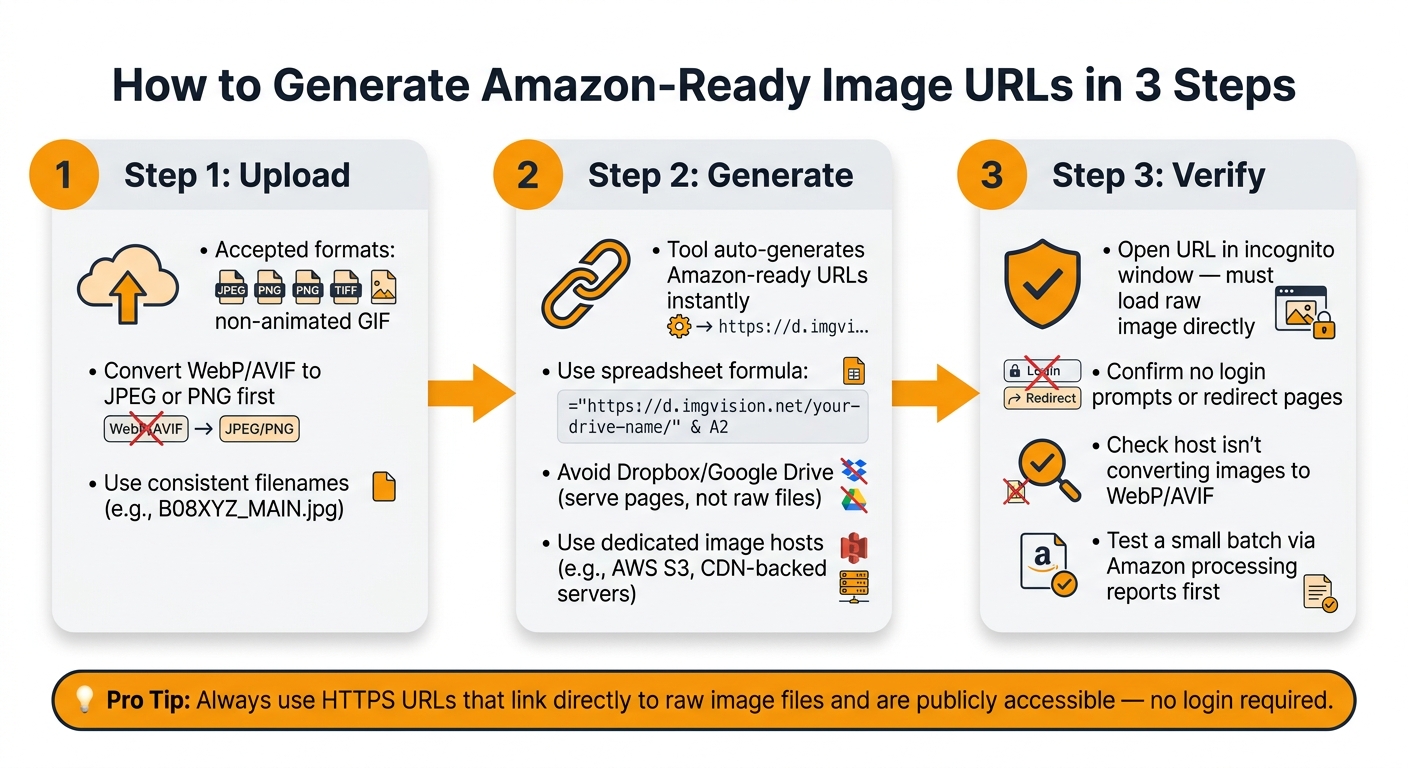
This tool simplifies creating Amazon-ready image URLs in just three steps: upload, generate, and verify. Here’s how to make the most of it.
Step 1: Upload Your Product Image
Start by uploading your product images, making sure they meet Amazon’s format requirements. Accepted formats include JPEG, PNG, TIFF, or non-animated GIF. If your images are in formats like WebP or AVIF, convert them to JPEG or PNG first – Amazon won’t accept unsupported types.
For bulk URL generation, keep your filenames consistent and descriptive. Use clear naming conventions like B08XYZ_MAIN.jpg or B08XYZ_PT01.jpg. This organization allows for easy mapping and automation through spreadsheet formulas.
Step 2: Generate and Copy the Image URL
After uploading your images to a dedicated hosting platform, the tool will generate URLs instantly. To streamline the process, place your filenames in column A of a spreadsheet and use this formula:
="https://d.imgvision.net/your-drive-name/" & A2
This approach ensures Amazon-ready URLs are created quickly and efficiently.
One important distinction to note: not all hosting services work the same. As Mathias, Founder of Img.vision, puts it:
"Dropbox and Google Drive are worse for flat files specifically. Dropbox serves shared links through a webpage, not as raw image files, so Amazon’s servers can’t use them." [2]
Using a dedicated image host ensures the URL delivers the raw file directly, avoiding complications during upload.
Step 3: Check the URL Format
Before uploading your images to Amazon, verify each URL to avoid processing errors. Open the URL in an incognito window to confirm it loads the raw image directly, without any additional interface or login prompts.
Also, double-check that your hosting service isn’t converting your images to WebP or AVIF behind the scenes. This is a common issue with some free hosting services and can lead to Amazon rejecting your images despite the URL appearing functional.
To avoid surprises, test a small batch of URLs using Amazon’s processing reports before uploading your entire catalog. This helps identify any compatibility issues early, saving time and effort in the long run.
How to Add Image URLs to Amazon Flat Files
Once you’ve verified your Amazon-ready image URLs, the next step is to place them into the correct fields of your Amazon flat file template. This ensures each product listing displays the right image while adhering to Amazon’s image guidelines. Here’s how to do it correctly.
Finding Image Fields in the Template
Amazon flat file templates vary by category, so always download the most up-to-date version from Seller Central. Using an older template can lead to issues like missing fields or incorrect formatting, as Amazon frequently updates its requirements.
In the template, you’ll find specific fields for images, including:
| Field Name | Purpose |
|---|---|
main_image_url |
Displays the primary product image in search results. |
other_image_url1 – other_image_url8 |
Allows up to 8 secondary images, such as lifestyle or detailed shots. |
The main_image_url field must meet strict standards: the image should have a pure white background (RGB 255, 255, 255), be free of text overlays or watermarks, and have at least 1,000 pixels on its longest side to enable Amazon’s zoom feature [4].
Once you’ve identified these fields, carefully input your image URLs into the appropriate columns.
Pasting URLs into the Right Columns
For individual listings, you can manually paste the URLs into the designated fields. If you’re managing a larger inventory, consider using spreadsheet formulas to streamline the process of generating and inserting URLs.
For variation listings, each child SKU requires its own unique image URL. Additionally, ensure the [variation_theme](https://flatfile.pro/ffp/amazon-variation-themes/) field (e.g., SizeColor or Color) is correctly configured. Even if your image URLs are valid, they won’t display properly if the variation relationships are misaligned [3][4].
Saving and Preparing the File for Upload
Double-check that all URLs use HTTPS, link directly to raw image files, and are publicly accessible. When your file is ready, save it as a tab-delimited .txt file, as required by Seller Central. Once uploaded, Amazon may take up to 24 hours to process your updates and display the images [1].
Meeting Amazon’s Image Requirements
Once you’ve created Amazon-ready URLs, the next step is ensuring your images meet Amazon’s design and technical standards. Without this, your listings could face suppression, even if your URLs are perfect.
Requirements for Main and Secondary Images
The main image has the strictest set of rules. It must feature a pure white background (RGB 255, 255, 255) and the product should occupy 85% to 100% of the frame. Text, logos, watermarks, props, or accessories not included in the purchase are strictly prohibited. Non-compliance with these rules can result in suppressed listings.
Amazon requires a minimum resolution of 1,000 pixels, but images between 1,600 and 3,000 pixels perform better, especially on mobile devices, which account for over 70% of Amazon’s traffic [5]. Alex Davidovich, CEO of Squareshot, emphasizes:
"The sweet spot for Amazon product image dimensions falls between 2000 and 3000 pixels on the longest side." [5]
For secondary images, you have more room to be creative. These images can include lifestyle shots, infographics, colored backgrounds, and text overlays. You can upload up to eight additional images beyond the main one. Listings with seven or more high-quality images see a 30% higher conversion rate compared to those with fewer [6]. Each type of image contributes its own boost: lifestyle images increase conversions by 18%, infographics by 8%, and detailed close-ups by 6% [7].
| Requirement | Main Image | Secondary Images |
|---|---|---|
| Background | Pure white (RGB 255, 255, 255) | Any (lifestyle/colored allowed) |
| Fill Percentage | 85%–100% of frame | No strict percentage |
| Text/Logos | Prohibited | Allowed (e.g., infographics, features) |
| Props | Prohibited | Allowed (for context/scale) |
| Quantity | 1 (required) | Up to 8 (recommended) |
Amazon accepts JPEG files (preferred), along with PNG, TIFF, and non-animated GIFs. Files should be under 10 MB and use the sRGB color space.
Common Image Upload Problems and How to Fix Them
Even if your images meet Amazon’s standards, upload issues can still occur. The most common problems include inaccessible URLs, incorrect file formats, and naming errors.
- Inaccessible URLs: URLs must use HTTPS, link directly to
.jpgfiles, and be publicly accessible without requiring a login. Avoid using platforms like Google Drive or Dropbox, as these often generate 403 or 410 errors when Amazon’s servers attempt to fetch the image [3]. Reliable hosting options include AWS S3 or any CDN-backed web server that ensures permanent, public access. - Incorrect File Formats: Files must adhere to Amazon’s accepted formats (e.g., JPEG, PNG) and stay within the size and color space requirements.
- Naming Errors: For ZIP uploads, files should follow the naming convention
[ASIN].[ImageType].[extension](e.g.,B08XYZ1234.MAIN.jpg). Incorrect naming can result in skipped files, leaving your listings without images [3]. If you’re working in Excel, format URL columns as Text to prevent auto-formatting errors.
To spot and resolve issues after uploading, use the "Fix Your Products" page or apply the Suppressed filter in your Manage Inventory dashboard. These tools highlight image-related errors that may not appear in standard processing reports. Always review error reports after uploads to catch and address any problems promptly.
Uploading and Verifying Your Amazon Listings
Once you’ve generated Amazon-ready image URLs and added them to your flat file, the next step is ensuring your listings upload smoothly. Here’s how you can streamline the process and avoid common pitfalls.
Submitting the Completed Flat File
Log into Seller Central, navigate to Inventory > Add Products via Upload, and submit your finalized flat file. Amazon supports uploads of up to 50,000 rows per submission [4], making it efficient for even large product catalogs.
Be sure to use the latest template available in Seller Central. As Binu Mathew, CEO at itmarkerz technologies, points out:
"A feed with missing required fields gets listings suppressed. A feed with invalid GTINs gets listings rejected or matched to the wrong ASIN." [4]
After submission, monitor your processing status to catch and address errors quickly.
Checking Processing Status and Error Reports
Amazon typically generates a processing report within 15–30 minutes. Review this report carefully for common flat file error codes like 403 and 410 [4]. If some listings are missing, go to Inventory > Manage Inventory and use the Suppressed filter to identify products that failed quietly. For listings with missing required data, the Fix Your Products page in Seller Central will highlight what needs to be corrected [4].
Confirming Images on Live Listings
After resolving any errors, confirm that your listings display images correctly. Once you receive a clean processing report, verify each product page, including all child SKUs, to ensure the images appear as intended [3].
If an image isn’t showing, double-check that its URL is publicly accessible. Jamin Mahmood-Wiebe, Founder of Flat Magic, offers this caution:
"Some sellers report success for weeks, followed by sudden failures in their flat file processing reports." [3]
To avoid such issues, consider hosting your images on a reliable platform like AWS S3 or a CDN-backed server. This ensures your URLs remain stable and reduces the risk of unexpected failures [3].
Conclusion: Better Image Management for Amazon Sellers
Handling product images at scale doesn’t have to slow down your catalog workflow. By using a dedicated image URL generator, you can automate the process and gain access to permanent, direct URLs that stay active indefinitely. No more worrying about expiry dates, redirects, or authentication hurdles that could disrupt Amazon’s ability to access your images [2].
The benefits are clear. A predictable URL structure allows you to map hundreds of SKUs in seconds with a simple spreadsheet formula, replacing the tedious task of manually copying and pasting links. This eliminates the need for repeated re-uploads across your flat file or feed [2].
Another game-changer? The ability to archive seasonal or discontinued product images without changing their original URLs. This keeps your flat file mappings intact, saving you the hassle of reworking them when relisting products later. For sellers with varied product lines, this feature is a quiet but critical advantage [2].
For high-volume sellers and agencies, the tool doesn’t just simplify uploads – it also lets you test its compatibility with your marketplace setup through a free plan. Whether you’re managing complex variation listings or juggling multiple accounts, this trial provides a low-risk way to see how seamlessly it integrates into your workflow [2].
FAQs
What makes an image URL “Amazon-compliant”?
An image URL that complies with Amazon’s requirements must link directly to the actual image file, not to a web viewer or a cloud-sharing page. The URL must use HTTPS and end with one of these approved file extensions: .jpg, .png, .tif, or .gif.
Additionally, the image itself must meet Amazon’s quality standards, which include:
- A pure white background (RGB: 255, 255, 255).
- A resolution of at least 1,000 pixels on the longest side.
- No added text, logos, or watermarks.
- The product should occupy 85% of the frame.
These guidelines ensure the image is clear, professional, and suitable for Amazon’s platform.
Why do my image URLs work in a browser but fail in Amazon flat files?
When uploading images for Amazon, it’s crucial to provide direct access to the raw file rather than a preview page. Make sure your links:
- Point directly to the image file (not a preview or webpage).
- Are publicly accessible and end with valid extensions like .jpg, .jpeg, .png, or .gif.
- Use the https protocol for secure access.
- Have permissions set to "Anyone with the link can view" to prevent access issues.
This ensures Amazon can properly retrieve and display your images without any errors.
How can I keep image URLs stable long-term without broken links?
To keep your image URLs stable and avoid broken links, it’s crucial to ensure that the original image files stay in their hosting source. If an image is deleted or relocated, the link will break, and the image will vanish from your Amazon listing.
For a more dependable way to manage your assets, consider using FlatFilePro. Its Reflection Engine performs nightly scans to detect broken links or other issues, giving you alerts before they can affect your listings.