
Extracting image URLs from Amazon listings can be a tedious task, especially if you manage hundreds of products. FlatFilePro’s free Image Link Tool simplifies this process by automating URL extraction. Just input your ASINs or product URLs, and the tool retrieves all image links for you in seconds. This is perfect for sellers who need to update large catalogs, fix missing images, or maintain consistency across multiple marketplaces.
Key Features:
- Bulk Processing: Extract URLs for hundreds or thousands of listings at once.
- CSV Integration: Upload ASINs via CSV for seamless catalog updates.
- High-Resolution Images: Automatically gathers URLs with proper formatting for Amazon standards.
Practical Uses:
- Update product images for seasonal campaigns.
- Fix missing or incomplete image galleries.
- Ensure consistent visuals across marketplaces like Amazon UK or Canada.
This tool saves time, reduces manual work, and ensures your product listings meet Amazon’s image requirements.
Why Use FlatFilePro‘s Image Link Tool

Skip Manual URL Extraction
Extracting URLs manually can eat up a lot of time. Searching, opening, and copying each link is manageable for a few listings, but when you’re dealing with hundreds, it’s a nightmare [2].
FlatFilePro’s Image Link Tool takes care of the entire process for you. Instead of clicking through individual product pages, you just input your ASINs and get all the image URLs in one go. Tools like this can save hours of tedious work every week [1]. Plus, it allows you to update multiple listings at once, cutting out the need for repetitive data entry [1]. The automation it offers easily scales to handle bulk catalog management.
Built for Bulk Catalog Management
This tool is specifically designed to handle large-scale catalogs with ease. What used to take days – extracting image URLs for hundreds or thousands of products – now takes just minutes.
Need to update images across dozens of products at the same time? The tool’s bulk processing feature has you covered. It integrates with your inventory files, letting you download the URLs and use them wherever they’re needed. Whether you’re refreshing images for a seasonal promotion or fixing missing ones across your listings, this tool makes the process simple and quick. It also works seamlessly with other FlatFilePro features, enhancing your overall workflow.
Works with Other FlatFilePro Features
The Image Link Tool is fully compatible with FlatFilePro’s Reflecting Panel and Variations Manager [1]. The Reflecting Panel uses visual cues like red X’s for issues and green checkmarks for correct listings, so you can immediately spot and fix missing or incorrect images [1].
For managing variation families, the tool pairs perfectly with the Variations Manager. Updates that could take hours can now be completed in minutes, with a success rate of 95% [1]. These integrations make updating images across your catalog faster and more efficient, saving both time and effort.
sbb-itb-ed4fa17
Create Image URL For Amazon Flipkart in Bulk | Bulk Image Link Generator | Image URL Kaise Banaye
How to Extract Image URLs
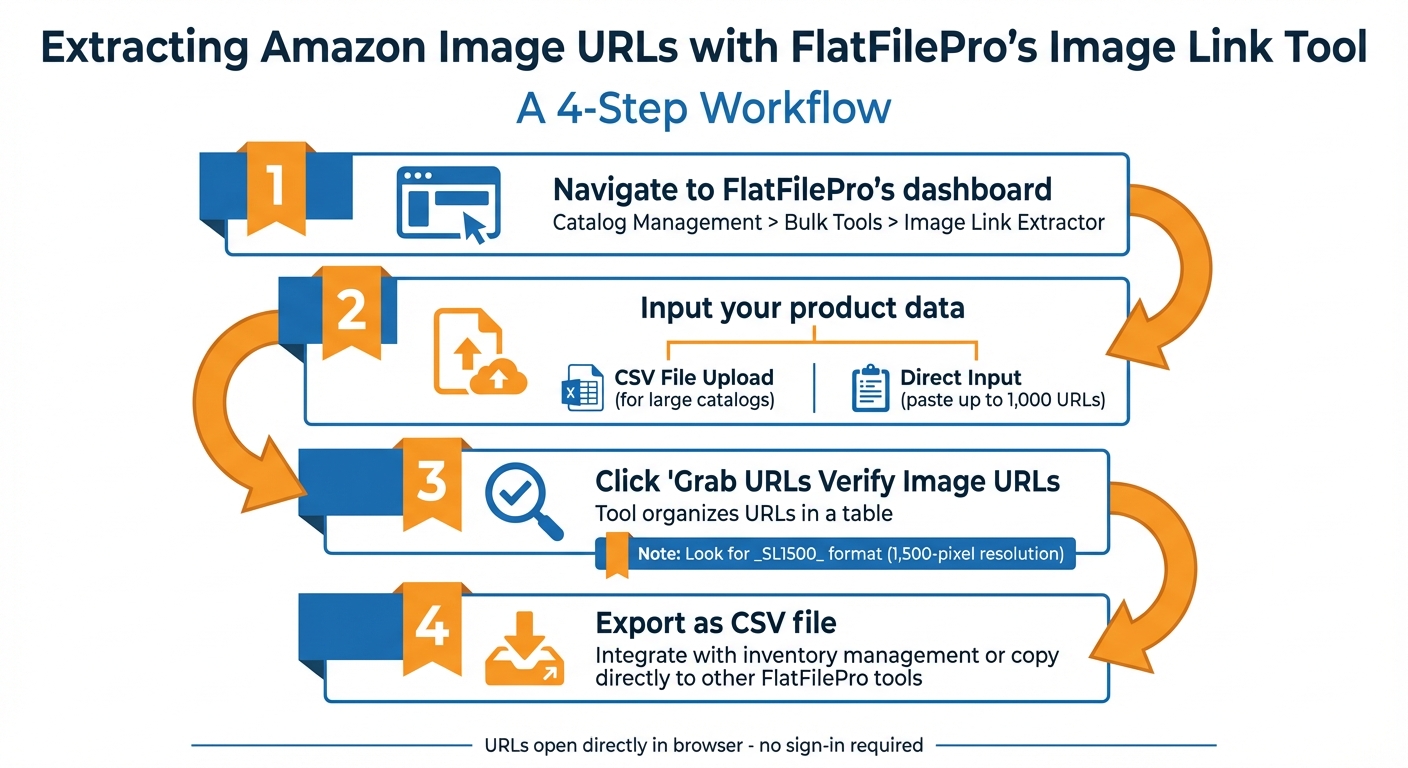
How to Extract Amazon Image URLs in 4 Steps
Here’s a simple guide to help you extract image URLs quickly and efficiently.
Step 1: Open the Image Link Tool
Start by heading to FlatFilePro’s dashboard. Navigate to Catalog Management > Bulk Tools > Image Link Extractor. This tool has an intuitive layout designed to make the process straightforward.
Step 2: Add ASINs or Product URLs
You can input your product data in two ways:
- CSV File Upload: If you’re managing a large product catalog, upload a CSV file containing your ASINs. This method is perfect for processing hundreds of items at once.
- Direct Input: For smaller batches, paste up to 1,000 product URLs directly into the tool. Both options make handling bulk updates seamless.
Step 3: Extract and Verify Image URLs
Click the "Grab URLs Instantly" button to extract high-resolution image URLs from your product pages. The tool organizes these URLs in a table, making it easy to double-check the results. Look for formats like _SL1500_, which indicate 1,500-pixel resolution images.
Step 4: Download Image URLs
Export the extracted URLs as a CSV file for integration with your inventory management system. Alternatively, you can copy the URLs directly to use them with other FlatFilePro tools, such as the Reflecting Panel or Variations Manager. The exported file includes variant codes, which help streamline your organization process.
"Unlike cloud storage links that require sign-in, image URLs open directly in the browser. Anyone with the link can view the image instantly without downloading anything." – Kommodo [3]
Practical Uses for Amazon Sellers
Streamlining catalog management can be a game-changer for Amazon sellers, and extracted image URLs offer a powerful way to simplify the process. From updating seasonal campaigns to ensuring consistency across marketplaces, these practical applications can help optimize your listings and, ultimately, your sales.
Update Images for Seasonal Campaigns
Seasonal shopping events like Black Friday and Cyber Monday demand quick and accurate updates to stay ahead of the competition. Leveraging extracted image URLs allows you to update hundreds of product listings simultaneously using Amazon’s inventory file system [5]. This is especially crucial considering that 58.8% of U.S. shoppers make purchases during these events [6].
Timing is everything – plan your updates right after Halloween to capture early holiday shoppers and avoid delays [6]. Start with your best-selling, high-margin products to maximize returns during peak traffic. For example, advertisers in the U.K. saw a 75 percentage point increase in sales during the Christmas season by using Sponsored Products [6].
"Make sure your listings are optimized with high quality images and descriptions to help improve your visibility during this high-traffic event."
Remember, newly uploaded images can take up to 24 hours to reflect on product detail pages [5]. Once seasonal updates are in place, focus on fixing any missing images in your catalog.
Fix Missing Images in Listings
Missing or incomplete image galleries can hurt your product’s performance. Conduct a catalog audit by uploading your ASIN list to identify listings with no images or fewer than the recommended seven [4]. This structured data makes it easy to pinpoint and address gaps.
If you find missing images in the U.S. marketplace, consider pulling the image URLs from Amazon UK or Germany to restore the listings [4]. Cross-marketplace fixes like this can resolve suppressed or incomplete product pages, improving your conversion rates.
Keep Images Consistent Across Marketplaces
For brands operating across multiple regions, maintaining consistent visuals is essential. Extract high-resolution URLs by locating the _SL1500_ parameter, which indicates a 1,500-pixel resolution, and use these URLs to update listings on marketplaces like Amazon UK or Canada [4].
To ensure the highest quality, remove size parameters from the CDN URL. For example, change .../I/51+MGmmIZsL._AC_SL1500_.jpg to .../I/51+MGmmIZsL.jpg to access the original resolution [4]. Use this data to build a master reference file, ensuring consistency across all marketplaces [7][8]. In one instance, a data team managed to catalog over 1,000 products in under two hours using this approach, guaranteeing high-quality visuals throughout their e-commerce platform [4].
Additionally, tools like FlatFilePro’s Reflection Engine can monitor your image updates on Amazon and notify you of any unauthorized changes, adding an extra layer of quality control to your operations.
Troubleshooting and Tips
FlatFilePro simplifies the process of extracting image URLs, but occasional hiccups and managing bulk operations efficiently are key to ensuring smooth catalog updates.
Common Extraction Problems
One frequent issue is IP blocking, which often happens during bulk URL extraction. Amazon closely monitors request patterns, and sending too many requests too quickly can lead to a "Sorry, something went wrong" error[9]. Alexandre Parfonov, Full Stack AI Engineer at Proxywing, sheds light on this:
"The Amazon error SORRY, SOMETHING WENT WRONG ON OUR END is a controlled reaction to instability, constraints, or perceived risky behavior"[9].
To minimize this issue, space out your requests and regularly clear your cache and cookies[9].
Another challenge comes from CDN domain variations. Amazon uses multiple Content Delivery Networks (CDNs) to host images, such as m.media-amazon.com or images-na.ssl-images-amazon.com[11]. Around 3% of extractions may fail due to malformed URLs linked to specific CDN domains[11]. Always ensure that URLs point directly to the image file. As noted by Amazon Seller Forum Contributor Seller_Hi7wbO2Kbo6bl:
"Make sure the URL is a direct link to the image, not just to the general page"[10].
Suppressed listings or variation errors can also disrupt the process. These issues often arise when listings have incomplete data or involve complex parent-child relationships. Confirm that your ASINs are active and properly structured before attempting bulk extraction.
These common problems highlight the importance of careful data handling and paced operations, which are critical for effective bulk image management.
Tips for Managing Images in Bulk
To tackle these challenges, follow these strategies for efficient bulk image management:
- Use a verified CSV or text file of ASINs to reduce the risk of processing errors.
- Manage your request frequency carefully to avoid triggering Amazon’s rate limits. When dealing with thousands of products, introduce delays between batches instead of sending simultaneous requests[9].
FlatFilePro’s Reflection Engine can further streamline your workflow by monitoring uploaded images and flagging unauthorized changes. This added layer of quality control ensures that your URLs remain accurate and up to date, saving time and preventing errors in your bulk operations.
Conclusion
FlatFilePro’s free Amazon Image Link Tool simplifies the process of extracting image URLs, eliminating the need for manual work. With this tool, you can export URLs directly into CSV files or spreadsheets, making catalog updates faster and more efficient.
The bulk extraction feature reduces the time spent managing variations from hours to just minutes, boasting a 95% success rate in handling complex parent-child relationships[1]. This level of accuracy translates into significant time savings.
Additionally, the tool ensures each image is correctly mapped to its ASIN, supporting seamless data management for seasonal campaigns, marketplace expansions, and large-scale updates.
For sellers handling over 300 listings, these features free up valuable time, allowing you to enhance product content and focus on growing your business.
FAQs
Will using this tool affect my Amazon account?
Using this tool the right way won’t harm your Amazon account. However, if you misuse image URLs – like uploading broken or invalid images – it could lead to errors or issues with your listings. Make sure your URLs and images comply with Amazon’s guidelines to steer clear of any potential problems.
What should I do if some ASINs return no image URLs?
If certain ASINs don’t return image URLs, start by confirming that the URLs are valid and accessible to the public. Ensure your images align with Amazon’s guidelines and haven’t been removed due to any policy violations. You can also leverage Amazon’s official API to retrieve images by ASIN or explore specialized tools for bulk image extraction to simplify the task. Always make sure your images comply with Amazon’s image policies.
How do I get the original full-size image from a URL?
To get the original full-size image from a URL, try the Amazon Image URL Generator by FlatFilePro. This handy tool helps you quickly create links to high-resolution images.
Make sure the image URL you use leads to a version that’s at least 1,000 x 1,000 pixels. This meets Amazon’s zoom feature requirements, making your product listings look professional and polished. The tool streamlines the process, saving you time while ensuring precise image retrieval.