
Want Amazon product image links without spending a dime? Here’s how you can extract them easily:
- Manual Method: Use browser tools like Chrome DevTools to locate and copy image URLs directly from product pages.
- Bulk Extraction: Automate the process with browser console scripts or Google Sheets’
IMPORTXMLfunction for multiple products. - Flat File Integration: Insert URLs into Amazon flat files to update listings efficiently.
These methods are ideal for small catalogs. For larger inventories, tools like FlatFilePro simplify bulk updates, monitor live links, and prevent errors. Whether you’re working with a few products or thousands, these strategies save time and ensure your image links are accurate and ready for upload.
HOW TO CREATE IMAGE URL FOR AMAZON FLAT FILES! QUICK AND EASY

sbb-itb-ed4fa17
How to Extract Amazon Image Links for Free
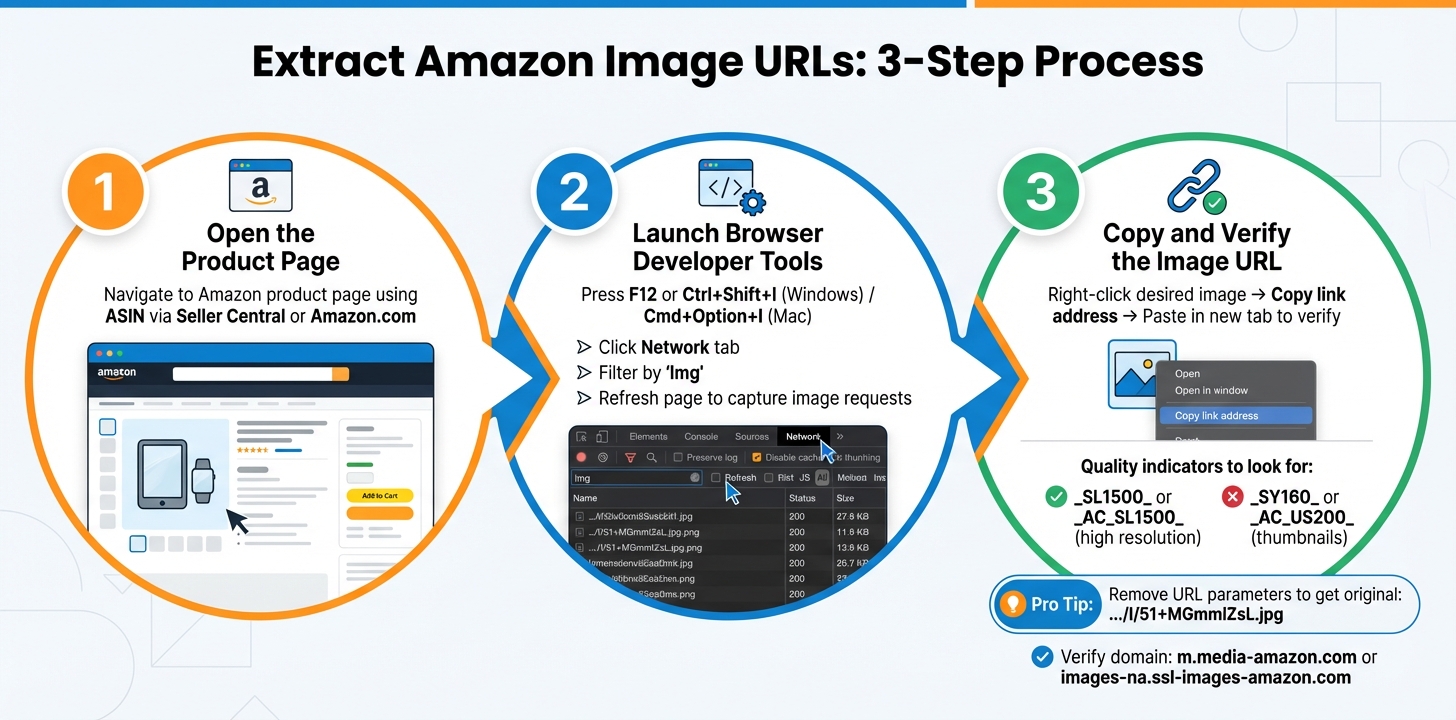
How to Extract Amazon Product Image URLs Using Browser DevTools in 3 Steps
Here’s a quick way to grab Amazon image URLs using just your web browser.
Step 1: Open the Product Page
Start by opening the Amazon product page for the item you’re interested in. You can do this using the product’s ASIN, either through Seller Central or directly on Amazon.com.
Once the page is loaded, you’re ready to inspect it for image data or create a new listing on Amazon using the extracted assets.
Step 2: Launch Browser Developer Tools
Use Chrome DevTools to locate the image URLs. Open the tools by pressing F12 or using the shortcut Control+Shift+I (Windows) or Command+Option+I (Mac). Then, refresh the page to capture all image requests.
In the DevTools panel, click the Network tab and filter the results by selecting Img in the filter bar. This narrows the view to only image files, excluding scripts and other unnecessary elements. You’ll now see a list of all images loaded on the page, including product photos, thumbnails, and icons.
"To extract the original, uncompressed image, you can remove the parameter block from the URL. For instance, changing …/I/51+MGmmIZsL.AC_SL1500.jpg to …/I/51+MGmmIZsL.jpg often yields the original high resolution."
Once you’ve filtered the image requests, proceed to the next step to copy and validate the URL.
Step 3: Copy and Verify the Image URL
Locate the desired image in the list, right-click it, and select Copy link address. Paste the link into a new browser tab to ensure it leads to a high-resolution image. Look for indicators like SL1500 or AC_SL1500 in the URL, which signify high resolution. If the URL contains thumbnail codes such as SY160 or AC_US200, return to DevTools and find a better version.
To get the original image, remove any extra parameters from the URL. For example, stripping unnecessary parts from the link can reveal the uncompressed, high-quality version.
Finally, double-check that the URL belongs to Amazon’s recognized domains, like m.media-amazon.com or images-na.ssl-images-amazon.com.
Once you’ve mastered this manual method, you can look into tools or scripts for bulk extraction of image URLs.
Bulk Extraction Methods for Multiple Products
When dealing with larger catalogs, manual extraction methods quickly become inefficient, especially when trying to elevate your fashion listings on Amazon. For bulk listings, scalable approaches can save significant time and effort.
Extract URLs with Browser Console Scripts
You can use your browser’s console to automate the process of pulling image URLs from product pages. Open Developer Tools (press F12) and navigate to the Console tab. By running JavaScript commands, such as document.querySelectorAll, you can target specific image containers like #altImages or #main-image-container. The script scans the HTML to extract URLs for main, variant, and lifestyle images.
To clean up the URLs and remove size parameters, you can use a string replacement function. For example, you can transform a URL like .../I/51+MGmmIZsL._AC_SL1500_.jpg into .../I/51+MGmmIZsL.jpg to retrieve the original image file. While this method works well for single-page extractions, it becomes less practical when processing hundreds of ASINs across multiple pages.
Automate Extraction with Google Sheets IMPORTXML
Google Sheets offers a powerful tool for bulk extraction using the IMPORTXML function. Start by listing your ASINs in Column A, then use a formula in Column B to generate full product URLs:
="https://www.amazon.com/dp/"&A2.
In Column C, apply the following formula to extract image URLs:
=IMPORTXML(B2, "//img[@id='landingImage']/@data-old-hires").
This formula uses XPath to locate the HTML element containing the image URL. To ensure accuracy, inspect the product image on the page and copy its specific XPath.
Keep in mind that IMPORTXML only works with static HTML. Before running your extractions, right-click the page and choose View Page Source to confirm that the image URL is part of the plain HTML. As Spencer Lanoue from Bricks notes:
"IMPORTXML can only ‘see’ the initial HTML source code of a page. If a page uses JavaScript to load data dynamically… IMPORTXML won’t be able to access that data."
If you want to display the images directly in your Google Sheet instead of just listing the URLs, wrap the IMPORTXML function with the IMAGE formula:
=IMAGE(IMPORTXML(B2, "xpath_query")).
However, be aware that IMPORTXML refreshes data hourly, and frequent requests might trigger Amazon’s rate limits.
Adding Image Links to Amazon Flat Files
When working with Amazon flat files, it’s essential to insert your image URLs accurately to avoid any upload issues.
Populate Main and Supplementary Image Columns
Amazon’s flat file template includes specific columns for images. The main_image_url column is for your primary product image – the one that shows up in search results. Additional images, offering other views or angles, go under other_image_url1 through other_image_url8. For product variations, the swatch_image_url column is used to showcase thumbnails for color or material options.
Each URL must link directly to the image file. Avoid using sharing links, such as those from Google Drive or Google Photos, as these often lead to "invalid or corrupted" errors [2][3]. If you’re hosting images on Google Drive, you can convert share links into direct download links using this format: https://drive.google.com/uc?export=view&id=FILE_ID [3]. Make sure the permissions are set to "Anyone with the link can view" so the image is accessible.
For handling multiple images, you can automate the process of generating direct URLs. Use this formula in Google Sheets or Excel:
=CONCATENATE("https://drive.google.com/uc?export=view&id=", MID(A2, 33, 33)). This saves time when dealing with bulk image uploads [3].
Once you’ve filled in the image fields, double-check every URL to ensure accuracy.
Verify URLs Before Uploading
Testing your URLs before uploading is critical to ensure they meet Amazon’s standards and prevent delays. Open sample URLs in a private browser window to confirm they load directly, end with valid image extensions (like .jpg), and adhere to Amazon’s image guidelines [3].
Amazon requires images to be at least 1,000 x 1,000 pixels to enable the zoom feature. Additionally, the images should have a pure white background (RGB 255, 255, 255), be free of watermarks or text, and have file sizes under 10MB for smoother uploads [3].
If your URLs include extra parameters, such as .../I/51+MGmmIZsL._AC_SL1500_.jpg, simplify them to .../I/51+MGmmIZsL.jpg to access the original image [1]. Similarly, avoid URLs containing codes like _SY160_ or _AC_US200_ because these only generate small thumbnails, which aren’t suitable for product pages [1].
Manage Image Links More Efficiently with FlatFilePro

When you’re dealing with a small catalog, free tools might do the trick. But as your business scales and you’re managing thousands of image links, the manual process becomes a hassle – and prone to mistakes. That’s where listing automation steps in. FlatFilePro is built for Amazon sellers who need to manage their listings at scale without compromising accuracy. Here’s how it simplifies the process with tools for monitoring, bulk updates, and error detection.
Reflection Engine: Keep Tabs on Live Image Links
FlatFilePro’s Reflection Engine takes the guesswork out of ensuring your image links are live and accurate. Every night, it checks if your image URLs match the images displayed on Amazon. You’ll see green checkmarks for working links and red X’s for any issues [6]. This nightly monitoring catches broken links caused by hosting problems, competitor interference, or system changes before they can hurt your sales [5].
The platform’s visual dashboard shows exactly what your customers see, so you can confirm your updates went live without any manual checks. Plus, if Amazon makes unwanted changes or a competitor tampers with your product images, you’ll get notified immediately, giving you time to act before it impacts your sales [6].
And when the Reflection Engine flags an issue, fixing it is just as seamless.
Bulk Updates Made Simple
Forget about editing flat files one by one. FlatFilePro lets you update all your image URLs in one go. By connecting directly to Amazon’s API, these changes take effect in minutes – not the usual 24 hours required for manual uploads [5].
You can also set permissions to limit team members’ access to specific areas, like image-only edits. This prevents accidental changes to critical listing details like prices or titles [5]. And if something goes wrong during a bulk update, you can easily revert to the previous version with one click, saving yourself from costly mistakes [5].
Catch Errors Before They Happen
FlatFilePro’s Error Finder scans for issues like invalid URLs or missing extensions before you submit updates to Amazon [6]. This proactive approach helps you avoid listing suppressions caused by broken image links – problems that often go unnoticed until your sales take a hit.
The platform boasts a 95% success rate for handling complex variations, cutting down manual troubleshooting time significantly [6]. On top of that, it makes editing listings 17 times faster compared to traditional spreadsheets and reduces error codes by a factor of eight compared to manual Seller Central updates [5]. With its automated system, many issues can be resolved in as little as 90 seconds [5].
Conclusion
Getting Amazon image links doesn’t have to cost you anything. The methods discussed here – like manual browser extraction, console scripts, and Google Sheets formulas – are effective when you’re dealing with a smaller number of products. For instance, some popular Chrome extensions, used by over 10,000 people, allow unlimited product image exports on their free plans [4]. Additionally, manual URL manipulation can help you access Amazon’s highest-resolution image files [1].
However, as your inventory grows, these free methods can quickly become impractical. Tasks like checking hundreds of image URLs, fixing broken links, or re-uploading flat files after an unexpected change can take up valuable time – time that could be better spent expanding your business.
That’s where FlatFilePro comes in. Instead of juggling spreadsheets, its automated system detects broken links before they affect your sales. With a 95% success rate on managing complex product variations [6] and the ability to push updates live within minutes, FlatFilePro doesn’t just extract image URLs – it keeps your catalog running smoothly.
For smaller operations, free methods might do the trick. But when you’re ready to move past tedious manual processes and focus on boosting sales, consider FlatFilePro’s two-week trial – no credit card required [7]. The decision is simple: stick with manual work or let automation take care of the hard parts.
FAQs
Can I use Amazon image URLs in my listings?
Yes, you can use Amazon image URLs in your product listings. Tools such as FlatFilePro simplify the process by allowing you to extract and manage high-resolution image links efficiently. This can help you organize your listings and save valuable time.
Why does my extracted image link show a low-res thumbnail?
Amazon creates low-resolution thumbnails to speed up page load times and enhance the browsing experience. However, if the original image was uploaded in low resolution or compressed during processing, the thumbnail quality will suffer. To avoid this, upload high-resolution images that meet Amazon’s recommendations: at least 1000 pixels on the longest side, with 2560 pixels being the preferred size for the best results.
How can I quickly check lots of image links for breaks?
To ensure your image links are working properly, use the link checker tool provided on the Amazon Associates Central platform. Simply log in to your account, enter the product or image URLs you want to verify, and let the tool scan for any broken or invalid links. This helps keep your product listings accurate and functional.