
Amazon‘s category system is critical for sellers to ensure products are easy to find and comply with platform requirements. Misplacing products in the wrong category can hurt visibility, lead to errors, or even cause listing rejections. A downloadable CSV file simplifies this process by providing a detailed breakdown of Amazon’s categories, subcategories, and Browse Node IDs.
Key Takeaways:
- Why Categories Matter: Correct categorization improves search visibility and prevents listing errors.
- How the CSV Helps: The CSV includes parent categories, subcategories, and IDs to streamline bulk uploads.
- Using Tools: FlatFilePro automates category mapping and error detection, saving time and reducing mistakes.
- Bulk Listing Tips: Validate data, use specific Browse Node IDs, and ensure all required fields are complete.
By using the CSV and tools like FlatFilePro, sellers can efficiently manage large catalogs and avoid common pitfalls in Amazon’s complex category hierarchy.
How to Download and Use The Browse Tree Guide from Amazon Seller Central – E-commerce Tutorials

sbb-itb-ed4fa17
Why Amazon Categories Matter for Sellers
Picking the right category on Amazon isn’t just about keeping things tidy – it’s a crucial factor in making sure customers can actually find your products. Amazon organizes its product catalog using Browse Nodes, which are essentially the building blocks for categories. When your product is placed in the correct node, it shows up in the right search results and browsing paths. On the flip side, choosing the wrong category can mean your product gets left out of relevant searches. Let’s dive into how proper categorization can improve visibility, cut down on errors, and make bulk listings more efficient.
How Categories Improve Product Visibility
Amazon has over 25,000 unique best-seller pages, covering every category, subcategory, and niche you can imagine [2]. By assigning your product to the right category, you’re not just helping customers find it more easily – you’re also giving it a shot at earning a "Best Seller" badge in its specific niche. Proper categorization ensures your products show up in filtered search results and relevant browsing paths, which directly affects how many potential buyers see your listings [3].
But it’s not just about visibility. Correct categorization also helps you avoid frustrating validation errors.
How Correct Categories Reduce Listing Errors
Each Amazon category comes with its own set of data requirements. Picking the wrong category can trigger data validation errors, like incorrect price formats, titles that exceed the 250-character limit, or missing essential attributes such as "Amazon_SKU" or "Fulfilled By" [1]. These errors can suppress your listings, making them harder to find and even affecting their Prime eligibility [1]. To prevent this, the Category Listings Report is a handy tool that helps you double-check that all your products are placed in the right categories within Amazon’s system [3].
Accurate categorization doesn’t just reduce errors – it’s also a game-changer when dealing with bulk uploads.
How Categories Help with Bulk Product Listings
When you’re uploading hundreds or thousands of products using CSV files, Amazon relies heavily on category attributes to classify items correctly. Whether it’s a standalone product, a parent listing, or a variation, accurate category mapping ensures the system processes each item properly. This is especially important for products with variations, as Amazon allows up to 5 variation options and 100 total variations per parent product [1].
Correctly categorizing your products not only smooths out bulk uploads but also keeps your catalog running efficiently.
How Amazon’s Category Hierarchy Works
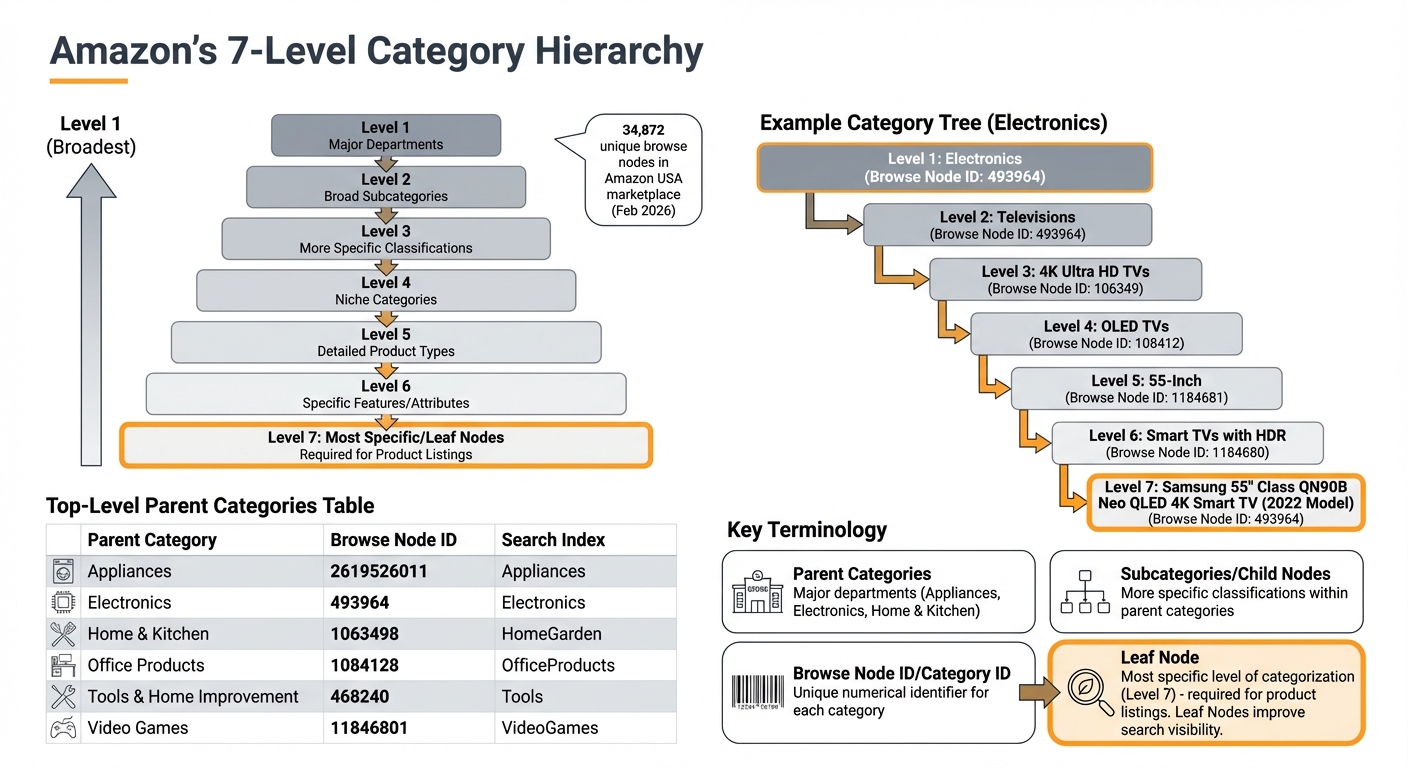
Amazon Category Hierarchy Structure with Browse Node IDs
Amazon’s vast product catalog is organized through a detailed 7-level hierarchical structure, starting from broad departments and narrowing down to specific niches [6]. As of February 2026, the Amazon USA marketplace boasts about 34,872 unique browse nodes – Amazon’s term for product categories within this system [6]. Understanding this structure is key to effectively positioning your products.
Parent Categories and Subcategories
At the top of Amazon’s hierarchy are parent categories, which represent major departments like "Appliances", "Electronics", or "Home & Kitchen" [5]. These broad classifications are what you see in Amazon’s main navigation menus. From these parent categories, the system branches into subcategories, or child nodes, which provide more specific classifications [5][6].
For example, the "Electronics" category (Browse Node ID: 493964) breaks down into subcategories like "Televisions", which can further refine into niches such as "4K Ultra HD TVs." This layered system helps guide customers from general interests to highly specific products. With seven levels of categorization, Amazon ensures its massive catalog remains organized and easy to navigate [6].
| Top-Level Parent Category | Browse Node ID | Search Index |
|---|---|---|
| Appliances | 2619526011 | Appliances |
| Electronics | 493964 | Electronics |
| Home & Kitchen | 1063498 | HomeGarden |
| Office Products | 1084128 | OfficeProducts |
| Tools & Home Improvement | 468240 | Tools |
| Video Games | 11846801 | VideoGames |
Browse Nodes and Category IDs
Amazon refers to its product categories as browse nodes, each of which is assigned a unique numerical identifier called a Browse Node ID or Category ID [5][6]. These IDs are essential for sellers, as they determine where products are placed within Amazon’s catalog and how they appear in filtered search results.
When listing products in bulk using CSV files for Amazon uploads, sellers must include the correct Browse Node ID for each item. Using a highly specific "leaf node" (the most detailed level of categorization) can significantly enhance product visibility in niche searches [6]. For instance, rather than listing a wireless keyboard under the broad "Electronics" category, you would use the specific Browse Node ID for "Computer Keyboards & Keypads." This ensures the product appears in relevant filtered searches and comparisons, improving its chances of reaching the right audience.
How to Download and Use the Category CSV File
Amazon’s category structure can be complex, but FlatFilePro makes it easier by offering a detailed CSV file. This file includes a complete list of categories, subcategories, and category IDs, eliminating the need for tedious manual work. It’s a handy tool for bulk listing uploads and ensuring accurate category mapping.
Downloading the CSV File
To get the category CSV file, head to the resources section in your dashboard. The file contains parent categories, subcategories, browse node IDs, and other important details to help you assign categories correctly.
If you need to export current listings, click the download (down arrow) button on the Products page[1]. For larger catalogs, the export process may take 5–10 minutes. Once complete, refresh the page to access the success message and download link[1]. Additionally, a CSV history page keeps track of all imports and exports from the past 30 days[1].
Once downloaded, this file becomes a key resource for simplifying bulk listing tasks.
Using the CSV for Bulk Listing
The CSV file is a powerful tool for managing bulk uploads and ensuring precise category assignments. Open the file in Excel or Google Sheets to locate category IDs for your products. When creating your listing files, use the specific leaf node category ID for each product to improve its discoverability.
The system supports imports of up to 15,000 products or 50MB of data in one upload[1]. For standalone products, ensure all required columns – SKU, Title, Fulfilled By, Amazon_SKU, Price, and Offer Prime – are filled out to avoid errors[1]. If you’re updating existing listings, select "Override existing products" to apply changes based on SKU[1]. Finally, save your edited file as "CSV (Comma delimited) (*.csv)" in Excel, and confirm the format compatibility prompt to prevent conversion to an unusable .xlsx file[7].
Using FlatFilePro for Category Mapping

FlatFilePro simplifies category mapping by automating the process, ensuring your bulk uploads align seamlessly with Amazon’s structured catalog. This approach eliminates the need for tedious manual work, reduces the chance of errors, and flags issues early – before they can disrupt your listings.
Automated Category Mapping
FlatFilePro integrates directly with Amazon’s API, pulling the latest Browse Node data for your specific marketplace. Forget manually combing through Amazon’s Browse Tree Guide or creating custom parsers to navigate the intricate category structure – FlatFilePro does the heavy lifting for you, automatically matching your products to the correct leaf node categories. Since these updates happen frequently, keeping up manually becomes nearly impossible[4].
When you upload your products, the platform validates category IDs in real time. This prevents common mistakes, such as assigning items to parent categories instead of the required leaf nodes, or using outdated Browse Node IDs. For sellers with extensive catalogs, this automation reduces the risk of bulk upload failures and saves a massive amount of time[1].
By streamlining category mapping, FlatFilePro lays the groundwork for robust error detection in your listings.
Reflection Engine for Error Detection
The Reflection Engine provides a visual dashboard that mirrors how Amazon displays your listings. Errors in category mapping are flagged with red X’s, while properly aligned listings show green checkmarks, making it easy to prioritize and resolve issues[8].
"Our Reflecting Panel shows you exactly what Amazon and shoppers see. In seconds, you’ll know… exactly what needs fixing (organized by category)." – FlatFilePro[8]
Nightly Checks take this one step further by automatically monitoring for any unexpected category changes. If misalignments occur, you’ll be notified promptly, allowing you to address them before they impact your search rankings[8].
For sellers managing over 300 listings, this automated system is a game-changer. FlatFilePro boasts a 95% success rate in managing and updating product variations – far surpassing the efficiency of manual methods[8].
Best Practices for Bulk Listing with the Category CSV
Validating Category IDs Before Upload
Before uploading your data, double-check your listing permissions. Amazon’s restrictions can apply at the category, brand, or ASIN level – and these rules can shift without notice[9]. A category ID that worked smoothly last month might now require approval. Some category requirements even change seasonally, so always confirm your current approvals.
If you’re working with large datasets, bulk tools can scan up to 20,000 ASINs at once. Look for visual cues: a green open lock means you’re good to list, while a red closed lock indicates that approval is needed or your account is ineligible[9].
Next, validate your data schema to avoid errors. Keep titles under 250 characters, ensure SKUs are no longer than 255 characters, and format prices as plain numbers without symbols (e.g., use 19.99 instead of $19.99)[1]. URLs should start with "https://" and end with proper image extensions like .jpg or .png[1]. To catch potential issues, perform a dry run with your CSV before making any changes.
It’s also crucial to assign each product to a single category. Double-check that your "Item Type Keywords" and "Product Type" fields align with Amazon’s category hierarchy to prevent mismatches[10].
Once these steps are complete, tools like FlatFilePro can help you refine and speed up your workflow.
Using FlatFilePro to Improve Your Workflow
After verifying your data and permissions, FlatFilePro can simplify the editing and uploading process. Its drag-and-drop interface eliminates the repetitive steps of exporting, editing, and re-uploading CSV files. Instead, you can make changes directly through the dashboard, with updates sent to Amazon’s API in real time. This bypasses the usual 2–3 hour delay associated with flat file uploads[1].
FlatFilePro also makes bulk edits a breeze. For example, you can update prices, titles, or images across your entire catalog in minutes. Want to switch "Holiday Sale" to "Spring Clearance" for over 1,000 listings? No problem – it’s done in one edit. This efficiency is especially helpful when managing Amazon’s upload limits of 15,000 products or 50MB per file[1][11].
Handling variation families is another area where FlatFilePro excels. It groups parent and child products, ensuring that options like "Color" or "Size" are correctly aligned before submission. Since a single parent product can support up to 100 variations[1], managing these manually through a CSV can be tedious and error-prone. FlatFilePro simplifies this process, boasting a 95% success rate in managing product variations. Updates that might take hours manually are completed in under 5 minutes[8].
Common Category Errors and How to Fix Them
Getting these common errors under control ensures your bulk listings stay accurate and run smoothly during the upload process.
Mismatched Categories
One frequent issue is variation data misalignment. This happens when a child product’s "Variation Option" (like "Color" or "Size") doesn’t perfectly align with what’s defined in the parent row. It can also occur if a variation option is listed without a matching value. Even small mistakes – like typos, extra spaces, or confusion about whether a product is a parent, standalone, or variation – can cause the entire import to fail[1].
FlatFilePro simplifies this process with its drag-and-drop Variation Manager. This tool visually organizes parent and child products before submission, making it easier to spot and fix inconsistencies. It significantly improves success rates, achieving 95% accuracy in handling product variations, compared to the typical 75% success rate with manual CSV uploads.
Another common source of errors involves missing or invalid category IDs.
Missing or Invalid Category IDs
Bulk imports often fail when required columns – such as SKU, Amazon SKU, Title, Price, or "Fulfilled By" – are incomplete, duplicated, or formatted incorrectly. For example, issues like titles exceeding 250 characters, prices including symbols, or SKUs over 255 characters can disrupt the process. Specifically, for Buy with Prime catalogs, the "Fulfilled By" column must precisely state "Amazon" to ensure the import works[1].
FlatFilePro’s Reflection Engine streamlines this step by running nightly automated checks. It highlights compliant listings with green checkmarks and flags problematic ones with red X’s, making it easier to address issues before they derail your uploads.
Conclusion
Getting your product categories right is crucial for helping customers find what they need. Assigning items to the correct browse nodes ensures they show up where shoppers are searching. This not only improves your visibility in filtered searches but also increases your chances of appearing on Best Seller pages, which are organized by category and subcategory levels[2].
To make this process easier, the downloadable CSV file provides access to Amazon’s entire category hierarchy. This saves you from spending hours manually navigating Seller Central’s Browse Tree Guide. With support for up to 15,000 products or 50MB of data in a single upload[1], it’s a game-changer for managing large catalogs – something that would be nearly impossible to handle one listing at a time.
Tools like FlatFilePro take it a step further by automating category mapping and catching errors early. The Reflection Engine performs nightly checks to flag potential issues, such as missing attributes or incorrect category IDs, that could derail an upload of thousands of products[1]. Beyond saving time, this level of precision protects your revenue by ensuring smoother operations and better handling of product variations.
Validation is the cornerstone of successful uploads. Whether using the CSV file or FlatFilePro, double-checking for problems like duplicate columns, invalid SKUs, or schema errors can prevent failed imports and listing suppression. Make sure all required fields are filled, category IDs are accurate, and past CSV uploads are reviewed for recurring issues[1]. These steps keep your catalog error-free and running smoothly.
Your category structure is the backbone of your Amazon strategy. By using precise data and bulk product upload solutions, you can optimize everything from product discoverability to efficient bulk listing management. Nail this, and the rest – visibility, sales, and operational efficiency – will follow naturally.
FAQs
Which Browse Node ID should I use for my product?
To ensure your product is listed in the right category on Amazon, you need to use the specific Browse Node ID that corresponds to your product’s category. You can find this ID by navigating through Amazon’s category structure or consulting a detailed dataset of categories and their associated IDs.
Why does this matter? Picking the correct ID helps in a few key ways:
- Accurate Product Placement: Your product appears in the most relevant category, making it easier for shoppers to find.
- Fewer Listing Errors: The right ID minimizes the chances of errors during the listing process.
- Better Discoverability: Products in the correct category are more likely to show up in relevant searches.
Taking the time to match your product with the right Browse Node ID can make a big difference in its visibility and success.
How do I confirm a category doesn’t require approval before I upload?
If you’re unsure whether a category requires approval, start by reviewing Amazon’s category approval guidelines in Seller Central. Certain categories and products might need extra steps, such as submitting invoices, product photos, or brand authorization documents.
To avoid listing errors, check the category’s status directly in your Seller Central account. Some categories, often referred to as "restricted" or "gated", may have stricter requirements. These are typically in place to address concerns about brand protection or counterfeit products. Make sure you meet all the necessary criteria before proceeding.
What’s the fastest way to fix category and variation errors in a bulk CSV?
The fastest way to address category and variation errors in a bulk CSV is by using Amazon’s official CSV import template. Start by downloading the template from the Products page in your merchant console. Then, update the category and variation fields directly within the file. Once corrected, re-upload the CSV. This method ensures proper category mapping, minimizes mistakes, and simplifies your bulk updates.