
Amazon flat file templates are essential for efficiently managing product listings on Seller Central. Picking the correct template for your category ensures accurate product data and prevents upload errors. Here’s what you need to know:
- Templates are category-specific: Each category (e.g., clothing, electronics) has unique fields tailored to its product requirements.
- Template types:
- Lite: Basic fields for quick setup.
- Advanced: Includes all attributes for optimization.
- Custom: Focus on specific attributes.
- How to find the right template: Use the “Add Products via Upload” tool in Seller Central to search by keywords or browse categories.
- Key fields to complete: SKU, product name, price, barcode, and category-specific attributes.
- Avoid errors: Use the Valid Values sheet for accepted terms, double-check formatting, and review the Processing Report to troubleshoot your flat file after upload.
Flat files simplify bulk uploads, save time, and improve listing accuracy. Selecting the correct template and filling it out carefully is critical for success on Amazon.
Amazon Flat File Tutorial – Edit Amazon Listings in Bulk + Effortless Amazon Catalog Management
sbb-itb-ed4fa17
How to Find and Download the Right Flat File Template
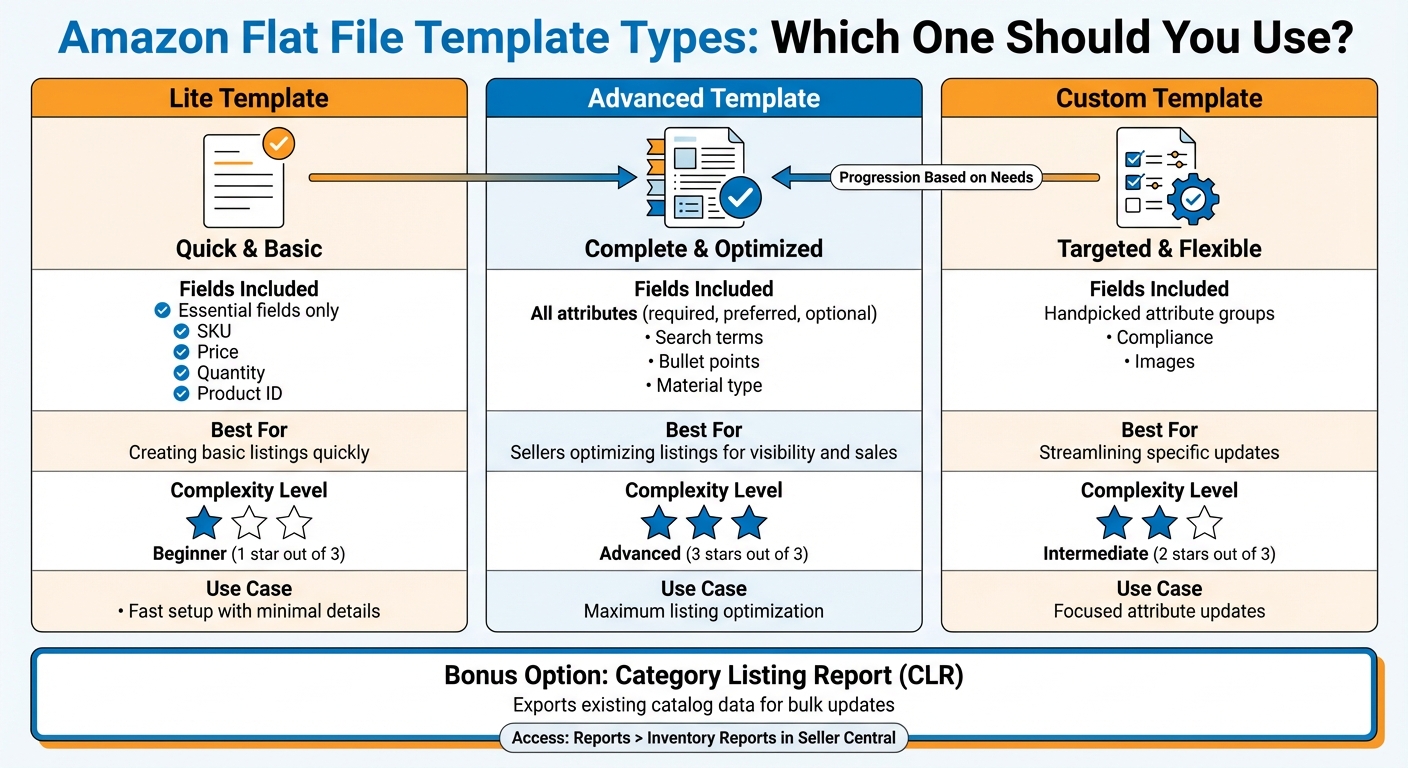
Amazon Flat File Template Types Comparison Guide
Getting Templates from Amazon Seller Central

To find the right flat file template, start by logging into your Amazon Seller Central account. Head to Catalog > Add Products via Upload. From there, switch to the Download Spreadsheet tab, which is where you’ll find the template download tool.
Now, it’s time to choose your product category. Under the section labeled "Step 1: Select the type of products you want to sell", enter keywords that describe your product – like "hair dryer" or "dog collar" – and hit "Search." If the results aren’t specific enough or don’t align with your product, use the Browse via product category option. This lets you manually navigate Amazon’s category hierarchy to ensure you’re selecting a template with the exact attributes your product requires.
Once you’ve picked the right category, it’ll appear in the "Selected nodes" list. You can include multiple categories if needed. After that, choose English as the language, select your selling marketplace (default is the US), and click Generate Spreadsheet to download the Excel file directly to your computer.
The next step is figuring out which type of template works best for your needs.
Selecting Between Template Types
Amazon provides three main types of templates, each designed for different listing needs:
- Lite Template: This is the simplest option, covering only the essential fields like SKU, Price, Quantity, and Product ID. It’s perfect if you’re looking to create basic listings quickly.
- Advanced Template: Also called the Full Template, this one includes every attribute for your category – required, preferred, and optional. Fields like search terms, bullet points, and material type make it an excellent choice for sellers aiming to optimize their listings for better visibility and sales.
- Custom Template: This option lets you handpick specific attribute groups, such as "Compliance" or "Images." It’s a great way to streamline updates when you’re focusing on particular aspects of your listings.
Additionally, there’s the Category Listing Report (CLR), which you can access under Reports > Inventory Reports in Seller Central. This report exports data for your existing catalog, showing all the information Amazon currently has on your products. It’s an efficient tool for making bulk updates to your listings.
Category-Specific Template Fields and Attributes
Required Fields for Each Category
When uploading products to Amazon, every template comes with required fields that you must complete. These typically cover General Product Information like SKU, Product Name, Manufacturer Barcode (GTIN), and Brand, as well as Offer Information, such as Price and Quantity. Beyond these basics, each category has its own unique attributes to highlight specific product details.
For instance, if you’re listing in the Clothing category, you’ll need to provide fields like Size, Color, Material Type, and Department (e.g., Men’s, Women’s, Kids) – details that won’t appear in other categories. Meanwhile, Electronics templates ask for attributes like Wattage, Battery Type, and Voltage. Products in Home & Kitchen often require information on dimensions, capacity (measured in ounces or quarts), and material composition.
For products with variations, additional fields are essential. These include:
- Parentage: Indicates whether the item is a Parent or Child product.
- Parent SKU: Links Child items to their Parent.
- Relationship Type: Should be set to "Variation."
- Variation Theme: Specifies the difference between products, such as Size or Color.
Filling out these fields correctly ensures your items are organized properly and easy for customers to find. Keep in mind that large variation families may face display restrictions, so plan accordingly.
How to Use the Valid Values Sheet
Beyond the required fields, the Valid Values sheet is your go-to resource for entering data correctly. This sheet lists the exact terms Amazon accepts for specific fields, helping you avoid upload errors. For example, if you’re specifying product condition, you must input terms like ‘New’ exactly as shown in the sheet.
This sheet is particularly crucial for fields like Variation Theme, where formatting matters. Amazon now requires terms to follow an Underscore format (e.g., Size_Name) rather than CamelCase (e.g., SizeName). The Valid Values sheet reflects these changes, so always double-check it before filling out your template. Pair this with the Data Definitions sheet, which explains each field and provides examples, to ensure you’re entering both accurate and relevant information.
"Amazon Flat Files require precision, as even a small error can lead to upload failures or incorrect listings." – Adrian Gmelch [2]
If an upload fails, download the Processing Report from Seller Central. This report pinpoints the rejected fields, allowing you to compare them against the Valid Values sheet. By correcting the listed errors, you can confidently re-upload your file without further issues.
Filling Out Your Flat File Template
Completing Core Fields for New Products
Getting your product data right is essential for a smooth Amazon catalog upload. Here’s how to fill out your flat file accurately and efficiently.
Start by opening the Template sheet and unhiding all columns. Use the Data Definitions and Valid Values sheets as your reference points throughout the process.
Key fields to complete include:
- SKU: Your unique identifier for the product.
- Product ID (UPC/EAN/GTIN) and Product ID Type: Typically, "1" for UPC.
- Product Name, Brand Name, Manufacturer, Product Type, and Item Type Keyword: Ensure these align with your product.
- Price: For example, $29.99.
- Quantity: Leave this blank if you’re using FBA.
- Item Condition: Often "New."
- update_delete: Use "Update" for new entries or full replacements, and "PartialUpdate" to adjust only specific attributes.
"A Partial Update only updates the attributes present on the file when it is uploaded." – Lost_My_Marbles, Verified User, SellersAskSellers [5]
To save time and reduce errors, use Excel formulas to auto-fill repetitive fields like brand names or bullet points. For instance, Dollan Prep Center, a clothing brand, managed to upload 150 unique SKUs (10 designs in 5 sizes and 3 colors) in just one day by using a structured flat file. This approach saved them from what could have been a week-long delay and ensured their listings went live before the holiday rush [6].
Once the core details are entered, focus on structuring your listings with parent-child variations if applicable.
Setting Up Parent-Child Product Variations
If your products come in variations (like different sizes or colors), setting up parent-child relationships is crucial for a clear and organized catalog.
For the parent row, follow these steps:
- Set Parentage to "Parent."
- Choose the correct Variation Theme (e.g., Size_Name or SizeColor_Name).
- Leave the Parent SKU field blank.
- Use a generic title for the parent listing, such as "Cotton T-Shirt", without specifying attributes like size or color.
For the child rows, do the following:
- Set Parentage to "Child."
- Enter the Parent SKU to link the child to its parent.
- Set Relationship Type to "Variation."
- Match the Variation Theme to the parent’s theme exactly.
- Assign a unique Product ID (UPC/EAN) and a descriptive title (e.g., "Cotton T-Shirt – Blue, Small").
Here’s an example of how the parent-child structure should look:
| Field Name | Parent Row | Child Row |
|---|---|---|
| Parentage | Parent | Child |
| Parent SKU | (Leave blank) | Enter the parent’s SKU |
| Relationship Type | (Leave blank) | Variation |
| Variation Theme | Select the theme | Must match the parent’s theme |
| Product ID | Not required | Required (UPC/EAN) |
Always double-check the Valid Values sheet to ensure you’re using the correct terms and formats for your variation theme. This step is critical to avoid errors and ensure your listings meet Amazon’s requirements.
Checking and Uploading Your Flat File
Common Mistakes and How to Fix Them
Before uploading your flat file, take time to carefully verify the data you’ve entered. A frequent pitfall is using invalid values – like entering "Red" instead of "Burgundy" when Amazon’s Valid Values sheet specifies the latter. This kind of mismatch can cause the upload to fail [2]. To avoid this, open the Valid Values tab in your template and double-check attributes like colors, sizes, and material types.
Another common issue is leaving required fields blank. The Data Definitions sheet highlights mandatory fields in bold or with an asterisk. Review it to ensure all required information is filled in before saving your file [2].
Formatting errors are also a typical stumbling block. Use periods for decimals (e.g., $29.99, not 29,99) and format dates as YYYY-MM-DD (e.g., 2026-02-12). If you’re using FBA, make sure the fulfillment channel is set to "amazon." Mixing fulfillment types can lead to inventory problems or inactive listings [3].
"Errors in a flat file are sometimes difficult to pinpoint, requiring Amazon support tickets to resolve." – ChannelEngine [1]
For products with variations, ensure every child row includes the correct Parent SKU and that the Variation Theme matches exactly between parent and child rows. Any inconsistencies can disrupt how product families are displayed [3].
Once you’ve verified and corrected these potential errors, you’re ready to upload your flat file.
Uploading Files and Reviewing Processing Reports
To upload your file, log in to Seller Central and go to Inventory > Add Products via Upload. From the dropdown menu, select the correct file type (usually "Inventory Files for specific category"), then click Choose File to upload your spreadsheet. Enter your email address to get updates on the upload process.
Track your file’s progress under Check Upload Status or Process Upload Results. Once the processing is complete, Amazon provides a Processing Report that outlines which listings succeeded and which failed, along with specific error codes. Download this report immediately to review any issues.
If errors are flagged, the report will pinpoint the exact row and column where the problem occurred. Fix these errors in your file, save it as a .csv or .xlsx, and re-upload it. Should errors persist, consult the Inventory File Error Report under the Inventory Reports tab for more details [3].
"One of the best reasons to use this file is: you get feedback if there is something that went wrong during the process… you will receive feedback explaining the reasons for the errors." – Taib Bilal [7]
Once your upload is successful, your listings should update within a few hours. However, more complex changes, such as variations, might take up to 24 hours to reflect on Amazon.
Conclusion
Selecting the right flat file template is crucial for creating an efficient and scalable system to manage your Amazon catalog. As Matt Connell from Dollan Prep Center explains:
"An Amazon flat file is more than just an Excel sheet; it is a scalable system for managing your Amazon catalog efficiently" [6].
Using a poorly matched template can lead to rejected uploads and wasted time [6]. The template you choose determines which attributes you can accurately capture, directly impacting your catalog’s effectiveness.
Category-specific fields play a significant role in improving discoverability and meeting compliance standards. Amazon relies on the values you provide to decide where your listings appear in search results and browse categories [4][8]. Inaccurate or incomplete data can hurt your visibility or even result in listing removal [4]. To avoid these issues, always download the latest template from Seller Central under Inventory → Add Products via Upload, ensuring you meet Amazon’s current attribute requirements [6].
Careful validation is equally essential. When used properly, flat files can reduce listing errors by nearly 30% [6]. Start by completing required fields, then focus on adding attributes that improve SEO and visibility. Check data types, use the Valid Values sheet to align with Amazon’s terminology, and keep a local master copy of every file version for quick access [6].
Flat files can cut listing time by 40%–60%, though first-time users often face challenges – 41% encounter common error codes that cause delays [6]. Preparation is key: perform pre-validation checks, confirm parent-child relationships, and review processing reports after uploading.
FAQs
Which template should I use if my product fits multiple categories?
If your product falls into multiple categories, consider using a category-specific template that supports multiple categories. Alternatively, you can opt for a general template that can be tailored to suit various categories. These approaches provide flexibility while ensuring your listings comply with Amazon’s guidelines.
Can I switch templates later without breaking my existing listings?
Yes, you can change templates later if needed. Just make sure to carefully map all attributes during the process. Proper mapping is essential to avoid errors or inconsistencies in your current listings. Taking the time to double-check ensures your product data stays accurate and consistent.
When should I use Update vs PartialUpdate in the flat file?
To replace all product details in the file, use Update. If you need to adjust specific fields – like price or inventory – without altering the rest of the data, opt for PartialUpdate. This method ensures that only the targeted changes are made, leaving the remaining product information untouched.