
Amazon flat file templates are spreadsheets that simplify managing product listings in bulk on Seller Central. Instead of manually updating each product, you can use these templates to efficiently organize and upload data like titles, prices, and inventory. They’re tailored to specific product categories, ensuring compliance with Amazon’s requirements. Here’s a quick breakdown:
- Why Use Them: Save time, reduce errors, and manage large inventories effectively by following inventory file best practices. Perfect for sellers with over 50 listings.
- How to Get Started:
- Download the correct category template from Seller Central.
- Fill out required fields (e.g., SKU, Product Name, Price).
- Use Amazon’s validation tool to catch errors before uploading.
- Common Errors: Incorrect product IDs, missing required fields, or formatting mistakes can cause upload issues. Always double-check entries.
Flat file templates are a powerful tool for bulk listing management. Start small, validate your data, and use Amazon’s processing reports to fix errors. With practice, you’ll streamline your workflow and improve listing accuracy.
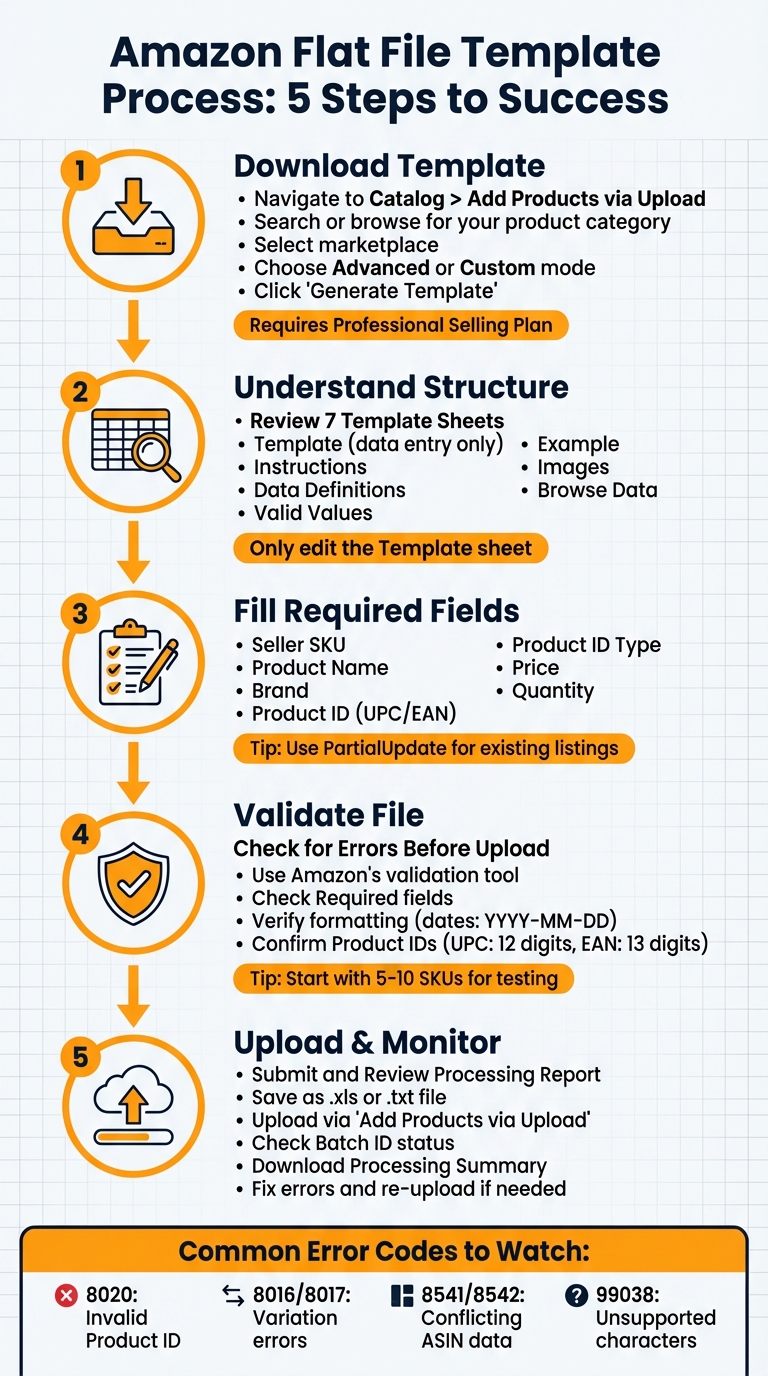
Amazon Flat File Template Upload Process: 5-Step Guide for Sellers
How to Download Flat File Templates from Seller Central
Step-by-Step Download Instructions
First, ensure you have a Professional selling plan, as flat file templates are only available to sellers on this plan. If you’re on the Individual plan, you won’t have access to this feature.
Log in to Seller Central and go to Catalog (or Inventory), then select Add Products via Upload. On the next page, click the Download an Inventory File or Download Product Spreadsheet tab.
To find your product category, use either the Search tool or the Browse option. With the search tool, you can type keywords like "hair dryer" or "travel poster" to locate the right category quickly. If the search doesn’t yield an exact match, switch to the browse option, where you can manually navigate through categories until you find your specific sub-category. Once you see the Select button for your category, click it. This ensures you’re using the most up-to-date category and attribute requirements via the Product Classifier tool.
Next, select the marketplaces where you plan to sell. Uncheck any stores that don’t apply. Then, choose your template mode:
- Advanced includes all attributes (required, preferred, and optional).
- Custom allows you to pick specific attribute groups.
Once you’ve made your selections, click Generate Template, and the file will download to your browser. Keep an eye out for lock icons next to certain categories – these indicate that Amazon approval is needed.
How to Name and Organize Your Templates
After downloading, organizing your template properly is essential to avoid errors and streamline updates. Use a clear, descriptive filename, such as Electronics_Template_02-09-2026, so you can easily identify it later.
Since Amazon regularly updates attribute fields and compliance requirements, always download a fresh template from Seller Central before starting a new bulk update. Using outdated templates can lead to errors during the upload process.
It’s also wise to save every version of your flat files locally. As Dollan Prep Center explains:
"Every version of a flat file is stored locally in our records. If Amazon suppresses a listing or a client needs to roll back changes, we can quickly reference and restore a prior version."
After each upload, save the Processing Summary or Inventory File Error Report alongside your template. These reports include Batch IDs and specific error codes, which are incredibly useful for resolving any issues that might arise.
sbb-itb-ed4fa17
Understanding Flat File Structure and Components
Overview of Template Sheets
When you download and open a flat file template, you’ll find seven distinct sheets inside. The key rule here? Only enter your data on the Template sheet. The other sheets are purely for reference and guidance.
Here’s a quick breakdown of what each sheet does:
- The Instructions sheet offers general tips on how to use the file effectively.
- The Data Definitions sheet explains what each column means, whether it’s required, and how to format the data.
- The Valid Values sheet lists acceptable terms for specific fields (e.g., "New" or "Used" for condition).
- The Example sheet provides real-world examples of completed rows, including how to handle parent/child variation relationships.
- The Images and Browse Data sheets cover Amazon’s image requirements and category search paths.
Matt Connell from Dollan Prep Center sums it up perfectly:
"A flat file is not just a spreadsheet; it’s a structured gateway into Amazon’s product catalog system." [1]
To avoid errors like "invalid attribute" messages, always double-check your entries against the Valid Values sheet. This ensures your data aligns with Amazon’s expectations. Each reference sheet plays a role in minimizing mistakes, so take the time to familiarize yourself with them before diving into data entry.
With this foundation in place, let’s explore the key sections of the Template sheet.
Key Sections in the Template Sheet
The Template sheet is where all the action happens. It’s divided into sections that group related fields logically. While the layout can vary depending on the product category, it generally includes:
- Required Product Information: Fields like SKU, Product Name, Brand, and Product ID.
- Offer: Details about price, quantity, and shipping.
- Dimensions: Product weight and size measurements.
- Item Discovery: Keywords and bullet points to help customers find your product.
- Variations: Information for parent/child relationships.
- Compliance: Safety details, battery requirements, and legal warnings.
Required fields are easy to spot – they’re often marked with bold headers or an asterisk (*) in the column name. If you need to update specific details without overwriting everything, use the "PartialUpdate" command in the Update/Delete column. This helps you make changes efficiently without losing existing data.
How to Fill Out the Template: Step-by-Step
Required vs. Optional Fields
Getting your data right starts with knowing which fields are required and which are optional. Required fields are non-negotiable – leave them blank, and your upload will fail. These fields include:
- Seller SKU: Your unique product identifier
- Product Name: The listing title
- Brand
- Product ID: Such as a UPC or EAN
- Product ID Type
- Price
- Quantity: For merchant-fulfilled items
Optional fields, on the other hand, won’t stop your upload if left blank, but they can greatly improve how customers find and engage with your product. These include fields like Bullet Points, Search Terms (keywords), and Standard Description. As Trutz Fries from Amalytix points out:
"The Data Definitions sheet provides explanations for each column or field listed in the Template sheet. If you’re unsure what to enter in a particular column, consult this sheet." [4]
Some fields are conditionally required. For example, if you’re working with Amazon variations, fields like Color and Parent SKU become mandatory when you set the relationship type to "Child." Always refer to the Data Definitions sheet to confirm which fields apply to your situation.
How to Fill Out Core Fields
When it comes to the core fields, accuracy is key. Here’s how to handle the most critical ones:
- Seller SKU: Enter a unique alphanumeric code that aligns with your inventory system.
- Product Name: Use a clear, descriptive title – avoid promotional language.
- Brand: Ensure the brand name matches exactly what’s registered with Amazon.
For Price, stick to numbers only, using a period as the decimal separator. For example, write 19.99, not $19.99 or 19,99 – including a dollar sign or comma will cause upload errors.
Your Product ID (like a UPC or EAN) must follow strict formatting rules: UPCs are 12 digits, EANs are 13 digits, and there should be no spaces or dashes. Be sure to select the appropriate Product ID Type from the dropdown or Valid Values sheet.
When entering dimensions, use U.S. measurements – inches for length and pounds for weight. Enter numeric values only, like 8.5 for inches, with the unit often specified in another column. For Search Terms, list relevant keywords separated by spaces, but skip repeating words already in your title or brand name.
If you’re updating an existing listing instead of creating a new one, type PartialUpdate in the Update/Delete column. This ensures only the fields you’ve modified will be updated.
Common Mistakes to Avoid
Even small errors can derail your upload. Here are a few common pitfalls to watch out for:
- Missing Required Fields: Leaving just one required field blank will cause Amazon to reject the entire file. Double-check your Template sheet to ensure no mandatory cells are empty.
- Formatting Errors: Dates must follow the YYYY-MM-DD format. For example, use 2026-02-09, not 02/09/2026 or 9-Feb-2026. Trutz Fries emphasizes:
"If you need to upload the flat file as a text file for some reason, use the American number and date format. Here, the dot is used as a decimal separator, and the date is written as YYYY-MM-DD." [4]
- Variation Relationship Issues: Parent-child listings can trip up beginners. Ensure child SKUs correctly reference their parent SKU – any mismatch will trigger upload errors.
- Product ID Problems: Make sure your GTINs are valid. For instance, a UPC must have exactly 12 digits, and the Product ID Type you select must match the ID you’ve entered. Mistakes like entering a 14-digit UPC or selecting "EAN" while using a UPC will result in rejection.
How to Validate and Upload Your Completed Template
Using Amazon’s Validation Tool
Getting your flat file right before uploading is essential to avoid listing errors. Amazon provides a built-in validation tool in Seller Central’s "Add Products via Upload" section to help you catch common issues. These might include missing required details, incorrect values (like UPCs with the wrong number of digits), or formatting problems. To use this tool, log in to Seller Central, head to Catalog > Add Products via Upload, and select the "Check your Inventory File" feature.
Adrian Gmelch from Lengow‘s Content Team emphasizes:
"Review your file for errors before uploading. This can save you the hassle of a rejected file and help ensure your listings are correct the first time." [2]
If you skip this step, Amazon will still process your file and generate a Processing Report. This report includes common flat file error codes and descriptions to guide you through troubleshooting [3].
After ensuring your file is error-free, you’re ready to move on to the upload process.
Uploading the File to Seller Central
First, save your completed template as a .xls file. Then, go back to the "Add Products via Upload" page, switch to the "Upload your spreadsheet" tab, and click the Select File button to upload your file. Once selected, hit Submit products. You can also provide your email address to receive updates about the file’s processing status.
After submission, check the "Spreadsheet upload status" tab to track your upload progress. This section displays your Batch ID and the current status of your file. If any errors pop up, use the "Actions" dropdown next to the submission and select Download Processing Summary. This summary will break down what went wrong and how to fix it. If you’re new to this, start small – upload just a few SKUs to get comfortable with the process before tackling larger inventories.
Common Errors and How to Fix Them
Typical Errors and Their Causes
When working through the validation process, the Processing Report from Amazon becomes your go-to resource for pinpointing errors. This report breaks down issues by SKU, error code, and description, offering clarity on what went wrong. One common issue is Error 8020, which happens when Standard Product IDs like UPCs or EANs are invalid. A typical culprit? Excel stripping leading zeros from these IDs. To avoid this, always format these columns as "Text" before entering data.
Variation errors, often labeled as Error 8016 or 8017, occur when parent–child relationships are incomplete or inconsistent. For example, attributes like brand or category might not align across the variation family. Similarly, Errors 8541 and 8542 arise when your submitted Product ID matches an existing ASIN, but other details, such as the title or brand, differ from what’s already in Amazon’s catalog. Another frequent issue is Error 99038, which flags HTML tags or unsupported special characters (like <, >, or &) in product descriptions.
Here’s a quick reference table to help you troubleshoot:
| Error Code | Common Cause | Practical Solution |
|---|---|---|
| 8020 / 8106 | Invalid Standard Product ID (wrong digits or check digit error) | Format UPC/EAN columns as text to keep leading zeros intact. |
| 8541 / 8542 | Single matching error (conflicting data with existing ASIN) | Verify the Product ID; update your file to align with Amazon’s catalog or contact support. |
| 8016 / 8017 | Missing or inconsistent variation data | Ensure parent and child SKUs are correctly set up with consistent variation themes. |
| 90057 | Invalid value not in the approved list | Use only the options from the "Valid Values" tab. |
| 99038 | Unsupported characters in descriptions or names | Remove HTML tags and special symbols; stick to plain text per Amazon’s guidelines. |
Use these solutions to address the errors flagged in your report effectively.
How to Fix and Re-Upload Templates
Once you’ve identified the errors, it’s time to fix your file and re-upload it. Start by downloading the Processing Report from the "Monitor Upload Status" tab. Errors will be highlighted in dark orange within the "Template" tab, while the "Processing Summary" tab consolidates all issues for easier review. Compare each flagged field against the "Valid Values" and "Data Definitions" tabs in your original category template to ensure compliance with Amazon’s requirements.
For fields with conditional dependencies, remember the rules. For instance, if you enter a value for sale_price, you must also complete sale_from_date and sale_end_date to avoid triggering additional errors. Once corrections are made, save your file as a tab-delimited (.txt) format and upload it through Add Products via Upload. If you’re new to this process, consider testing with a small batch of SKUs first. This approach helps you catch any lingering issues before committing to a larger upload.
Conclusion and Key Takeaways
Summary of the Flat File Process
Amazon flat file templates follow a straightforward, repeatable process. First, download the category-specific template from the "Add Products via Upload" section in Seller Central, making sure to grab the most up-to-date version for your product categories. Once downloaded, take time to understand the structure of the template – especially the seven sheets it contains. While most of these sheets are informational, the "Template" sheet is where you’ll input your data. Focus on required fields like SKU, Product Name, Brand, Standard Description, Price, and Quantity, and use the "Valid Values" sheet to align your entries with Amazon’s accepted terms. After filling out the file, save it as a .txt or .csv, upload it in Seller Central, and review the Processing Summary for any errors. Use the error codes provided to fix issues and re-upload until the file processes successfully.
Once you understand the process, the next step is to build hands-on experience.
Next Steps for Beginners
Now that you know the basics, start small to build confidence. Begin with 5–10 SKUs to get comfortable with validation and error handling before moving to larger batches. This cautious approach helps identify and resolve potential problems without risking errors across hundreds of listings. After each upload, download the Processing Summary to review any warnings or errors and fine-tune your listings for better quality.
As you become more experienced, you can streamline updates by using Partial Updates. This feature allows you to modify specific fields like price or stock levels without having to re-enter all the data, reducing the risk of accidental errors. Keep a master folder with all your uploaded files for easy reference and recovery if needed. Additionally, download inventory reports regularly to audit your catalog, spot inactive listings, and ensure your product data remains accurate and consistent.
Mastering these flat file basics not only gives you more control over your Amazon catalog but also lays a strong groundwork for growing your business effectively.
Flat Files Made Simple: How to Update Your Amazon Listings Like a Pro (TUTORIAL)
FAQs
What can I do if my Amazon flat file upload fails?
If your Amazon flat file upload doesn’t go through, the first step is to download the error report from Seller Central. This report pinpoints the exact issues behind the failure, such as missing fields, formatting errors, or mismatched data. Pay close attention to the error codes and their descriptions to figure out what needs fixing.
After identifying the issues, revise your flat file to align with Amazon’s formatting rules and resolve the errors listed in the report. Carefully review every field to ensure the information is accurate and complete before attempting to upload the file again. This process will increase the chances of successful processing and minimize future upload problems.
To make things easier, you might want to use tools that validate your data and catch errors before you submit your file. It can save you time and prevent headaches down the road.
How can I make sure my product data meets Amazon’s requirements?
To get your product data ready for Amazon, the first step is downloading the right flat file template from Amazon Seller Central. Make sure to carefully complete all the required fields, including product titles, descriptions, keywords, and category attributes, while sticking to Amazon’s formatting rules.
Before you upload, take time to double-check everything for accuracy and completeness. Amazon provides validation tools that can help you spot and correct any errors. Following these steps will help you sidestep listing problems and ensure your upload goes smoothly.
Why should I regularly update my Amazon flat file templates?
Keeping your Amazon flat file templates up to date is essential for aligning with Amazon’s most recent guidelines for product data, categories, and attributes. Amazon often revises these templates to match new policies, introduce features, or adjust categories. If you’re working with outdated templates, you might encounter upload errors or incomplete listings, which can hurt your product visibility and, ultimately, your sales.
Downloading the latest version ensures your listings are accurate, meet Amazon’s current requirements, and remain optimized for the platform. This small but important step helps you avoid unnecessary hiccups and keeps your inventory management running smoothly.