
Selling on Amazon? You need image URLs, not just photos, to upload product images. This can be a hassle if you’re managing hundreds (or thousands) of listings. Luckily, free tools like Imgur, Google Drive, and Dropbox can generate these URLs easily. Here’s how:
- Imgur: Upload your image, grab the direct link ending in
.jpgor.png. - Google Drive: Adjust share settings and format the link properly for Amazon compatibility.
- Dropbox: Modify the default link by changing
?dl=0to?dl=1.
For bulk uploads, tools like FlatFilePro let you manage thousands of listings quickly. It validates image URLs, applies them to your catalog, and even monitors for broken links. This simple workflow saves time, reduces errors, and ensures your product images meet Amazon’s requirements.
Bottom line: Use free tools to create image links and pair them with bulk management software for a smoother selling process.
How to Create Amazon Image URLs for Flat Files Quickly | Amazon FBA for Beginners
sbb-itb-ed4fa17
Why Amazon Sellers Need Image Links
Amazon’s flat file system doesn’t allow direct image uploads – it requires image URLs instead. This setup is crucial when managing a large catalog because Amazon relies on these web-accessible links to display product photos in listings, advertising campaigns, and brand stores. Using image links ensures smoother bulk uploads and compliance with Amazon’s strict image guidelines.
Simplifying Bulk Product Uploads
Uploading images manually for hundreds of products is simply not practical. By using URLs in a flat file, sellers can update entire catalogs in one go by mastering flat file uploading. Many Amazon Marketplace Specialists highlight how traditional methods are time-consuming, making automation tools essential. These tools not only handle bulk uploads but also resize images to fit Amazon’s specifications instantly.
The benefits are hard to ignore. Automated image management can speed up the time it takes to launch new products by 70% [5]. It can also slash visual production costs by as much as 90% [5]. Additionally, storing images in a central library with direct URLs makes it easy to reuse them across multiple Amazon channels without needing to re-upload [2][4].
Meeting Amazon’s Image Requirements
Amazon has strict rules for product images. From white backgrounds for main photos to multi-angle views, every image must meet specific technical standards. Lifestyle images are also a key component, as they help showcase your brand’s story. Multi-angle shots – such as front, left, and right views – are required to give customers a complete picture of the product [5].
Following these guidelines can increase conversion rates by 20% [5]. Automated tools that generate proper image URLs ensure your catalog consistently meets these standards. According to Amazon Ads, modern tools can create brand-focused visuals in seconds, removing the need for advanced technical skills [2]. This quick turnaround is especially important for advertising campaigns, where images must be stored in Amazon’s Creative Assets library to work seamlessly across Sponsored Brands, Brand Stores, and Posts [2][4].
Next, we’ll look at how free platforms can help you generate these compliant image links with ease.
Free Tools for Generating Image Links
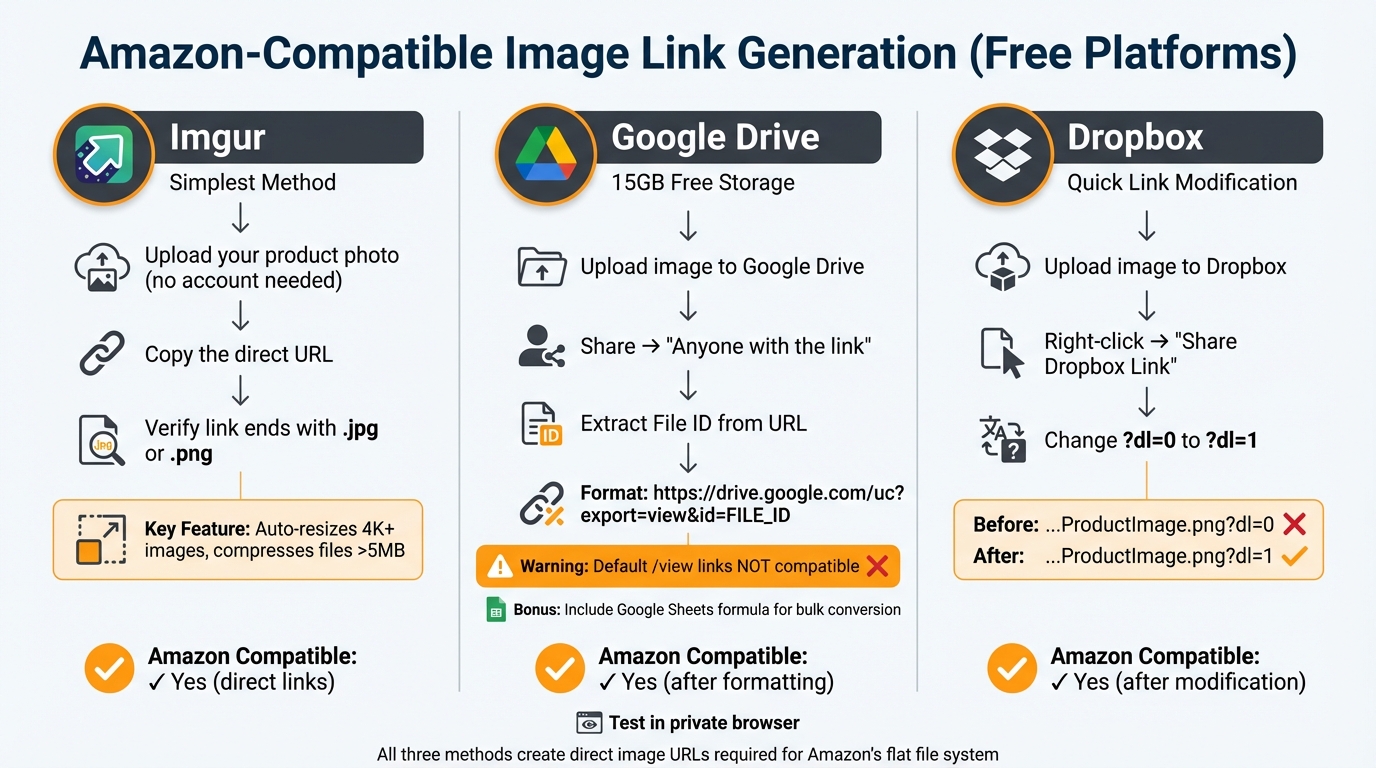
How to Generate Amazon Image Links Using Free Tools: 3-Step Process
You don’t need pricey software to create Amazon-compatible image URLs. Platforms like Imgur, Google Drive, and Dropbox let you host product photos and generate direct links for free.
How to Use Imgur for Image Links
Imgur makes it simple to turn images into shareable links, and you don’t even need an account to get started [1]. The platform automatically resizes images that exceed 4K resolution and compresses files larger than 5MB for faster loading. Here’s how it works:
- Upload your product photo.
- Copy the direct URL provided by Imgur.
- Ensure the link ends with a file extension like
.jpgor.png– avoid links that open in a web viewer.
This quick process ensures your image links are ready for Amazon’s flat file requirements.
How to Use Google Drive for Image Hosting
Google Drive offers 15GB of free storage [6], but its default share links (those ending in /view) aren’t compatible with Amazon’s system. To create a usable link:
- Upload your image to Google Drive.
- Right-click the file and select "Share."
- Change the access setting to “Anyone with the link.”
- Copy the shareable URL and extract the File ID (the string of characters between
/d/and/viewin the link).
Once you have the File ID, build a direct link using this format:
https://drive.google.com/uc?export=view&id=FILE_ID If you’re working with multiple links, streamline the process with this Google Sheets formula (assuming the original link is in cell A2):
=CONCATENATE("https://drive.google.com/uc?export=view&id=", MID(A2, 33, 33)) Always test your final link in a private browser to ensure the image loads directly without requiring a login.
| Link Type | URL Format | Amazon Compatible? |
|---|---|---|
| Standard Share Link | https://drive.google.com/file/d/FILE_ID/view |
No (Opens in Viewer) |
| Direct Image Link | https://drive.google.com/uc?export=view&id=FILE_ID |
Yes |
How to Use Dropbox for Image Links
Dropbox also generates links that initially open in a webpage, which won’t work for Amazon’s bulk upload system [7]. To fix this:
- Upload your image to Dropbox.
- Right-click the file and select "Share Dropbox Link."
- Modify the generated URL by changing
?dl=0to?dl=1.
For example:
https://www.dropbox.com/s/d24ikwklq0rdmc2/ProductImage.png?dl=0 becomes
https://www.dropbox.com/s/d24ikwklq0rdmc2/ProductImage.png?dl=1 Test the modified link in your browser to confirm it either downloads the image directly or displays it without the Dropbox interface.
Using these free tools, you can create the direct image URLs needed for Amazon’s flat file system and integrate them seamlessly with FlatFilePro for bulk management.
Using Image Links with FlatFilePro

FlatFilePro makes bulk image management for Amazon listings a breeze when you have compliant image URLs ready. Instead of manually updating each listing in Seller Central, this tool allows you to manage thousands of images at once by applying direct image URLs across your catalog.
Adding Image Links in Bulk with FlatFilePro
FlatFilePro integrates directly with your Amazon Seller Central account using Amazon’s API, so you can skip the hassle of working with flat file spreadsheets. Once logged into your catalog dashboard, you can select the products you want to update and paste the generated image URLs into the appropriate fields. Whether it’s main images, alternate views, or lifestyle shots, you can update multiple image slots at the same time.
Updates are pushed through Amazon’s API in as little as 15 minutes, a significant improvement over the usual 2–3 hours and the occasional delays of up to 24 hours [3]. Before submission, FlatFilePro also validates your URLs, catching common errors like missing file extensions or incorrect formatting that could lead to image rejection.
This streamlined process not only saves time but also ensures your listings are updated without unnecessary setbacks.
Monitoring Image Links with the Reflection Engine
After your updates are live, FlatFilePro’s Reflection Engine steps in to monitor your listings. Each night, it checks your product detail pages to confirm that your images are displaying correctly. The system uses green checkmarks to indicate success and red X’s to flag any issues.
This feature helps identify problems like broken links or images that fail to load. If an issue is detected, you’ll receive an alert, allowing you to fix it promptly. This is especially helpful since Amazon doesn’t always guarantee consistent display of uploaded images [3].
Conclusion
This workflow – from generating image links to applying them in bulk with FlatFilePro – keeps your catalog updated and running smoothly. Using free platforms like Imgur, Google Drive, or Dropbox, you can create direct image URLs for your Amazon listings without spending a dime. These tools make it easy to turn product photos into shareable links, helping you quickly populate image fields across your catalog.
Still, free tools only solve part of the problem. While they handle hosting, managing hundreds or thousands of listings requires a more efficient solution. That’s where FlatFilePro comes in. It allows you to update thousands of listings in just minutes by applying those URLs in bulk. Plus, its Reflection Engine runs nightly checks to catch broken links or display issues before they impact your sales.
This combination of free image hosting and FlatFilePro’s bulk management tools transforms what used to be a time-consuming task into an automated process. Manual uploads that once took days can now be completed in minutes. Whether you’re managing 100 products or 10,000, the workflow remains the same: generate image links, validate them, and deploy them efficiently.
For Amazon sellers, this method replaces the hassle of manual updates with a streamlined, scalable, and precise solution.
FAQs
What makes an image URL Amazon-compatible?
An image URL for Amazon must be publicly accessible, meaning anyone can view it without needing to sign in. It should also be shareable and support common formats like PNG, JPEG, GIF, or WebP. Meeting these criteria ensures the image can be easily embedded in product listings without any restrictions, aligning with Amazon’s listing requirements.
Will Amazon reject links that open in a viewer page?
Amazon has specific requirements for image URLs used in listings. They must link directly to the image file itself, not to a viewer page or any other intermediary. This ensures the images display correctly and meet Amazon’s listing standards. If your links don’t comply, they may be rejected.
How can I prevent broken image links over time?
To keep image links intact, choose hosting platforms known for stable, long-term reliability. Avoid using temporary services that might delete or limit access to your images over time. Instead, opt for platforms that offer direct and consistent URLs. It’s also a good idea to periodically check your links to ensure they’re still functional. Don’t forget to optimize your images for web use – compressing large files can help minimize potential problems with link stability.