
Creating image URLs for Amazon listings can feel overwhelming, but it doesn’t have to be. Here’s what you need to know:
- Why It Matters: Amazon requires direct, stable image URLs to display product photos. Broken or incorrect links can lead to suppressed listings and lost sales.
- Amazon’s Rules: Images must be in JPEG or PNG format, at least 1,000 x 1,000 pixels, under 10MB, and hosted on a publicly accessible server.
- How to Create URLs: Use platforms like Google Drive to host your images, modify the links to Amazon’s required format, and test them before uploading.
- Common Issues: Problems like broken links, incorrect file permissions, or delays in updates can disrupt listings. Fix these by ensuring public access and keeping files stable.
HOW TO CREATE IMAGE URL FOR AMAZON FLAT FILES! QUICK AND EASY
Amazon’s Image URL Requirements
Before diving into URL generation, it’s crucial to understand Amazon’s specific requirements for images and links. Missing the mark on either can lead to failed uploads or listings missing their photos entirely.
Amazon’s Basic Image Rules
Amazon enforces strict image standards to maintain consistency across all product listings. For your main product image, the background must be pure white (RGB 255, 255, 255).
Accepted file formats include JPEG and PNG, with a minimum resolution of 1,000 x 1,000 pixels and a file size under 10MB[1]. If you’re working with high-resolution images, compress them to stay within the size limit. Once your images meet these standards, the next step is ensuring your URLs comply with Amazon’s guidelines.
What Makes a URL Amazon-Compliant?
Amazon requires a direct image URL – this means the URL must end with a file extension like .jpg or .png, be publicly accessible, and remain stable over time.
Public accessibility is key. For instance, if your image is hosted on Google Drive but the sharing settings aren’t set to "Anyone with the link can view", Amazon’s crawlers won’t be able to access it, and the image won’t display[1]. Additionally, the URL must be permanent; if the source file is moved or deleted, the link will break, causing the image to disappear from your listing. Avoiding these pitfalls is essential to maintaining a seamless listing.
Common URL Problems and How to Avoid Them
Here are some frequent URL issues and practical ways to resolve them:
| Common Error | Likely Cause | Recommended Solution |
|---|---|---|
| Image not updating | Processing delay | Wait up to 24 hours before attempting a re-upload[1] |
| Invalid URL format | Link points to a webpage, not a file | Use a direct link format (e.g., /uc?export=view)[1] |
| Broken image link | Restricted access or deleted source file | Set sharing to "Anyone with link" and keep the file in place[1] |
| Upload failure | File too large or incorrect background color | Compress file below 10MB and ensure RGB 255, 255, 255 background[1] |
One of the most common mistakes is using a Google Drive sharing link – typically one that ends in /view. Amazon doesn’t recognize these as direct image URLs, and the upload will fail. Similarly, links from Google Photos won’t work either. To solve this, you need to convert these links into direct-access URLs before adding them to your flat file. Specific steps for this process are covered in the upcoming section.
Preparing Product Images for URL Generation
Organizing Images for Bulk Use
Before diving into URL generation, start by organizing your product images. Use a centralized cloud folder, like Google Drive, to store all your files. This keeps everything easily accessible and helps avoid broken links.
Each image should be named using its SKU or ASIN, such as B08XYZ123-MAIN.jpg or SKU-001-ALT1.jpg. This naming system makes it simple to match images with the correct product row in your flat file using spreadsheet formulas. To streamline further, maintain a master spreadsheet that lists each SKU alongside its corresponding image file name and generated URL. This will become your go-to reference as your product catalog expands. Once your files are neatly sorted, double-check that they meet all required specifications.
Checking Image Technical Requirements
Before generating URLs, ensure every image complies with Amazon’s standards. Use this quick reference table:
| Requirement | Amazon Standard |
|---|---|
| Minimum Dimensions | 1,000 x 1,000 pixels [1] |
| Maximum File Size | 10MB [1] |
| Background Color | Pure White (RGB 255, 255, 255) [1] |
| Prohibited Elements | Text, watermarks, or borders [1] |
| Accepted Formats | JPEG, PNG, TIFF, non-animated GIF [2] |
Pay special attention to file size – high-resolution images often exceed 10MB, so compress them as needed before uploading. Also, double-check that images are free of watermarks, text, or logos, as Amazon will reject such files [1].
Mapping Images to Flat File Fields
Amazon’s flat file templates include specific columns for image URLs. The primary image should go into the main-image-url column, while additional views can be added in other-image-url1 through other-image-url8 [1].
To simplify this process, structure your master spreadsheet so each row corresponds to a single SKU. Add columns for each image field, then use a formula to generate direct URLs. For example, if you’re using Google Drive, the formula =CONCATENATE("https://drive.google.com/uc?export=view&id=", MID(A2, 33, 33)) can extract the file ID from a shared link and convert it into a direct URL Amazon can access [1]. Always test one URL in a browser first – it should open the raw image directly, not a preview page [2]. This ensures your mapping is accurate and ready for seamless URL generation.
How to Generate Direct Image URLs
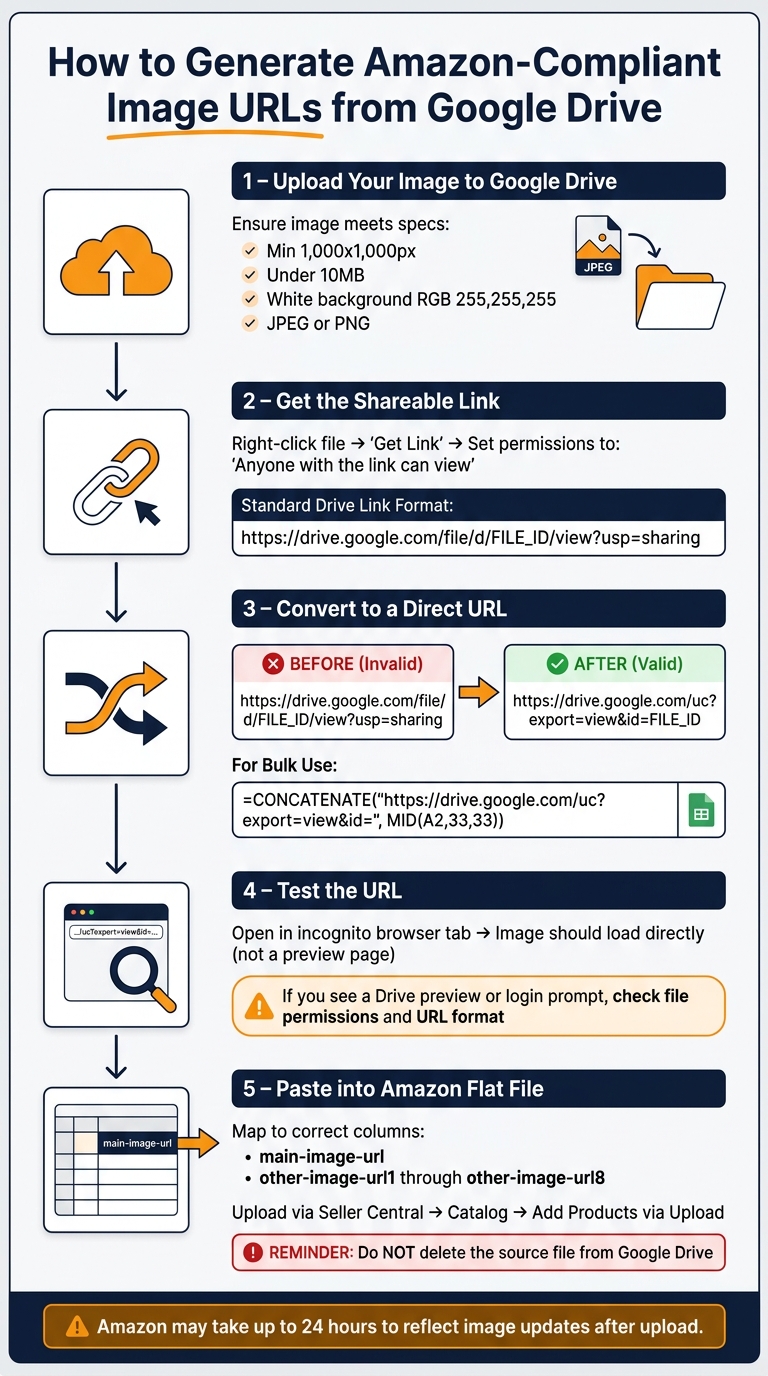
How to Generate Amazon-Compliant Image URLs from Google Drive
Using Image Hosting Tools to Get Direct Links
To upload images to Amazon, you need a URL that points straight to the image file. Links that require clicking or logging in won’t work because Amazon automatically pulls the image from the URL.
Many Amazon sellers rely on Google Drive for this purpose. It provides stable links, as long as the file remains in place. Here’s a quick comparison of the old method versus using Google Drive:
| Old Method (Third-Party Hosting) | New Method (Google Drive) | |
|---|---|---|
| Reliability | Links often break | Highly stable if the file stays intact |
| Workflow | Download → Re-upload → Copy link | Get link → Convert → Paste |
| Bulk Capability | Slow and manual | Quick with spreadsheet formulas |
| Error Risk | High | Low, as long as the format is correct |
Once you’ve set up your Google Drive links, you’ll need to convert them into a format Amazon accepts.
Converting Google Drive Links to Direct URLs
Google Drive’s standard share link looks like this:
https://drive.google.com/file/d/FILE_ID/view?usp=sharing
This format isn’t compatible with Amazon. To make it work, follow these steps:
- Upload your image to Google Drive.
- Right-click the file and select "Get Link."
- Set the file permissions to allow public access.
- Copy the shareable link.
- Modify the link to this format:
https://drive.google.com/uc?export=view&id=FILE_ID
This adjustment ensures the link meets Amazon’s requirements.
For bulk conversions, you can use a spreadsheet. Place your Google Drive share link in cell A2, then use this formula in cell B2:
=CONCATENATE("https://drive.google.com/uc?export=view&id=", MID(A2, 33, 33))
This formula extracts the File ID from the Google Drive link and creates a direct URL.
"By using Google Drive links, sellers can: Save time on bulk image uploads, reduce dependency on third-party services, [and] minimize errors in the Amazon flat file image upload process." – Shaival Choksi
Testing and Verifying URLs
After generating your direct URL, it’s important to test it. Open an incognito browser tab, paste the link, and check if the image loads directly. If you see a Drive preview page or are asked to log in, the link isn’t ready. Double-check the file permissions and ensure the link uses the uc?export=view format.
Finally, remember not to delete the source file from Google Drive. If you remove the file, the link will break, and your Amazon listing will lose its image.
sbb-itb-ed4fa17
Adding Image URLs to Amazon Flat Files
Once your direct image URLs are prepared, here’s how you can integrate them into your Amazon flat files smoothly.
Filling in Image URL Columns in Templates
Enter each HTTPS direct image URL into its designated column in the flat file (e.g., main-image-url, other-image-url1, other-image-url2, etc.). Each URL should occupy a single cell corresponding to its specific SKU row. Make sure the URLs adhere to Amazon’s direct link format.
After placing the URLs, upload the flat file and review the processing report to catch any potential issues.
Uploading Flat Files and Checking for Errors
Upload your flat file through Seller Central by navigating to Catalog > Add Products via Upload. Once uploaded, examine the Processing Report for errors like "Invalid image URL format" or "Broken image link" [1].
"The only reliable way to use image URLs in flat files is to host the images on infrastructure you control." – Jamin Mahmood-Wiebe, Founder, Flat Magic [3]
If an image doesn’t show up right away, note that Amazon may take up to 24 hours to reflect updates. For persistent issues, check the flagged URLs in the Processing Report. Common problems include incorrect file permissions or URLs that aren’t direct links.
| Common Error | Likely Cause | Fix |
|---|---|---|
| Invalid URL format | Using a standard share link | Convert to uc?export=view format [1] |
| Broken image link | File permissions not set to public | Set to "Anyone with the link can view" [1] |
| Image not updating | System processing delay | Wait 24 hours, then re-check [1] |
| Upload rejected | File too large or wrong dimensions | Ensure size is under 10MB and at least 1,000 x 1,000 px [1] |
Using FlatFilePro to Manage Image URL Integration

Managing image URLs for large catalogs can be challenging, especially with manual checks. FlatFilePro simplifies this process by automating updates. With its API integration, FlatFilePro reduces processing time and ensures accuracy. Its Reflection Engine scans your listings nightly, detecting any inconsistencies between your submitted data and live listings. This is especially useful for catalogs with over 100 SKUs, where maintaining precise image URLs is critical.
Maintaining and Fixing Image URLs Over Time
Managing image URLs effectively is crucial for keeping your Amazon listings up and running without interruptions.
Fixing Common URL Errors
Even when your image URLs are set up correctly, they can break over time. This often happens due to changes in permissions or link structures. For example, if a Google Drive file’s sharing settings switch to restricted, Amazon’s servers lose access to the image, causing it to disappear from your listing.
"If you delete the images from Google Drive, the direct links will break, and your Amazon product images will not display correctly. Always keep the files stored securely." – Shaival Choksi, Author, YourSeller [1]
To avoid these issues, ensure your source files remain intact and accessible. Free hosting platforms like Imgur, Postimages, and Dropbox often run into problems like rate limits or errors (e.g., 403/410) when Amazon’s crawlers attempt to fetch images [3]. For reliable, long-term hosting, consider using a platform you control, such as AWS S3. This is especially important for sellers managing extensive product catalogs.
Once you’ve addressed hosting stability, the next step is updating URLs efficiently when changes occur.
Updating URLs When Images Are Moved or Replaced
If you switch to a new hosting service or update product photos, you’ll need to revise the URLs for every affected SKU. Start by downloading your current inventory template from Seller Central. Then, update the relevant flat file columns with the new direct URLs and re-upload the file. If you’re migrating to a new host, use a spreadsheet to create updated URLs. Before uploading, test the new links in an incognito browser to confirm they work properly. Changes may take up to 24 hours to reflect on Amazon [1].
Monitoring URL Quality Across Large Catalogs
Once your URLs are updated, it’s essential to monitor them regularly to ensure they remain functional. For sellers with large catalogs, manual checks aren’t practical. A more efficient strategy is to organize images by attributes like color instead of tracking individual SKUs. This approach reduces the number of unique URLs you need to manage.
For automated monitoring, tools like FlatFilePro’s Reflection Engine can scan your catalog nightly. This system flags any discrepancies between your submitted image data and what’s live on Amazon. It’s particularly useful for catching issues like permission changes in cloud folders or Amazon’s occasional delays in reflecting updates. Without such tools, these problems might only come to light when customers notice missing images or sales begin to decline.
Conclusion: Practical Steps to Manage Image URLs on Amazon
Why Getting Image URLs Right Pays Off
Image URLs play a crucial role in online sales. According to Salsify‘s 2023 consumer research, 46% of U.S. shoppers avoid buying products online if the images are poor quality or missing. A broken URL translates to a missing image, which can result in lost sales opportunities.
But it’s not just about conversions. Clean and properly formatted URLs minimize issues with Amazon’s system, reducing rejections and speeding up product launches. Sellers who improve their product content, including images, often see their GMV increase by 25–100%. That’s a huge payoff for what essentially boils down to maintaining good data practices.
The key is preparation: use consistent naming conventions for your images, host them on a reliable HTTPS server, map your URLs correctly, and test each one before uploading. Think of your image URL list as a dynamic resource – something you revisit and update regularly.
These strategies ensure smoother management and pave the way for tools like FlatFilePro to take your process to the next level.
How FlatFilePro Helps with Image URL Management
FlatFilePro simplifies the often-complex task of managing image URLs. Its template-aware fields ensure that URLs are placed in the correct columns – like main_image_url, other_image_url1, and other_image_url2 – every single time.
The platform’s built-in validation tools catch issues like missing prefixes, empty fields, or invalid URL formats before they cause upload failures. Need to update thousands of URLs at once? FlatFilePro’s bulk find-and-replace feature makes it effortless, saving you from tedious manual edits. Plus, the Reflection Engine performs nightly scans to maintain accurate image data over time.
With these capabilities, FlatFilePro turns what could be a tedious, error-prone process into something efficient and reliable.
FAQs
Can I use the same image URL for multiple SKUs?
Yes, you can use the same image URL for multiple SKUs if the image applies to more than one item. Just assign the image URL to the appropriate SKU in the main_image_url or other_image_url columns of your spreadsheet. This method is often used for shared visuals across product lines and simplifies bulk updates by ensuring the images are correctly linked in your FlatFilePro inventory file.
What should I do if Amazon says my image URL is invalid?
If Amazon flags your image URL as invalid, double-check that the link leads directly to the image file itself – not a webpage or a shared folder. A quick way to test this is by opening the link in an incognito browser. If the image doesn’t load, it’s likely that the hosting source permissions aren’t set to public. Adjust these settings to make the file accessible. Tools like FlatFilePro can assist in spotting errors, correcting URLs, and ensuring they meet Amazon’s guidelines.
How do I keep image URLs from breaking over time?
To keep your image URLs intact, steer clear of temporary hosting services that might delete files or alter link paths. Instead, opt for stable, public servers for hosting. A dependable choice is FlatFilePro, which offers permanent, Amazon-compliant URLs. It also integrates seamlessly with the Amazon Selling Partner API. Plus, its Reflection Engine keeps an eye on your listings, identifying broken URLs so you can address them before they impact your sales.