
If you’re an Amazon seller struggling to upload product images in bulk, here’s the solution: Amazon requires direct image URLs for flat file uploads, but creating these links doesn’t require technical expertise. This guide explains how to generate image URLs quickly using tools like Google Drive or Img.vision, ensuring your product listings meet Amazon’s standards and display properly.
Key Takeaways:
- Why It Matters: Listings without images can hurt click-through and conversion rates by up to 30%.
- What You Need: High-quality images, a hosting platform for public URLs, and a spreadsheet.
- How to Do It: Use Img.vision for clean URLs or Google Drive with a simple formula to create direct links.
- Common Issues: Avoid non-direct links, check image permissions, and ensure proper file formats like
.jpgor.png.
Amazon sellers can save time and reduce errors by organizing image links systematically in spreadsheets and testing URLs before uploading. Tools like FlatFilePro can help manage large catalogs efficiently, flagging errors and maintaining accurate listings. Follow these steps to keep your product images compliant and visible on Amazon.
How to Create Amazon Image URLs for Flat Files Quickly | Amazon FBA for Beginners
Amazon Image URL Basics
Understanding direct image URLs is essential for ensuring your product images meet Amazon’s requirements. Let’s break down the fundamentals to help you get it right.
What is an Image URL?
An image URL is a web address that links directly to an image file. When you paste it into a browser, only the image appears – no menus, no text, no extra elements. These URLs typically end with file extensions like .jpg, .jpeg, or .png. For example: https://example.com/images/red-sneakers-main.jpg.
This is different from a standard webpage URL, which might display multiple elements like text and buttons. Amazon’s system requires a direct link to the image file itself. If you provide a webpage URL instead, Amazon likely won’t be able to access the image, and your product listing might go live without a photo.
Amazon’s Image Requirements
Before creating URLs, ensure your image files comply with Amazon’s technical and content standards. Here’s a quick overview of the key technical requirements:
| Requirement | Amazon’s Standard |
|---|---|
| File format | JPEG (.jpg/.jpeg) recommended; PNG and GIF also accepted |
| Color mode | sRGB (CMYK and LAB are not supported for display) |
| Minimum resolution | 1,000 pixels on the longest side (enables zoom) |
| Recommended resolution | 1,600–2,000 pixels on the longest side |
| Maximum resolution | 10,000 pixels on the longest side |
| Main image background | Pure white (RGB 255, 255, 255) |
| Product fill | Product must occupy at least 85% of the image frame |
Amazon also enforces strict content rules for images. Main product images must focus solely on the item being sold. This means:
- No promotional text (e.g., "Best Seller" or "50% OFF")
- No watermarks or logos
- No unrelated props or borders
The product should be well-lit, clearly visible, and accurately depict what the buyer will receive, including the correct color, size, and quantity.
What You Need Before You Start
You don’t need advanced tools or coding skills to set up image URLs. Here’s what you’ll need:
- An active Amazon Seller Central account with permissions to edit listings
- High-quality image files that meet Amazon’s format and resolution standards
- A hosting method that generates public, direct image URLs (discussed in the next section)
- Spreadsheet software like Google Sheets or Microsoft Excel to organize URLs for flat file uploads
To streamline your workflow, name your image files systematically – something like brand-sku-main.jpg. This makes it easier to match URLs with product listings, especially if you’re managing a large inventory with multiple SKUs.
Step-by-Step: How to Generate Image URLs
How to Generate Amazon Image URLs: Step-by-Step Guide
If you’re ready to turn your product images into Amazon-compliant image URLs, here’s a straightforward guide to get you there.
Preparing Your Product Images
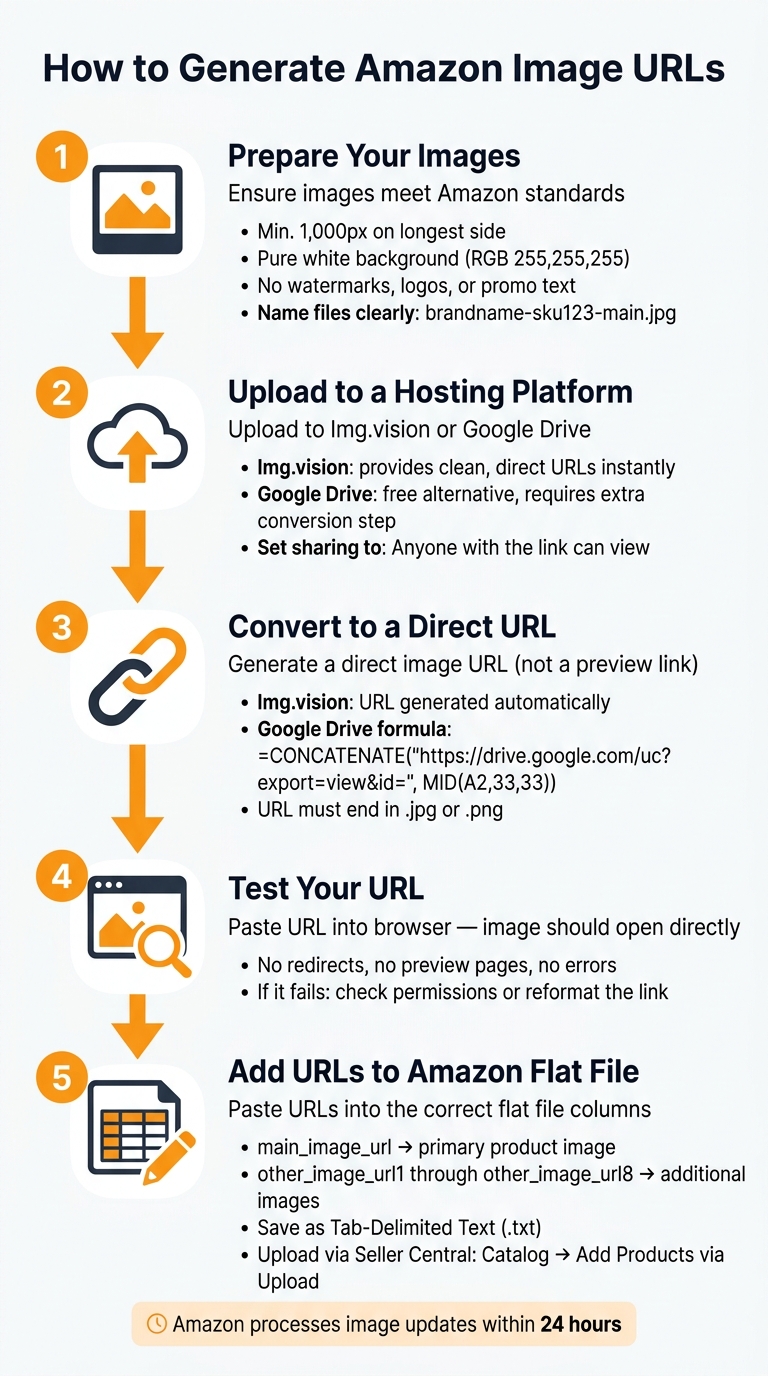
First things first – make sure your images meet Amazon’s standards. Each image should have a resolution of at least 1,000 pixels on the longest side. For main product shots, stick to a pure white background (RGB 255, 255, 255) without any watermarks, props, or unnecessary elements.
To keep things organized, use a clear naming system for your files. For example, something like brandname-sku123-main.jpg works well. This makes it easy to match the images with their corresponding listings later on.
Uploading Images to a Hosting Tool to Get URLs
Once your images are ready, you’ll need to upload them to a hosting platform that can generate direct, public URLs. A tool like Img.vision is a great choice. It provides clean, no-redirect links ending with the image file extension – perfect for Amazon’s requirements. Simply upload your JPEG or PNG files, and the platform does the rest.
As Mathias, the Founder of Img.vision, explains:
"A flat file can partially succeed, with some images accepted and others silently dropped. Listings go live without their main image, and the only sign is a suppressed listing or a drop in conversions you can’t trace back to a missing photo." [1]
This kind of silent failure can be a nightmare for sellers. Tools like Img.vision not only reduce the risk of such issues but also support bulk uploads, saving you time if you’re handling a large inventory.
With your URLs in hand, you’re ready to move on to testing them.
Testing Your Image Links
Before you upload those URLs to Amazon, take a moment to test them. Paste each link directly into your browser. A valid URL will display the image by itself, with no redirects or errors. This quick check can save you from headaches down the line, ensuring your images are ready to go.
Using Google Drive to Generate Image URLs
If you’re not keen on signing up for a dedicated image hosting tool, Google Drive can serve as a free alternative. While its URLs might not be as clean out of the box, you can easily convert them into the direct format Amazon requires. This makes it a budget-friendly option for hosting your images.
Uploading and Sharing Images on Google Drive
To get started, open Google Drive and click + New, then select File upload. Choose your JPEG or PNG files and upload them. Once uploaded, right-click each file, select "Get link," and adjust the sharing settings to "Anyone with the link can view." This step is crucial – Amazon won’t be able to access the image if it isn’t publicly viewable.
Converting Google Drive Share Links to Direct URLs
Here’s where many sellers hit a snag. The default share link from Google Drive looks like this:
https://drive.google.com/file/d/FILE_ID/view?usp=sharing
Unfortunately, Amazon requires a direct URL – one that opens the image file directly, bypassing the Google Drive preview page. To convert your share links into direct URLs, copy them into a Google Sheet. In the next column, use this formula (assuming the share link is in cell A2):
=CONCATENATE("https://drive.google.com/uc?export=view&id=", MID(A2, 33, 33))
This formula extracts the unique file ID from the share link and creates a direct URL in the format Amazon accepts. Test the generated link in your browser to ensure it opens the image directly – no preview page or redirects. Once confirmed, you’re ready to move on to organizing your links.
Organizing Your Links in a Spreadsheet
After generating your direct URLs, it’s best to organize everything in a Google Sheet. Include columns for SKU, image type (main, alternate 1, alternate 2, etc.), original Drive link, and direct URL. This setup ensures you can quickly find and copy the correct URL when filling out your Amazon flat file.
One important note: if you delete an image from Google Drive, its link will break immediately. To avoid issues, treat your Drive folder as a permanent image library – avoid moving or deleting files once your listings are live.
sbb-itb-ed4fa17
Adding Image URLs to Amazon Flat Files
Filling in Image Columns in Flat Files
Once your direct image URLs are ready and neatly organized in a spreadsheet, it’s time to transfer them into Amazon’s flat file template. Open the correct template for your product category and locate the image columns. These are usually labeled main_image_url for the primary image and other_image_url1 through other_image_url8 for additional images [2]. Paste the corresponding URL into the correct SKU row. For larger catalogs, you can use a spreadsheet formula like =Sheet1!C2 to automatically pull URLs, which helps to minimize manual errors.
Make sure your hosting service preserves the required file formats. Amazon only supports JPEG, PNG, TIFF, or non-animated GIF files. If your images are in formats like WebP or AVIF, they will be rejected [1].
Uploading Flat Files to Amazon Seller Central

Once your flat file is complete, save it as a Tab-Delimited Text (.txt) file. To upload, log in to Amazon Seller Central and go to Catalog → Add Products via Upload. Submit your file here [2]. This step ensures that your bulk updates, including image URLs, are applied to your listings.
Amazon’s system may take up to 24 hours to process and display your image updates [2]. As Shaival Choksi, Founder of YourSeller, notes:
"Amazon’s system may take up to 24 hours to process image updates. Wait and check later." [2]
If any images are still missing after this time, check for common issues like non-direct URLs, file sizes exceeding 10MB, or resolutions below 1,000×1,000 pixels [2]. In such cases, generate a new direct link, confirm the image meets Amazon’s specifications, and re-upload only the affected rows instead of the entire file.
Managing Image Data at Scale with FlatFilePro

Once your image URLs are integrated into Amazon flat files, the next challenge is managing them efficiently across a large number of SKUs. After uploading your flat files and publishing your listings, keeping image data accurate becomes critical. Manual checks aren’t practical at scale, and that’s where FlatFilePro steps in.
Bulk Editing and Monitoring Image URLs
FlatFilePro simplifies bulk editing by providing a unified grid that displays all your Amazon listing fields, including main_image_url and other_image_url1 through other_image_url8. Instead of navigating through each listing in Seller Central, you can make updates to image URLs for multiple SKUs all at once.
For instance, if you switch your product image hosting to a new domain, FlatFilePro allows you to update the URL pattern across hundreds of SKUs in one operation. You can validate these changes directly within the tool and push the updated data to Amazon seamlessly. Additionally, the tool flags missing main images or incomplete image sets, helping you address issues before they impact your listings’ performance.
Using the Reflection Engine to Keep Listings Accurate
FlatFilePro’s Reflection Engine takes accuracy to the next level by comparing live Amazon images with your catalog data every night. If there’s a mismatch – caused by an untracked team edit, an Amazon suppression, or an unauthorized change – the Reflection Engine highlights it with a visual alert.
This feature is invaluable for large catalogs where discrepancies between your internal data and live listings might otherwise go unnoticed. For example, if you update a product’s packaging and upload a new image URL via a flat file but the live listing still shows the outdated image, the Reflection Engine will flag the issue. This allows you to fix the problem quickly, maintaining customer trust and protecting conversion rates.
On top of automated checks, FlatFilePro includes a detailed logging system to track every image update.
Tracking Image Changes with the Activity Log
FlatFilePro’s Activity Log captures every change made to your listings, including image-related edits. It records who made the change, when it happened, and the old and new values. If a product image disappears after a bulk update, you can consult the log to pinpoint the exact edit that affected the main_image_url, making it easy to determine if the change was intentional or an error.
For teams managing Amazon accounts collaboratively – like a virtual assistant handling uploads and an operations manager overseeing quality – the Activity Log serves as a centralized record. It eliminates confusion during troubleshooting and ensures everyone stays aligned. Whether confirming a new image URL was added during a planned update or identifying an unexpected modification, this tool helps maintain optimized and compliant listings with minimal guesswork.
Fixing Common Image URL Problems
Even after carefully following all the steps, image URL issues can still pop up. These problems usually fall into a few common categories.
How to Fix Links That Are Not Direct URLs
One frequent mistake is using a sharing link instead of a direct image URL. Sharing links typically open a webpage or preview, which Amazon’s system cannot process. A direct URL, on the other hand, points straight to the image file.
For instance, if your Google Drive link contains /view?usp=sharing or /file/d/, it’s not a direct URL. To fix this, extract the unique File ID from the link and reformat it like this:
https://drive.google.com/uc?export=view&id=YOUR_FILE_ID.
This format ensures Amazon receives the raw image file it requires.
To confirm the link works, paste it into your browser. If the URL opens anything other than the image itself, you’ll need to reformat it.
Why Amazon Rejects Images and How to Fix It
Amazon may reject images for several reasons beyond URL formatting. Checking Amazon’s processing reports can help pinpoint the issue. Below is a quick reference table for common problems and their solutions:
| Issue | How to Spot It | Solution |
|---|---|---|
| Non-direct URL | Link contains /view?usp=sharing |
Reformat using uc?export=view&id= with the File ID |
| Broken link | Image doesn’t appear after 24 hours | Set hosting permissions to "Anyone with the link" |
| Invalid format | Amazon returns a format error | Ensure the file is JPG or PNG and the URL points directly to the image |
| Image not updating | Listing still shows the old image | Wait up to 24 hours before re-uploading [2] |
The two most common culprits are restricted permissions and incorrect file formats. If your hosting permissions are set to private, Amazon won’t be able to fetch the image. Always make sure the file is publicly accessible before adding the URL to your flat file.
Additionally, make sure your images meet Amazon’s file specifications (e.g., JPG or PNG) to avoid unnecessary errors.
Keeping Image Data Consistent Across Your Catalog
Fixing individual issues is one thing, but maintaining consistency across your entire catalog is just as important. Inconsistent URLs can lead to problems like broken links or missing main images that you might not notice until sales start to drop. Establishing a predictable URL structure early on can save time and headaches later. Keeping filenames organized in a spreadsheet can also help prevent manual entry mistakes.
It’s also a good idea to regularly check Amazon’s processing reports for images that may have been silently dropped. Sometimes, flat file uploads appear successful, but the listing goes live without its main photo. These errors don’t always generate a clear warning.
For larger catalogs, tools like FlatFilePro’s Reflection Engine can be a game-changer. This tool compares your catalog data with what’s live on Amazon, flagging any listings where image data doesn’t match. Automating this process can catch issues far more reliably than occasional manual checks.
Conclusion: A Simpler Way to Handle Amazon Image URLs
Creating image URLs for Amazon doesn’t have to be complicated. With the right hosting method, you can easily generate direct image links that Amazon accepts, no technical know-how required.
Here’s a quick recap of the process: ensure your images meet Amazon’s requirements, generate direct URLs, and input those URLs into the appropriate flat file columns. Once uploaded, Amazon typically processes updates within 24 hours.
"By using Google Drive links, sellers can: Save time on bulk image uploads, [and] minimize errors in the Amazon flat file image upload process." – Shaival Choksi, YourSeller [2]
These steps are simple enough for smaller catalogs, but as your inventory grows, managing image links manually can lead to broken URLs, mismatched data, or unnoticed errors. That’s where tools like FlatFilePro shine. Its Reflection Engine automatically checks your catalog data against Amazon’s live listings, while the Activity Log tracks every image update. These features eliminate the need for manual spot-checking, saving time and reducing costly mistakes.
The takeaway? Start with the basics, stay organized, and adapt your process as your catalog grows. This approach ensures your Amazon listings remain strong and efficient, no matter the scale of your business.
FAQs
How do I know if my image URL is truly “direct” for Amazon?
A direct image URL for Amazon points straight to the raw image file, not a preview or webpage. These URLs typically end with valid file extensions like .jpg, .png, .tif, or .gif. They must also use HTTPS and be publicly accessible. To confirm, open the URL in an incognito browser window; the image should load directly without requiring a login or redirecting elsewhere.
Will my Amazon images break if I move or delete files in Google Drive?
If you move or delete the original files in Google Drive, the links you generated will no longer work. This means your images will vanish from your Amazon listings. To prevent this, keep the source files in their original location and avoid deleting them.
What should I do if my flat file upload “succeeds” but images don’t show?
If your flat file upload works but images don’t show up, give it up to 24 hours; Amazon sometimes needs extra time to process updates. If the images are still missing after that, double-check that your URLs link directly to the raw image files – not to sharing pages or other intermediaries – and that they have public access permissions. To be sure, test each URL in an incognito browser to confirm the image opens without needing a login.