
If you need Amazon product image links for your listings, here’s a quick guide to help you extract them easily. These URLs are essential for maintaining consistent visuals across platforms and can be retrieved efficiently using three main methods:
- Flat Files: Use Amazon’s flat file templates to bulk export image URLs. This method is ideal for large catalogs but requires familiarity with spreadsheets.
- Google Sheets: Leverage formulas and add-ons like
ImportFromWebto extract image links directly from product pages. Best for mid-sized catalogs. - FlatFilePro: A paid tool that syncs with Amazon Seller Central for fast, automated image management and monitoring.
Each method has its pros and cons, but the right choice depends on the size of your inventory and your technical skills. For large-scale sellers, FlatFilePro offers the most efficient solution, while flat files and Google Sheets work well for smaller operations.
Keep your image data organized and regularly monitored to avoid broken links or outdated visuals. Missing or incorrect images can harm your credibility and sales. Start by reviewing your current setup and choose the method that best suits your needs.
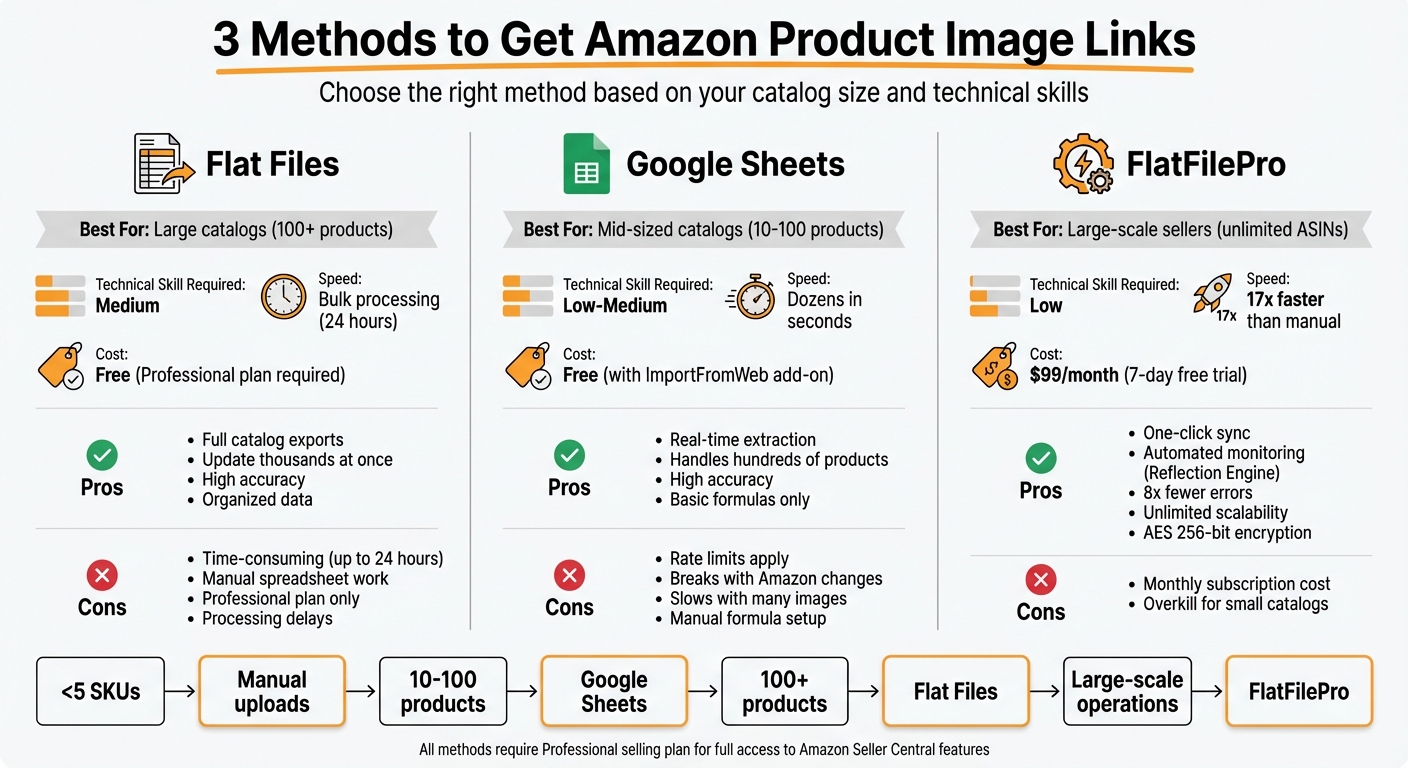
Comparison of 3 Methods to Extract Amazon Product Image URLs
HOW TO CREATE IMAGE URL FOR AMAZON FLAT FILES! QUICK AND EASY
How Amazon Organizes Product Image Data
To efficiently extract image URLs, it’s important to first understand how Amazon structures its product image data. Amazon links each image to a specific product identifier, which determines where the image appears on a product listing and how it’s stored in their catalog. Let’s break down the key categories Amazon uses to classify product images.
Types of Product Images in Amazon Listings
Amazon organizes product images into two main categories: Primary and Variants. According to Amazon’s PA-API 5.0 documentation:
The Primary image denotes the image which is displayed in search results and on the detail page. Variants include everything else [5].
Within these categories, Amazon assigns specific roles to images. The Main image is the first one shoppers see in search results and on the product detail page. Swatch images are smaller thumbnails that showcase variations like color or texture. PT images (Product Type) include additional visuals, such as alternative angles, lifestyle shots, or infographics. For used or refurbished items, Amazon even has a MainOfferImage specifically for products that aren’t brand-new [6].
Amazon offers images in three standard sizes – Small, Medium, and Large – but here’s a helpful tip: you can customize image sizes by adjusting the URL suffix. For instance, changing ._SL1500_ to ._SS160_ gives you a 160×160 pixel thumbnail [1] [5]. This flexibility means you don’t need to store multiple versions of the same image.
How Images Connect to ASINs and SKUs
Each product image is directly tied to Amazon’s product identifiers. Every product has an ASIN (Amazon Standard Identification Number), which serves as the universal identifier for shoppers and Amazon’s system. Sellers, on the other hand, use SKUs (Stock Keeping Units) to manage inventory at a more granular level. When you upload a flat file or interact with Amazon’s API, you’re linking image URLs to your SKUs, and Amazon then associates those images with the corresponding ASIN [5] [6].
This process becomes more involved when dealing with product variations. For example, a parent ASIN might represent a t-shirt style, while child SKUs correspond to individual color options. Each child SKU needs a swatch image to display the appropriate color thumbnail when selected. In flat files, you’ll find columns like main_product_image_locator or other_product_image_locator_1 through 8, which specify where each image fits in the listing [6].
A key update to note: starting July 31, 2025, Amazon discontinued support for legacy XML and flat file listing feeds for images [6]. The platform now uses JSON-based feeds and the Listings Items API. This change also replaces the old CamelCase format (e.g., SizeName) with an underscore format (e.g., Size_Name) [6]. If you’re extracting image data, make sure your tools are compatible with this updated system.
This structured framework is essential for effectively working with flat files and other tools to extract image URLs with precision.
Method 1: Extracting Image Links from Amazon Flat Files
Flat files are a reliable way to extract image URLs in bulk. These files provide a complete export of your listing data in a spreadsheet format, allowing you to easily view, filter, and organize all your image links in one place. However, this feature is only available to sellers with Professional selling plans [8][9].
Downloading and Setting Up Flat Files
To get started, log in to Seller Central and navigate to Catalog > Add Products via Upload. From there, download the appropriate product category template for your inventory. For instance, if you sell clothing, you’ll need the "Clothing & Accessories" template. Each flat file includes several sheets:
- Template: Where you’ll input your data.
- Data Definitions: Explains field requirements.
- Images: Offers examples of acceptable images.
- Valid Values: Lists specific terms for certain columns.
Within the Template sheet, locate the image fields: main_image_url and other_image_url1 through other_image_url8. These columns contain the direct URLs for your product images. For a quick snapshot of your current inventory, you can also download the Active Listings Report under Reports > Inventory Reports. This report provides a list of all active SKUs and ASINs, which you can cross-reference with your flat file data [8].
Once you’ve identified the image data, the next step is to filter and clean it for accuracy.
Filtering and Cleaning Image URL Data
After locating the image URL columns, verify that all URLs are direct links ending in .jpg or .png and hosted on a publicly accessible server. If you’re using cloud storage, convert links into direct URLs with a formula, such as:
=CONCATENATE("https://drive.google.com/uc?export=view&id=", MID(A2,33,33)), and ensure they are publicly accessible [3].
Use your spreadsheet’s filtering tools to organize data by SKU or ASIN, and remove rows with missing or invalid URLs. Check that the images meet Amazon’s guidelines:
- Minimum resolution of 1,000 x 1,000 pixels.
- Pure white background (RGB 255, 255, 255).
- File size under 10MB [3].
When updating image URLs, use the Partial Update option in the update_delete column to avoid overwriting existing product details like descriptions or bullet points. After uploading your file, download the Processing Summary from the "Monitor Upload Status" tab to identify any errors, such as "Invalid URL format" [2][7].
"Amazon’s system may take up to 24 hours to process image updates. Wait and check later." – Shaival Choksi, Founder, Your Seller [3]
Flat File Method: Advantages and Drawbacks
Here’s a quick breakdown of the pros and cons of using flat files:
| Advantages | Drawbacks |
|---|---|
| Full Exports: Provides a detailed view of all current image URLs in your catalog [4]. | Time-Consuming: Generating and processing large files can take up to 24 hours [2][3]. |
| Bulk Processing: Update thousands of products at once, saving time compared to manual entry. | Manual Effort: Requires familiarity with spreadsheets and careful data cleaning to avoid errors. |
| High Accuracy: Bulk operations reduce typos compared to manual updates. | Processing Delays: Changes may take up to 24 hours to appear on live listings [2][3]. |
| Organized Data: Makes it easy to sort, filter, and analyze image URLs. | Restricted Access: Only available to sellers with Professional plans [8][9]. |
To avoid potential issues, test this process on a small selection of your inventory before applying changes across your entire catalog [7]. Once you’ve mastered the flat file method, you can explore other tools, like Google Sheets, to further streamline your workflow.
Method 2: Using Google Sheets to Retrieve Image URLs
This method takes advantage of Google Sheets for quick, real-time URL extraction, offering a semi-automated way to gather Amazon image URLs. It’s especially useful for mid-sized U.S. catalogs. By using add-ons and built-in functions, you can pull image data directly from live product listings without downloading large flat files. While it does require some initial setup, it can process dozens of URLs in just seconds.
Setting Up Google Sheets for Bulk URL Retrieval
First, install the ImportFromWeb add-on from the Google Workspace Marketplace and activate it through the Extensions menu. Then, prepare your product page URLs by using ASINs. In column A, list your ASINs, and in column B, use this formula to generate the full product URLs dynamically:
="https://www.amazon.com/dp/"&A2
Next, define selectors to target specific image elements on Amazon product pages. For example:
- Use
featured_image_sourcein cell C1 to pull the main image. - Use
image_1_sourcethroughimage_10_sourcein cells D1–M1 to capture additional gallery images.
To extract the data, apply the =IMPORTFROMWEB() function. This formula takes two parameters: the URL range and the selector range. For example:
=IMPORTFROMWEB(B2:B50, C1:M1)
This setup processes 49 products at once, pulling all specified images for each listing. By using a closed range, you minimize data calls and reduce the risk of hitting Google’s rate limits.
Extracting Main and Additional Image URLs
Once the formula runs, Google Sheets will populate cells with direct image URLs. The featured_image_source selector retrieves the main product image, while the image_X_source selectors pull additional gallery images sequentially. To display an image directly in the sheet, wrap the URL with the =IMAGE() function, like so:
=IMAGE(C2)
For products with variations, you can use the variation_X_child_images_source selector to fetch images specific to each variant. To automate image display across an entire column, use:
=ARRAYFORMULA(IF(C2:C<>"", IMAGE(C2:C), ))
This eliminates the need to manually apply the IMAGE() function row by row.
Avoid dragging formulas down thousands of rows manually. Instead, rely on range references to stay within Google’s rate limits and ensure efficient processing.
Comparing Google Sheets to Manual Extraction
Here’s a side-by-side look at how this method stacks up against manual image retrieval:
| Feature | Google Sheets Method | Manual Extraction |
|---|---|---|
| Processing Speed | Handles dozens of URLs in seconds | Very slow; requires opening each page |
| Scalability | Works well for catalogs with hundreds of products | Limited to a small number of products |
| Accuracy | High, assuming selectors are up-to-date | Prone to human error |
| Technical Skill | Basic formula knowledge needed | No technical skills required |
| Main Limitations | Subject to rate limits and Amazon layout changes | Time-consuming and labor-intensive |
Keep in mind that displaying too many images at once can slow down your Google Sheet. Additionally, if Amazon removes or changes a source URL, the corresponding link in your sheet may break, resulting in errors. For larger catalogs or more advanced needs, you might want to explore fully automated solutions to save time and effort.
sbb-itb-ed4fa17
Using FlatFilePro for Faster Image Management

How FlatFilePro Simplifies Image URL Access
FlatFilePro integrates seamlessly with Amazon Seller Central through an API, cutting out the need for downloading flat files or wrestling with complicated formulas. With just one click, it syncs your entire catalog into a centralized dashboard, making it easy to manage image URLs for all your ASINs.
This setup eliminates the risk of manual formatting errors and provides a clear, organized view of your product images. Whether you want to sort by SKU, ASIN, or variation family, FlatFilePro ensures everything is in one place. It effectively bridges the gap between tedious manual tasks and a fully automated catalog management system.
Features That Transform Image Management
FlatFilePro doesn’t stop at efficient data retrieval – it steps up with advanced tools to make image management even smoother. One standout is the Reflection Engine, which keeps an eye on your catalog and flags missing or altered images. According to FlatFilePro, around 93% of Amazon sellers encounter "catalog rot" – silent listing failures – without even realizing it [10].
For sellers handling variations, the drag-and-drop interface ensures accurate mapping of images to ASINs. User permissions can be customized too, so designers, for example, can update image fields without touching sensitive data like pricing or keywords. Plus, with automated version control, you can roll back to a previous image version in case an update doesn’t go as planned.
Jack Haldrup, the founder of Dr. Squatch, shared his experience with FlatFilePro:
"This is the tool that powers our ops and analytics teams. We used to do everything manually, such a pain! Now we don’t have to think about anything and our listings update like magic!" [10]
Why FlatFilePro Beats Manual Methods
If you’re looking for speed and reliability, FlatFilePro leaves manual methods in the dust. Here’s how it stacks up against traditional approaches:
| Feature | Manual | Google Sheets | FlatFilePro |
|---|---|---|---|
| Processing Speed | Slow; requires manual work | Handles dozens of URLs in seconds | 17x faster [11] |
| Scalability | Limited by file size and errors | Suitable for hundreds of products | Manages unlimited ASINs [10] |
| Error Handling | Manual troubleshooting | Formulas can break with changes | Built-in validation; 8x fewer errors [12] |
| Live Monitoring | Requires manual checks | No monitoring available | Automated Reflection Engine alerts [10] |
| Data Security | Risk of file corruption or loss | Subject to Google rate limits | AES 256-bit encryption + backups [11] |
FlatFilePro offers a 7-day free trial and a standard plan priced at $99/month [10]. For U.S.-based sellers managing large catalogs, the time saved and the reduction in errors make it a smart choice compared to struggling with flat files or dealing with broken Google Sheets formulas.
Keeping Image Data Accurate Over Time
Checking Image Data Regularly
Image URLs can quickly become outdated. As your catalog expands, you might encounter broken links, missing images, or even older versions of visuals popping back up unexpectedly. Regular manual checks can help you catch these issues before they impact your listings.
One way to stay on top of this is by downloading an Active Listings Report from Seller Central every month. Use it to cross-check live image URLs against your source files. If you’re managing hundreds of ASINs, consider stepping up the frequency to every two weeks. While Amazon processes updates quickly, listings can sometimes revert without warning. To save time and reduce errors, automated tools can be a great addition to these manual checks.
Automated Monitoring with FlatFilePro
Manual checks are helpful, but they can be tedious and easy to miss. That’s where tools like FlatFilePro’s Reflection Engine come in. This tool scans your entire catalog every night, comparing your intended image data with what’s currently live on Amazon [10]. If an image URL changes or disappears, FlatFilePro alerts you immediately.
The Reflection Engine uses a simple system: green checkmarks for accurate data and red X’s for items that need fixing. It also keeps automated backups of your image data, so if an update goes wrong, you can quickly restore a previous version with just a few clicks [10][11].
Tips for Organizing Image Data
Keeping your image data organized is just as important as monitoring it. Start with a consistent naming system for your image files that includes the ASIN or SKU. For example, filenames like "B08XYZ1234-main.jpg" or "SKU-12345-lifestyle-02.jpg" make it much easier to match images to products when troubleshooting.
It’s also a good idea to regularly export your image data as dated CSV backups and store them in a dedicated folder (e.g., "image-urls-01-09-2026.csv") [13]. This creates a reliable audit trail you can refer to if something goes wrong.
If you use Google Drive for hosting images, make sure to convert sharing links into direct URLs. Set permissions to "Anyone with the link can view" to avoid broken links during Amazon’s scraping process [3]. And here’s a critical tip: don’t delete files from your source folder, even old versions. Amazon might still reference those URLs [3].
To minimize accidental changes, limit editing permissions to specific team members, like designers. Assign clear roles to ensure your image data stays consistent and error-free [10][11].
Conclusion
Main Points to Remember
Managing Amazon product image URLs doesn’t have to feel overwhelming. The trick lies in selecting the right method based on the size of your catalog and your technical expertise. If you’re handling fewer than five SKUs, manual uploads might be sufficient. But as your business expands, this approach quickly becomes impractical. For sellers managing between 10 and 100 products, using Google Sheets alongside Google Drive is a smart option – especially when converting share links into direct URLs.
For larger catalogs, Amazon Flat Files are a faster way to update hundreds or even thousands of image URLs at once. However, they require a solid understanding of the format and close attention to detail. A single mistake in a tab-delimited file could disrupt your entire catalog. Over time, catalog issues like broken links or outdated images can quietly harm your sales performance, making regular monitoring essential.
Having accurate image URLs is critical for building customer trust and driving conversions. Broken links, missing visuals, or outdated images can damage the credibility you’ve worked hard to establish. Regularly reviewing your listings – whether through monthly Active Listings Reports or automated tools – can help catch problems early, ensuring your catalog remains in top shape.
By applying these strategies, from using flat files to implementing automated monitoring, you can make your image management process faster and more reliable.
What to Do Next
Start by reviewing your current image management setup. Download an Active Listings Report from Seller Central and compare your live image URLs with your source files. If you notice inefficiencies or recurring issues, it may be time to upgrade your approach.
For sellers looking to move beyond manual methods, FlatFilePro offers a comprehensive solution starting at $99/month, including a 14-day free trial and a six-month refund guarantee[10]. Additionally, the Reflection Engine provides nightly monitoring, catching silent failures or unauthorized changes before they impact your sales. As Ian Sells, Founder of Million Dollar Sellers, shares:
"With FlatFilePro, I’ve been able to streamline my Amazon listing process significantly. What used to take hours now takes just minutes. It’s a game-changer for my business"[10].
FAQs
What’s the best way to extract Amazon product image URLs based on my catalog size?
The best way to pull Amazon product image URLs largely depends on the size of your product catalog.
- Small catalogs (fewer than a few hundred products): A simple script or even a manual export can do the trick. Using a lightweight scraper, you can quickly grab image URLs and save them to a file. This keeps things straightforward and budget-friendly.
- Medium catalogs (a few hundred to a few thousand SKUs): Amazon flat files are a more practical choice here. Tools like FlatFilePro simplify the process by creating formatted flat files with image URL columns, making the task faster and less prone to mistakes.
- Large catalogs (tens of thousands of SKUs or more): For catalogs of this size, scalable extraction tools are a must. These tools can manage large datasets, bypass rate limits, and export URLs in bulk. Afterward, you can integrate the data into FlatFilePro for smooth updates.
Choosing the right method based on your catalog size helps you retrieve image URLs efficiently while minimizing errors and saving time.
What’s the difference between using Google Sheets and Amazon flat files for managing product image URLs?
Google Sheets and Amazon flat files both serve the purpose of managing product image URLs, but they shine in different scenarios. Google Sheets is perfect for teams that need real-time collaboration. It lets multiple users edit, comment, and update URLs simultaneously from any device. However, there’s a catch – it requires exporting the data to a CSV file before uploading to Amazon, which adds an extra step to the process.
On the other hand, Amazon flat files are built specifically for bulk uploads and align perfectly with Amazon’s formatting requirements. They simplify the workflow by ensuring proper formatting, validating data (like URL syntax and required fields), and allowing direct uploads to Seller Central. This makes them a time-saver for managing large catalogs while reducing the chance of errors.
In short, opt for Google Sheets for collaborative editing and smaller-scale tasks. When it comes to bulk updates, Amazon flat files are the way to go for efficiency and accuracy.
How can I keep my Amazon product images accurate and up to date?
To keep your Amazon product images up-to-date and accurate, make it a habit to refresh your listings by pulling the latest image URLs from your catalog. You can simplify this process with tools like flat-file exports or automated systems. If you spot any outdated or broken links, replace them as soon as possible.
It’s also crucial to stick to Amazon’s image guidelines to ensure quality. Images should take up at least 85% of the frame, be high-resolution, and steer clear of watermarks, text overlays, logos, borders, or any extra graphics. Following these rules not only keeps your product pages looking professional but also ensures they remain compliant with Amazon’s standards.