
To manage your Amazon catalog efficiently, downloading it as a CSV file is essential. Whether you’re updating prices, fixing errors, or organizing product variations, CSV exports allow you to handle bulk edits quickly. Here’s how to get started:
- Account Requirements: Ensure you have a Professional Seller account and activate the Category Listings Report (CLR) by requesting it through Seller Central.
- Export Process: Navigate to Inventory Reports in Seller Central, customize the columns you need, and request the report. Once ready, download the file and convert it to CSV if needed.
- Bulk Updates: Use the CSV file to adjust fields like prices, SKUs, and inventory levels. For large catalogs, the CLR provides a detailed snapshot of all listings, including variations.
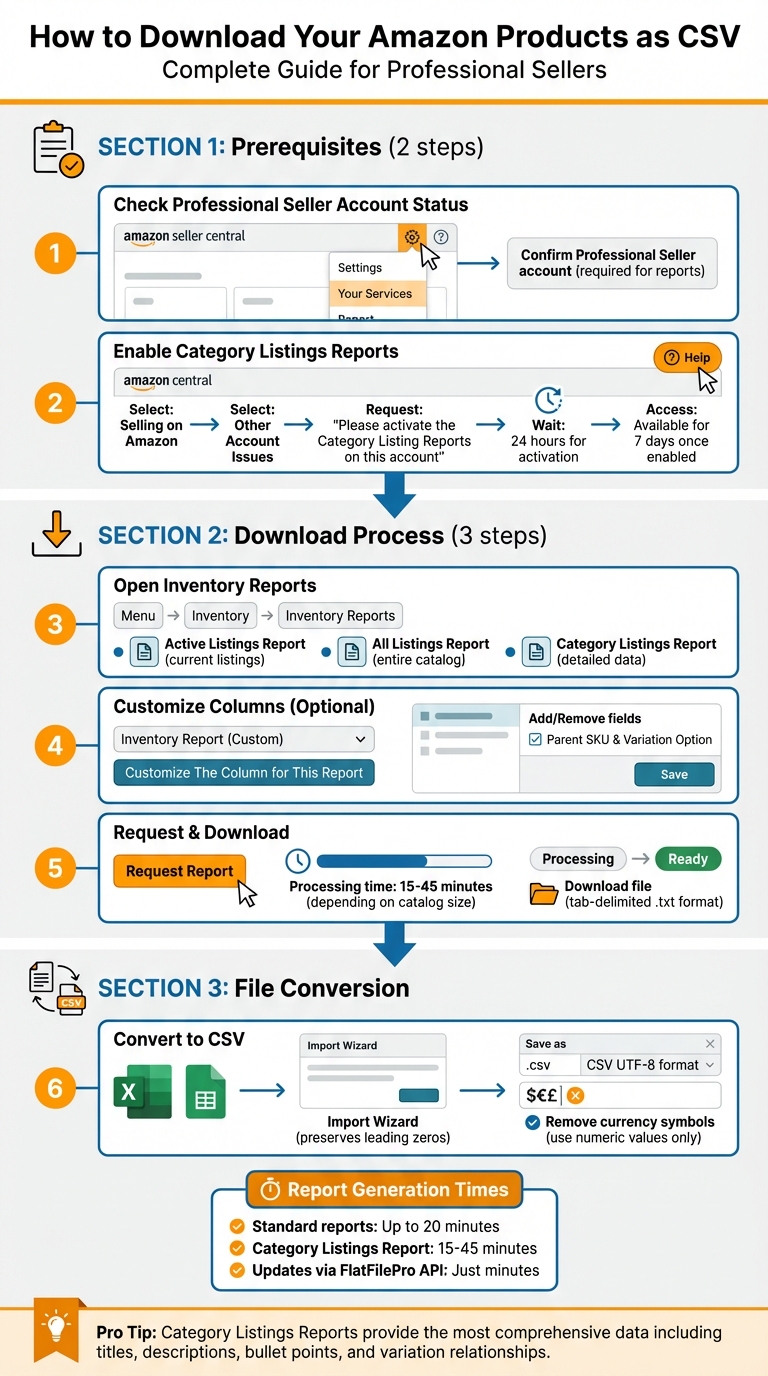
How to Download Amazon Products as CSV: Complete Step-by-Step Process
What You Need Before Exporting Product Data
Before you can export your product catalog as a CSV file, there are two key steps to complete in Seller Central. Make sure these are taken care of before diving into the CSV download process.
Check Your Professional Seller Account Status
To access inventory and category listing reports, you’ll need a Professional Seller account [3]. If you’re currently on an Individual selling plan, the necessary reporting tools won’t be available to you.
You can confirm your account type by going to your account settings in Seller Central. If you’re on an Individual plan, simply head to the "Your Services" section under Settings to upgrade to a Professional Seller account.
Turn On Category Listings Reports
The Category Listings Report (CLR) is your go-to option for exporting detailed product data. It provides a complete snapshot, including titles, descriptions, bullet points, and other listing attributes [5]. However, this report is disabled by default, and once activated, it’s usually accessible for only 7 days.
"The most-informative reports of this nature are the disabled-by-default ‘Category Listings Reports;’ you have to open a Case with Seller Support requesting that they be enabled for download." – Seller_sUfyk7ajzPzny, Amazon Seller Forum [5]
To enable the CLR, start by clicking the "Help" button in the top-right corner of Seller Central. From there, select "Selling on Amazon" and open a new case under "Other Account Issues." In your message, request: "Please activate the Category Listing Reports on this account" [4]. Most requests are processed by Seller Support within 24 hours.
Once both of these steps are completed, you’ll be ready to download your CSV report.
sbb-itb-ed4fa17
How to Download Your Product Data as CSV
Once you’ve confirmed your Professional Seller account status and enabled Category Listings Reports, you’re set to export your product data. This process is straightforward and involves just a few steps. Exporting your data as a CSV file is a key step for bulk editing and keeping your catalog organized and accurate.
Open Inventory Reports
Start by logging into Amazon Seller Central. Click the Menu button at the top left and navigate to Inventory Reports under the Inventory dropdown. Here, you’ll find several report options.
- The Active Listings Report provides details on your current listings.
- The All Listings Report includes everything in your catalog.
- For larger catalogs, the standard Inventory Report might be more suitable [6].
From here, you can also customize the data fields in your inventory template to match your specific needs.
Choose Which Columns to Include
If you need tailored data fields, select Inventory Report (Custom) from the report type dropdown. Then, click "Customize The Column for This Report" to bring up the attribute selection window.
In this window, you’ll see two columns: one for available attributes (on the right) and another for included attributes (on the left). To add a field, select it from the right-hand column and click Add. To remove a field, select it from the left-hand column and click Remove. Once you’ve made your selections, click Save at the bottom right. After customizing your columns, you’re ready to request the report.
Request and Download Your Report
With your report type and columns set, click the Request Report button. Then, check the "Check Report Status & Download" section. Depending on the size of your catalog, the file may take up to 20 minutes to generate [2]. You can return later to check the progress. Once the status changes to "Ready," a download link will appear.
The downloaded file will be in a tab-delimited .txt format. To convert it to CSV, open the file in Excel or Google Sheets and save it as a .csv file. If you’re using Excel, make sure to use the Import Wizard instead of double-clicking the file. This ensures that leading zeros in product IDs like UPCs or ISBNs are preserved [7].
Using Category Listings Reports for Large Catalogs
If you’re working with a large or complex catalog, you’ll need more than just a basic CSV export to manage your listings effectively. That’s where the Category Listings Report comes in. This report provides a detailed flat file of your listings, including titles, bullet points, descriptions, and variation relationships, all in one export. Unlike standard inventory reports, this file is editable and can be re-uploaded directly to Amazon without needing to create a new template from scratch.
"The Category Listings Report… provides a comprehensive view of all your listings as they currently appear in Amazon’s system." – Francisco Valadez, VP of Brand Operations, My Amazon Guy
Another key benefit? It serves as a backup to safeguard your listing data, ensuring every attribute and relationship is accurately preserved.
How to Request Category Listings Report Access
The Category Listings Report isn’t automatically available in most seller accounts. To enable it, follow these steps:
- Log into Seller Central and click the Help link in the top-right corner.
- Navigate to Selling on Amazon > Your Account > Other Account Issues.
- Submit a case with the message: "Please activate the Category Listing Reports on this account."
- Select Email as your contact method to receive a notification when the report is activated.
The request usually takes about 24 hours to process. Once enabled, the report option typically stays active for 7 days.
Download Your Complete Catalog Data
After activating the Category Listings Report, you can download your full catalog by following these steps:
- Go to Reports > Inventory Reports in Seller Central.
- Choose Category Listings Report from the dropdown menu.
- Set the Select Category filter to "All" and the Select Status Filter to "All" to include both active and inactive listings.
- Leave the Listings Created After field blank to ensure your entire catalog is included.
- Select Excel as the file format and click Request Report.
The report generation process takes about 15–45 minutes. Once it’s ready, the status will update to "Ready." You can then click Download and save the file. This report allows you to make bulk updates using the Partial Update function, enabling you to adjust specific fields like price or inventory without altering other details. It’s a powerful tool for simplifying catalog management and keeping your data organized.
How to Customize Your CSV Files
Once you’ve downloaded your CSV file, tweaking it correctly can make bulk management much easier. Amazon offers several options to control which data fields are included in your export.
Pick the Right Data Fields
With the Inventory Report (Custom) option, you can select only the attributes you actually need. The interface displays two columns – "Available" and "Included" – and you can use the "Add" and "Remove" buttons to move fields like SKU, title, price, and inventory levels between them.
If you’re managing products with variations, don’t forget to include "Parent SKU" and "Variation Option" fields. These are essential for keeping parent and child products linked in your CSV file, ensuring the data stays intact when re-uploading.
For those using Amazon’s Excel-based templates, you can reveal additional optional fields by clicking the "+" or "-" icons in the top-left corner of the sheet. Alternatively, switch to the "2" view to see all available attributes for more advanced editing.
Use the Inventory Loader File Format
The Inventory Loader file format is an efficient way to update pricing, quantities, and shipping settings for existing listings. This template is ideal for most products, except for books, music, video, or DVDs. If you only need to adjust specific values – like prices or stock levels – you can download a blank template from the Add Products via Upload page. Select the appropriate card that matches your goal, such as "update price and quantity."
When saving your file for upload, use CSV (Comma Delimited) or Text (Tab Delimited) formats. If you’re working in Microsoft Excel, choose the CSV UTF-8 format to avoid character issues. Make sure to remove currency symbols so prices are purely numeric (e.g., 17 or 3.99). For fields like "Offer Prime", use "TRUE" or "FALSE" to ensure smooth processing.
Only include the SKU and the columns that need updates, leaving optional fields blank to keep things simple. These adjustments to your CSV file will help streamline bulk edits and make automated updates more efficient.
Using CSV Data with FlatFilePro
Bulk Editing and Automated Updates
Managing your product catalog through manual CSV files can be a tedious process. FlatFilePro simplifies this by offering bulk editing through an easy-to-use interface. Once changes are made, updates are sent to Amazon via API, cutting the processing time down to just minutes instead of the usual 15 to 45 minutes [3].
FlatFilePro also takes the guesswork out of error handling. It automatically detects issues – like added columns or mismatched variation sequences – before they cause failed imports on Amazon [1]. This means you can update key details like pricing, quantities, and product descriptions across your entire catalog without stressing over template formatting or character encoding. These automated tools make catalog management smoother and set the stage for even more advanced features.
Key FlatFilePro Features for Catalog Management
FlatFilePro goes beyond automation with tools designed to make catalog management even easier. One standout is the Reflection Engine, which checks your listings nightly. It flags any inconsistencies between your stored data and what’s live on Amazon. This real-time tracking ensures you’re always up to date without having to rely on outdated inventory reports.
Another game-changer is the Variation Manager. Traditional CSV files require precise sequencing of parent and child products, which can be a headache to organize manually. FlatFilePro simplifies this with a drag-and-drop interface, letting you master the Amazon listing variation process in under 5 minutes. With a 95% success rate, it removes much of the hassle that comes with manual edits.
Conclusion
Getting your product data from Seller Central is simple. Whether you’re using standard Inventory Reports for quick updates or requesting Category Listings Reports for more detailed catalog edits, these exports allow you to manage thousands of products in a portable format [2].
However, Inventory Reports are just snapshots – they take 15 to 45 minutes to generate [8] and can quickly become outdated as new sales roll in.
The challenges don’t stop there. Managing CSV files manually can feel cumbersome and error-prone [5]. Missing critical columns, like SKU or Title, can lead to import failures and upload errors [1]. That’s where FlatFilePro steps in to simplify the process.
With FlatFilePro, API integration processes updates in minutes, and its Reflection Engine automatically detects discrepancies between stored data and live listings every night. For sellers with large catalogs, this means less time spent downloading and cross-checking reports and more time focusing on growing your business.
While CSV exports are a useful starting point, combining Amazon’s reporting tools with FlatFilePro’s automation provides the efficiency you need for seamless catalog management.
FAQs
Why is my Category Listings Report option missing?
If the Category Listings Report option is missing, it could be due to limitations in your account setup or the type of report you’re trying to generate. Reports like this one are often tied to specific tools or inventory-related sections, so they might not show up everywhere. Double-check your account permissions and ensure your report settings are properly configured to access this feature.
How do I avoid losing leading zeros when exporting to CSV?
When working with CSV files, preserving leading zeros can be tricky. To ensure these zeros remain intact, make sure the relevant fields are treated as text. Before exporting, format the columns in your spreadsheet as Text, or use a formula like ="001" to keep the zeros visible.
If you’re opening the CSV in Excel, the Text Import Wizard is your best friend. During the import process, set the column format to Text. This step prevents Excel from automatically converting the data into numbers and stripping away those important leading zeros.
Which columns are required to bulk-update variations?
To update variations in bulk, make sure to include SKU, parent SKU (if applicable), and key attributes like size or color that define the variation. These details help Amazon accurately link and update related listings. For precise guidelines, consult Amazon’s CSV import template, which outlines all required fields, including SKU, parent SKU, and the relevant attributes for variations.