
Want to grab Amazon product image URLs fast? Here’s how:
- Use Browser Developer Tools: Right-click on the image, inspect the source code, and copy the
srclink. - Run JavaScript Commands: Open the browser console and execute simple commands to extract all image URLs.
- Install Chrome Extensions: Tools like SellerSprite AmzSave or AMZScraper automate and simplify the process.
These methods save time and ensure you get high-resolution images for bulk uploads, catalog updates, or competitor analysis. Whether you’re using manual techniques or extensions, you’ll streamline your workflow and avoid common issues like broken links or low-quality images.
Method 1: Extract Image URLs with Browser Developer Tools
Modern browsers come equipped with developer tools that let you inspect and interact with a webpage’s elements. This feature is handy for quickly grabbing direct image links. Whether you’re using Chrome, Firefox, Safari, or Edge, this method works seamlessly.
Step 1: Open the Amazon Product Page
Start by navigating to the Amazon product page containing the image you want. Make sure the main product image is fully loaded on the screen. For listings with multiple images, the main image is usually the one prominently displayed at the top.
Step 2: Access Developer Tools
The easiest way to open developer tools is by right-clicking on the product image and selecting "Inspect" (or "Inspect Element" if you’re using Safari or Edge). This will open the developer tools panel and highlight the code corresponding to the selected image.
Alternatively, you can use keyboard shortcuts:
- Windows/Linux: Press
F12orCtrl+Shift+I. - macOS: Press
Cmd+Option+I.
For Safari users, you’ll need to enable developer tools first. Go to Settings > Advanced and check the box for "Show features for web developers."
Bryce Emley from Zapier provides a great summary of this process:
"Right-click on any webpage, click Inspect, and you’ll see the innards of that site: its source code, the images and CSS that form its design, the fonts and icons it uses, the JavaScript code that powers animations, and more."
Step 3: Locate the Image Element and Copy the URL
With developer tools open, navigate to the Elements tab (or Inspector in Firefox). This tab displays the HTML code of the page. The <img> tag for the image you right-clicked should already be highlighted. Specifically, look for the <img> tag with the ID "landingImage", which Amazon uses for its main product images.
Within the <img> tag, focus on the src attribute – it contains the direct URL of the image file. Right-click this URL and select "Copy link address." You now have the image URL ready to use.
Pro Tip: Amazon image URLs often include size modifiers like "._SR300,300_" or "._AC_USC_". To access the original high-resolution version of the image, remove these modifiers from the URL. By doing so, you can obtain an image with up to three times the resolution of the standard thumbnail [4].
Method 2: Use JavaScript Console Commands for Quick Extraction
Looking for a faster way to grab image URLs? Using JavaScript commands in your browser console can make this process much quicker. This method is particularly useful for pulling every product image from a listing, including alternate views and high-resolution versions.
Here’s how it works:
Step 1: Open the Browser Console
The browser console lets you run JavaScript code directly on a webpage. Use the following shortcuts to open it, depending on your browser and operating system:
| Browser | Windows/Linux Shortcut | macOS Shortcut |
|---|---|---|
| Google Chrome | Ctrl + Shift + J |
Cmd + Option + J |
| Mozilla Firefox | Ctrl + Shift + K |
Cmd + Option + K |
| Microsoft Edge | Ctrl + Shift + I or F12 |
Cmd + Option + I |
| Safari | N/A | Cmd + Option + C |
You can also navigate to the Console tab through your browser’s developer tools menu.
Step 2: Run the JavaScript Command
Once the console is open, paste the following commands and press Enter to extract image URLs:
- To get the main product image URL:
document.getElementById('landingImage').src - To extract all image URLs on the page:
Array.from(document.querySelectorAll('img')).map(img => img.src); - To filter for Amazon-hosted product images only (ignoring icons and tracking pixels):
Array.from(document.querySelectorAll('img')).map(img => img.src).filter(url => url.includes('media-amazon.com') || url.includes('images-amazon.com')); - To copy all unique product image URLs directly to your clipboard:
copy(Array.from(new Set(Array.from(document.querySelectorAll('img')).map(img => img.src).filter(src => src.includes('images-amazon.com') || src.includes('media-amazon.com')))).join('\n'));
This last command removes duplicates, organizes each URL on a new line, and copies them for immediate use. If the console gets cluttered, you can clear it before running your commands for better visibility.
Method 3: Speed Up URL Retrieval with Chrome Extensions
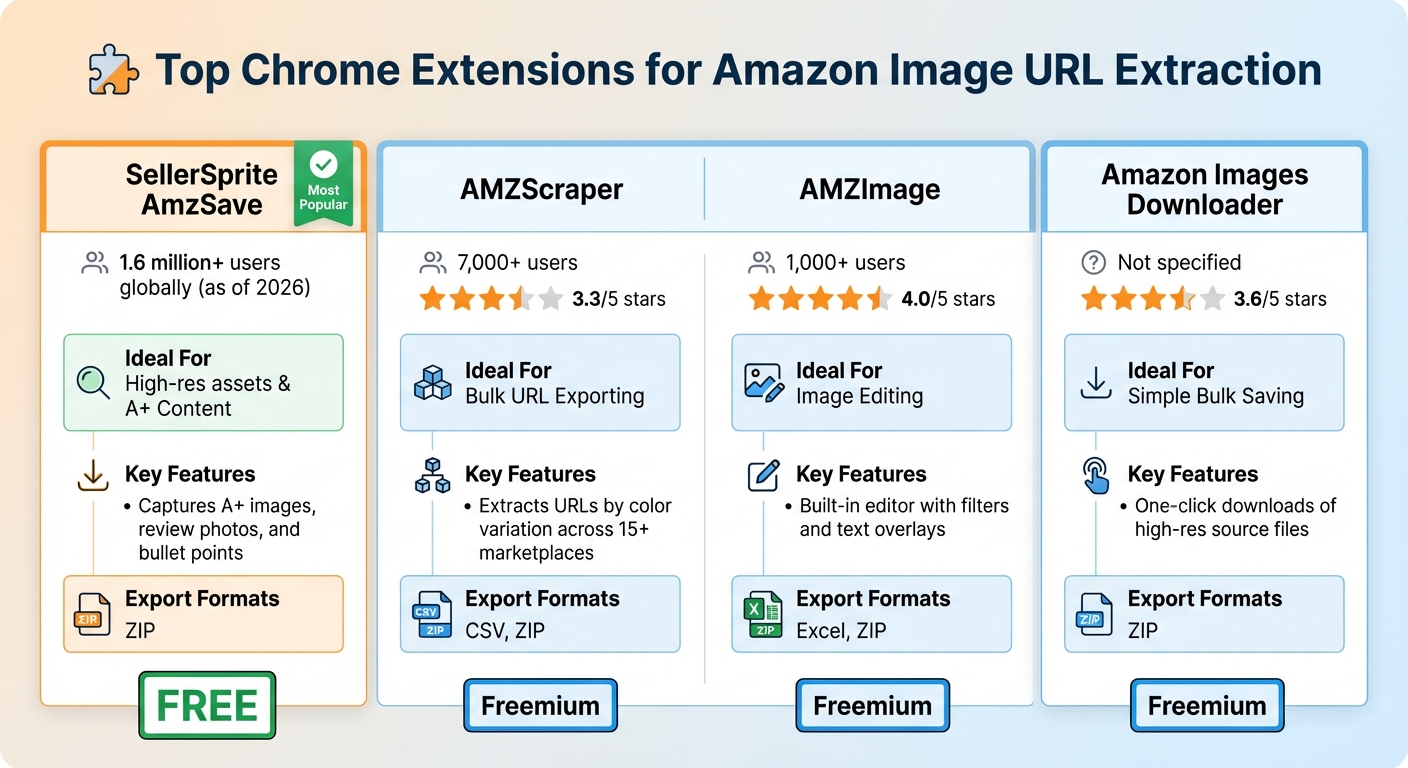
Chrome Extensions for Amazon Image URL Extraction Comparison
Chrome extensions make extracting image URLs a breeze. They simplify the process, saving you from manually inspecting code. With just a click, you can automate repetitive tasks, making this method a great companion to earlier approaches.
Top Chrome Extensions for Image URL Extraction
A variety of Chrome extensions can help you capture Amazon product image URLs quickly and efficiently. Here are some standout options:
- SellerSprite AmzSave: Trusted by over 1.6 million users globally as of 2026 [1], this free tool captures high-resolution main images, A+ content visuals, and customer review photos. It even lets you export everything as a ZIP file or grab listing text like bullet points along with the images.
- AMZScraper: With support for bulk URL extraction across more than 15 Amazon marketplaces [6], this extension offers a freemium model. Basic URL exports by color variation are free, while premium features like one-click bulk exports to CSV require a subscription. Rated 3.3 out of 5 stars by over 7,000 users.
- AMZImage: This extension, rated 4.0/5 stars by 1,000+ users, includes a built-in image editor. You can add text overlays or filters before exporting images in Excel or ZIP format [5].
- Amazon Images Downloader: With a 3.6/5-star rating, this tool focuses on simplicity, offering one-click downloads of high-resolution source files [7].
| Extension Name | Ideal For | Key Features | Formats | Pricing |
|---|---|---|---|---|
| SellerSprite AmzSave | High-res assets & A+ Content | Captures A+ images, review photos, and bullet points [1] | ZIP [1] | Free [1] |
| AMZScraper | Bulk URL Exporting | Extracts URLs by color variation across 15+ marketplaces [6] | CSV, ZIP [6] | Freemium [6] |
| AMZImage | Image Editing | Built-in editor with filters and text overlays [5] | Excel, ZIP [5] | Freemium [5] |
| Amazon Images Downloader | Simple Bulk Saving | One-click downloads of high-res source files [7] | ZIP [7] | Freemium [7] |
How to Install and Use an Extension
Installing and using these extensions is straightforward, and they can save you a lot of time.
- Head to the Chrome Web Store and search for the extension you want.
- Click "Add to Chrome" to install it [1].
- Once installed, pin the extension icon to your toolbar for easy access [1].
To use the extension, navigate to an Amazon product detail page. Most extensions activate automatically, but you can also click the pinned icon to open the extraction panel [1]. From there, choose the assets you want – main images, variant images, or review photos. Then, click "Export" or "Download" [1]. Depending on the tool, you’ll get a CSV or Excel file with URLs, or a ZIP file containing the high-resolution images [5][6].
For smoother bulk operations, adjust Chrome’s settings by disabling the "Ask where to save each file before downloading" option in the Downloads preferences. This ensures files download directly to your default folder without interruptions [6].
sbb-itb-ed4fa17
Managing Image URLs in Bulk with FlatFilePro

After you’ve extracted image URLs, the next challenge is organizing and managing them efficiently for bulk catalog updates. FlatFilePro simplifies this process with its centralized dashboard, letting you update image URLs across your entire catalog in just minutes. This tool integrates seamlessly with earlier methods, ensuring a smooth workflow from URL extraction to bulk updates.
How to Upload Image URLs in FlatFilePro
Start by logging into FlatFilePro and navigating to the Bulk Upload section. Prepare a CSV or Excel file that includes columns for ASIN, SKU, and image URLs (e.g., main_image_url, pt1_image_url). Here’s an example of a properly formatted row:
ASIN=B0BLRJ4R8F, sku=NOTEBOOK-001, main_image_url=https://m.media-amazon.com/images/I/51KyaTB1EKL.__AC_SX300_SY300_QL70_FMwebp_.jpg [8][9].
Once your file is ready, upload it using the import tool. During the upload process, you’ll map your CSV columns to FlatFilePro fields. Before submitting, preview the changes to ensure everything is correct. FlatFilePro processes bulk updates 10 times faster, handling 10,000 SKUs in less than 5 minutes [8]. By integrating directly with Amazon’s API, the system guarantees faster updates and higher success rates.
Verify Image URLs with the Reflection Engine
After uploading, you can move on to automated URL verification. FlatFilePro’s Reflection Engine checks the URLs by pinging Amazon’s servers to confirm their validity, resolution (minimum 1,000×1,000), and synchronization with the listings [8]. The engine boasts a 98% accuracy rate in identifying broken or expired URLs before they can cause feed errors [8].
If any URLs are invalid, the system flags them with clear error messages, making it easy to replace them. Once corrected, the Reflection Engine rechecks the URLs automatically to ensure full compliance before final submission [8]. This automated verification process has helped sellers reduce listing suppression rates by up to 30% [8], saving both time and the potential revenue loss caused by broken image links.
Tips and Solutions for Common Image URL Problems
After extracting image URLs, you might run into challenges that need quick fixes. Getting familiar with URL patterns and addressing expiration issues is key to streamlining your bulk image management.
How to Identify Amazon’s Image URL Patterns
Amazon image URLs often include modifiers that adjust the size and scaling of images. A typical pattern uses a suffix like ._SLXXX_, which resizes the longest side of the image to a specified pixel count. For instance, ._SL1000_ creates a 1,000-pixel image on its longest side – perfect for enabling Amazon’s zoom feature [10][2].
High-resolution images usually lack a size-limiting suffix or use larger values, such as ._SL1500_. On the other hand, thumbnails often include smaller modifiers like ._SL75_ or ._SS40_ [10][2]. To get a high-resolution image, you can manually remove or replace the size-limiting suffix (e.g., swap ._SL75_ with ._SL1000_). Just make sure the updated URL meets Amazon’s 1,000-pixel minimum requirement [3][11]. If you’re aiming to maintain the original aspect ratio, avoid using the ._SSXXX_ suffix – it forces a square image by adding white padding [2].
Handling Dynamic URLs and URL Expiration
Cloud-based image links can break when uploading them via flat files. For Google Drive links, convert them into a direct download format like this: https://drive.google.com/uc?export=view&id=FILE_ID [3].
Check your sharing settings to ensure they’re set to "Anyone with the link can view", as restricted access is a common reason for broken links [3].
Additionally, be aware of propagation delays. Amazon’s system might take up to 24 hours to process and display updated images after a flat file upload [3][11]. If your images don’t show up right away, give it at least a day before attempting to re-upload.
These steps can help you avoid common pitfalls and ensure smoother catalog updates when managing image URLs in bulk.
Wrapping It Up
Getting Amazon product image URLs doesn’t have to be a hassle. Whether you’re using developer tools, console commands, or handy Chrome extensions, these methods can cut down the time it takes to extract those URLs. For speed and ease, tools like SellerSprite AmzSave stand out, offering a fast and reliable way to grab image links [1].
Once you’ve got the URLs, managing them efficiently is the next step. That’s where FlatFilePro comes into play. Instead of manually dealing with URLs one by one, you can update entire inventories at once. Plus, FlatFilePro checks URL integrity on the spot, helping you avoid mistakes and ensuring your product images stay consistent across your Amazon listings.
FAQs
How do I make sure the Amazon product image URLs I extract are high-resolution?
To get high-resolution Amazon product image URLs, look for URLs that mention larger sizes, often labeled with terms like "Large" or "Medium." High-resolution images usually have a minimum of 1,000 pixels on their longer side, so it’s essential to confirm the dimensions before using them.
If you’re copying image URLs manually, simply right-click on the image and choose "Copy image address." For automated processes, use tools or APIs that provide access to various image sizes, allowing you to pick the highest quality option. Always verify the resolution to ensure it fits your requirements, whether you’re working on cataloging, marketing, or data analysis.
What are the benefits of using Chrome extensions to get Amazon product image URLs?
Chrome extensions offer a faster and more efficient way to grab product image URLs from Amazon compared to doing it manually. With just one click, these tools let you download all the images from a product page – no more right-clicking and saving each one individually. This can save you a ton of time, especially when working with multiple products.
Many extensions also support bulk downloads, making it easy to grab high-resolution images for big inventories or marketing projects. On top of that, they often organize the images into formats like ZIP files or CSV exports. This keeps everything neat, reduces errors, and makes managing your workflow much simpler. By automating the process, Chrome extensions take the hassle out of manual tasks like screenshots or saving images one at a time.
What’s the best way to manage and verify Amazon image URLs after extracting them?
To effectively handle and confirm Amazon image URLs, start by making sure each URL is functional and aligns with Amazon’s image standards. Once you’ve gathered the URLs, open them in a web browser to verify they display the correct high-resolution images. Amazon requires images to use HTTPS, be in JPEG format, and have a minimum resolution of 1,000 pixels on the longest side.
For better organization, consider storing these URLs in a spreadsheet or a catalog management system. Tools like FlatFilePro can simplify this process by identifying issues like broken or outdated links and flagging them for review. Regularly checking and updating your image URLs keeps your product listings accurate and compliant, which is essential for maintaining visibility and driving sales.