
Need to grab Amazon product image URLs fast? Here’s how you can do it in under 10 seconds:
- Browser Tools: Use your browser’s developer tools to locate the image URL directly from the page’s HTML.
- Python Scripts: Automate URL extraction with a simple Python script using libraries like
requestsandBeautifulSoup. - No-Code Tools: Use web-based platforms or Google Sheets add-ons to extract image URLs without coding.
For bulk tasks, you can also construct image URLs using the product’s ASIN with Amazon’s predictable URL structure. These methods save time, reduce errors, and ensure your product images stay organized across platforms. Whether you’re managing a small catalog or thousands of listings, these techniques streamline your workflow.
Extract hundreds of Amazon product images directly to Google Sheets
3 Ways to Get Amazon Product Image URLs
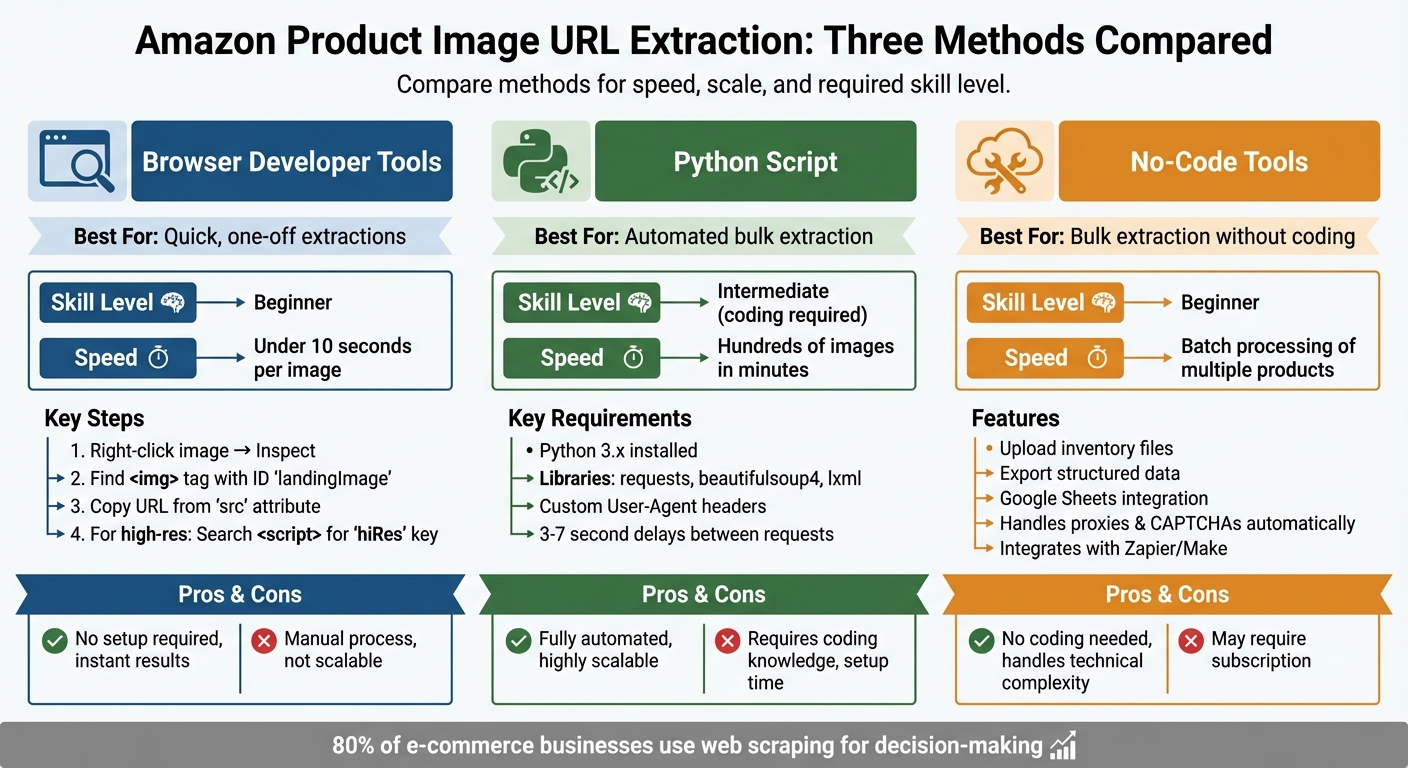
3 Methods to Extract Amazon Product Image URLs: Comparison Guide
Managing product images efficiently is a crucial task for Amazon sellers, especially when dealing with a large inventory. Here are three practical methods to help you retrieve Amazon product image URLs, whether you’re comfortable with browser tools, coding, or prefer no-code solutions.
Method 1: Browser Developer Tools
This method is quick and straightforward. Simply right-click on an Amazon product image and select "Inspect" to open the browser’s developer tools. Look for the <img> tag, which is often associated with the ID landingImage or nested within a div with the class imgTagWrapper. The image URL can be found in the src attribute of the tag [3][4].
If you’re using Safari, you can right-click the image and choose "Open Image in New Window" to reveal the direct URL in the address bar [5]. For high-resolution images embedded in JavaScript, open the browser’s find function and search within a <script> tag for JSON data containing the key "hiRes". This key typically holds the URL for the highest resolution image available [4].
"Amazon image URLs are just as dynamic as Amazon pages. By understanding the image URL pattern, you can find images for products based on their ASIN and customize from there." – O’Reilly [5]
For larger-scale operations, consider automating the process with scripts.
Method 2: Python Script for Automated Extraction

If you’re comfortable with coding, a Python script can simplify bulk image URL extraction. Start by ensuring Python 3.x is installed along with these libraries: requests for fetching pages, beautifulsoup4 for parsing HTML, and lxml for faster processing.
Install the required libraries using the following commands:
pip install requests beautifulsoup4 lxml The script works by sending a request to the Amazon product page. To avoid blocks or 503 errors, include custom headers in your request, such as a valid User-Agent string and Accept-Language [4][6]. Once the page’s HTML is retrieved, use BeautifulSoup to locate the image with a selector like #landingImage. For high-resolution images embedded in JavaScript, the re library can extract the URL using a regex pattern like '"hiRes":"(.+?)"' [4].
To stay under Amazon’s radar, add random delays between requests (e.g., 3–7 seconds using time.sleep()), and consider rotating User-Agent strings or using proxies for larger-scale operations to avoid IP bans [4][6].
| Library | Purpose | Installation Command |
|---|---|---|
| Requests | Sends HTTP GET requests to Amazon URLs | pip install requests |
| BeautifulSoup4 | Parses HTML and navigates the DOM | pip install beautifulsoup4 |
| lxml | Fast HTML/XML parser used by BeautifulSoup | pip install lxml |
If coding isn’t your thing, there are simpler no-code solutions available.
Method 3: No-Code Tools for Bulk Extraction
For those who prefer a code-free approach, several web-based platforms can handle this task for you. These tools allow you to upload an inventory file and export product attributes, including image URLs, in a structured format. Some Google Sheets add-ons also enable you to pull Amazon data directly, eliminating the need to manage headers or worry about IP rotation.
These platforms take care of the technical complexities, such as proxy rotation and CAPTCHA bypassing, delivering clean and organized image URLs. According to recent data, more than 80% of e-commerce businesses use web scraping to inform their decisions [4]. Many of these tools also integrate with automation platforms like Make (formerly Integromat) and Zapier, letting you create workflows to extract and organize image URLs without writing a single line of code.
How to Build Image URLs from ASINs
Once you’re familiar with Amazon’s image URL structure, you can create direct links to product images using the ASIN (Amazon Standard Identification Number). This method is especially handy when you need to generate multiple image links quickly, without navigating individual product pages.
Here’s the basic formula for constructing an image URL:
http://images.amazon.com/images/P/[ASIN].01.LZZZZZZZ.jpg.
For instance, if the ASIN is 0596004478, the corresponding image URL would look like this:
http://images.amazon.com/images/P/0596004478.01._[identifier].jpg [5].
To get started, extract the ASIN from the product’s URL or details page. Always double-check the ASIN in the product details to ensure accuracy. This approach simplifies the process, saving time and effort.
Key Components of Amazon URLs
| URL Component | Description | Example |
|---|---|---|
| Base URL | Standard Amazon product path | https://www.amazon.com/dp/ |
| ASIN | 10-character product ID | B07V5JTMV9 |
| Full Product URL | Base URL combined with ASIN | https://www.amazon.com/dp/B07V5JTMV9 |
| Image Filename | File naming convention | B07V5JTMV9.MAIN.jpg |
For bulk uploads, stick to the filename format: [ASIN].MAIN.jpg. Avoid using spaces or dashes in file names; instead, follow the pattern [ASIN].[variant code].jpg [7]. This ensures consistency and compatibility across your files.
sbb-itb-ed4fa17
Getting Multiple Images from One Product
Expanding on earlier methods for retrieving a single image URL, let’s explore how to gather all available images for a product. Amazon listings typically feature a main image along with several alternate views. To access multiple image URLs, it’s essential to understand how Amazon categorizes its images. Images are divided into two groups: Primary (the main image shown in search results) and Variants (alternate views and thumbnails) [1].
If you’re working with the Product Advertising API (PA-API) 5.0, you’ll need to request specific PA-API resources like Images.Primary.Small, Images.Primary.Medium, Images.Primary.Large, and their corresponding Images.Variants resources [1]. These resources provide access to images in various sizes, from 75-pixel thumbnails (indicated by the _SL75_ suffix) to high-resolution versions that can exceed 1,500 pixels on the longest side [1][8]. The table below outlines the key PA-API resources and their typical suffixes:
| PA-API Resource Name | Description | Typical Suffix |
|---|---|---|
Images.Primary.Small |
Main image, small thumbnail | _SL75_ |
Images.Primary.Medium |
Main image, medium size | _SL160_ |
Images.Primary.Large |
Main image, high resolution | No suffix or _SL500_+ |
Images.Variants.Small |
Alternate views, small thumbnails | _SL75_ |
Images.Variants.Large |
Alternate views, high resolution | No suffix or _SL500_+ |
For guidance on naming conventions when organizing multiple images, check out the "How to Build Image URLs from ASINs" section. High-resolution images often use URLs with _SL1500_ suffixes or, in some cases, no suffix at all [1][8].
Up next, we’ll dive into tips for efficiently managing these URLs on a larger scale.
Tips for Managing Image URLs at Scale
Keeping your image URLs organized and up-to-date is key when managing them on a larger scale. Start by centralizing all your image URLs in one location. This makes it easier to update and sync your inventory quickly. For bulk updates, use tab-delimited files like Amazon Flat Files to efficiently handle image URL changes.
Stick to consistent file formats, such as CSV, TXT, or Excel. Make sure to map your image URLs correctly to Amazon headers like main_image_url or other_image_url1 to avoid errors during updates. These steps help ensure that your bulk update processes run smoothly.
A common issue to watch out for is catalog rot, where outdated or broken links silently disrupt your listings. Automated monitoring tools can help you catch these problems early, preventing them from hurting your sales [2].
To minimize risks, use version control and limit updates to specific team members. This approach not only helps you recover quickly from any bulk update mistakes but also simplifies managing image data across multiple regions.
For international sellers, managing image data from a single dashboard can ensure consistent branding across marketplaces like Amazon US, UK, or Germany. If stored URLs become outdated, third-party APIs can pull updated URLs directly from live listings, keeping your catalog fresh and accurate [8].
Conclusion
Retrieving Amazon product image URLs doesn’t have to be a complicated or time-consuming task. Whether you’re using browser developer tools for quick, one-off needs, Python scripts for automation, or no-code tools for managing bulk catalogs, each method provides a straightforward way to access high-resolution images in just seconds. By switching from manual screenshots to direct URL extraction, you can cut retrieval time by more than 85% [9].
But it’s not just about saving time. Direct URL extraction also provides access to high-quality images – often with three times the pixel density of standard thumbnails. This can lead to a noticeable 15% boost in customer engagement within the first month of implementation [9]. For sellers managing large inventories, these techniques are a game-changer. For instance, manually downloading 50 images might take around 250 minutes, but using direct URL methods can reduce that task to under 30 minutes [9]. When you’re handling hundreds – or even thousands – of listings, automated workflows and flat file management ensure consistency across platforms while minimizing errors.
For smaller inventories, browser tools can get the job done. However, for larger catalogs, leveraging API integrations or flat file workflows can reduce error rates by nearly 40% [9].
FAQs
How do I quickly find the image URL of an Amazon product using my browser?
To get the URL of an Amazon product image using your browser, here’s what you need to do:
- Open the product page on Amazon in your browser.
- Right-click on the product image and select Inspect or Inspect Element to open the browser’s developer tools.
- In the developer tools, locate the
<img>tag associated with the product image. Thesrcattribute within this tag contains the direct link to the image. - Copy the URL from the
srcattribute, and you’ll have the high-resolution image ready for use in your catalog or listings.
This quick approach allows you to directly access high-quality product images from Amazon pages.
What are the advantages of using Python scripts to extract Amazon product image URLs?
Using Python scripts to pull Amazon product image URLs comes with several perks, especially for sellers and data managers. One standout advantage is automation. Instead of manually copying image URLs or resorting to tedious screenshots, Python scripts can fetch high-resolution image links in no time, dramatically cutting down on effort.
Another big plus? Handling large volumes with ease. Python allows for bulk processing, which means you can manage extensive product catalogs without breaking a sweat. This is a game-changer for updating or managing multiple listings simultaneously.
Python also shines in maintaining accuracy and consistency. By adhering to specific formatting rules, scripts help avoid common issues like broken links or low-quality images that could negatively impact your listings. Plus, these scripts can be tailored to navigate technical hurdles – like anti-bot measures – ensuring you get the high-quality images needed to make your products stand out.
In short, Python simplifies and speeds up the entire process, offering a reliable and scalable solution for managing Amazon product images effectively.
Can I extract Amazon product image URLs without coding?
Yes, you can use no-code tools to easily extract Amazon product image URLs in bulk. These tools simplify the process, making it especially useful for sellers handling numerous product listings. Take FlatFilePro, for instance – it allows you to generate image URLs effortlessly, no technical skills required. This not only saves time but also helps you manage your product catalog more efficiently.