
Struggling with Amazon image URLs? Here’s the solution: Follow Amazon’s strict image requirements, use reliable hosting, and choose between manual or automated methods to avoid errors and save time.
Key Takeaways:
- Amazon’s Image Guidelines: Images must meet specific standards like 1,000 x 1,000 pixels, white backgrounds, and direct file links (e.g.,
.jpgor.png). - Manual Method: Use tools like Google Drive and Excel formulas for small catalogs, but it’s time-consuming and error-prone for larger inventories.
- Automated Tools: Platforms like FlatFilePro simplify bulk URL management by connecting directly to Amazon’s API, catching errors, and ensuring smooth uploads.
- Hosting Tips: Use public, stable servers for hosting images to ensure URLs don’t break or expire.
For small catalogs, manual methods work, but automation is essential for larger inventories. Tools like FlatFilePro save time, reduce errors, and streamline the process.
HOW TO CREATE IMAGE URL FOR AMAZON FLAT FILES! QUICK AND EASY
Amazon’s Image URL Requirements
To avoid bulk upload issues, it’s essential to follow Amazon’s image URL guidelines. Amazon has strict rules for image compliance, and failing to meet these can result in listing errors or even suppressions. As Amazon Seller Central explains:
"If there is no main image that meets the requirements, we may suppress the product listing from search until a compliant main image is provided" [2].
Image Specifications
Amazon images must meet specific technical standards to display properly. The platform supports JPEG (preferred), TIFF, PNG, and non-animated GIF formats, with JPEG being the best option for faster processing [2][4]. Images should measure 500 to 10,000 pixels on the longest side, with a minimum resolution of 1,000 x 500 pixels to enable the zoom feature [4].
Main images come with additional restrictions. They must have a pure white background (RGB 255, 255, 255), and the product must fill at least 85% of the image area [2]. Any watermarks, text overlays, promotional badges, or logos are strictly prohibited on main images. Additionally, individual image files should not exceed 10 MB to avoid upload errors [1].
Once your images meet these specifications, the next step is correctly placing their URLs in flat file templates.
URL Placement in Flat File Templates
In Amazon flat file templates, image URLs are entered into designated columns like "Main Image URL", "Other Image URL1", "Other Image URL2," and so on [1][5]. The main image URL is especially important because it defines your product’s primary visual representation on Amazon. Additional image URLs go into the numbered columns for gallery images.
Each URL must be a direct link to the image file, not a link to a webpage or a restricted cloud folder [1]. For example, Google Drive sharing links won’t work unless converted to a direct download format using: https://drive.google.com/uc?export=view&id=FILE_ID [1]. If this step is skipped, you’ll encounter Error 15, the "Invalid URL format" error, which will prevent a successful upload [5].
Equally crucial is ensuring that the image hosting solution provides long-term stability.
Image Hosting and URL Stability
Images should be hosted on reliable, public servers with permanent URLs. If an image is removed from the hosting service, such as Google Drive, the link will break, and Amazon won’t display the image on your listing [1]. As Shaival Choksi from YourSeller Agency points out:
"If you delete the images from Google Drive, the direct links will break, and your Amazon product images will not display correctly" [1].
To avoid "Broken image link" errors, ensure the hosting permissions allow public access [1]. Even after a successful flat file upload, it can take up to 24 hours for images to appear on the product detail page [2][1]. This delay is normal, so don’t worry if the images don’t show up immediately after submission.
Method 1: Manual Image URL Generation
For smaller catalogs, manually generating image URLs can be a practical option that doesn’t rely on extra tools. This process involves downloading Amazon’s flat file template, hosting your images, converting the links into Amazon’s accepted format, and uploading the completed file back to Seller Central.
Manual Process Steps
Begin by navigating to Seller Central > Catalog > Add Products via Upload. Locate your product category and click "Generate Spreadsheet" to download the appropriate category-specific template [6]. Open the template and prepare your image URLs.
To host your images, many sellers use Google Drive. Set the sharing permissions for your images to "Anyone with the link can view" [1]. Then, convert the standard Google Drive link into a direct download URL using the following format:
https://drive.google.com/uc?export=view&id=FILE_ID [1].
If you’re handling multiple images, you can use an Excel formula to simplify the process. For instance:
=CONCATENATE("https://drive.google.com/uc?export=view&id=", MID(A2, 33, 33))
This formula extracts the file ID from the link in cell A2 and creates a direct URL [1]. Add these URLs to the main_image_url and other_image_url columns in the template, matching them to the appropriate SKUs [7].
Once your file is ready, return to "Add Products via Upload" and submit it [6]. After submission, check the "Spreadsheet upload status" section and download the "Processing Summary" to identify any errors, such as "Invalid URL format" or "Image Not Found" [6]. Keep in mind that it can take up to 24 hours for your images to appear on live listings [1].
Pros and Cons of Manual Methods
This method is ideal for sellers with small catalogs or those making occasional updates. However, it does have its limitations. Here’s a quick breakdown:
| Feature | Benefits | Drawbacks |
|---|---|---|
| Cost | Free to use with Google Drive and Excel | Time investment can outweigh cost savings |
| Ease of Use | Straightforward for small catalogs | Becomes tedious with larger inventories |
| Error Risk | Full control over URL entries | High chance of typos, broken links, and formatting errors |
| Speed | Quick for small-scale setups | Time-intensive for larger catalogs |
| Scalability | Suitable for occasional updates | Inefficient for managing large inventories |
One key challenge with manual methods is link reliability. Broken links or formatting issues can lead to failed uploads, and resolving these errors – especially in larger files – can require significant effort, including submitting support tickets [7].
sbb-itb-ed4fa17
Method 2: Automated Image URL Generation with FlatFilePro

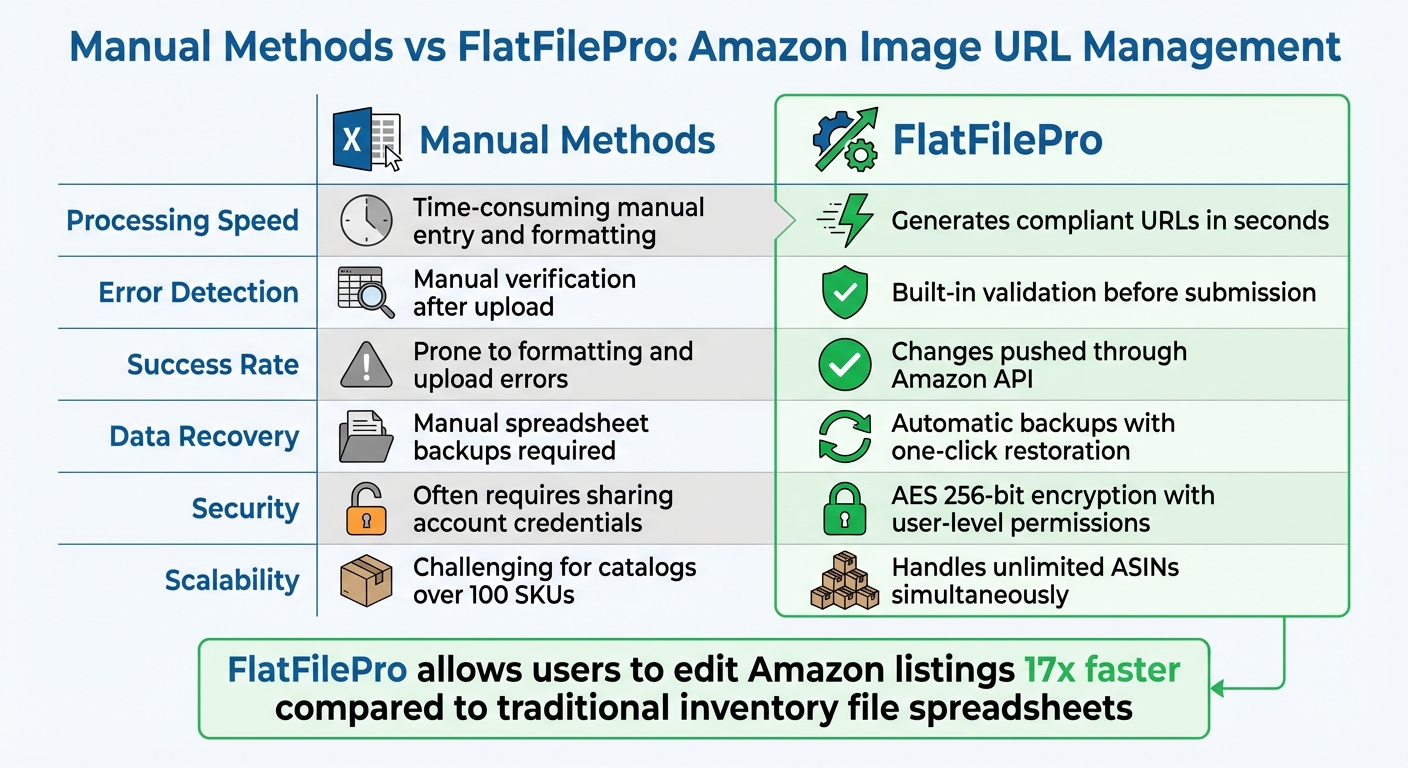
Manual vs Automated Amazon Image URL Management Comparison
For small catalogs, manual methods might suffice, but when you’re dealing with a large inventory, automation becomes a necessity. FlatFilePro streamlines the process by connecting directly to Amazon’s SP-API, removing the hassle of spreadsheets and enabling seamless image URL management at scale.
FlatFilePro Features for Image URL Management
FlatFilePro is an Amazon SP-API approved application, ensuring secure, real-time updates for your listings via SSL-encrypted channels [8]. This direct integration bypasses the delays and errors associated with flat file uploads. Plus, its built-in validation system catches mistakes before they can affect your live catalog.
One standout feature is the Reflection Engine, which performs nightly checks on your listings. It compares your image URLs with what’s live on Amazon, using green checkmarks to confirm working links and red X’s to flag broken ones. This level of monitoring is invaluable for large catalogs, where a single broken URL could easily go unnoticed for weeks.
The platform’s drag-and-drop interface makes updating variation images a breeze. Instead of tediously copying URLs across multiple child ASINs in a spreadsheet, you can update entire variation families in one go. And with its "Sync/See/Save" workflow, you get automatic backups, allowing you to restore previous versions with a single click if incorrect URLs are uploaded [8].
FlatFilePro also supports bulk updates across your entire catalog, enabling you to edit images, titles, and descriptions for an unlimited number of SKUs simultaneously. To keep your data secure, the platform uses AES 256-bit encryption and FIPS 140-2 validated cryptographic modules. You can even assign user-level permissions, so team members can manage images without accessing your primary Seller Central credentials [8].
FlatFilePro vs Manual Methods
FlatFilePro’s advanced tools make manual processes seem outdated. In fact, it allows users to edit Amazon listings 17x faster compared to traditional inventory file spreadsheets [8].
| Feature | Manual Methods | FlatFilePro |
|---|---|---|
| Processing Speed | Time-consuming manual entry and formatting | Generates compliant URLs in seconds [9] |
| Error Detection | Manual verification after upload | Built-in validation before submission [8] |
| Success Rate | Prone to formatting and upload errors | Changes pushed through Amazon API [8] |
| Data Recovery | Manual spreadsheet backups required | Automatic backups with one-click restoration [8] |
| Security | Often requires sharing account credentials | AES 256-bit encryption with user-level permissions [8] |
| Scalability | Challenging for catalogs over 100 SKUs | Handles unlimited ASINs simultaneously [8] |
"FlatFilePro gives you the ease of use of editing listing in Seller Central with the level of detail and SEO boosting benefits of a flat file."
- FlatFilePro [8]
FlatFilePro is available starting at $99/month and offers a 7-day free trial with no credit card required, making it an affordable solution for sellers who spend countless hours managing image URLs.
Bulk Image URL Validation and Troubleshooting
Even with the best tools at your disposal, a single mistake in your image URLs can throw a wrench into your listings. Whether it’s a formatting error or a hosting issue, these problems can suppress your listings and hurt your sales. The trick is to catch these issues before uploading.
Image Hosting Best Practices
Once you’ve nailed down proper URL generation, the next step is to validate your hosting setup to avoid upload headaches.
Reliable hosting is non-negotiable for image URLs. Amazon requires direct links to image files – URLs that end in .jpg or .png – not links to preview pages or social media platforms. If you’re using Google Drive, make sure to convert the shareable link into a direct download URL. Also, set permissions to "Anyone with the link can view" so Amazon’s crawlers can fetch the files without needing a login.
Be cautious with URLs that expire. For example, presigned URLs from AWS S3 can expire in as little as five minutes [11], leading to broken images on your listings. If you’re using S3 buckets, include the --acl bucket-owner-full-control parameter to give Amazon the necessary access. And remember – don’t delete the source files if you want the links to remain active [3].
Once your hosting is in good shape, the next challenge is resolving errors that pop up after uploading.
Common Issues and Fixes
Even with correct formatting and hosting, other issues can crop up that need specific solutions.
One of the most frequent problems sellers encounter is main image compliance issues. Refer to Amazon’s image specifications for main image requirements. If your listing gets suppressed, check the Image Manager in Seller Central for keywords explaining why your image was deleted.
Another tricky situation involves global ASIN conflicts. If the same ASIN represents different products across marketplaces, a compliance issue in the U.S. could cause image deletions in Europe due to Amazon’s global image-sharing system [10]. For platforms like Imgur, right-click the image, select "view in new tab", and use the direct file link [12]. After a successful upload, allow up to 24 hours for the changes to reflect on the frontend before resubmitting [1].
"If you load the bad example [a social link] it will fail to load to Amazon. If you use the good example [a direct file link], it will however." – Steven Pope, Founder, My Amazon Guy [12]
Conclusion
Managing image URLs effectively can save you hours of work while keeping your listings in top shape. When you’re dealing with hundreds – or even thousands – of SKUs, every second counts. Those saved seconds quickly add up, giving you more time to focus on essential tasks like marketing, customer support, or expanding your product catalog.
Here’s the bottom line: make sure your image URLs are direct links (ending in .jpg or .png), host them on reliable platforms with proper public permissions, and always test your setup before uploading to Amazon. These simple steps can help you avoid common mistakes, like suppressed listings or lost sales, while laying the groundwork for automating the process down the line.
Tools like FlatFilePro can take this a step further by automating image URL generation. With features like built-in error detection, it ensures uploads are accurate and hassle-free, turning what could be a multi-day task into a streamlined workflow.
Whether you’re managing 100 products or 10,000, centralizing your image data and using bulk editing tools allows you to scale efficiently without adding unnecessary complexity. This approach not only protects your listings and rankings but also supports consistent growth.
Start by reviewing your current hosting setup and consider automating your URL generation for future uploads. By adopting these practices, you’ll keep your catalog error-free and save valuable time from the very first upload.
FAQs
What are the most common mistakes when uploading image URLs to Amazon?
Uploading image URLs to Amazon can be tricky if the URLs don’t align with Amazon’s specific guidelines. Some common pitfalls include using non-HTTPS links, pointing to unsupported image formats (like PNG instead of JPEG), or linking to images that are restricted or inaccessible. Another issue is image size – Amazon requires images to be at least 1,000 pixels on the longest side to support zoom functionality and meet listing standards.
Broken links or low-quality images, such as blurry photos or screenshots, are another frequent problem. These can violate Amazon’s image quality standards, potentially leading to catalog errors, suppressed listings, or even disapprovals. To avoid these headaches, ensure your URLs direct to high-quality, open-access images hosted on a compliant platform. Testing the links beforehand can save you from unnecessary complications.
For a smoother process, consider using automation tools like FlatFilePro. These tools can validate your URLs and confirm they meet Amazon’s image requirements, helping you save time and reduce errors.
How can I keep my image URLs reliable and prevent them from breaking?
To ensure your image URLs stay functional and dependable, always use secure HTTPS links hosted on reliable platforms. Double-check these URLs before uploading them to confirm they’re accessible and align with Amazon’s guidelines.
If you’re managing multiple listings, tools like FlatFilePro can help streamline the process. These automation tools make it easier to create and maintain accurate URLs, saving you time and minimizing potential errors. It’s also a good idea to periodically review your URLs to ensure they remain active and compliant with Amazon’s standards.
Why should I use automation to manage large Amazon inventories?
Managing large Amazon inventories becomes much easier with automation. It helps simplify bulk updates, cuts down on manual errors, and saves a lot of time. By automating these processes, you can keep your product listings accurate, up-to-date, and in line with Amazon’s guidelines without constant manual intervention.
Another major advantage is the reduction of human error, which is especially important when handling thousands of products. Automation lets you maintain consistency across your inventory while freeing up your time to focus on other critical areas of your business. It’s a smart way to keep operations running smoothly.