
If your Amazon listing drops after an edit, the first thing I want is a clear record of what changed, who changed it, and when. That’s the main point here: FlatFilePro logs listing edits by SKU, tracks fields like titles, bullets, keywords, images, attributes, and variations, and helps me compare old vs. new versions without digging through spreadsheets or old exports.
Here’s the short version:
- It records listing changes automatically through Amazon SP-API syncs
- It logs both single edits and bulk jobs
- It separates history by marketplace like Amazon.com and Amazon.ca
- It checks listings nightly to find changes that did not come from my team
- It shows before-and-after values so I can spot what shifted
- It ties edits to users and timestamps for a clean audit trail
- It helps with rollback decisions when a title, image, keyword, or variation goes wrong
A few details stand out. Amazon Seller Central does not give me one account-wide listing log, and some views are limited to 60 days or narrower use cases. That leaves teams piecing together screenshots, flat files, and email notes. For a catalog with hundreds or thousands of SKUs, that gets hard fast.
What I like in this piece is the focus on control. Not hype. Not fluff. Just a simple idea: when listing data changes all the time, automatic history makes it easier to trace problems, compare versions, and restore the right content.
| What I need to know | What FlatFilePro shows |
|---|---|
| What changed | Field-level old and new values |
| When it changed | U.S. date/time stamps like 03/14/2026 2:37 PM |
| Where it changed | SKU and marketplace-level history |
| Who changed it | User or system source |
| How to fix it | Version comparison and rollback reference |
So if I manage a busy catalog, work with an agency, or sell across more than one marketplace, this article is about one thing: keeping a usable edit trail before a bad listing change costs traffic or sales.
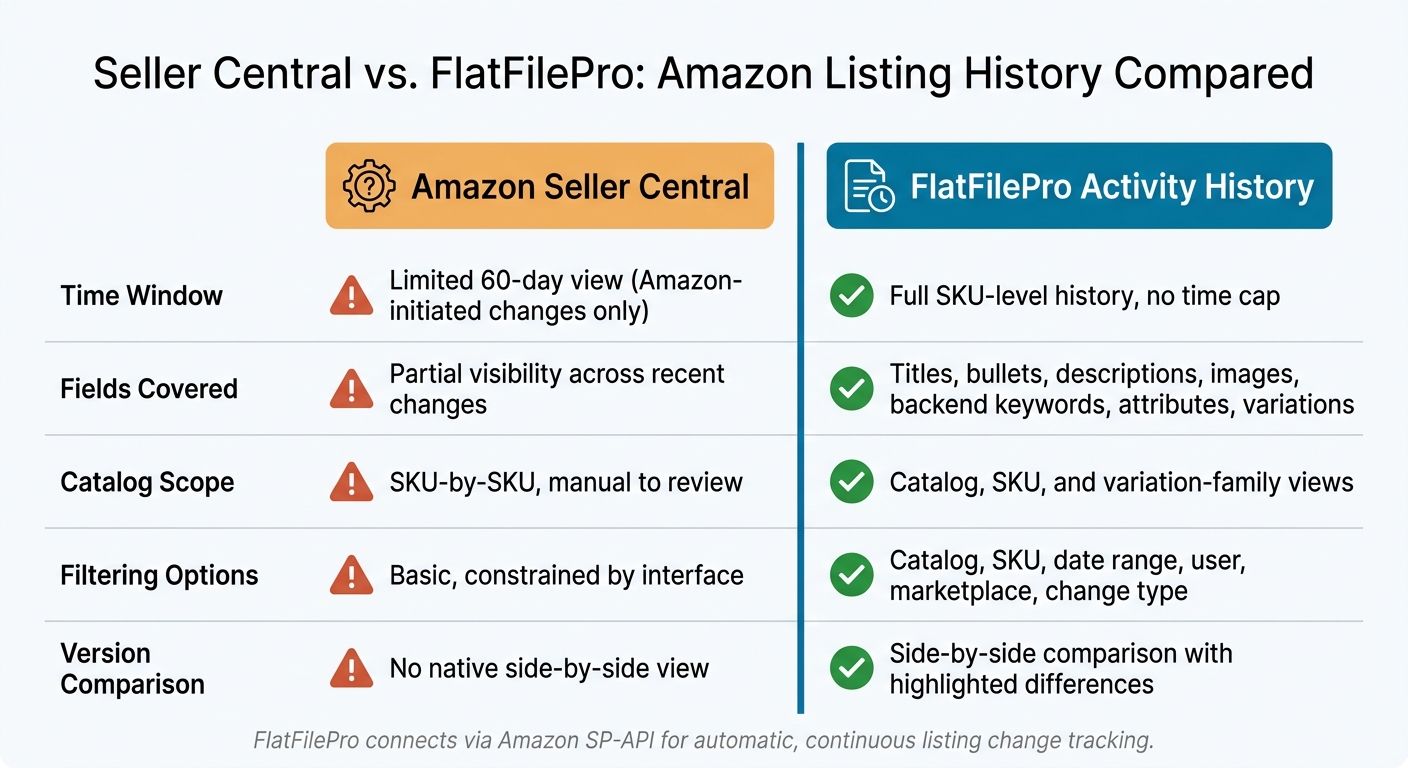
Seller Central vs. FlatFilePro: Amazon Listing History Compared
1. Why Amazon Listing History Matters
Every listing edit comes with business risk. If you don’t have a clear record of what changed and when, fixing a problem turns into a slow, manual hunt. And while the team digs through records, revenue can slip fast. When the cause isn’t obvious, the first thing teams need is a full edit trail.
1.1 The Risk of Fragmented Change Tracking
Seller Central’s per-listing Change History can show some before-and-after field values, but it doesn’t give you one account-level log for every edit. [1] That’s the problem. Change data ends up scattered across separate views and files, which makes root-cause analysis much harder.
This matters because listing fields don’t all play the same role, but each one can affect performance in a big way. Titles and backend keywords shape organic rank and ad relevancy. Bullet points affect conversion and compliance. Images influence click-through rate. Variations and attributes affect how products are grouped, classified, and shown to shoppers. Yet even with all of that at stake, these edits still don’t flow into one searchable history that catalog managers can use when something goes sideways.
1.2 Why Manual Logs Fail at Scale
A lot of teams begin with a shared spreadsheet or a set of dated flat file exports. That might work for a while. Then the catalog grows, and the system starts to crack.
Large exports are slow to compare field by field, and mistakes creep in fast. Spreadsheets pile up in different drives and folders, often with conflicting versions. Compliance-driven bullet changes may get logged somewhere, but they usually aren’t tied cleanly to a specific SKU or field. So when someone asks what changed, when it changed, and which SKU was affected, manual records often can’t give a clear answer.
The problem gets worse for teams selling in more than one marketplace, such as Amazon.com, Amazon.ca, and Amazon.com.mx. Each marketplace may have its own files, local wording, and edit history. That makes it hard to connect a change in one region to what is happening in another. [3][4]
That’s why catalog managers need a searchable history linked to each SKU and each field.
2. How FlatFilePro Automatically Records Listing Changes

FlatFilePro connects to your Amazon account through the Amazon Selling Partner API (SP-API) and pulls your listing data into one dashboard. Once that sync starts, every edit is saved in a searchable history. From then on, FlatFilePro records listing changes on its own. [5]
2.1 What the Activity Log Captures
Each Activity Log entry shows the field that changed, the old value, the new value, and a U.S.-formatted timestamp, like 03/14/2026 2:37 PM. It can track titles, bullets, backend keywords, images, variations, and attributes.
Entries are sorted in chronological order for each SKU, so you can follow what happened step by step. You can also filter by field type or date range, which makes it easier to zero in on one issue instead of digging through a long record.
The same logging applies whether the update came from one quick edit or a much larger batch change.
2.2 History Across Single Edits, Bulk Edits, and Marketplaces
FlatFilePro records history at the per-SKU level no matter how the change happened. If someone updates one title, that appears as one activity entry. If a team runs a bulk job, FlatFilePro logs the job itself and then adds one entry for each SKU affected. That gives teams two ways to review what happened: look at the full job or drill into one SKU. [5]
For sellers working across more than one marketplace, the Activity Log keeps each region separate. A title update on Amazon.com and a title update on Amazon.ca show up as two different entries, each tagged with its marketplace. Teams can filter by marketplace or look at all regions together. [5]
2.3 How the Reflection Engine Adds Daily Change Detection
The Reflection Engine runs nightly scans that compare the listing data stored in FlatFilePro with what is live on Amazon. It checks the same listing fields for every SKU. If it finds a mismatch – for example, a live Amazon title no longer matches the last approved version in FlatFilePro – it records that as a detected change in the Activity Log, along with a U.S.-formatted timestamp showing exactly when the difference was first spotted. [5]
That matters for a simple reason: not every listing update comes from your team. Amazon can change content through its own catalog processes, and outside vendors or agencies can make edits through other channels. The Reflection Engine catches those unplanned changes the same way it logs deliberate edits.
So the Activity Log shows the full listing history, not just the changes your team meant to make.
That kind of record makes version checks and troubleshooting a lot faster.
3. How Teams Use Listing History to Compare Versions and Fix Problems
Once FlatFilePro builds a full change history, teams can search it fast and zero in on the edit that caused an issue. Because every change is logged on its own, the team can go from tracking to fixing in minutes.
3.1 Filter History by Catalog, SKU, Date Range, and Change Type
Most teams start at the catalog level and then narrow things down to a single SKU. After that, filters do most of the work. You can mix catalog, SKU, date range, marketplace, user, and change type to surface only the edits that matter.
Say a manager wants to find the update that hurt performance. They can filter by SKU, date range, and image changes and spot the exact edit much faster.
The same method helps with variation problems too. If you filter by a parent SKU and limit the change type to attributes, you can see which update triggered the issue. One common case is a variation theme changing from "SizeColor" to "Size."
Once you find the suspect edit, the side-by-side comparison makes the change easy to read.
3.2 Compare Before-and-After Versions Side by Side
FlatFilePro shows the before and after versions next to each other, matched field by field. For copy fields like titles, bullets, and descriptions, edits are highlighted visually. That means you can spot removed phrases, added benefit statements, or reworded sentences at a glance. Even a keyword swap can help explain why visibility dropped.
The comparison goes beyond text. It also covers structured attributes like size, color, material, browse node, product type, and variation relationships. If a product starts showing up in the wrong category, a side-by-side view of browse-node assignments can reveal that the node moved from "Kitchen & Dining" to "Sports & Outdoors" during a bulk update.
That field-level view cuts out the guesswork. Teams can see which version to keep, which parts to roll back, and which fields still need work.
3.3 Seller Central Visibility vs. FlatFilePro Activity History
Amazon Seller Central does show some listing-change visibility, but the view is narrow. Its Review listing changes dashboard covers only Amazon-initiated changes to brand catalogs over a 60-day window [2]. Amazon also does not generally provide a full edit history for a listing because multiple sellers contribute data and only some uploads appear in upload history [7][6].
FlatFilePro fills those gaps with a structured, searchable history that pulls those changes into one place.
| Feature | Seller Central | FlatFilePro Activity History |
|---|---|---|
| Time window | Limited 60-day view for Amazon-initiated changes | SKU-level history |
| Fields covered | Partial visibility across recent changes | Titles, bullets, descriptions, images, backend keywords, attributes, and variations |
| Catalog scope | Mostly SKU-by-SKU and manual to review | Catalog, SKU, and variation-family views |
| Filtering options | Basic and constrained by the interface | Catalog, SKU, date range, user, marketplace, and change type |
| Version comparison | No native side-by-side view | Side-by-side comparison with highlighted differences |
For large catalogs, FlatFilePro turns update history into a clear review record. It also gives teams a way to check who changed what and decide which version should stay.
sbb-itb-ed4fa17
4. Audit Trails, Rollbacks, and Catalog Protection
Knowing what changed is only half the story. What protects your catalog is knowing who made the change, when it happened, and how to undo it.
4.1 Build Accountability for Brands, In-House Teams, and Agencies
Once you isolate a bad change, that same history turns into an audit trail. FlatFilePro’s Activity Log records who changed each listing, when it happened, and how it was submitted – whether through a direct edit, a bulk update, or an automated change. That matters when you need to trace a listing problem back to its source.
This gets even more important when several people work in the same catalog. Brands that use outside agencies, or in-house teams split across content, operations, and design, often need answers fast after something breaks. The Activity Log gives everyone a shared record to work from, so teams can investigate without turning each issue into a drawn-out back-and-forth.
4.2 Restore the Right Version After Bad Edits
That same record also shows which version you should bring back. Common rollback cases include a keyword disappearing from a title, bad bullet copy going live across many listings, a variation breaking, or the wrong image replacing the right one.
Version history gives catalog managers a documented prior version to restore. When several edits land close together, that record cuts troubleshooting time and lowers the chance of putting back the wrong content.
4.3 Manual Rollback vs. Version-Based Rollback
Rollback method matters. Speed and accuracy decide how fast a catalog gets back on track.
| Factor | Manual Rollback | Version-Based Rollback (FlatFilePro) |
|---|---|---|
| Speed | Slow – requires locating old files or exports | Fast – prior versions are already documented |
| Accuracy | High risk of missing fields or restoring wrong values | Field-level precision across titles, bullets, keywords, attributes, and images |
| Risk | Can introduce new errors during reconstruction | Restores a known prior state without guesswork |
| Scalability | Breaks down across large catalogs or multi-user teams | Works consistently regardless of catalog size or team structure |
| Traceability | Depends on whether someone saved the right file | Every version is tied to a timestamp and user action |
5. Why Automatic Listing History Gives You Better Catalog Control
When teams can compare versions and roll back changes, automatic history becomes the control layer for day-to-day catalog work. Without a dependable record of changes, a large Amazon catalog is tough to manage. Automatic history gives catalog managers one searchable record of every edit, updated on its own.
That leads to four practical wins. Troubleshooting moves faster because you can filter by SKU and date range. Accountability stays clear because each edit is tied to a user and timestamp. Rollbacks are safer because you restore a recorded version. And governance gets simpler because teams can spot and stop off-brand edits.
5.1 Key Takeaways for Amazon Catalog Managers
At a glance, automatic history gives managers five practical outcomes.
| What You Need | What Automatic History Gives You |
|---|---|
| See what changed | Field-level records |
| See when it changed | Date/time stamps on every edit, in local U.S. format |
| Compare versions quickly | Side-by-side before-and-after views |
| See who made it | User or system attribution on every change |
| Restore the right version | Version-based rollback |
Automated tracking is about reliability, not convenience. A spreadsheet only works if someone remembers to log the change. Automatic history records it either way. That matters most when a listing breaks during peak season and you need answers fast.
That’s the core value of automatic listing history: control without manual tracking.
FAQs
How far back does listing history go?
FlatFilePro keeps a detailed history of changes made to your Amazon listings automatically.
That means you can:
- track edits
- review past changes
- roll back updates when needed
Each record includes timestamps and user details, which gives you a continuous audit trail.
One thing to note: the available information does not mention a set time limit or expiration date for how far back that history is stored.
Can I see changes made outside my team?
Yes. FlatFilePro tracks all listing changes, including updates made by Amazon, third parties, or system processes.
The activity log shows:
- What changed
- When it changed
- Who or what made the update
You can also filter those changes, compare versions side by side, and revert to a previous version if needed.
How do I know which version to restore?
Use the activity log to review the listing’s change history. The compare button lets you view versions side by side, with removals in red and additions in green.
Check the timestamp, who made the update, and which fields changed to spot when the error happened. Then restore the listing state from before the unwanted edit with one-click rollback.