
Exporting your Amazon product data as a CSV file is a fast and efficient way to manage large catalogs. It simplifies bulk updates, ensures data consistency, and helps with inventory tracking, tax preparation, and cross-channel syncing. With Amazon‘s Seller Central tools, you can export up to 15,000 products or 50MB of data in under 10 minutes. Follow these steps:
- Access the Active Listings Report in Seller Central under Inventory Reports.
- Customize the data you need, such as prices, SKUs, or quantities.
- Download the tab-delimited file, convert it to CSV, and save it securely.
To avoid errors, use Amazon’s official templates, ensure UTF-8 encoding, and double-check your data for completeness. Tools like FlatFilePro can further streamline this process by automating exports, validating data, and identifying errors in real-time. Whether you’re managing a small or large catalog, CSV exports are a reliable way to save time and reduce mistakes.
How to Export Amazon Product Listings

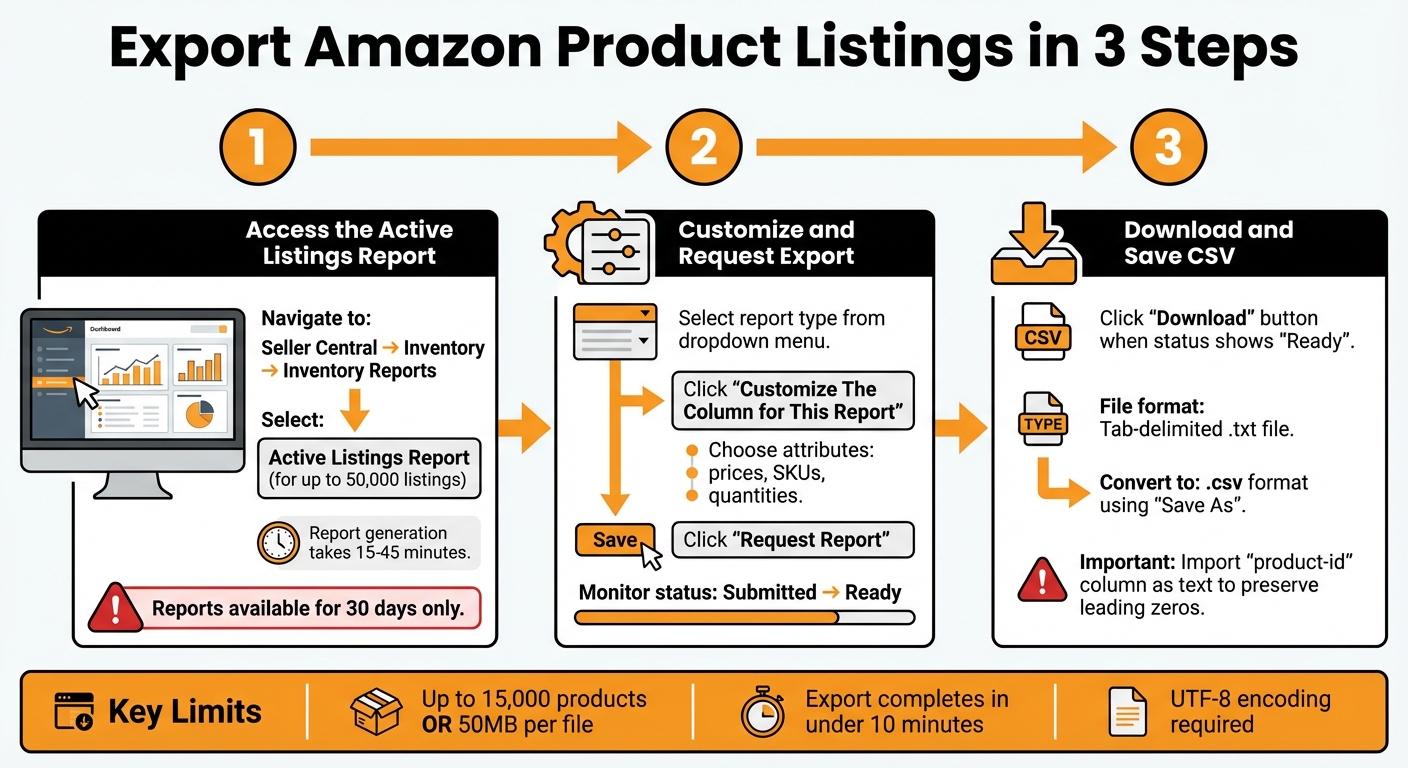
How to Export Amazon Product Data to CSV in 3 Steps
If you’re ready to extract your Amazon listings, here’s a step-by-step guide to ensure your data is accurate and well-organized. Properly exporting your listings is essential for keeping everything consistent with accurate inventory management.
Access the Active Listings Report in Seller Central
Start by heading to Seller Central and navigating to Inventory > Inventory Reports [6]. The Active Listings Report is your go-to option for viewing all products currently listed on Amazon, even those with zero stock. This option works best if you have up to 50,000 listings [5]. For larger catalogs, the Inventory Report is a better fit [5].
Once you request a report, expect it to take anywhere from 15 to 45 minutes to generate [5]. Keep in mind, these reports are only available for download for 30 days, so don’t delay [5].
Customize and Request the Export
On the Inventory Reports page, choose the type of report you need from the drop-down menu. For a comprehensive export, select Active Listings Report and click Request Report [5][6]. If you’re looking for more specific details – like prices, SKUs, or quantities – opt for the Inventory Report (Custom) [6].
To tailor your data, click Customize The Column for This Report. This opens a dual-pane interface where you can add or remove attributes. Use the right pane to pick attributes and move them to the left pane for inclusion in your report [6]. Once you’ve made your selections, click Save and then Request Report to start the export process [6].
You can monitor the progress of your report in the Check Report Status & Download section. The status will change from "Submitted" to "Ready" once the file is available for download [6].
Download and Save the CSV File
When your report is ready, download it promptly to ensure you don’t miss the 30-day availability window [5].
Click the Download button under Check Report Status & Download [5][6]. The report will be delivered as a tab-delimited text file (.txt), which can be opened in tools like Excel, Google Sheets, or Microsoft Access [3][5]. Before saving, double-check that the data looks correct. Then, use the Save As function to convert the file to .csv format [5][8].
Store the file in a dedicated folder on your computer to keep it organized. If your file includes ISBNs, make sure to import the "product-id" column as text in Excel to preserve leading zeros [3][7]. Finally, to avoid receiving daily report emails, go to Settings > Notification Preferences > Reports and uncheck "Open Listings Report" [4].
sbb-itb-ed4fa17
Amazon CSV File Format and Common Problems
After exporting your Amazon data, understanding the structure of its CSV file and addressing common errors is key to efficient catalog management.
Amazon CSV File Structure Explained
Amazon CSV files are plain text files where information is organized using comma-separated values [1].
These files must use UTF-8 encoding to properly handle special characters and international text [10]. When entering prices, make sure to use numeric values without a dollar sign (e.g., 12.99) [1]. SKUs can have up to 255 characters, and while product titles can be as long as 200 characters, keeping them under 80 characters tends to yield better results [1][9].
Here’s an overview of key columns for different product types:
| Column Name | Standalone Products | Variation Products | Notes |
|---|---|---|---|
| SKU | Required | Required (Child) | Max 255 characters |
| Title | Required | Required (Parent) | Max 200 characters |
| Price | Required | Required (Child) | Numeric only |
| Fulfilled By | Required | Required (Child) | Shipping method |
| Amazon_SKU | Required | Required (Child) | Must match Seller Central |
| Offer Prime | Required | Required (Child) | TRUE or FALSE |
| Variation Option | Optional | Required | e.g., Size or Color |
| Variation Value | Optional | Required (Child) | e.g., Large or Red |
Amazon’s flat file templates can range from 100 to over 400 columns, depending on your product category [11]. You can upload up to 15,000 products or 50MB of data in a single session, whichever limit is reached first [1].
Now, let’s tackle some common CSV errors and how to resolve them.
How to Fix Common CSV Errors
Even with a properly formatted CSV file, you might still encounter occasional issues.
Missing or deleted headers are a frequent cause of upload failures. Always use Amazon’s official template from Seller Central, and avoid removing any pre-defined columns – even if they aren’t relevant to your product [1]. If you encounter "Missing required attribute" errors, double-check that all mandatory fields are completed for your product type.
Encoding issues can distort special characters in product titles and descriptions. To avoid this, save your file in UTF-8 format using tools like Google Sheets or a Unicode-compatible text editor [10]. Another common problem is invalid image URLs. Ensure that all image links start with https:// and end with valid file extensions like .jpg, .jpeg, .gif, or .png [1].
Be cautious of duplicate column headers. For instance, having two "SKU" columns will result in an error [1]. When you create variations on Amazon, ensure that each child SKU has its own row and that it correctly links to the parent SKU [11].
"Amazon’s error messages often send sellers into lengthy debugging sessions." – Jamin Mahmood-Wiebe, Founder, Flat Magic [11]
Title formatting violations can suppress your listings from search results. Avoid using ALL CAPS, repeating words excessively, or including promotional phrases like "Best Seller" or "Free Shipping." Refrain from using special characters like !, $, ?, and _ [9]. When modifying existing listings, select the "Override existing products" option and ensure the SKU matches the catalog entry exactly [1].
Some fields only accept specific values from Amazon’s predefined lists, also known as "controlled vocabularies." Any deviation from these accepted terms will result in rejection [11]. To stay ahead of potential errors, regularly check the Listing Quality Dashboard for missing or incorrect data [11].
Speed Up Exports with FlatFilePro

Exporting data manually through Seller Central can feel like a never-ending loop of requests, waiting, and refreshing. For larger catalogs, generating just one CSV file can take up to 10 minutes [1]. Plus, standard reports are delivered as .txt files, requiring extra steps to convert them into CSV format [2][8].
FlatFilePro simplifies this entire process. By using API-based exports, it pulls data directly from your Amazon account, completely bypassing the delays of the merchant console [1][8]. This integration gives you immediate access to your product data via a custom BI Dashboard, cutting out the extra steps and saving time.
Export Data Using FlatFilePro’s Custom BI Dashboard
Once you connect your Amazon Seller Central account through FlatFilePro’s API integration, the system syncs your product data several times a day. This means your listings are always up-to-date and ready for export – no need to request reports or refresh pages.
FlatFilePro’s Reflection Engine takes it a step further by running nightly checks on your catalog. It shows exactly what Amazon displays to customers, flagging any issues. Healthy listings are marked with green checkmarks, while listings with errors are flagged with red X’s. These errors are categorized – Product Identity, Details, Shipping, or Safety – allowing you to focus on fixes that can boost your search rankings [12]. With this organized system, you can quickly identify and address problem areas while maintaining data accuracy.
Automate Data Validation and Error Detection
Amazon’s data often comes with errors – like price fields containing dollar signs or image URLs missing HTTPS [1]. FlatFilePro’s Error Detection feature scans your CSV files automatically, catching these formatting mistakes in seconds [12]. It also flags broken listings that Amazon tools might miss and identifies missing attributes that could suppress your products from search results [12].
FlatFilePro’s ability to handle complex product variations with a 95% success rate ensures your data is clean and ready to go [12]. Whether you’re updating inventory, running promotions, or expanding to new marketplaces, this tool makes sure your exports are seamless and error-free.
Validate and Troubleshoot Exported CSV Data
Ensuring your exported CSV data is accurate is critical for maintaining a reliable product catalog. Mistakes like incorrect prices, missing product details, or broken listings can lead to significant issues. Amazon’s CSV History Page in the merchant console is a helpful tool for this – it tracks your uploads and exports from the past 30 days. You can download files directly from this page to review row-by-row details, pinpoint errors, and identify why certain products failed. Before diving into further processing, always open the file to confirm its accuracy.
Open and Review CSV Files
When you open your CSV file in Excel, start by checking for formatting issues that might compromise your data. For example:
- Ensure numeric prices, like
17or3.99, are listed without a$symbol. - Verify that SKUs in the CSV match exactly with those in Seller Central.
- Disable macros and external links to avoid triggering security warnings.
Make sure the required columns are complete: SKU, Title, Fulfilled By, Amazon_SKU, Price, and Offer Prime. For products with variations, double-check that parent rows include the Title and Variation Option, while child rows follow with specific values like "Small" or "Red." Also, ensure that your titles and SKUs meet Amazon’s character length requirements to stay compliant.
Work with Large Files and Prevent Data Loss
If your file is large, managing its size becomes essential. CSV files over 50MB need special attention. Amazon imposes limits on certain processes: Buy with Prime imports are capped at 15,000 products or 50MB per file, while QuickSight exports can handle up to 500MB or 1 million rows. For larger catalogs, Amazon may automatically split your data into smaller, more manageable partitions.
Keep in mind that CSV files don’t retain formatting, formulas, or highlights. To avoid losing important data, stick to basic edits and avoid using spreadsheet-specific features. If your file exceeds 6MB, consider enabling versioning in your storage system. This allows for quick recovery if a file gets corrupted or accidentally deleted. For teams handling large exports, using compression and secure temporary links can help protect data during transfers.
Conclusion
Exporting your Amazon product data to CSV files is a game-changer for managing large catalogs. This format allows you to handle up to 15,000 products at once, transfer data between platforms effortlessly, and make bulk updates in just minutes. By using CSV files, you avoid formatting headaches and ensure compatibility with various software systems – making them a reliable solution for efficient data management.
To ensure accuracy, stick to Amazon inventory file templates and double-check that all required fields are filled. When entering prices, keep it simple – use plain numbers like 17.99, without adding dollar signs.
Tools like FlatFilePro make this process even easier. Its custom BI Dashboard simplifies exports, while automated validation flags errors before they disrupt your workflow. Forget the hassle of manual downloads, file conversions, and troubleshooting. With API-powered real-time updates, you can apply changes instantly and maintain catalog accuracy with minimal effort. This automation perfectly complements the strategies outlined in this guide.
Whether you’re overseeing a small catalog or tens of thousands of listings, CSV exports remain the quickest and most reliable way to keep your product data accurate. By following the formatting guidelines, leveraging the right tools, and staying organized, you’ll save time and reduce errors – ensuring smoother catalog management every step of the way.
FAQs
Which Amazon report should I export for my catalog size?
To figure out your catalog size, start by exporting the inventory report from Amazon Seller Central. This report includes all your active listings. Once exported, open the file in Excel, where you can count the rows to get an accurate idea of your catalog size.
If you’re working with Buy with Prime, you can export a CSV of your product catalog directly from the Products page. Both methods give you a clear snapshot of your listings, helping you evaluate the total size of your catalog.
How do I convert Amazon’s tab-delimited report into a CSV safely?
To convert Amazon’s tab-delimited report into a CSV file without issues, start by opening the report in a spreadsheet program like Excel or Google Sheets. Once the data is loaded, use the "Save As" or "Export" option to save it as a CSV file. Since Amazon doesn’t provide an option to choose the file format for inventory reports, this approach ensures the data is formatted correctly and avoids potential errors.
What’s the fastest way to catch CSV formatting errors before upload?
To spot CSV formatting errors quickly, open your file in a plain text editor and confirm it aligns with the required format and schema. Pay special attention to fields like IDs and categories. It’s helpful to use Amazon’s downloadable CSV import template to ensure your file matches the expected structure. Look out for common problems such as mismatched data types, missing fields, or incorrectly formatted multi-value fields before attempting to upload.