
Amazon image URLs are a quick and efficient way to manage product visuals without manually uploading files. These URLs directly link to images stored on Amazon‘s servers, allowing sellers to update listings in bulk and adjust image dimensions using simple suffixes like _SL160_ for resizing. This method saves time and ensures compliance with Amazon’s strict image requirements, such as a pure white background, minimum 1,000 pixels for zoom, and proper file naming conventions.
Key Takeaways:
- Amazon image URLs streamline catalog management, especially for large inventories.
- Sellers can add these URLs to bulk inventory files to update images across multiple listings.
- Images must meet Amazon’s guidelines: pure white background, at least 1,000 pixels for zoom, and proper naming (e.g.,
ASIN.MAIN.jpg).
Tools like FlatFilePro simplify this process further by automating URL management, verifying compliance, and eliminating the need for manual uploads. By following Amazon’s rules and using efficient tools, sellers can maintain polished, error-free product listings.
How to Add/Update Listing Photos using Flat Files and Image URL’s in 2021
Amazon Image Requirements
Amazon Image Requirements and Specifications Guide
Amazon has strict image guidelines, and failing to meet them can lead to your listing being suppressed until you upload a compliant image. Knowing these rules upfront can save you from delays and potential sales losses.
Image Specifications You Need to Know
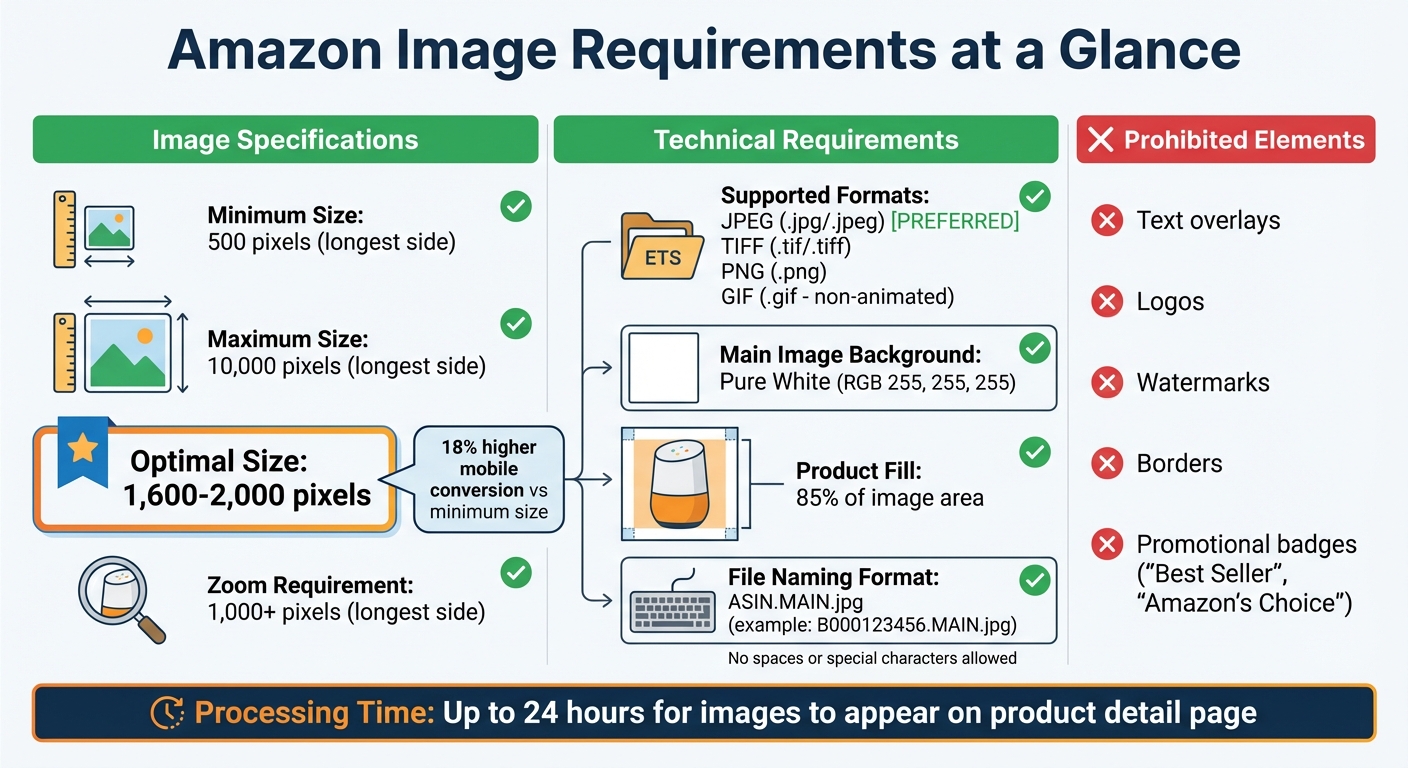
To ensure your images display properly and allow zoom functionality, you need to meet specific technical standards. The minimum size is 500 pixels on the longest side, but for zoom, you’ll need at least 1,000 pixels. For the best results, aim for 2,000 x 2,000 pixels, as this can boost mobile conversion rates by 18% compared to the minimum size [3].
| Requirement Type | Specification |
|---|---|
| Minimum Size | 500 pixels on the longest side |
| Maximum Size | 10,000 pixels on the longest side |
| Optimal Size | 1,600 to 2,000 pixels (for zoom and mobile) |
| Supported Formats | JPEG (.jpg/.jpeg), TIFF (.tif/.tiff), PNG (.png), GIF (.gif – non-animated) |
| Main Image Background | Pure White (RGB 255, 255, 255) |
| Product Fill | 85% of the image area |
JPEG is the preferred format due to its efficient processing. Your main image must have a pure white background (RGB 255, 255, 255) and should not include text, logos, watermarks, or borders. The product itself should occupy at least 85% of the image area to enhance visibility in search results. Additionally, file names must follow Amazon’s format, using your product identifier (e.g., ASIN, UPC, or EAN) followed by a variant code and extension, such as B000123456.MAIN.jpg. Avoid spaces or special characters, as these will block your upload.
Image Hosting Rules
If you’re updating images via bulk inventory files, ensure your URLs link directly to the image file on a publicly accessible server. Links from platforms like Google Drive or Google Photos won’t work because they redirect to a web viewer instead of the raw image file. Amazon’s system requires URLs that end with a valid file extension like .jpg, .png, or .tif. Invalid URLs will trigger Error 15, preventing your images from uploading.
Once you’ve uploaded a compliant image, it can take up to 24 hours for it to appear on your product detail page. Following these hosting and format rules will help you avoid unnecessary errors and streamline the process.
How to Manage Amazon Image URLs
Handling Amazon image URLs can be done through individual edits in Seller Central or by using bulk inventory files for greater efficiency.
Step 1: Copy Image URLs from Seller Central

Start by navigating to Inventory > Manage All Inventory in Seller Central. Use the search bar to locate your product by SKU, product name, or ASIN. Once you’ve found the product, click Edit, then go to the Images tab [6]. If you need to find listings missing images, use the Quick Filters option to make this process easier [6].
Step 2: Add URLs to Bulk Inventory Files
For bulk edits, download the blank inventory file template. Go to Add Products > Spreadsheet > Download a blank template [7]. Use the search tool (e.g., typing "beanies for women") to ensure the template includes the correct Browse Node [7].
Once you’ve downloaded the template, open it in Excel and switch to Advanced View using the selector in the top-left corner. This will reveal all optional attributes, including the image URL columns [7]. Paste your image URLs into the appropriate columns, then upload the file back through Seller Central. To track your upload, go to Add Products > Spreadsheet > Check Upload Status, and download the Processing Summary if you encounter any errors [7].
| Task | Seller Central Path |
|---|---|
| Locate Individual Images | Inventory > Manage All Inventory > Edit > Images [6] |
| Download Bulk Template | Add Products > Spreadsheet > Download a blank template [7] |
| Check Upload Status | Add Products > Spreadsheet > Check Upload Status [7] |
| Search for Products | Inventory > Manage All Inventory > Search (SKU, ASIN, Name) [6] |
Step 3: Verify Template and File Requirements
Before uploading your updated inventory file, double-check that you’re using the most recent Product Templates. This helps prevent errors in the Processing Report [7]. Ensuring compliance with Amazon’s template requirements will save time and reduce potential issues during the upload process.
Using FlatFilePro for Image URL Management

FlatFilePro builds on the principles of managing Amazon image URLs by making the process faster and more streamlined. By connecting directly to Amazon’s SP-API, it eliminates the need for manual file uploads and downloads. Instead, you can manage all your image URLs from a single, user-friendly dashboard that syncs your catalog with just one click.
Extract and Edit Image URLs in Bulk
FlatFilePro simplifies bulk editing like never before. With a single click on Sync, your Amazon listings are automatically imported into the platform. It securely backs up your listing data and provides a centralized view of all image URLs for your products. From this dashboard, you can edit images across thousands of SKUs – up to 17 times faster than using traditional spreadsheets [9]. You can also assign Designer permissions to restrict access, ensuring only authorized users can make changes to image URLs.
"This is the tool that powers our ops and analytics teams. We used to do everything manually, such a pain! Now we don’t have to think about anything and our listings update like magic!"
– Jack Haldrup, Founder, Dr. Squatch [8]
Verify URLs with the Reflection Engine
The Reflection Engine is like a nightly watchdog for your catalog. It automatically scans your listings every night for silent failures – a problem that impacts 93% of sellers [8]. By comparing your stored image URLs with the live versions on Amazon, it flags any discrepancies, such as missing or unauthorized changes to images. This ensures your image URLs stay accessible and meet Amazon’s format requirements, whether they’re JPG, TIF, PNG, or GIF [10].
Update Images Without Flat Files
FlatFilePro takes efficiency a step further by pushing image URL updates directly through Amazon’s SP-API. Forget about dealing with flat files, downloading templates, or troubleshooting upload errors. Simply make your edits in the dashboard, click Save, and the platform updates your listings directly in Seller Central. It also keeps a full version history of your listings, so you can easily roll back changes if needed. Plus, for international sellers, switching between marketplaces is seamless and hassle-free.
sbb-itb-ed4fa17
Common Errors and How to Fix Them
Even with the best preparation, image URL problems can pop up. The good news? Most of these issues are easy to resolve.
Fixing Invalid URLs
Invalid URL errors happen when Amazon can’t access your image files. This often stems from using links from platforms like Google Drive or Google Photos without converting them into direct download links. Amazon won’t accept standard "view" links – instead, you need a direct download URL. For Google Drive, the correct format looks like this:
https://drive.google.com/uc?export=view&id=FILE_ID [11][12]
Amazon identifies this as Error 15 in their system.
Another common mistake is improper file naming. Amazon requires a specific naming format: Product Identifier.Variant Code.Extension (e.g., B000123456.MAIN.jpg). If your file names include spaces or unsupported characters, they’ll be rejected. Double-check that your file names meet these guidelines.
Permissions can also cause headaches. For cloud-hosted images, ensure files are set to "Anyone with the link can view" on platforms like Google Drive. If uploads fail, head to Catalog > Upload images > Submission status. The Issue Reason report will pinpoint what went wrong [1].
Once you’ve confirmed your URLs and permissions are correct, you can focus on resolving any delays in processing.
Dealing with Upload Delays
Amazon sometimes needs up to 24 hours to process and display image updates [11]. If your image hasn’t appeared after a full day – even if the upload status says "successful" – double-check that the URL is still active and the file is properly hosted [11]. Avoid using temporary placeholders, as they can interfere with final uploads [1].
To speed things up, ensure your image file sizes stay under 10MB. Smaller files generally process faster [11].
Best Practices for Amazon Image URLs
Once you’ve nailed the technical steps of copying and pasting image URLs, the next challenge is making sure your images work hard for your business. High-quality visuals that follow Amazon’s guidelines not only keep your listings active but also help customers feel confident about their purchases.
Follow Amazon’s Image Policies
Amazon takes its image guidelines seriously, and not following them can hurt your listing’s visibility. For example, your main image must have a pure white background – even a slightly off-white shade can lead to suppression [4][5]. The product should fill at least 85% of the frame, and you can’t include text, logos, watermarks, or promotional badges like "Amazon’s Choice" or "Best Seller" [2][4].
When it comes to file formats, JPEG is the go-to option, even though Amazon supports other formats [4][5]. For image dimensions, aim for 2,000 x 2,000 pixels. This size ensures your images look sharp and enable the zoom feature on both desktop and mobile without slowing down upload speeds [5]. While the minimum size is 500 pixels, you’ll need at least 1,000 pixels on the longest side to activate zoom functionality [2][5].
Lastly, make sure you own the legal rights to any images you upload. Using unauthorized images can lead to account-related issues [14][4].
By sticking to these rules, you set the stage for creating visually appealing and compliant product listings.
Create Better Variation Swatch Images
Swatch images are the small thumbnails that appear in the variant selection area, just below the price on your product detail page [13]. These images help shoppers quickly identify their choice, whether it’s a color, pattern, or material. If you skip uploading a dedicated swatch image, Amazon will automatically use the child SKU’s main image, which may not clearly show the variation [13].
To make effective swatches, use the file naming code ".SWCH" in your URL (e.g., ProductSKU.SWCH.jpg). This ensures Amazon’s system recognizes the file as a swatch image [14][5]. For size, stick to at least 500 pixels at 72ppi [13][14]. Focus on capturing textures or details that might be missed in full-product shots. For instance, if you’re selling a leather wallet in multiple colors, your swatch should highlight the leather’s texture and finish – not the entire wallet.
Keep in mind that swatch images must follow Amazon’s no-text policy. This means no logos, pricing details, or watermarks [15][4]. Well-designed swatches can reduce the chances of customers ordering the wrong variation, which helps cut down on returns and negative reviews [13][15]. With 60% of web traffic now coming from mobile devices, these small images play a crucial role in helping mobile shoppers make quick, confident choices [15].
Conclusion
Handling Amazon image URLs doesn’t have to be complicated. It boils down to three main steps: copying the URLs from your source, pasting them into your inventory files, and ensuring they align with Amazon’s guidelines. Sticking to standardized formats and naming conventions helps you stay compliant and avoid potential upload headaches.
Accuracy is key, especially when managing a large catalog. Quality images not only meet Amazon’s standards but also play a big role in boosting conversions. Streamlined image management can directly impact your sales performance.
Tools like FlatFilePro make this process even easier. With features like bulk URL extraction and editing, verification through the Reflection Engine, and the ability to update images without using flat files, you can save time and reduce errors. Plus, automatic nightly scans highlight discrepancies between your listing data and what’s live on Amazon. This means you can quickly identify issues – like unauthorized competitor changes or unexpected Amazon edits – within 24 hours, ensuring your listings stay accurate and competitive.
FAQs
How can I make sure my Amazon image URLs follow the rules?
To ensure your Amazon image URLs meet their guidelines, make sure the links use HTTPS and are hosted on publicly accessible servers. The accepted file formats include JPEG, PNG, TIFF, or non-animated GIFs. For quality, images should be high-resolution with a minimum size of 1,000 x 1,000 pixels to enable zoom functionality. However, for optimal results, aim for 2,000 x 2,000 pixels.
Amazon also requires images to have a white background, fill at least 85% of the frame, and adhere to their quality standards. Failing to meet these requirements can lead to listing issues, such as suppression. To simplify the process, consider using tools that validate URLs and automate updates, ensuring ongoing compliance with Amazon’s standards.
What are the common mistakes when uploading Amazon image URLs, and how can I fix them?
Uploading image URLs to Amazon might seem straightforward, but a few common errors can trip you up. Issues like incorrect or inaccessible links, formatting mistakes, or images that don’t meet Amazon’s technical standards often cause problems. For instance, if the URL isn’t publicly accessible due to privacy settings, Amazon won’t be able to fetch the image. Similarly, images must comply with specific guidelines, such as being in JPEG format, having a resolution of at least 1,000 pixels on the longest side, and being hosted on secure HTTPS servers.
How to Fix These Issues
- Test Your URL: Open the link in a browser to confirm it’s publicly accessible and accurate.
- Check Amazon’s Requirements: Ensure the image format, resolution, and hosting setup align with Amazon’s guidelines.
- Use Reliable Hosting: Opt for hosting services that provide open access to your files.
- Re-upload or Adjust Permissions: If issues persist, re-upload the image or modify server permissions to allow public access.
- Streamline Bulk Management: For managing multiple images, tools like FlatFilePro can simplify the process and reduce errors.
By addressing these areas, you can avoid unnecessary delays and ensure your images are ready for Amazon’s platform.
How can FlatFilePro help me manage Amazon image URLs more efficiently?
FlatFilePro takes the hassle out of managing Amazon image URLs, especially for sellers handling large inventories. By connecting directly to Amazon’s SP-API, it lets you extract, verify, and update image URLs in bulk with ease. This automation cuts down on manual work, reduces mistakes, and ensures your images meet Amazon’s strict standards for resolution, format, and background.
FlatFilePro’s bulk processing tools make it possible to generate, edit, and monitor thousands of image URLs at once. This helps you avoid broken links or non-compliant images, streamlines your workflow, and elevates the quality of your product listings. The result? Better listings that can drive sales while saving you time.