
If you’re an Amazon seller, managing product images efficiently can save you time and boost your listings’ performance. Here’s the key takeaway: Amazon image URLs let you directly access product images stored on Amazon‘s servers. By extracting and modifying these URLs, you can quickly update or resize images without re-uploading files.
Why It Matters:
- Save Time: Extracting URLs takes minutes compared to manual downloads.
- Boost Sales: High-resolution images can increase click-through rates by 15% and conversions by 5%.
- Custom Sizing: Adjust image dimensions directly through URL parameters like
_SL160_or_SR300,300_.
Key Steps:
- Extract URLs: Use browser inspection tools or bulk export from Seller Central.
- Modify URLs: Adjust size modifiers (e.g.,
_SL900_for 900px images) or remove them for the highest resolution. - Bulk Management: Use tools like Google Sheets and FlatFilePro to handle URLs for multiple listings efficiently.
By mastering these techniques, you can streamline image management, reduce errors, and optimize your product listings for better performance.
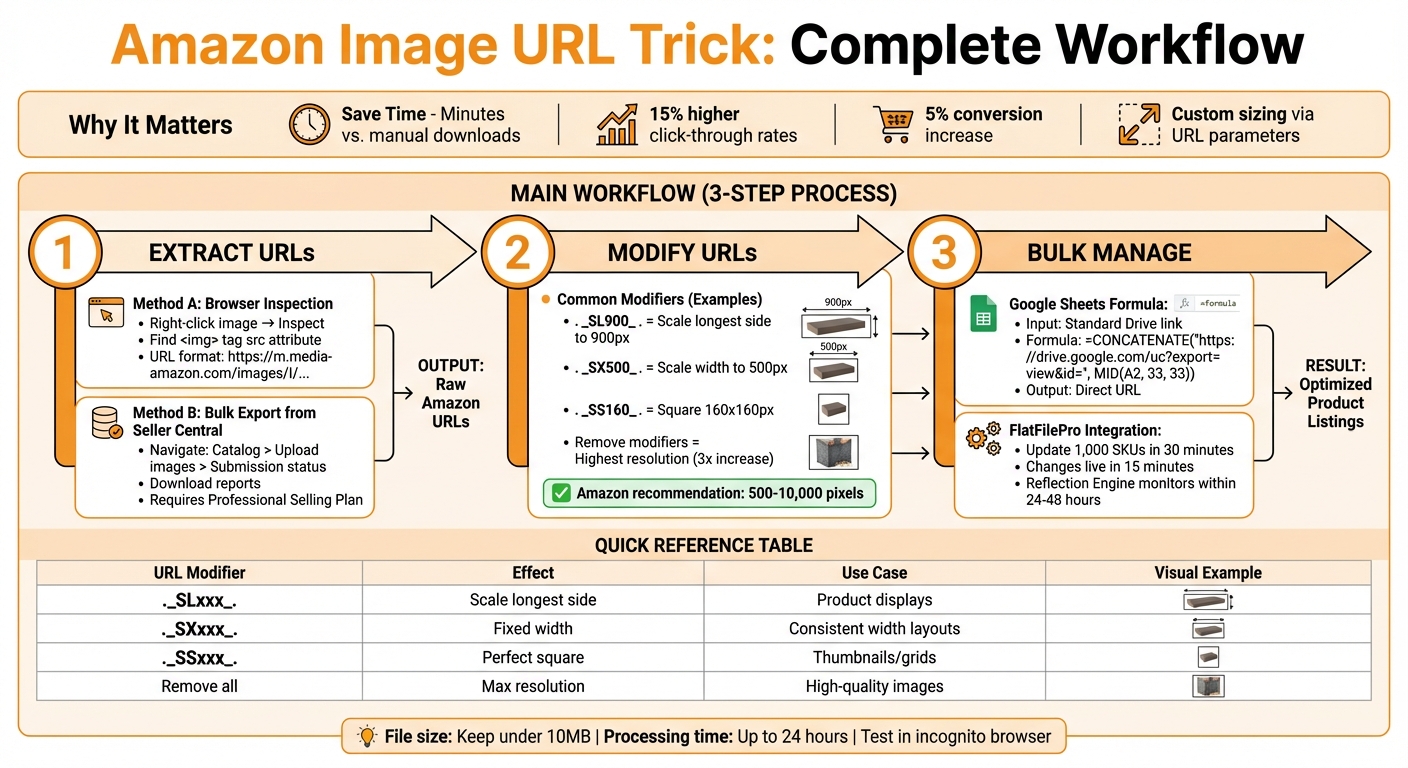
Amazon Image URL Management Workflow for Sellers
HOW TO CREATE IMAGE URL FOR AMAZON FLAT FILES! QUICK AND EASY
How to Extract Amazon Product Image URLs
You don’t need any special tools to grab image URLs from Amazon. Whether you’re looking to manually pull a single image URL or export them in bulk from Seller Central, both methods are straightforward. Here’s a breakdown of how to get it done.
Using Browser Inspection to Extract Image URLs
If you only need the URL for one image, your browser’s developer tools are the quickest option. On an Amazon product page, right-click the image you want and choose "Inspect" (or "Inspect Element"). This will open a panel displaying the page’s HTML code. Look for the <img> tag in the highlighted section – its src attribute contains the direct URL. Most Amazon image URLs start with:
https://m.media-amazon.com/images/I/
For the best resolution, you’ll need to tweak the URL slightly. Remove the underscore (_) and everything that follows. For instance, change this:
https://m.media-amazon.com/images/I/51EXAMPLE_SR500,500_.jpg
to this:
https://m.media-amazon.com/images/I/51EXAMPLE.jpg
This adjustment can significantly increase the image’s pixel count, often by up to three times[4]. Alternatively, you can right-click the image and select "Copy Image Address". However, this method may not always provide the highest-resolution version[4].
Bulk Exporting Image URLs from Seller Central
For sellers managing multiple listings, Amazon’s Inventory File Templates are a lifesaver. This feature, available to those with a Professional Selling Plan, allows you to export image data in bulk. Unfortunately, it’s not accessible to Individual sellers[9].
To monitor your image uploads, head to Catalog > Upload images > Submission status in Seller Central. You can download reports here to check for successful uploads and identify any errors[3,7]. Keeping a master spreadsheet with your SKUs and image URLs is a smart move – it simplifies updates and ensures you can quickly resolve issues[7].
For this process, stick to a desktop browser, as mobile versions of Seller Central don’t offer the same level of functionality[7,9,11]. This approach ensures you’re set up for efficient bulk updates and error management.
Modifying Amazon Image URLs for Custom Sizes
Did you know you can resize Amazon images directly from their URLs? By tweaking a few parameters, you can adjust dimensions without re-uploading or manually editing files. This quick hack saves time and keeps things simple.
The size details are embedded in the URL, right before the file extension. You’ll notice patterns like ._SL160_. or ._SR300,300_.. Change these numbers, and Amazon’s servers will automatically resize the image. Want the highest resolution? Just remove the entire modifier string (everything starting with ._ and ending with _.) to access the original image. Let’s break down how these modifiers work and look at some practical examples.
Common URL Modifiers and Their Effects
Amazon uses specific modifiers to control image dimensions. Here’s how they work:
._SLxxx_.(Scale Longest): Adjusts the longest side to your chosen pixel count while keeping the original aspect ratio intact. This is the standard for Amazon’s Product Advertising API and works well for product displays[1].._SXxxx_.(Scale X): Sets a fixed width, with the height scaling proportionally.._SYxxx_.(Scale Y): Fixes the height, allowing the width to adjust automatically.
For square images, ._SSxxx_. creates a perfect square by padding the shorter side, ensuring no distortion[2]. This is ideal for thumbnails or grid-style layouts. If you need to specify both width and height, use ._SRxxx,yyy_. (Scale Resolution), but keep in mind that mismatched proportions might cause distortion.
Amazon recommends keeping the longest side of an image between 500 and 10,000 pixels[3]. Asking for dimensions larger than the original won’t improve quality – it just adds white space or pixelation[2]. High-resolution images can make a big difference, too. Studies show they can increase click-through rates by 15% and boost conversions by about 5%[4].
Practical Examples of Resizing Images
Let’s say you start with this Amazon image URL:
https://m.media-amazon.com/images/I/51EXAMPLE._SR300,300_.jpg
Want to triple the resolution? Replace ._SR300,300_. with ._SL900_. to get a 900×900 version:
https://m.media-amazon.com/images/I/51EXAMPLE._SL900_.jpg
Need a 500-pixel-wide image? Use the ._SX500_. modifier:
https://m.media-amazon.com/images/I/51EXAMPLE._SX500_.jpg
For a square thumbnail (160×160), apply the ._SS160_. modifier:
https://m.media-amazon.com/images/I/51EXAMPLE._SS160_.jpg
Generating Direct Image URLs Using Google Sheets
This method builds on earlier techniques, offering a simple way to handle bulk updates using direct image URLs. Google Drive provides 15GB of free storage, which can be used to host product images[12]. However, standard Google Drive sharing links ending in /view redirect to a viewer page, making them incompatible with Amazon flat files[11].
By extracting the unique file ID from each link and reformatting it, you can create direct URLs that Amazon can process.
Step-by-Step Formula for Google Drive Links
First, ensure your images in Google Drive are set to "Anyone with the link". Then, follow these steps:
- Paste your Google Drive links into Column A of your Google Sheet.
- Use one of the following formulas in Column B to generate direct URLs:
Option 1 (MID function):
=CONCATENATE("https://drive.google.com/uc?export=view&id=", MID(A2, 33, 33))
This formula extracts the 33-character file ID starting at position 33 in the URL[5].
Option 2 (REGEXEXTRACT function):
="https://drive.google.com/uc?id=" & REGEXEXTRACT(A2, "d/(.*?)/")
This approach uses a regular expression to reliably pull the file ID from various link formats[11].
Once the URLs are generated, test them in an incognito browser window to ensure they load without requiring a Google login[12].
Using Google Sheets for Bulk URL Management
After generating direct URLs, managing them in bulk becomes seamless. Drag the formula down Column B to process all links at once, whether you’re working with a few images or thousands.
Once the URLs are ready, copy them from Column B and paste them into the main_image_url or other_image_url columns of your Amazon flat file[5]. Remember:
- Amazon recommends keeping image file sizes under 10MB to ensure faster processing[5].
- It may take up to 24 hours for your images to appear after uploading[5].
| Link Type | URL Format | Works with Amazon? |
|---|---|---|
| Standard Share Link | https://drive.google.com/file/d/[ID]/view |
No |
| Direct View Link | https://drive.google.com/uc?export=view&id=[ID] |
Yes |
| Direct Download Link | https://drive.google.com/uc?export=download&id=[ID] |
Yes |
sbb-itb-ed4fa17
Integrating Image URLs into FlatFilePro for Bulk Updates

FlatFilePro makes it simple to update your catalog with direct image URLs, saving you from the hassle of manual entry in Seller Central.
Using FlatFilePro for Bulk Image Updates
To get started, export your current listings through FlatFilePro’s dashboard. This allows you to work with your entire catalog or just specific listings. Once exported, paste your new image URLs into the appropriate fields. Whether you’re replacing main images or adding more photos to the carousel, the process is straightforward.
Sellers have reported updating 1,000 SKUs in under 30 minutes – a huge time saver compared to the manual process in Seller Central. Before uploading, validate your URLs to catch issues like formatting errors or broken links. Choose the "Partial Update" option to ensure existing data remains intact. Once submitted, changes usually appear on your Amazon listings in about 15 minutes.
By combining this with bulk URL generation techniques, you can streamline your updates, reduce downtime, and keep your listings competitive.
Reflection Engine for Monitoring Changes

After making updates, rely on Reflection Engine to confirm that every change was applied correctly. This tool automatically scans your SKUs within 24–48 hours to ensure your live listings match your submissions. Successful updates are marked with green checkmarks, while red X’s highlight any discrepancies.
Reflection Engine helps catch issues like images rejected due to policy violations or URLs that fail to process. Experts estimate it prevents 90% of rejections by identifying problems early. If an image URL doesn’t apply, the system flags the specific SKU, allowing you to address the issue immediately – avoiding the frustration of discovering it later through declining sales or conversions.
Troubleshooting Common Amazon Image URL Errors
Even with proper URL generation, technical hiccups can disrupt image updates. A common issue is Error 15, which points to an invalid URL format [6][8]. This typically happens when the link includes redirects or doesn’t lead directly to an image file. Amazon requires URLs that end with file extensions like .jpg, .png, .gif, or .tif – anything else will be rejected.
Fixing Broken or Inaccessible Links
Cloud storage permissions are a frequent source of trouble. For example, if you’re hosting images on Google Drive, the standard sharing links won’t work because they redirect to preview pages rather than the actual image file [13][5]. To fix this, refer to the earlier section on converting Google Drive links to direct URLs using Google Sheets. Before submitting any URL through FlatFilePro, test it in an incognito browser. If the image doesn’t load immediately, Amazon will reject it.
"Amazon does not accept URLs from Google Photos or Google Drive. You’ll need to find somewhere else to host the images and then use that URL in your inventory file." – Seller_E54UocTxGrfq8, Amazon Seller Forum Contributor [13]
File naming errors are another common problem. Ensure your file names follow Amazon’s required format: productID.variant.jpg (e.g., B000123456.MAIN.jpg). Avoid spaces or underscores [10][3].
Once broken links are resolved, the next step is to address upload issues within Seller Central.
Resolving Upload Failures in Seller Central
If your images still don’t appear after fixing the links, the issue might lie with Seller Central’s specific requirements. Start by checking your Submission Status under Catalog > Upload images > Submission status in Seller Central [10][15]. The Issue reason column will flag problems such as:
- Images smaller than 500 pixels
- Files exceeding 10,000 pixels
- Non-white backgrounds on primary images [10][14]
Keep in mind that even a successful upload might take up to 24 hours to reflect on your product detail pages [10][6][14].
Another potential issue is duplicate detection. If you upload an image file already in Amazon’s system, the update might not take effect. To bypass this, make a minor change to the image – resize it slightly or adjust the compression level – before re-uploading. If all else fails and the image doesn’t update within 24 hours, contact Selling Partner Support. Provide them with your ASIN and the Batch ID from your upload report for further assistance [14].
Conclusion
Managing Amazon image URLs effectively can revolutionize the way you handle product listings. With methods like extracting URLs through browser inspection, customizing them for specific sizes, and creating direct links using Google Sheets, you can save yourself from the endless cycle of manual copy-pasting.
To take it a step further, bulk editing with flat files offers a smarter approach to efficiency. As FlatFilePro explains, "Using a flat file can save time when uploading multiple items at once, as it eliminates the need for manual entry or copy-pasting from another source" and ensures "there are no typos or incorrect values entered into the fields; this makes it easier for buyers to find what they’re looking for quickly and accurately" [16].
Want to speed things up even more? FlatFilePro allows you to update up to 100 listings in just 10 minutes [17]. Plus, with its Reflection Engine, your listings are monitored nightly, flagging broken image URLs or unauthorized changes with green checkmarks and red X’s – preventing potential disruptions to your sales.
Try it out for yourself with their 7-day free trial [16], and let automated tools handle the heavy lifting so you can focus on growing your business.
FAQs
How can updating Amazon image URLs help improve my product listings?
Updating and fine-tuning Amazon image URLs can play a big role in improving your product listings. By ensuring your images align with Amazon’s quality standards, you not only boost their chances of appearing higher in search results but also make them more attractive to potential buyers. Clear, high-quality images grab attention and can lead to better engagement – and ultimately, more sales.
Optimized URLs also make managing your catalog easier. They help with bulk updates, simplify troubleshooting for image-related issues, and ensure uniformity across all your listings. This means less time spent on maintenance and more time to focus on growing your business.
How can Amazon image URL modifiers affect image size and quality?
Amazon product image URLs often come with modifiers that dictate the size and resolution of the image. These modifiers are typically added as suffixes, such as _SLXXX_, where XXX represents the maximum pixel dimension on the longest side. For instance, _SL1000_ specifies that the image’s longest side will not exceed 1,000 pixels, making it perfect for showcasing high-quality product photos.
Tweaking these modifiers allows sellers to tailor images for specific needs – whether it’s reducing file size for quicker load times or increasing resolution for detailed zoom features. Using these parameters effectively ensures your images comply with Amazon’s technical standards while improving the overall presentation of your product listings.
What steps should I take to make sure my image URLs work on Amazon?
To have your image URLs accepted by Amazon, ensure they are secure HTTPS links leading to high-quality JPEG images with a resolution of at least 1,000 pixels on the longest side. These images need to be publicly accessible, meaning no passwords or login barriers should restrict access.
Also, double-check that your images meet Amazon’s specific guidelines. This means they should be properly formatted, free of added text or borders, and provide an accurate depiction of the product. Sticking to these requirements will help you avoid issues and make your listing process smoother.