
Uploading product images to Amazon can be tedious, especially for sellers managing large catalogs. Using direct image URLs simplifies this process, allowing you to integrate images via flat files instead of manually uploading them. Here’s what you need to know:
- Direct Image URLs: These are links that point directly to image files hosted on public servers. Amazon fetches these images automatically for product listings.
- Flat Files: Excel templates used to bulk update listings. Simply paste the URLs into the designated columns.
- Image Requirements: Amazon enforces strict guidelines – pure white backgrounds, minimum 1,000 x 1,000 pixels, and JPEG/PNG formats are mandatory.
- Hosting Sources: Platforms like Google Drive need URL adjustments (e.g.,
https://drive.google.com/uc?export=view&id=FILE_ID) to meet Amazon’s standards. - Automation Tools: Tools like FlatFilePro help generate compliant URLs in bulk, validate links, and optimize the submission process.
HOW TO CREATE IMAGE URL FOR AMAZON FLAT FILES! QUICK AND EASY
Amazon’s Image Requirements Explained
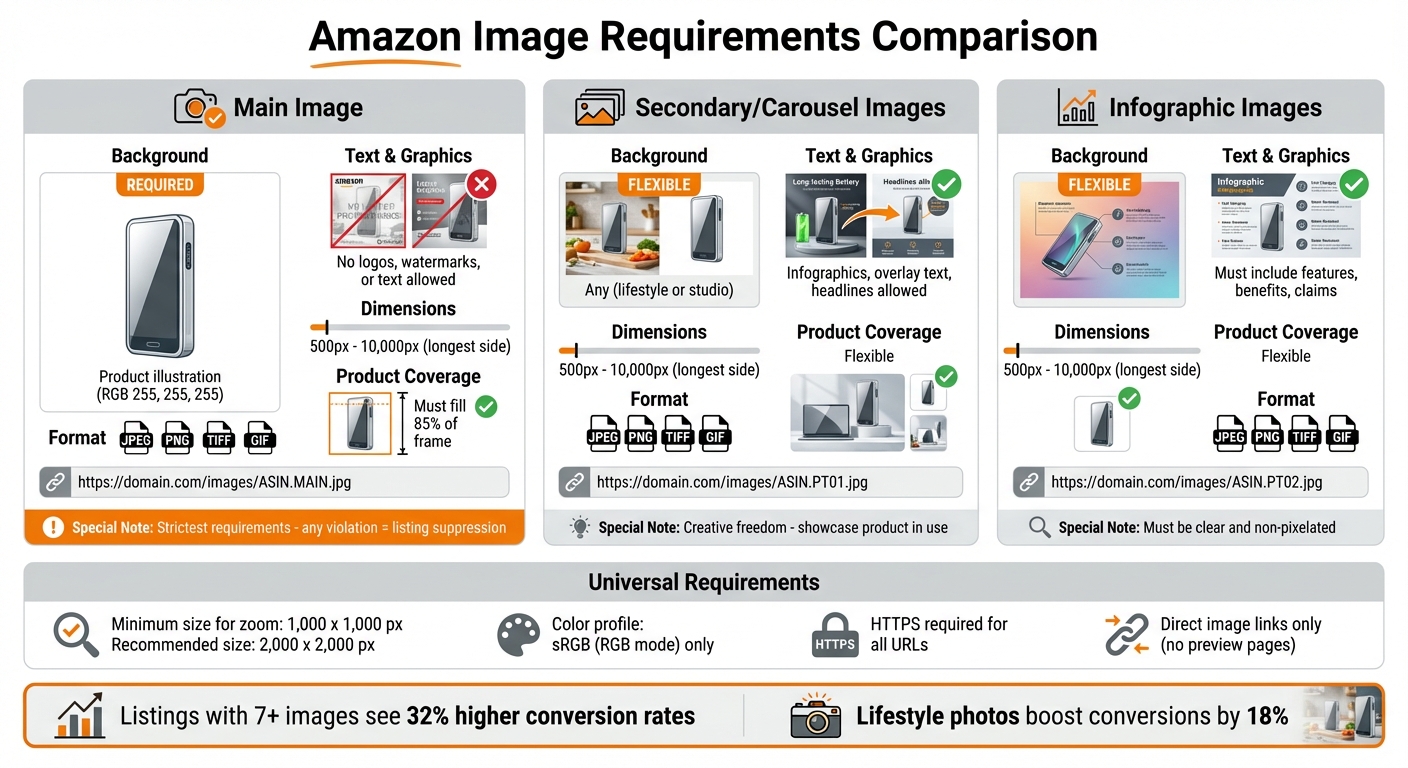
Amazon Image Requirements: Main vs Secondary vs Infographic Images
Amazon has strict image standards to ensure a consistent shopping experience across its platform. Listings that don’t meet these requirements can be automatically suppressed, which hurts both search visibility and sales. To enforce these rules, Amazon uses automated image recognition to scan uploaded photos for compliance. Common issues include text overlays on main images, off-white backgrounds, and watermarks.
Let’s break down the key standards for main images to help you stay compliant.
Main Image Standards
The main image is the centerpiece of your listing, so it needs to follow Amazon’s rules closely. The background must be pure white with an RGB value of 255, 255, 255. Even a slightly off-white or gray background can lead to suppression. The product itself should fill at least 85% of the frame to maximize visibility.
Amazon only accepts professional product photographs for main images. You can’t include text, logos, watermarks, props not sold with the product, or inset images. There are also specific rules for certain categories: clothing items must be shown on a model or as a flat-lay (no hangers), shoes should be displayed at a 45-degree angle, and bundles must show all included items.
| Specification | Requirement | Notes |
|---|---|---|
| Minimum Size | 1,000 x 1,000 px | Needed for zoom functionality |
| Recommended Size | 2,000 x 2,000 px | Best for mobile clarity |
| Accepted Formats | JPEG, PNG, TIFF, GIF | JPEG preferred for faster loading |
| Color Profile | sRGB (RGB mode) | CMYK is not supported |
| Main Image Background | Pure White (RGB 255, 255, 255) | Exact RGB match required |
| Frame Coverage | 85% or more | Product must be the main focus |
Secondary Image Guidelines
Secondary images have more flexibility compared to main images but still need to meet Amazon’s resolution and quality standards. These images allow for creative elements like lifestyle backgrounds, text callouts, infographics, scale references, and props that showcase the product in action. They help customers better understand the product’s features and uses.
Using all available image slots is a smart move – listings with 7 or more images see a 32% higher conversion rate compared to those with just 4. Including lifestyle photos, infographics, and close-ups can further boost conversions by 18%, 8%, and 6%, respectively [2]. When creating infographics, keep fonts at least 30pt for readability and limit text callouts to 3–5 per image to ensure clarity on mobile devices. The recommended size of 2,000 x 2,000 px applies here as well, ensuring your images look sharp on all screens.
How to Generate Amazon Image URLs
To upload product images into Amazon’s flat file system, you need direct image URLs. These links must point directly to the image file itself – Amazon’s backend can’t process preview pages or sharing links. There are two ways to generate these URLs: manually or by using automated tools.
Manual Image URL Extraction
If you’re handling a small number of images, manual extraction might work. One popular method involves using Google Drive as a hosting platform. Here’s how it works:
- Upload your product image to Google Drive.
- Select the file and click Get Link.
- Change the access settings to Anyone with the link can view. This step is crucial because Amazon needs public access to retrieve the image [1].
However, the standard Google Drive share link won’t work directly with Amazon’s flat files. For example, a typical share link might look like this:
https://drive.google.com/file/d/1ABCDEFG1234567890/view?usp=sharing
Amazon requires a direct link in this format:
https://drive.google.com/uc?export=view&id=1ABCDEFG1234567890
To create the correct URL, you need to extract the unique File ID (the string between /d/ and /view) and append it to this prefix:
https://drive.google.com/uc?export=view&id=
For bulk conversions, you can use a simple formula in Google Sheets or Excel. Place the share link in cell A2 and use this formula in cell B2:
=CONCATENATE("https://drive.google.com/uc?export=view&id=", MID(A2, 33, 33))
This will automatically generate the direct link [1]. Keep in mind that processing may take up to 24 hours [1].
| Link Type | URL Format Example | Compatibility |
|---|---|---|
| Standard Google Drive Link | https://drive.google.com/file/d/[FILE_ID]/view?usp=sharing |
Not compatible with Amazon |
| Direct Image URL | https://drive.google.com/uc?export=view&id=[FILE_ID] |
Compatible with Amazon |
| Google Photos Link | https://photos.google.com/share/... |
Not compatible |
For larger inventories, manual extraction can become time-consuming and error-prone. That’s where automation comes in.
Automated URL Generation with FlatFilePro

For sellers managing large catalogs, automation is a game-changer. Tools like FlatFilePro simplify the process by generating compliant URLs automatically. This platform functions as an Amazon Image Link Generator, ensuring every URL meets Amazon’s requirements in seconds [3].
FlatFilePro not only creates high-resolution, properly formatted URLs, but it also validates them to avoid issues like broken links or non-compliant hosting. It even checks for compatibility with Amazon’s image standards, including file size, background, and minimum resolution [1]. The tool’s API-driven process supports bulk edits, making it far more efficient than manual methods [3].
For sellers with extensive catalogs, this automated approach saves time, reduces errors, and streamlines the entire process of preparing your product images for Amazon [3].
Managing Bulk Image URLs with FlatFilePro
Handling large catalogs manually? That’s a tough task. FlatFilePro simplifies the process by automating URL creation and validation, saving you hours of work and streamlining your catalog management.
Bulk Upload and Image Optimization
FlatFilePro works seamlessly with Amazon Seller Central to import your entire catalog. It can handle datasets of up to 1,000,000 products or files as large as 200MB, breaking them into manageable chunks of 100,000 products each for processing efficiency [4].
The Amazon Image Link Generator takes the hassle out of creating compliant URLs. It handles hosting, applies Amazon’s formatting rules, and generates high-resolution links in seconds. Plus, it identifies common flat-file image errors before submission, helping you avoid listing suppressions or loader failures caused by non-compliant URLs [3]. To top it off, the Reflection Engine fine-tunes URL accuracy, ensuring everything is error-free.
Auto-Generate URLs with Reflection Engine
The Reflection Engine, powered by an API, allows for bulk edits and ensures every URL adheres to Amazon’s strict formatting requirements [3].
FlatFilePro also includes a "Product Image URL" column that links directly to full-size Amazon product images – not preview pages or sharing links. This is crucial since Amazon’s backend requires direct links to the actual image files. The platform further ensures compliance by checking images against Amazon’s standards before exporting them into inventory loader templates [3]. Once everything is validated, these URLs are ready to be seamlessly integrated into your flat file templates.
Exporting URLs for Flat File Templates
After generating and validating image URLs, FlatFilePro enables you to export them in the exact format Amazon’s flat file system requires. Its bulk editing features let you update image URLs across your entire catalog in one go [3]. The result? Flat file templates that are ready for immediate upload to Amazon, saving you time and reducing errors in your product listings.
sbb-itb-ed4fa17
Best Practices for Amazon Image URLs
Handling image URLs correctly is crucial for keeping your Amazon listings active and visible. Amazon enforces strict rules, and any issues with image URLs – like broken links or non-compliance – can lead to listing suppression, causing potential sales losses [5]. By following a few straightforward practices, you can ensure your images meet Amazon’s standards and load efficiently.
Using HTTPS and Checking URL Accessibility
Always use HTTPS for your image URLs. This ensures secure data transmission and allows Amazon’s crawlers to access your images without issues. Broken or inaccessible URLs could result in your listing being suppressed [6]. To avoid this, test every URL in a browser to confirm it loads properly and ends with a valid file extension, such as .jpg, .png, .tif, or .gif.
"If there is no main image that meets the requirements, we may suppress the product listing from search until a compliant main image is provided."
- Amazon Seller Central [5]
Another important step is to name your image files consistently. A good format includes the product identifier, a variant code, and the file extension – for example, B000123456.MAIN.jpg. This helps Amazon correctly associate the image with your ASIN. Avoid using placeholder images, as the first image uploaded becomes the default representation of your product. Once you’ve confirmed accessibility, use Amazon’s flat file validator to check your URLs for compliance.
Validating URLs with Amazon’s Flat File Validator
After ensuring your URLs are accessible and formatted properly, take an extra step by validating them with Amazon’s flat file validator. In Seller Central, go to the "Catalog" menu, choose "Upload images", and review the "Submission status" and "Issue reason" reports. This process helps spot problems like:
- Incorrect image dimensions (images must range from 500 to 10,000 pixels on the longest side)
- Unsupported file formats
- URLs that don’t directly link to an image file
Identifying these issues early means you can fix them before your listings go live, saving time and avoiding disruptions.
Image URL Format Comparison
Here’s a quick breakdown of Amazon’s image requirements based on different image types:
| Image Type | Background Requirement | Text & Graphics | Dimensions & Specs | URL Structure Example |
|---|---|---|---|---|
| Main Image | Pure white (RGB 255,255,255) | No logos, watermarks, or text | 500px – 10,000px; product must fill 85% of the frame | https://domain.com/images/ASIN.MAIN.jpg |
| Secondary/Carousel | Any (lifestyle or studio) | Infographics, overlay text, and headlines allowed | 500px – 10,000px; JPEG, PNG, TIFF, or GIF | https://domain.com/images/ASIN.PT01.jpg |
| Infographic | Any | Must include features, benefits, and claims | 500px – 10,000px; must be clear and non-pixelated | https://domain.com/images/ASIN.PT02.jpg |
For your main image, follow Amazon’s strictest guidelines: use a pure white background, and ensure the product fills at least 85% of the frame. Secondary and infographic images offer more flexibility, allowing lifestyle shots, text overlays, and other elements, but they still need to meet size and format requirements.
To simplify compliance, tools like FlatFilePro’s Image Link Generator can automatically verify your image URLs and formatting, helping you avoid errors before submission. This proactive approach ensures your listings remain active and meet Amazon’s standards.
Troubleshooting Image URL Problems
Image URL issues can throw a wrench into your flat file uploads. Knowing how to handle common problems can save you time and help avoid listing suppressions.
Fixing Invalid or Broken Links
Standard share links from popular cloud platforms often need to be converted into direct links. Just because a URL works in your browser doesn’t mean it will work for Amazon – especially if the hosting service requires authentication or redirects to a gallery page.
"Amazon does not accept URLs from Google Photos or Google Drive. You’ll need to find somewhere else to host the images and then use that URL in your inventory file."
- Seller_E54UocTxGrfq8, Amazon Seller Forum Contributor [7]
Another common issue is incorrect URL encoding. File names with spaces or special characters can cause Amazon’s flat file reader to fail, even if the link seems fine elsewhere. To avoid this, rename files to eliminate spaces and special characters (e.g., "Product-Photo-2024.jpg") [7]. Always test your URLs in a private or incognito browser window to ensure the image loads without requiring a login. If bulk uploads still fail, you can upload images one by one through the "Manage Inventory" section in Seller Central as a workaround [7].
Finally, double-check that your URLs meet Amazon’s technical requirements to avoid additional errors.
Avoiding Compliance Errors
Fixing broken links is only part of the equation. Your URLs must also adhere to Amazon’s strict formatting and permission standards. For example, Error 15 typically points to an invalid URL format. You can find specific troubleshooting steps by searching for "image error" in Seller Central.
If you’re hosting catalog files with image URLs on AWS S3, make sure your upload command includes the --acl bucket-owner-full-control parameter. This ensures Amazon has the necessary permissions to access and process your files [9]. Without it, you’ll run into "AccessDenied" errors, which block your images from appearing.
Keep in mind that after uploading, images can take up to 24 hours to show on standard listings. Catalog processing may take up to 72 hours due to caching [8][9]. Amazon typically retrieves new catalog files from partner S3 buckets every four hours [9]. To minimize delays, validate your flat file before submission using Amazon’s tools. Platforms like FlatFilePro can help identify errors early, ensuring your listings stay compliant. These steps will help you manage image URLs more efficiently and avoid unnecessary headaches.
Conclusion
Image URLs are a key element in Amazon selling. Amazon’s image ranking system decides which images show up on your product detail pages, so just uploading an image doesn’t guarantee visibility for customers [10]. To meet Amazon’s standards, URLs must be publicly accessible, correctly encoded, and hosted on approved platforms [7].
Managing this process can be especially tricky when handling large inventories. A single formatting error in your flat file can lead to Error 15 – indicating an invalid URL format – and potentially block your entire upload [10].
FlatFilePro simplifies this process by automating URL generation, validation, and bulk editing. Its Reflection Engine checks your listings nightly, identifying mismatches between your image data and what’s live on Amazon. With features like bulk image uploads, auto-generated compliant URLs, and export-ready flat file templates, it tackles these challenges head-on.
Legal and testing considerations are equally important. Always ensure you have the rights to use every image and rely on dedicated hosting rather than personal cloud storage to maintain stability and accessibility [7][11]. Validating your flat files before submission can help you avoid compliance issues and keep your listings active.
FAQs
How can I make sure my image URLs comply with Amazon’s requirements?
To meet Amazon’s image URL standards, always use HTTPS links that point directly to high-quality JPEG images. These images should be at least 1,000 pixels on their longest side and hosted on platforms with unrestricted access. Double-check that your URLs are functional and correctly formatted to avoid any upload issues.
Amazon has specific guidelines for product images: they must have a white background (RGB 255, 255, 255), and the product should fill roughly 85% of the frame. It’s a good idea to test your URLs in a web browser before submitting them to ensure they work. Tools for bulk URL generation and validation can make this process smoother and help minimize errors.
What are the advantages of using automated tools to create image URLs for Amazon listings?
Using automated tools to create image URLs offers several advantages for Amazon sellers, particularly those with extensive product catalogs. These tools can save a lot of time by generating Amazon-compliant image links automatically. This eliminates the need for manual work and minimizes issues like broken links or incorrect formatting.
Another big plus is their ability to handle bulk processing, making it possible to generate and manage thousands of URLs in one go. This boosts efficiency and simplifies catalog management. Many of these tools also come with built-in error detection to ensure the images meet Amazon’s requirements, reducing the risk of listing problems. Overall, automation makes managing product catalogs faster, more reliable, and far less stressful.
How can I fix common problems with Amazon image URLs?
To fix common problems with Amazon image URLs, start by checking that the URLs are correct, accessible, and hosted on platforms that support direct linking. Ensure the links are publicly accessible so they can be retrieved without any restrictions. If a URL isn’t functioning, try opening it in a web browser to confirm it loads properly.
Another common issue is failing to follow Amazon’s image requirements. Images must use HTTPS links, be in JPEG format, and have a resolution of at least 1,000 pixels on the longest side. Before uploading, double-check that your images meet these standards. Tools that validate URLs and file formats can help you catch errors early and save time. Regularly reviewing your URLs and ensuring proper formatting in your bulk upload templates can also help avoid interruptions during the listing process.