
Amazon image links are direct URLs to product photos hosted on Amazon‘s servers. These links are essential for sellers to manage and update product images efficiently, especially when dealing with large inventories. By using these URLs in Amazon‘s flat files, sellers can update hundreds of listings at once, saving time and reducing errors.
Key details include:
- How to Get Links: Right-click on an image and select "Copy image address" or use browser tools like Developer Tools for more advanced options.
- Image Requirements: At least 1,000 x 1,000 pixels, pure white background (RGB 255, 255, 255), and under 10MB.
- Bulk Management: Tools like Amazon’s Product Advertising API or catalog management software (e.g., FlatFilePro) simplify the process for large inventories.
- Verification: Always check URLs to ensure they work and meet Amazon’s standards.
- Automated Tools: Use APIs or software to extract, verify, and maintain image links efficiently.
Maintaining accurate and functional image links ensures consistent product presentation across platforms and reduces catalog errors.
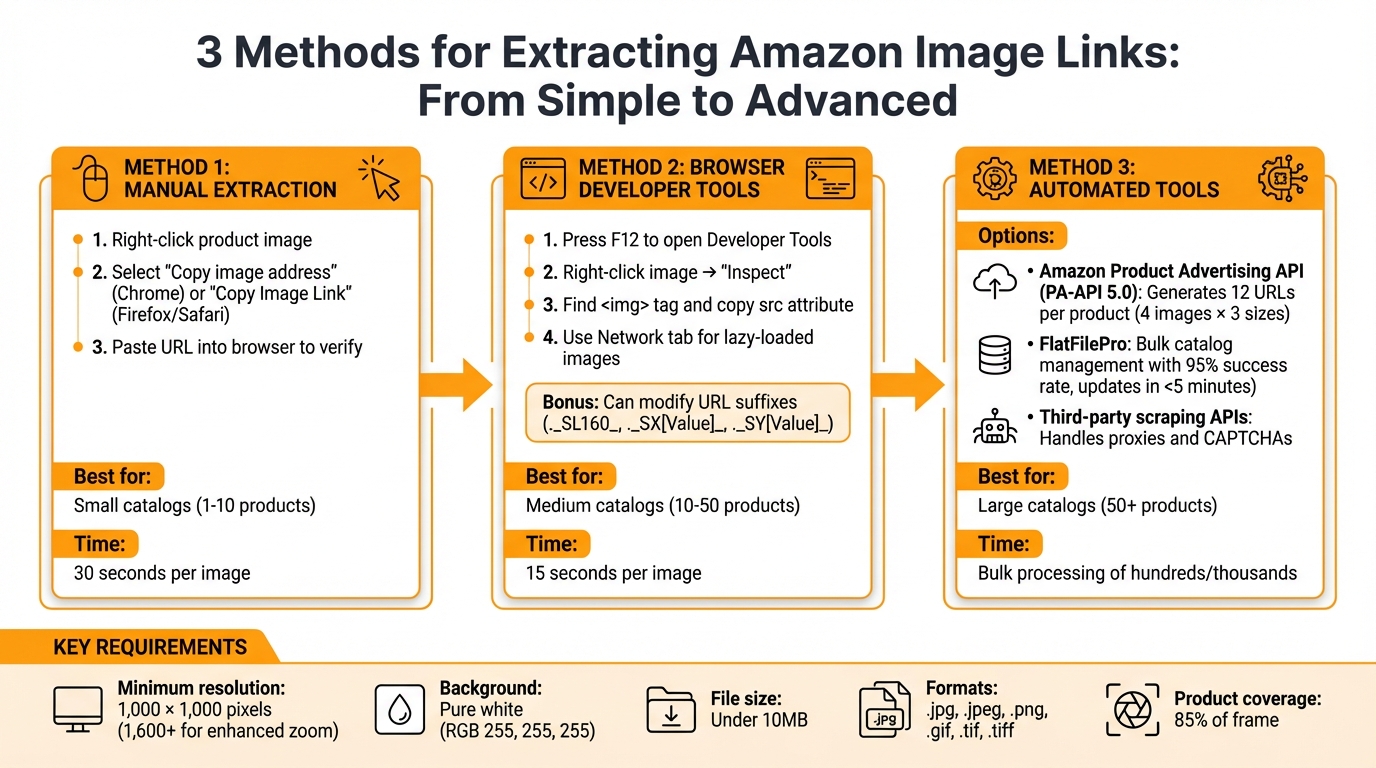
3 Methods to Extract Amazon Product Image Links: Manual, Browser Tools, and Automated Solutions
HOW TO CREATE IMAGE URL FOR AMAZON FLAT FILES! QUICK AND EASY
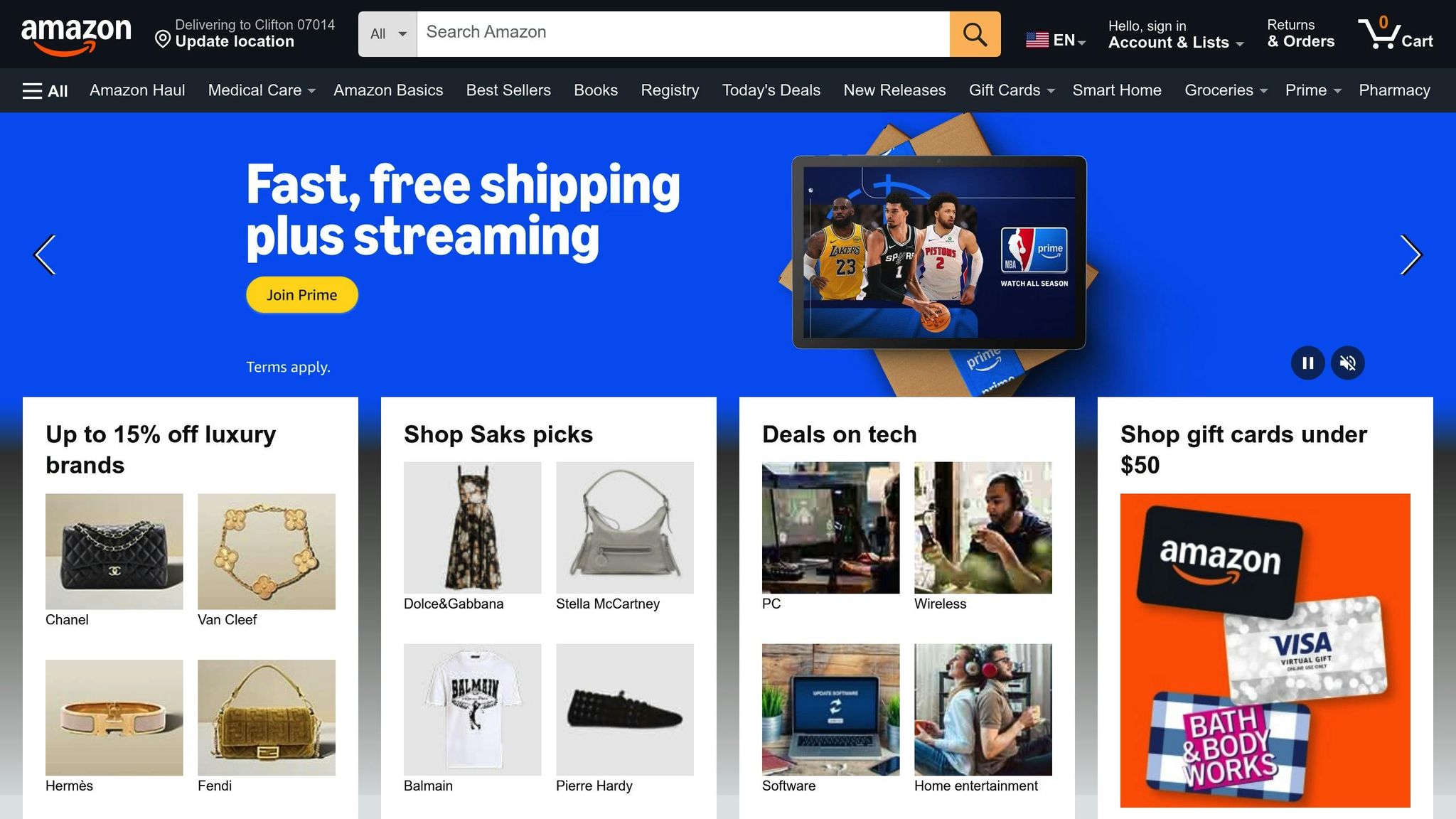
How to Get Image Links from Amazon Product Pages
To grab the direct link to a product image on Amazon, simply right-click the photo. In Chrome, choose "Copy image address", while in Firefox or Safari, select "Copy Image Link." If you’d prefer to see the full-resolution version first, right-click and pick "Open image in new tab." The URL will appear in your browser’s address bar, ready to be copied. Below, we’ll break down some manual steps to refine and confirm these image links.
Copying Image URLs Manually
Amazon image URLs often contain details like the product’s ASIN and size codes. These size codes, such as _SL160_ for 160 pixels or _SL75_ for 75 pixels, can be adjusted or removed to access higher-resolution images. For instance, a typical URL might look like this:
http://images.amazon.com/images/P/B000999999.01...
You can tweak these codes to get the image size you need.
Checking and Verifying Image URLs
Once you’ve copied the URL, paste it into your browser’s address bar to ensure it works. If the image loads correctly, the link is valid. For additional verification, press F12 to open Developer Tools, inspect the HTML, and locate the <img> tag. Check that the src attribute matches the URL you copied. Be sure the URL ends with a proper image format like .jpg, .jpeg, .png, .gif, .tif, or .tiff.
"Amazon recommends that product images are at least 1000 pixels in height and width, but preferably larger as it allows customers to see details clearly if they zoom in on the product image" – Kai Maranon from Helium 10 [6]
For optimal zoom functionality, aim for images that are at least 1,600 pixels on the longest side.
Getting URLs for Variants and Multiple Images
If you need links for additional gallery images or product variants (like different colors or sizes), click on the relevant thumbnail. This will load the selected image into the main viewer. From there, right-click the image and copy its address as usual. Each variant or gallery image will have its own unique URL. Amazon classifies these as "Primary" (the main image shown in search results) and "Variants" (alternative views, colors, or sizes).
Keep in mind that some Amazon image URLs are dynamic and may change if the listing is updated or if Amazon modifies its server setup. For this reason, it’s a good idea to periodically check the links you’ve saved to ensure they’re still active.
Automated Methods for Extracting Amazon Image Links
Manually copying image links might work for a handful of products, but when dealing with a large inventory, browser tools or specialized software can save time and effort.
Using Browser Inspect Tools to Find Image URLs
To locate an image URL directly, press F12 to open your browser’s developer tools. Right-click on any product image and choose "Inspect." This action highlights the <img> tag in the Elements tab, where the src attribute contains the direct image URL. You can copy this link for immediate use.
For images that don’t appear right away – such as lazy-loaded gallery photos – switch to the Network tab in the developer tools. Refresh the page or click through product variants, and you’ll see image files loading dynamically. Filter by "Img" to isolate image requests, making it easier to identify the URLs you need [2].
Amazon image URLs follow a structured format, often including the product’s ASIN and size modifiers like ._SL160_, which specifies 160 pixels on the longest side [5]. You can modify these suffixes to adjust dimensions: use ._SX[Value]_ for width, ._SY[Value]_ for height, or ._SS[Value]_ for square images with white padding [4]. For large catalogs, however, automated tools are a more practical solution.
Automated Tools for Image Link Extraction
Several automated tools can simplify the process of extracting image URLs, especially when dealing with extensive product lists.
One official option is Amazon’s Product Advertising API (PA-API 5.0), which provides URLs for primary images and their variants in three standard sizes: Small, Medium, and Large [1]. For example, if a product has four images, the API generates 12 URLs (four images in three sizes each) [1].
Third-party scraping APIs offer another route, converting Amazon product pages into structured JSON data. These tools handle challenges like proxies and CAPTCHAs automatically [8][9]. For bulk operations, platforms allow you to upload a list of ASINs or inventory files and export corresponding image paths for thumbnails, medium-sized images, and larger versions [4].
For sellers managing hundreds of listings, catalog management software like FlatFilePro can streamline the process. This tool uses API access to update images across an entire catalog, offering features like version control and change tracking. This is particularly useful given that 93% of Amazon sellers experience "catalog rot", where images or listings fail or change without notice [10]. FlatFilePro’s ability to monitor and update images ensures your catalog stays consistent and up-to-date.
Following Amazon’s Terms of Use
While automated tools can speed up the process, it’s crucial to stay within Amazon’s usage guidelines. The safest way to extract image URLs is through official Amazon APIs, such as the Product Advertising API for associates or the Selling Partner API (SP-API) for sellers and vendors [1][7]. These channels provide reliable access while ensuring compliance with Amazon’s policies.
"Like everything else regarding selling on Amazon, staying 100% compliant with its Terms of Service is very important." – Brian Connolly, Ecommerce Expert & Writer, Jungle Scout [12]
When using automated tools, avoid extracting or displaying images that include Amazon trademarks, logos (like Prime or Alexa), or promotional badges such as "Amazon’s Choice" or "Best Seller" [12][13]. Additionally, ensure all images meet Amazon’s technical standards: formats like JPEG, TIFF, PNG, or GIF are required, with dimensions ranging from 500 to 10,000 pixels on the longest side [13]. Main images must have a pure white background (RGB 255, 255, 255) and show the product occupying at least 85% of the frame [12][13].
For sellers using the Selling Partner API, specific permissions such as the "Product Listing" role are necessary to access catalog data [7][14]. Operations like getCatalogItem or searchCatalogItems can retrieve image metadata for your listings [7][14]. For affiliate sites or external storefronts, the PA-API 5.0 provides structured JSON data with URLs for primary and variant images [1][11].
sbb-itb-ed4fa17
Collecting Image Links in Bulk for Large Catalogs
When managing large catalogs, manually copying image URLs is simply not practical. To handle this efficiently, you need systematic methods to gather and organize these links.
Using Spreadsheets for Bulk Image URL Collection
Spreadsheets are a great tool for organizing image URLs, but they need to be set up correctly. For example, Amazon’s flat file templates require direct, publicly accessible image URLs that link directly to the image file – not to a preview page [16]. This means standard cloud sharing links from platforms like Google Drive or Dropbox often won’t work, as they typically lead to preview interfaces, which can cause upload failures.
If you’re working with Google Drive links, you can convert them into direct URLs that Amazon can process using this formula in your spreadsheet:
=CONCATENATE("https://drive.google.com/uc?export=view&id=", MID(A2, 33, 33))
(where A2 contains the original sharing link). Be sure to set your Google Drive folder permissions to "Anyone with the link can view". Keep in mind that Amazon’s system may take up to 24 hours to process and display updated images [3].
Once your spreadsheet is ready, you can rely on Amazon’s flat file templates to manage bulk updates in a structured way.
Amazon Flat File Templates for Image Management
Amazon’s flat file templates simplify the process of managing image URLs by providing dedicated columns for them. The "Template" sheet includes fields like "Main Image URL" and "Other Image URL", where you can paste your direct links [16]. To avoid issues, make sure your images meet Amazon’s requirements: a minimum resolution of 1,000 x 1,000 pixels, a pure white background, and a file size under 10MB. Seller Central’s "Check My Data" feature can help verify these details [16].
"Flat files eliminate manual data entry by allowing sellers to upload product information in bulk, thereby streamlining the listing process, improving accuracy, and reducing the risk of errors." – FlatFilePro [15]
After uploading your spreadsheet, download the Processing Summary from the "Spreadsheet upload status" tab. This report highlights any errors, such as broken links or invalid formats, so you can address specific issues without having to re-upload the entire catalog [17].
For even more streamlined image management, automated platforms can take these processes to the next level.
Managing Images at Scale with FlatFilePro

FlatFilePro makes updating image URLs easier by using API integration to synchronize data across platforms like Amazon, Shopify, and WooCommerce. It automatically pulls existing URLs and flags errors, saving you time and effort [15].
The platform’s Reflection Engine checks nightly to ensure your image data matches live Amazon listings. Green checkmarks confirm accurate updates, while red X’s flag discrepancies, helping you quickly identify and resolve issues.
FlatFilePro also simplifies managing product variants. Its drag-and-drop interface allows you to assign images to variants without wrestling with complex spreadsheets. Plus, its field mapping tool aligns your internal data with Amazon’s required headers, reducing the risk of manual entry errors [15]. Updates are completed in under five minutes with a 95% success rate, and built-in validation catches broken links or formatting issues before submission.
"FlatFilePro ensures that your data is consistent and accurate across all your product listings, helping to provide a seamless shopping experience for your customers and maintaining a positive brand image." – FlatFilePro [15]
The platform exports updated data in CSV, TXT, or Excel formats for quick uploads to Seller Central. It also keeps a detailed activity log, so you can track changes and even roll back updates if needed – a safety net that standard flat files don’t provide [15].
These methods ensure your Amazon catalog remains consistent, accurate, and up-to-date, saving you time while improving the overall quality of your listings.
Keeping Image Links Accurate Over Time
Once your image URLs are set up, it’s important to regularly check that they remain functional. Keeping your image links up-to-date ensures the integrity of your catalog updates and helps maintain compliance with Amazon’s guidelines. While Amazon typically processes updates within 24 hours, links can break or become outdated over time. Routine maintenance is key to avoiding potential issues, like lost sales.
Checking Image URLs for Errors
Make sure your images meet Amazon’s technical standards. At minimum, images should have a resolution of 500 pixels for basic display. However, using 1,000 pixels on the longest side enables the zoom feature, and going up to 1,600 pixels or more provides an enhanced zoom experience that has been shown to improve sales performance [12].
After uploading your flat file, download the Processing Report from the "Spreadsheet upload status" tab in Seller Central. This report identifies specific issues, such as "Invalid URL format (error 15)", so you can address them promptly [18]. If you’re hosting images externally – like on Google Drive – ensure the files are accessible and that folder permissions allow public viewing to avoid broken links [3].
To make future audits easier, organize your URLs systematically.
Organizing Image Links for Easy Access
Use clear labels for spreadsheet columns based on image type, such as "Primary" and "Variant." Amazon distinguishes between "Primary" images, which appear in search results and on the main product page, and "Variants", which show alternate views [1]. For catalogs with multiple variations, consider adding separate columns for main images, alternate angles, and variation-specific images to simplify updates.
You can also apply consistent URL suffixes to maintain uniform sizing across your catalog. For instance, adding ._SL160_ to an image URL adjusts the longest side to 160 pixels, while ._SS160_ creates a 160×160 pixel square with white padding to prevent distortion [4]. This method allows you to store a single high-resolution image and dynamically generate different sizes, streamlining updates.
Using FlatFilePro for Ongoing Image Management
Automation tools can make monitoring and managing image links much easier. FlatFilePro’s Reflection Engine, for example, checks your catalog nightly against live Amazon listings. Green checkmarks indicate accurate URLs, while red X’s flag broken links or discrepancies requiring attention [10]. This automated system helps catch issues early, preventing disruptions to your listings.
FlatFilePro also includes built-in validation tools to detect problems like incorrect URL formats or low-resolution images before submission [15]. The platform’s activity log tracks every change made to your image URLs, making it simple to roll back updates if needed [10]. For sellers managing listings across multiple international marketplaces, FlatFilePro enables you to push image content from one region to another – such as from Amazon US to Amazon UK – ensuring consistency across all your listings [10].
"Our Reflection Engine monitors every heartbeat of your catalog, alerting you the moment rot spreads." – FlatFilePro [10]
Conclusion
Effective image link management is essential for maintaining smooth catalog operations. On Amazon, managing image links can be done through manual updates, browser-based tools, or bulk flat file uploads – your choice depends largely on the size of your catalog.
Listings with properly formatted images not only align with Amazon’s algorithm but also enhance customer trust. High-quality product photos can even help reduce returns [3].
"FlatFilePro ensures that your data is consistent and accurate across all your product listings, helping to provide a seamless shopping experience for your customers and maintaining a positive brand image." – FlatFilePro [15]
For larger catalogs, automation can be a game-changer. It saves time, identifies errors quickly, and ensures your listings remain accurate and competitive. Combining manual attention to detail with automated tools creates a reliable system for managing your catalog.
Whether you’re overseeing a small catalog or thousands of listings, having a structured process for image link management safeguards your operations and supports steady growth. Regular audits and well-organized tools are key to staying in control of your catalog.
FAQs
How can I quickly and easily extract Amazon product image links for a large inventory?
To efficiently extract Amazon product image links for a large inventory, you can leverage tools like the Amazon Product Advertising API (PA API 5.0) or bulk-export features from specialized platforms. These options make it possible to handle thousands of product identifiers – such as ASINs or SKUs – and compile a CSV file with image URLs for your listings.
Here’s how to get started: first, create a spreadsheet containing your product identifiers (ASINs or SKUs). If you’re using the PA API, you’ll need to register for access and write a script that calls the API’s Images resource to retrieve the image URLs. Alternatively, bulk-export tools allow you to upload your spreadsheet, and they’ll automatically process the data to produce a file with URLs for small, medium, and large images.
Once you’ve extracted the image links, save the results as a CSV file. This format makes it easy to integrate the data into your catalog management system, streamlining updates and cutting down on manual work.
What mistakes should I avoid when checking Amazon product image URLs?
When checking Amazon image URLs, there are a few frequent errors that can cause broken images or even listing rejections. Here’s what to keep an eye on:
- Incorrect URL formatting: Make sure the URL adheres to Amazon’s required structure. This includes the correct size suffix (like
_SLXXX_) and file path. If any elements are missing or incorrect, it could lead to broken links or improperly sized images. - Using thumbnails or placeholder links: Amazon has strict image requirements. They need high-resolution images with a white background, and the product should take up at least 85% of the frame. Low-quality images or placeholders won’t make the cut and may be flagged during validation.
- Flat-file formatting errors: Common mistakes like missing fields, stray characters, or improper encoding (such as not using UTF-8) can mess up your URLs. Always double-check that URLs are entered correctly and ensure your file is saved in the right format before uploading.
By addressing these issues, you can ensure your images meet Amazon’s standards and display as intended.
Why should Amazon sellers regularly review and update their product image links?
Keeping your product image links up-to-date is crucial to avoid problems like broken or outdated images. These issues can hurt your visibility, lead to listing suppression, and create a poor impression on potential customers. Accurate and compliant image links not only help you maintain a polished catalog but also enhance the shopping experience and safeguard your sales performance.
By routinely checking and updating these links, you can steer clear of disruptions, ensure compliance with Amazon’s guidelines, and keep your listings in top shape for better results.