
Managing Amazon product images can be time-consuming, especially when dealing with bulk uploads. A free Amazon Image Link Generator simplifies this process by converting image files (JPG, PNG, GIF, WebP) into direct URLs instantly – no sign-up, email, or payment required. This tool supports batch uploads, compresses large files, and ensures images meet Amazon’s strict requirements, like pure white backgrounds and proper dimensions.
Key Highlights:
- No Sign-Up Required: Upload images and get URLs instantly.
- Supports Bulk Processing: Handle multiple images at once.
- Automatic Resizing: Ensures images comply with Amazon standards.
- Direct URLs: Links end in .jpg or .png for seamless integration.
This tool is ideal for small sellers or high-volume operations, saving time and reducing errors in Amazon product catalog management. Pair it with tools like FlatFilePro for streamlined inventory updates and faster workflows.
HOW TO CREATE IMAGE URL FOR AMAZON FLAT FILES! QUICK AND EASY
sbb-itb-ed4fa17
Amazon’s Image Requirements Explained
Amazon Product Image Requirements and Specifications Guide
Before generating image links for your Amazon listings, it’s crucial to ensure your photos align with their technical standards. Amazon uses automated bots to review every uploaded image, and even minor issues can lead to your listing being suppressed within hours. Knowing these rules upfront can save you time, rejected uploads, and potential sales losses.
Required Image Specifications
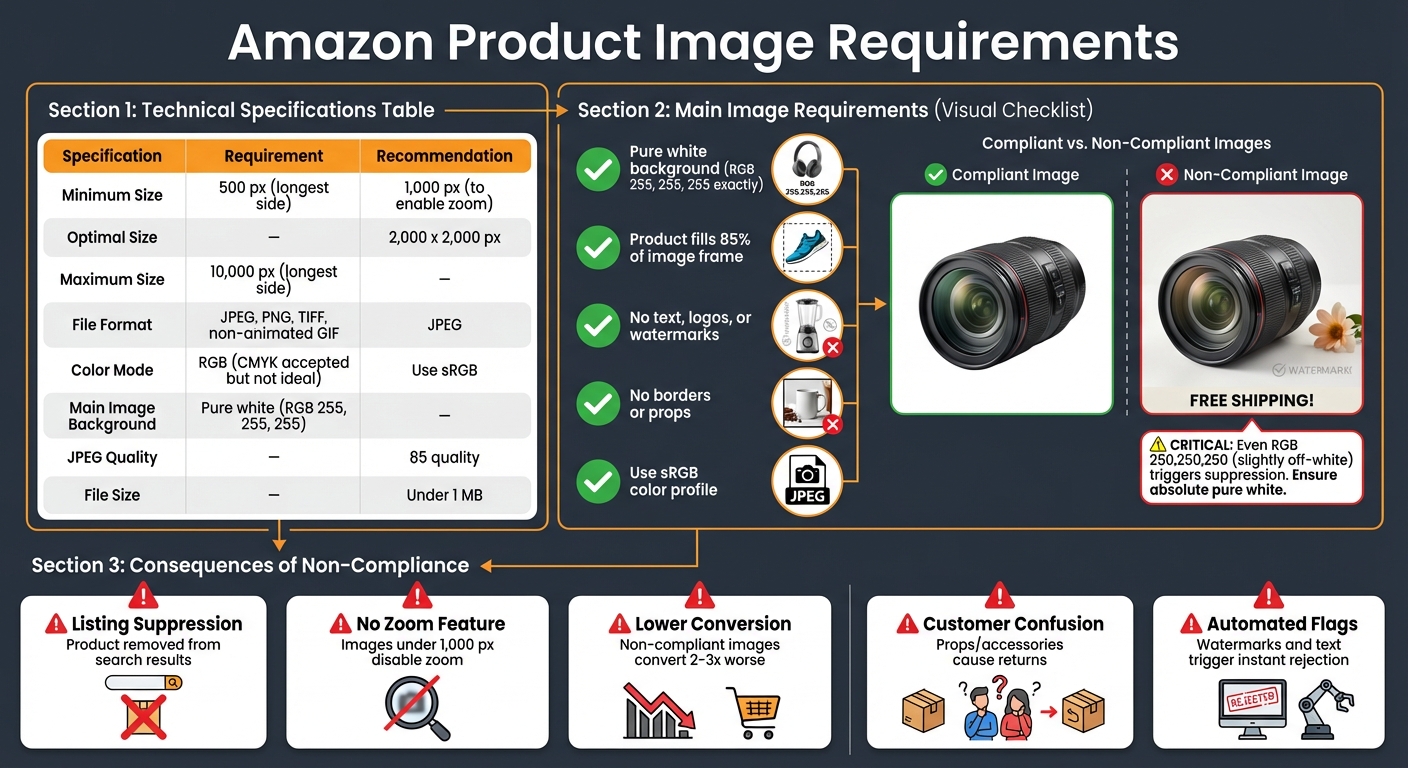
Amazon supports several file formats, including JPEG, PNG, TIFF, and non-animated GIFs, but JPEG is the recommended option for the best results. For sharp, professional-looking images, aim for a resolution of 2,000 x 2,000 pixels.
The main image, often called the hero shot, has the strictest guidelines. It must have a pure white background with exact RGB values of 255, 255, 255. Even slightly off-white backgrounds, like 250, 250, 250, can trigger Amazon’s automated suppression system. The product should take up at least 85% of the image frame, and the image must not include any text, logos, watermarks, borders, or props that aren’t part of the product. To avoid color issues on Amazon’s site, use the sRGB color profile rather than CMYK.
| Specification | Requirement | Recommendation |
|---|---|---|
| Minimum Size | 500 px (longest side) | 1,000 px (to enable zoom) |
| Optimal Size | – | 2,000 x 2,000 px |
| Maximum Size | 10,000 px (longest side) | – |
| File Format | JPEG, PNG, TIFF, non-animated GIF | JPEG |
| Color Mode | RGB (CMYK accepted but not ideal) | Use sRGB |
| Main Image Background | Pure white (RGB 255, 255, 255) | – |
For optimal performance, save JPEGs at 85 quality and keep file sizes under 1 MB. This ensures faster loading times and better zoom functionality.
Problems Caused by Non-Compliant Images
Following Amazon’s image requirements isn’t just about looking professional – it’s about avoiding penalties that can hurt your sales. The most common consequence of non-compliance is listing suppression. Amazon will remove your product from search results until you upload a compliant image, which means lost visibility and immediate sales impact.
"Listings with high-quality, compliant images convert at 2-3x the rate of those with mediocre visuals – and Amazon doesn’t just prefer good images, they’ll actively suppress your listing if you break their rules." – Alexandra Sheehan, Author
Images that fall below 1,000 pixels on the longest side disable the zoom feature, making it harder for customers to inspect details. This can reduce trust and lower conversion rates. Including props or accessories in your main image that aren’t part of the purchase can confuse shoppers, leading to negative reviews and higher return rates.
Amazon’s automated systems are quick to flag issues like watermarks, non-white backgrounds, or promotional text. Even small mistakes, like incorrect file names during bulk uploads, can cause images to mix up between similar products, damaging customer trust and your brand reputation.
How to Access the Free Amazon Image Link Generator
Where to Find the Tool
FlatFilePro’s free Amazon Image Link Generator is ready for you to use directly online – no downloads, sign-ups, or payments required. Just head to FlatFilePro’s tool page, and you’re good to go.
This tool is all about simplicity and speed. You can start uploading product images and generating shareable URLs in seconds. Plus, since it’s browser-based, it works seamlessly on desktops, laptops, and tablets.
Now let’s dive into how this tool handles your images without needing an account.
How the Tool Works Without Sign-Up
This generator is built to meet Amazon’s strict image requirements while making your workflow easier. Everything happens right in your browser – no need to provide an email, phone number, or payment info. All you have to do is drag and drop your images into the interface.
Supported file formats include JPG, PNG, GIF, and WebP, with a file size limit of 20MB. If your image is over 5MB, the tool automatically compresses and resizes it to ensure quick loading times while keeping the quality intact. Within moments, you’ll have a direct image URL ending in .jpg or .png, formatted to meet Amazon’s Seller Central standards.
It also remembers your uploaded files locally, so you can quickly retrieve links without uploading the same images again. For those managing large inventories, the bulk upload feature is a lifesaver. It allows you to process multiple images at once, generating numerous links in a single go – no registration needed. This is especially handy for sellers updating dozens or even hundreds of product listings in one session.
Step-by-Step: Generating Amazon Image Links
Step 1: Get Your Product Images Ready
Start by organizing your product images using the no-sign-up tool designed for instant URL generation. Make sure your image files are in an accepted format – JPG, PNG, GIF, or WebP – and under 20 MB in size. Double-check that the files are intact to avoid any upload errors.
If you’re managing a large inventory, it’s a good idea to sort your images into folders by product category or SKU. This will help you stay organized, especially when processing multiple listings.
Once everything is set, you’re ready to upload your images in the next step.
Step 2: Upload Images to the Tool
Head over to the FlatFilePro tool page and upload your images. You can drag and drop files directly into the interface or click to browse and select them from your computer. The tool supports batch uploads, so you can handle multiple images in one go.
For high-resolution files, the tool automatically compresses and resizes them to balance fast loading times with maintaining good visual quality.
Step 3: Generate and Save Image URLs
After uploading, the tool will generate direct URLs for your images. You can either copy each URL one at a time or download all of them at once if you’re working with several images. These URLs are formatted to meet Amazon’s image requirements.
The tool temporarily stores your generated links in your browser, allowing you to return later and retrieve them without needing to re-upload files. To stay organized, save the URLs in a spreadsheet or document.
Once you have your URLs, it’s time to test them before applying them to your Amazon listings.
Step 4: Test and Use the Links in Your Listings
Before adding the links to your listings, open each URL in an incognito browser window to ensure the image loads directly. There should be no landing pages or ads – just the product image itself.
When the links are verified, you can include them in your Amazon inventory flat file or paste them directly into the "Images" tab in Seller Central. Keep in mind that it may take up to 24 hours for the new images to appear on your product detail pages after submission.
Bulk Image Processing with the Generator
Preparing Large Image Batches
When dealing with a large number of images, it’s smart to organize them by product categories, SKUs, or ASIN numbers. This makes it easier to keep track of processed files and ensures nothing gets lost in the shuffle.
Before uploading, adopt a clear and consistent file naming convention. Include the variant type in the name, such as MAIN, SIDE, BACK, or PT01. For instance, you might name files like SKU12345_MAIN.jpg or B08ABCD123_PT02.png. This step is critical for ensuring the generated links correspond accurately to your product listings.
For especially large batches, compress your images into a single ZIP file. The tool will automatically extract and process each image inside, saving you from manually uploading hundreds of files. Just make sure all images are in an accepted format before uploading.
Once your images are organized and properly named, you’re ready to generate their links in bulk with minimal effort.
Generating Links for Multiple Images at Once
To process your batch, simply drag and drop your folder or ZIP file into the tool’s interface. The system will handle each image, creating a unique URL for every file. When it’s done, you can download all the links in one go, typically as a text file or spreadsheet.
"Our tool processes each image and creates separate shareable image URLs for every file – perfect for Amazon sellers managing product photo catalogs." – Aarif Alam [3]
The tool allows you to export the URLs as a CSV file, complete with columns for SKU, image type, and URL. This format is ideal for bulk updates and works seamlessly with Amazon inventory flat files, making catalog management smoother.
It’s a good idea to keep a local backup of both your images and the generated links. Free tools often don’t guarantee permanent storage, and links may expire over time.
For sellers managing thousands of images, this batch processing approach can save hours of work, giving you more time to focus on other critical tasks in catalog management.
Fixing Common Image Link Generator Issues
In this section, we’ll tackle some common challenges you might encounter when using an image link generator. These issues can disrupt bulk image processing or cause problems with Amazon listings, but most can be resolved quickly once you identify the root cause.
Upload errors are often related to file size or format. Many free tools limit uploads to 20 MB [3] or 25 MB [4] and only support specific formats like JPG, PNG, GIF, and WebP [1][3]. If you’re working with TIFF, BMP, or RAW files, you’ll need to convert them to a supported format before uploading.
Browser issues can also cause trouble. If the upload button doesn’t respond or the process gets stuck, clearing your browser cache or switching to incognito mode can help [3].
Broken links are another frequent problem, often caused by link expiration. Some tools only keep links active for an hour unless you’re a registered user [4], while others allow up to 30 days [1]. If a link shows a 404 error, simply re-upload the image to generate a new URL. In the case of Amazon Error 15, double-check the URL format in your inventory file to fix any typos or invalid characters [2].
Here’s a quick reference table to help you troubleshoot common problems:
Table: Problems and Solutions
| Problem | Common Cause | Recommended Solution |
|---|---|---|
| Upload Fails/Stops | File size exceeds limit (>20 MB or >25 MB) | Compress the image before uploading [1][3][4]. |
| "Unsupported Format" Error | Using TIFF, BMP, or RAW files | Convert the image to JPG, PNG, GIF, or WebP before uploading [1][3]. |
| Button Unresponsive | Browser cache or extension conflict | Clear browser cache or try using the tool in Incognito/Private mode [3]. |
| Upload Interrupted | Unstable internet connection | Refresh the page and check your connection before retrying [3]. |
| Link Not Working on Amazon | Invalid URL format (Error 15) | Ensure the generated URL is a direct link and check for formatting errors [2]. |
| Image Not Appearing on Listing | Amazon processing delay | Wait up to 24 hours for the image to sync with the product detail page [2]. |
| Link Returns 404/Error | Link has expired (1 hour or 30 days) | Re-upload the image or register for permanent hosting [1][4]. |
| Batch Processing Stops | Daily/Monthly quota reached | Check if you have exceeded the 100/day or 500/month limit [3]. |
Using FlatFilePro with Your Amazon Workflow

Managing Listings with FlatFilePro
After generating direct image URLs, you can integrate them into your Amazon listings. Amazon allows sellers to include product image URLs directly in inventory files for bulk updates [2].
FlatFilePro simplifies this process by connecting directly to your Amazon Seller Central account via Amazon’s API. This eliminates the need for manual spreadsheet uploads. All you have to do is paste the generated links into FlatFilePro’s dashboard, and your catalog updates in just minutes. The tool’s Reflection Engine performs nightly checks on your listings, marking successful updates with green checkmarks and flagging any issues with red X’s.
With FlatFilePro, you can update main images, alternate views, and lifestyle shots across all your product lines without worrying about formatting errors that could cause Error 15 (Invalid URL format) [2]. This integration makes the transition from image generation to listing management smooth and efficient.
Benefits of Combining Both Tools
Pairing the image link generator with FlatFilePro takes your workflow to the next level. The generator creates direct CDN links that meet Amazon’s requirements for automated image ranking technology [2][3]. FlatFilePro ensures these links are correctly formatted and applied to your listings without errors, saving you time and effort.
For instance, when adding product images to multiple child ASINs under a parent listing, you can generate all the necessary URLs in one batch upload session [3]. Then, using FlatFilePro’s drag-and-drop interface, you can assign the URLs to the correct variations in under five minutes. This method achieves a 95% success rate, far outperforming traditional approaches that often disrupt listing relationships. Plus, since some free hosting services keep links active for 30 days or more [1][3], you can reuse these URLs for future updates without needing to re-upload files.
Conclusion
Handling product images doesn’t have to drain your time or budget. With this free tool, you can instantly create shareable image URLs – no sign-up required. Pair it with FlatFilePro, and you’ll simplify catalog management even further by cutting out manual spreadsheets and speeding up listing updates. FlatFilePro also takes care of the technical work, ensuring your image links integrate seamlessly into your catalog without formatting hiccups. Plus, its Reflection Engine checks your listings nightly, so you’ll know right away if updates went live or need attention.
This efficient process not only saves time but also slashes operational costs. Kevin Sanderson, Marketing and Partnerships Manager at My Amazon Guy, highlights that AI-driven image tools can reduce photography costs by up to 80% compared to traditional methods [5]. This is a game-changer for sellers managing extensive catalogs or seasonal products.
Try generating a few image links for your next listing update and see how effortlessly it works. Once you experience how fast and easy it is, you’ll wonder why you ever juggled complicated cloud storage systems. Connect those links to FlatFilePro’s dashboard, and you’ll take your Amazon catalog management to the next level.
FAQs
How long do the generated image links stay active?
The links for generated images typically stay active indefinitely unless the hosting service states otherwise. Many sources refer to them as "lifetime valid" or simply omit any mention of an expiration date. That said, if you’re relying on these links for long-term use, it’s a smart move to double-check with the hosting platform to ensure their reliability.
Will Amazon accept these URLs for both main and secondary images?
Amazon allows the use of these URLs for both main and secondary images. These links are direct and shareable, ensuring they align with the platform’s requirements for product listings. This makes them a practical choice for your entire catalog.
What should I do if Amazon shows Error 15 for an image URL?
If you encounter Error 15 on Amazon for an image URL, double-check that the URL adheres to proper formatting rules. It should use the http protocol, avoid spaces or special characters like ?, @, or &, and follow a valid structure – such as http://www.domain.com/directory/image-file.jpg. Additionally, ensure the URL points to a publicly accessible image in an accepted format, such as .jpg, .tif, or .gif.